


by ByteDanceVideo

OmniHuman 1.5
A portrait that speaks your audio with lifelike expression, up to 60 seconds
- Up to 1080p
From 135 credits per second of video≈ $0.14
What is OmniHuman 1.5?
OmniHuman 1.5 is ByteDance's photo-to-performance model from August 2025. Give it a portrait and a recording of speech or singing, and it returns that person delivering the audio at 720p or 1080p, for anything from 1 to 60 seconds. Compared with its successor OmniHuman 2.0, it keeps full HD output, a seed and a far longer direction box, but it moves the body less and stops at one minute.
Best on PopNow for: Composed presenter shots where a calm face matters more than big gestures: a short welcome, a product explainer under fifteen seconds, or a sung chorus laid over a still portrait.
What OmniHuman 1.5 does well
Full HD for the 720p price
Both output sizes are billed at one rate per audio second, so there is rarely a reason to pick the smaller one. Our vertical 1080 by 1920 portrait came back at 1088 by 1920, and of all the clips we lined up from that photo it was the most stable from first frame to last.
Room for detailed direction, plus a seed
The optional prompt holds up to 2,000 characters, against 300 on OmniHuman 2.0, so expression, one gesture, the setting and the camera can each get their own sentence. A seed field lets you rerun with a single instruction changed and everything else pinned; it narrows the variation between runs without promising an identical file.
Speech or song, one minute at most
The recording can be talking or singing, MP3 or WAV up to 15 MB, lasting 1 to 60 seconds. ByteDance itself suggests about fifteen seconds per clip for the cleanest result, so a long script is better cut into short takes and joined later in an editor.
Real results from OmniHuman 1.5
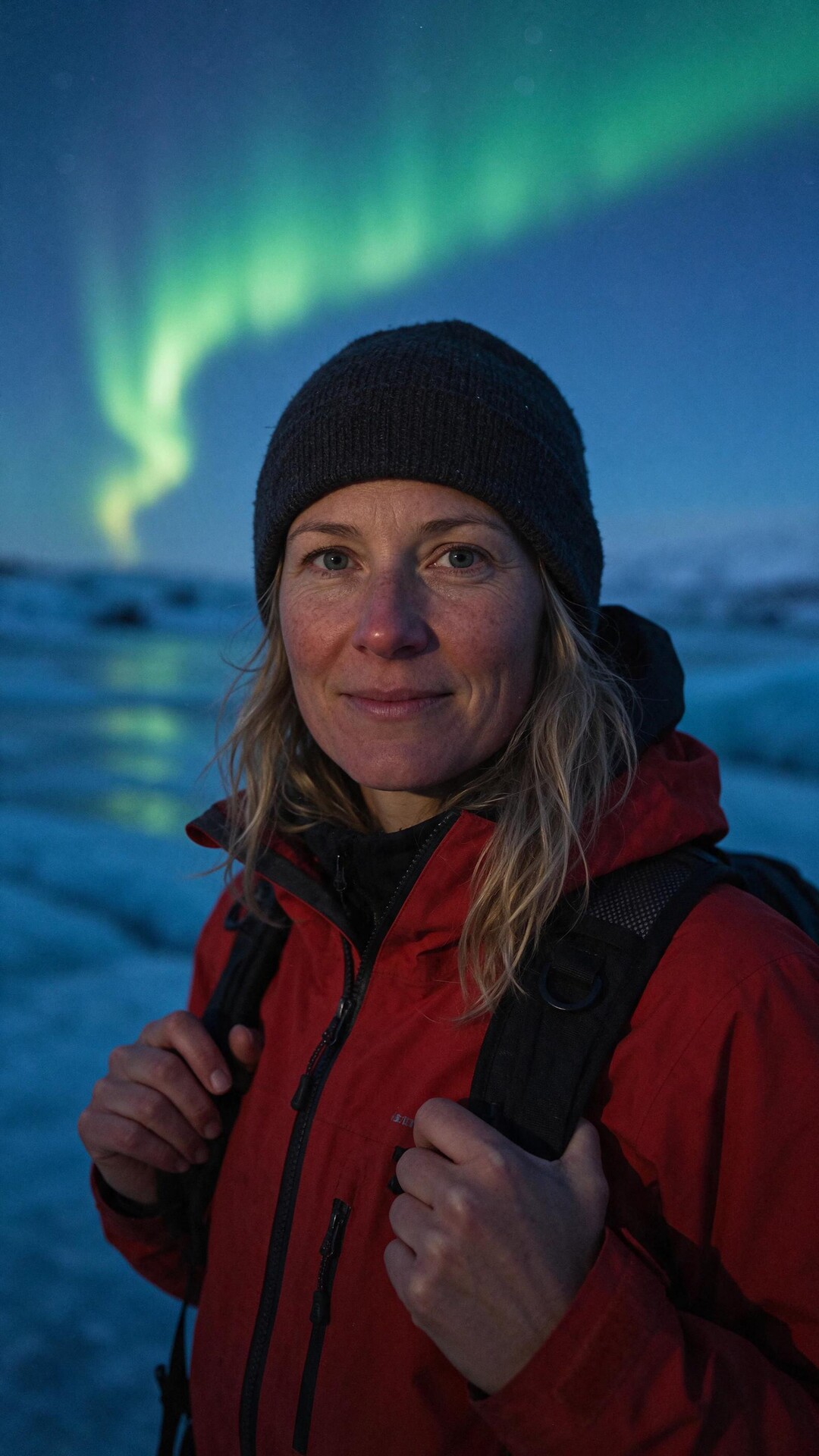 Input
Bring your own image
Prompts that worked on OmniHuman 1.5
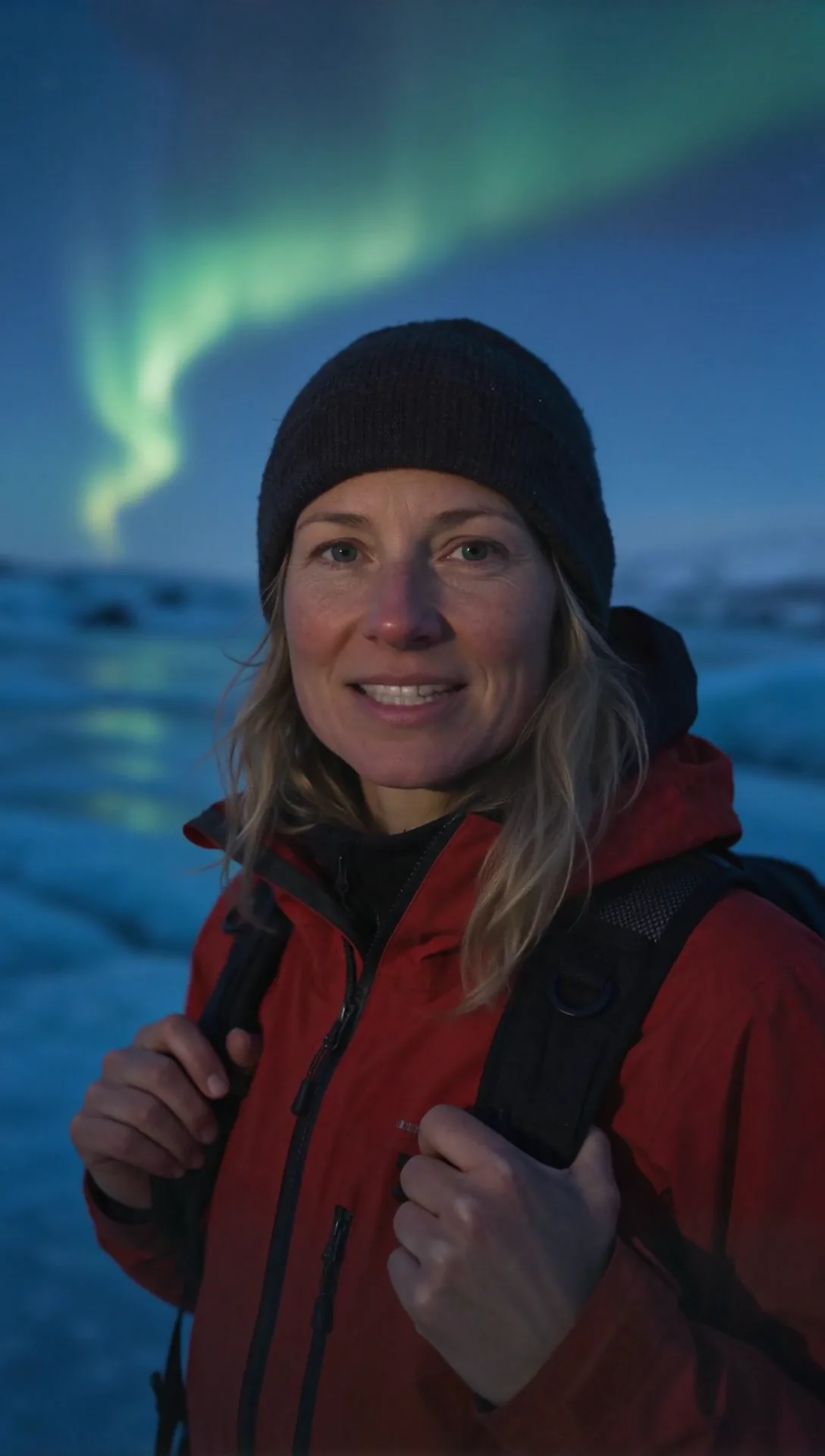
She speaks warmly and quietly to the camera like she is sharing a secret, glancing up at the sky once, the wind moving loose strands of her hair.
The input was our fictional Icelandic glacier guide (red shell jacket, black beanie, both hands on her backpack straps, aurora behind her) with a 6.5-second line that pauses softly after 'Tonight'. The direction asked for a warm, secret-sharing delivery and one glance at the sky. OmniHuman 1.5 kept the mouth on every word and added light nods and shifts of the gaze, while the body stayed nearly still, making it the calmest of the nine talking-avatar models we ran on those inputs. That restraint is the reason to choose it; if you want a wave or a turn, frame the photo with room for it and expect only a modest move.
RecreateWhat OmniHuman 1.5 can do

Best ways to use OmniHuman 1.5 on PopNow
A narrated welcome with a fixed presenter
Upload the portrait, type a line or bring your own recording, and switch the model to OmniHuman 1.5 when the delivery should stay composed and never pull attention from the words.
OpenPut a sung chorus on a portrait
Make or upload a short sung phrase in the audio workspace, then pair it with the photo. Holding it to roughly fifteen seconds follows ByteDance's own advice for this model.
OpenDesign a presenter with room to gesture
Create an original host framed from the waist up with both hands in view. OmniHuman can only animate what the picture contains, so a tight headshot leaves it no hands to move.
OpenSettings worth knowing
Resolution720p · 1080p- Choose an available output size.
Image- The picture to start from.
Audio- The voice or music track to use.
Seed0–2147483647- Use the same seed and settings for more controlled comparisons.
Similar models


Where OmniHuman 1.5 falls short
- Movement is the most reserved in the group. In our side-by-side run it gave small nods and eye movement with the torso almost frozen, the least motion of any model we compared; HeyGen Avatar 6 Turbo moved far more on identical inputs.
- Each clip is capped at 60 seconds and ByteDance recommends around 15, so anything longer has to be split into separate generations and stitched together.
- Its per-second rate sits above HeyGen Avatar 6 at 1080p, and there is no cheaper draft size to fall back on because 720p is charged exactly the same.
How to use OmniHuman 1.5 in three steps
- Open the talking avatar mode with OmniHuman 1.5 selected and upload a sharp, front-facing portrait you made or have permission to use; leave the hands in frame if they should move.
- Add the finished recording, trimmed to just the words you need, and optionally describe the expression and one or two actions in the direction box.
- Keep the resolution at 1080p, since both sizes cost the same, check the total on the button and generate.
Questions about OmniHuman 1.5
How much does OmniHuman 1.5 cost?
On PopNow, OmniHuman 1.5 starts at 135 credits ($0.14) per second of video.
Is OmniHuman 1.5 free to use?
No. It is charged per second of the audio you upload, at 135 credits per second whichever resolution you choose, with part seconds rounded up. A ten-second line comes to 1,350 credits, and the button shows the total before anything runs.
How long can an OmniHuman 1.5 video be?
Between 1 and 60 seconds, matching the recording. ByteDance advises keeping each clip to about 15 seconds for quality. Our 6.5-second test line returned a 6.6-second file.
OmniHuman 1.5 vs OmniHuman 2.0: which should I use?
Pick 1.5 for 1080p output, the 2,000-character direction box, a seed and the calmest delivery. Pick 2.0 for recordings longer than a minute (it takes 4 to 300 seconds), a more expressive face and a lower per-second rate, accepting that it only renders 720p.
Can OmniHuman 1.5 make a photo sing?
Yes, the audio can be a sung track rather than speech. The direction can set the mood of the performance, but the melody and lyrics come only from the recording, so finish the vocal first.
Should I choose 720p or 1080p?
1080p in nearly every case. The two tiers share a single rate, so the smaller size only helps when you need a lighter file for a slow connection.
What does the seed setting do?
It holds the random starting point while you change one instruction, which makes it easier to see what that instruction did. Two runs with an equal seed can still differ a little, and the value has no effect on cost.
What kind of photo gives the best result?
A sharp JPEG, PNG or WebP portrait up to 30 MB with the face toward the camera. Crop it the way you want the video framed, because there is no aspect ratio setting, and include the hands whenever the direction mentions a gesture.
Make something with OmniHuman 1.5
Record the line first, crop the photo the way the final video should look, and let OmniHuman 1.5 deliver it at 1080p without fuss.