
by PopNowVideoNew
3D to Video
Block a shot in gray 3D, paint one frame, get the finished clip with the same camera move
- Up to 1080p
- Start and end frames
From 48 credits per second of video≈ $0.048· 720p
What is 3D to Video?
3D to Video is a PopNow tool that paints over a grey 3D animation. The layout sets the camera move, motion, timing and aspect ratio, a restyled copy of its first frame sets the colour, light and materials, and the result keeps your blocking exactly while looking like a finished shot.
Best on PopNow for: Previs and pitch shots where the camera move is already decided, and dressing one animation as several different worlds that cut together.
Good for
- Previs and pitch shots where the camera move has to be exact
- One animation dressed as several different worlds that still cut together
- Fly-throughs and orbits around a set before it is modelled in detail
What 3D to Video does well
Your camera move, not a guess
We rendered a slow 46-degree orbit around a grey stepped pyramid with a few ball-shaped trees and a capsule for a person. The finished clip followed the same arc to the frame: a moss-covered jungle temple at sunrise, an explorer walking toward the steps, mist and rays of light.
One painted frame sets the look
The look comes from an image, not from a long prompt. A snow-covered street at blue hour, warm windows and a red-and-cream tram, painted onto the first and last grey frames, carried through all five seconds while the tram rolled toward the camera.
Same timing every time
Output length always equals layout length, up to two minutes. Keep one layout and change only the look image and the sentence, and every version has identical timing, so they cut together.
Real results from 3D to Video
Bring your own clip
Bring your own clip
Prompts that worked on 3D to Video
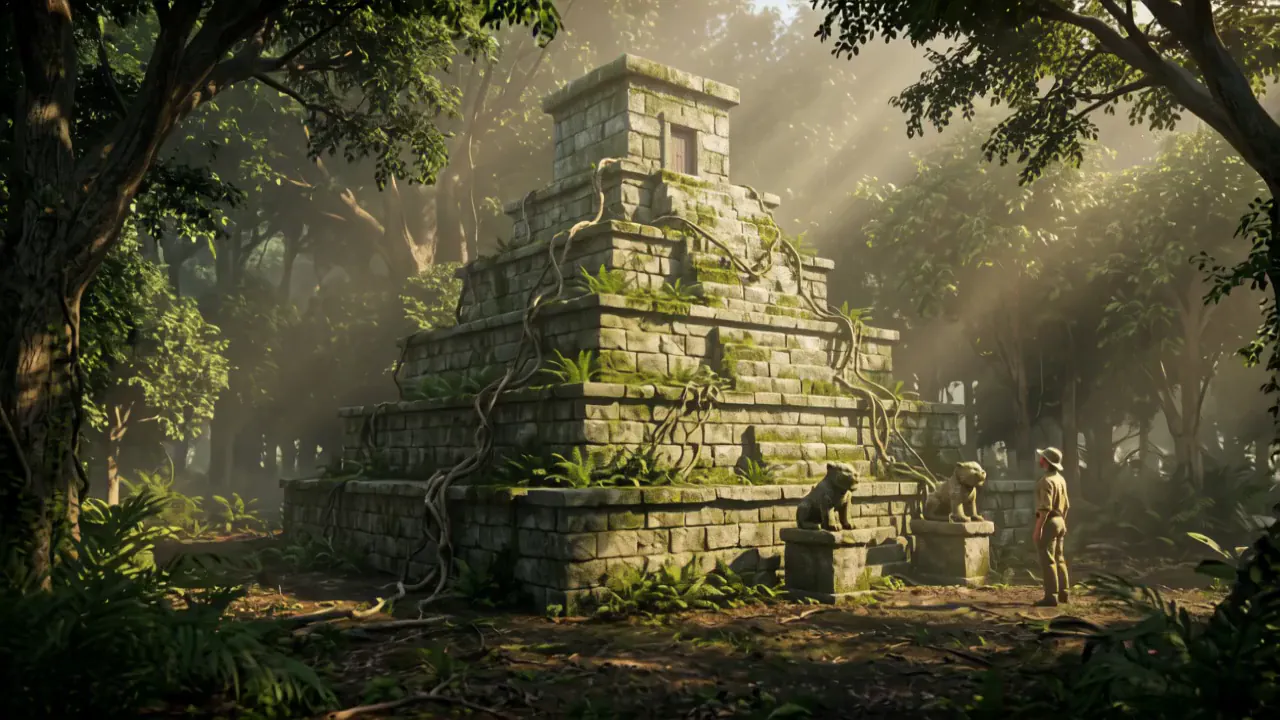
An ancient moss-covered stone pyramid temple deep in a tropical jungle at sunrise, mist drifting through warm rays of light while an explorer in a khaki shirt walks toward its steps as the camera slowly circles.
The sentence describes only what the viewer sees, a temple, mist, an explorer, a circling camera, and never mentions grey models or 3D. The look images do the heavy lifting; the prompt just confirms them.
RecreateWhat 3D to Video can do

Best ways to use 3D to Video on PopNow
How to prompt 3D to Video
- Make the look image from the exact first frame you send and keep every shape where it is. When our painted pedestrian stood on the pavement but the grey figure walked in the road, a second, half-transparent person faded in until we moved the blockout onto the pavement.
- Give vehicles and props a readable silhouette. A plain dark box we used as a tram turned into two trams side by side; adding windows, a headlight and a pantograph gave us one tram that stayed one tram.
- For anything longer than about three seconds, restyle the last frame as well and pass it as the closing image to keep the look steady to the end.
Settings worth knowing
Resolution720p · 1080p- Choose an available output size.
Image- The picture to start from.
End frame- Reference image to guide the final frame.
Video- The clip to work on.
Seed0–2147483647- Use the same seed and settings for more controlled comparisons.
Where 3D to Video falls short
The output is always exactly as long as the layout, up to two minutes, billed per second at 720p or 1080p. Do not send the untouched grey frame as the look image, or the result stays grey.
- Anything that does not match between the grey layout and the look image can turn into ghosts or duplicates, so restyle the exact frame you send.
- Blocky stand-ins need a readable silhouette; a plain box may be reinterpreted as something else or split in two.
- Layouts run from 1 to 120 seconds; longer shots have to be split into parts.
- Sending the untouched grey frame as the look image leaves the result grey.
How to use 3D to Video in three steps
- Render your camera move as a plain grey or clay animation, ideally at 24 fps.
- Restyle its first frame (and, for shots over about three seconds, its last frame) with an image model, keeping every shape in place.
- Upload the layout and the look images, write one sentence about the finished shot and render at 720p or 1080p.
Questions about 3D to Video
What is a grey layout?
A quick render of your 3D scene with plain grey materials. It only has to show shapes, the camera move and the timing.
Do I need the last frame as well?
For shots longer than about three seconds, yes. A restyled last frame keeps the look steady to the end of the clip.
How long is the result?
Exactly as long as the layout you upload, from 1 to 120 seconds, at 720p or 1080p with the layout's aspect ratio.
How much does 3D to Video cost?
It is billed per second of the layout: five seconds at 720p costs 240 credits, and 1080p has a higher per-second rate.
What should the prompt say?
One or two plain sentences about the finished scene. Do not mention clay, grey models, 3D or the layout.
Make something with 3D to Video
Decide the shot in grey, paint one frame, and let 3D to Video carry that look through every second of your move.