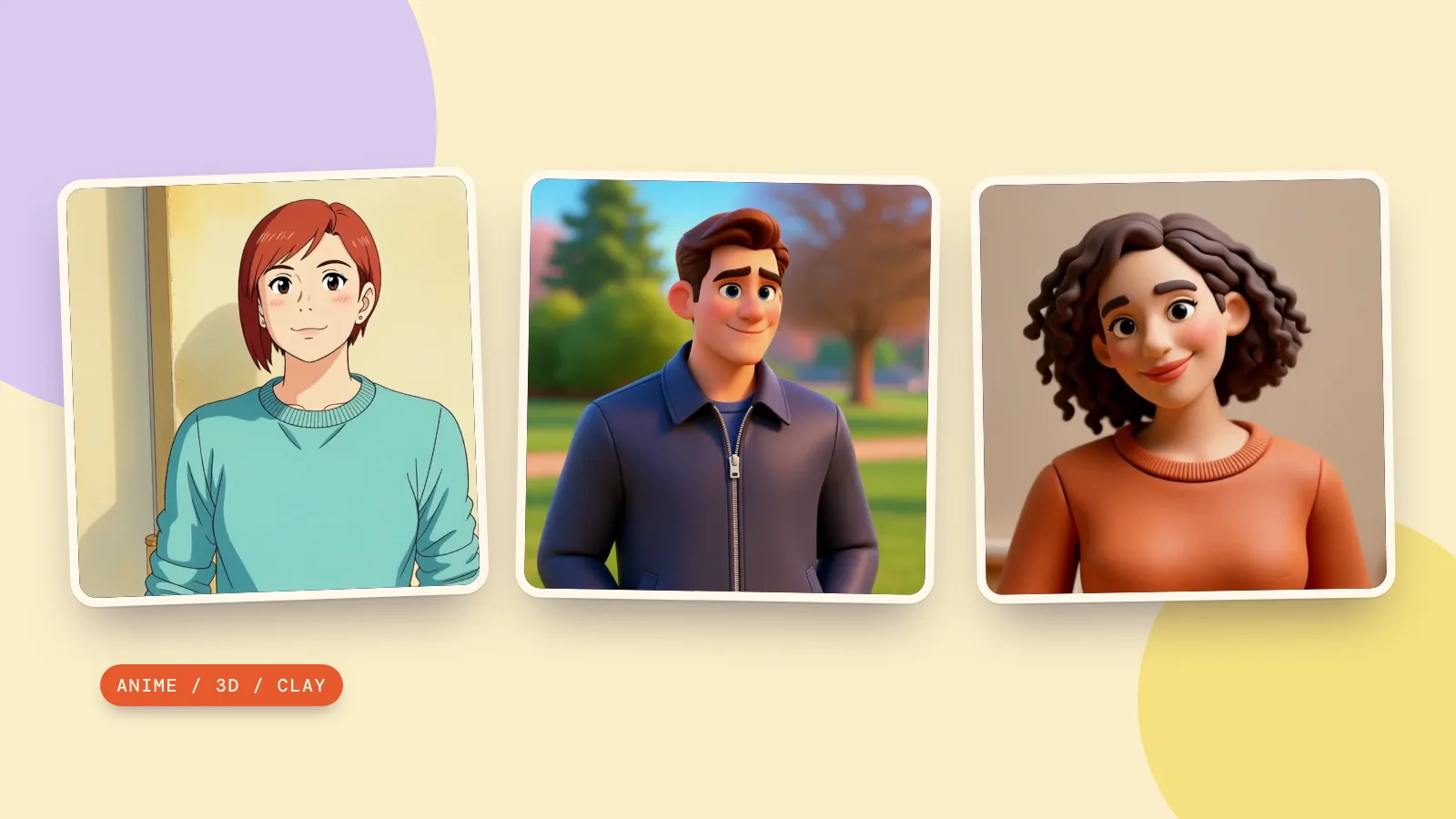


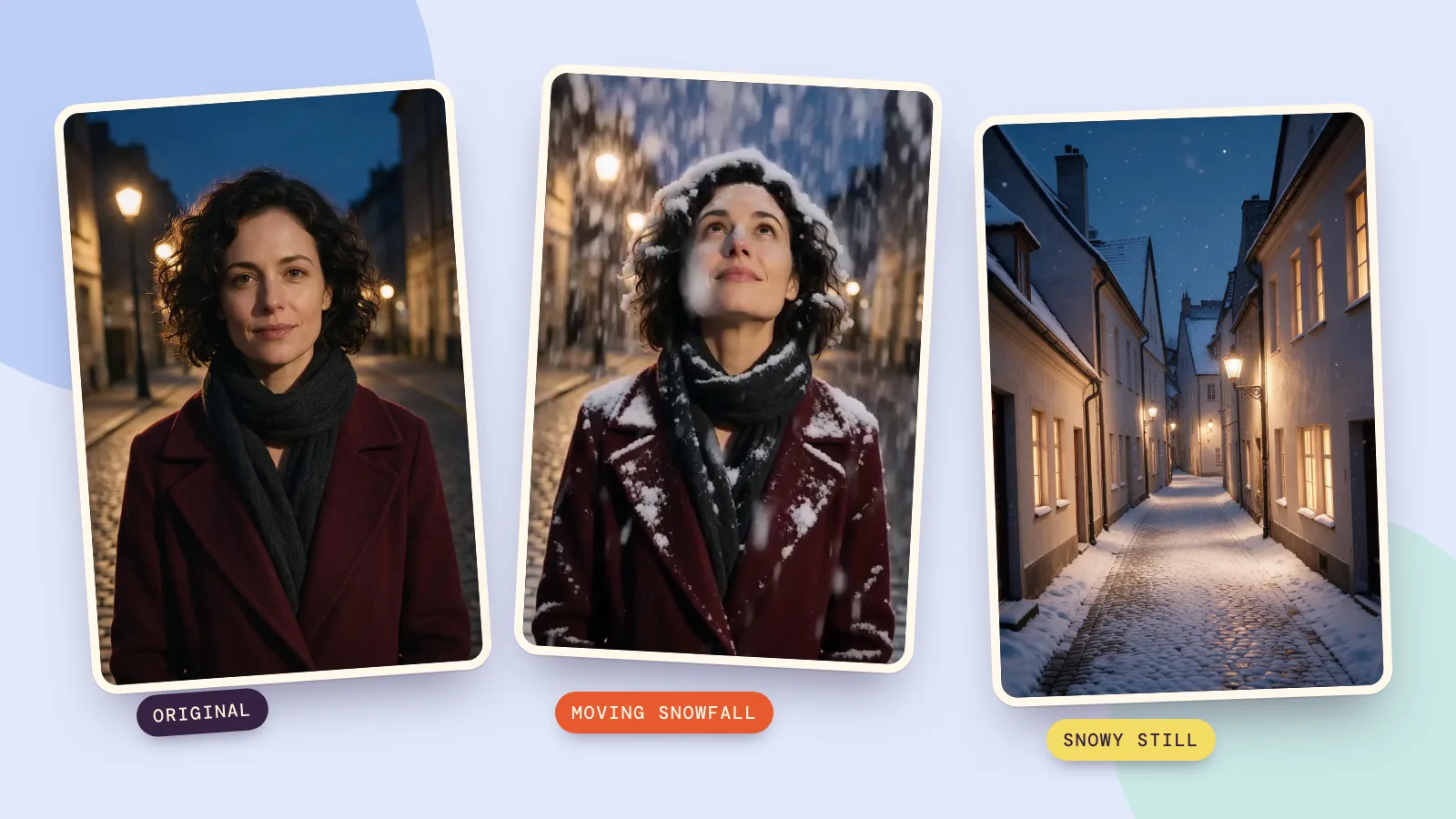
To add snow to a photo, use an image editor for a snowy still or a snowfall editor that turns the photo into a short video. PopNow's Snowfall effect takes the second route: it animates falling flakes around the person, while a typed image edit can add snow to the ground and rooftops in a single picture.
Choose the output first. A still suits a card or a printed picture; a moving snow filter suits a story or a short holiday message. We generated three source photos for this guide on November 6, 2026 with Seedream 5.0 Pro at 1K: two fictional adults and an empty street. We then made two MiniMax H3 videos and one snowy image edit, shown below.
How do you choose between a snowy photo and a snow video?
An AI snow editor redraws the scene rather than pasting the same transparent flake overlay on every picture. That means it can change surfaces and lighting, and it also means details can drift. Keep the original file and compare the result before sharing it.
| What you want | Use this route | What to check |
|---|---|---|
| One still picture with snow on the ground | Image editing with a written instruction | Faces, windows, paving and roof edges |
| Falling snow and a small change of expression | Snowfall from a photo | The face throughout the clip and the final flurry |
| A complete holiday portrait | AI Christmas photo | Scene, outfit and everyone's likeness |
For a ready-made holiday setting, the First snow scene on AI Christmas photo adds an old-town Christmas setting. That is a different goal from keeping your own street and changing only the weather. For a playful miniature scene, Snow Globe pulls back to reveal the person inside a glass globe.
How do you add snow to a still photo?
- Open Edit Image, add your source picture and choose Seedream 5.0 Pro. We used 2K for the edit below.
- Describe both the change and the details to preserve. Ask for light snowfall, snow on horizontal surfaces and the same buildings or person.
- Generate one image, then compare the original and the result at full size. Download it only after checking small edges and any faces.
Our third source is an empty lane at dusk. The edit turns the dry cobbles and roofs into winter surfaces while keeping the street's general layout. This is a still picture: the flakes do not move, and the edit cannot tell you how snowfall would behave in a video.
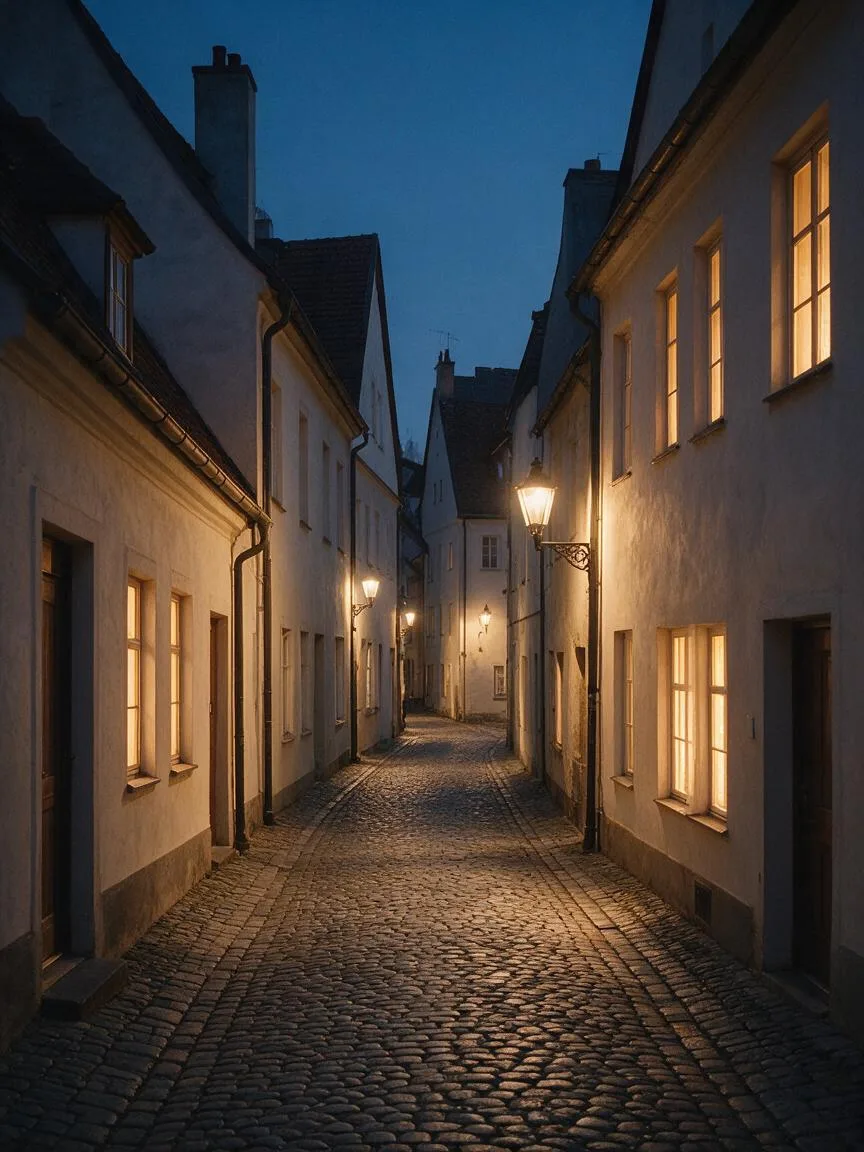 Original lane
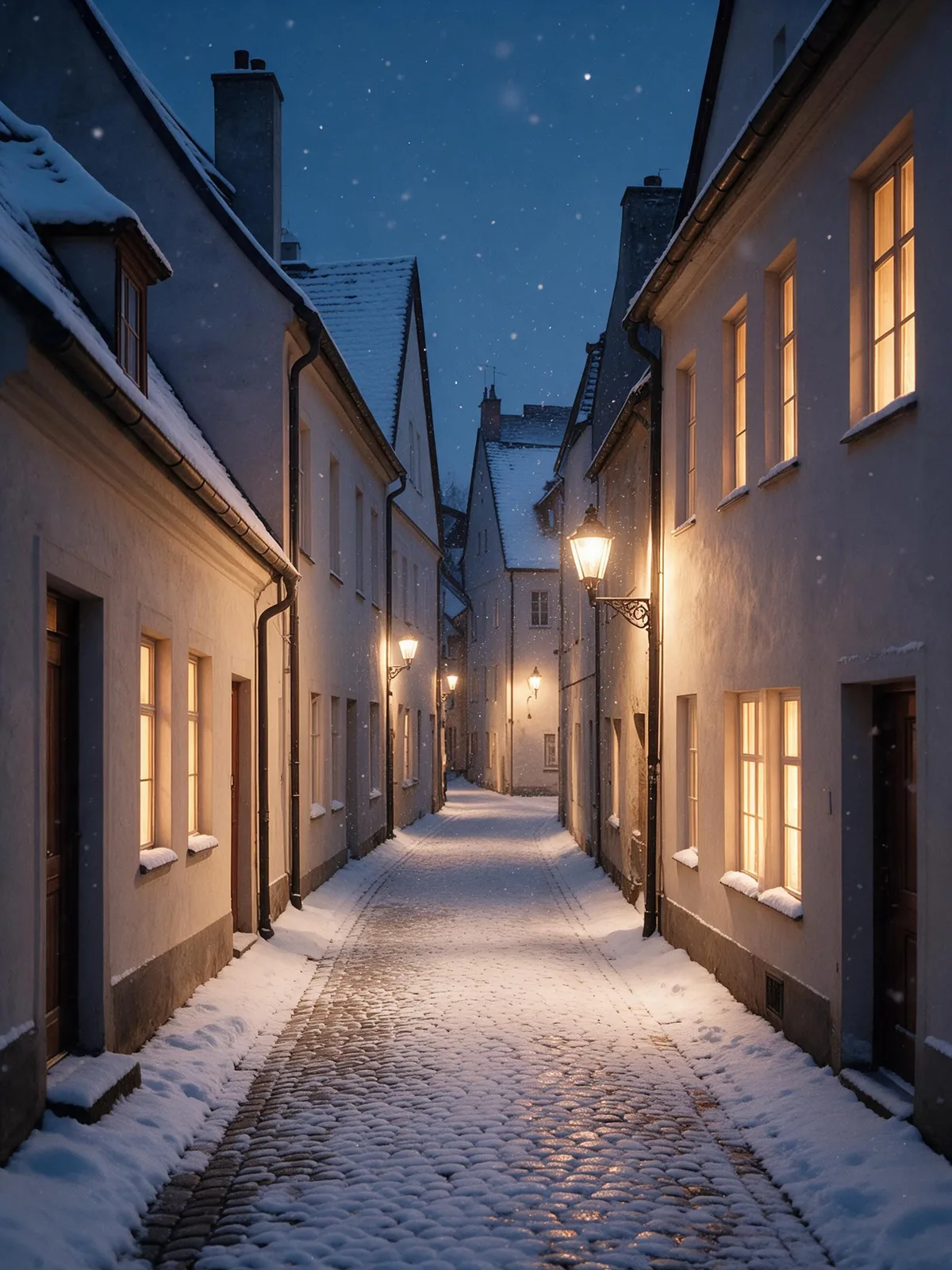 Snowy still
Make this street a snowy winter scene with light snowfall, snow on the ground and rooftops, and cool blue evening air. Keep the buildings, windows, street lamps, camera position and composition exactly the same. Preserve the warm window lights. No people, no text, no logos.
For a portrait, replace the building instruction with a request to keep the person exactly the same, including face, hair, age, clothing and pose. Start with a restrained change. If you ask for a new season, outfit, location and camera angle at once, it becomes harder to judge whether the snow edit preserved what mattered.
How do you make a moving snowfall video from a photo?
- Open the Snowfall page using the button above, then use Add a photo to upload a clear outdoor portrait.
- Open More options. Select MiniMax H3, keep the length at 5 seconds and use the 768p tier. Those are the settings used for both clips here.
- Leave Add a note empty to use the preset unchanged, then press Make it move. The exact preset prompt is reproduced below.
- Play the entire result before downloading. Check the first frame, the moment the person looks upward and the final frame, where the snow can obscure the face.
The effect asks for the first flakes within a second, a thick storm by about the third second and snow settling on hair and shoulders. Those are instructions, not a promise that every run follows an exact second-by-second schedule. It also asks the person to look up and smile, so expect some motion beyond the flakes.
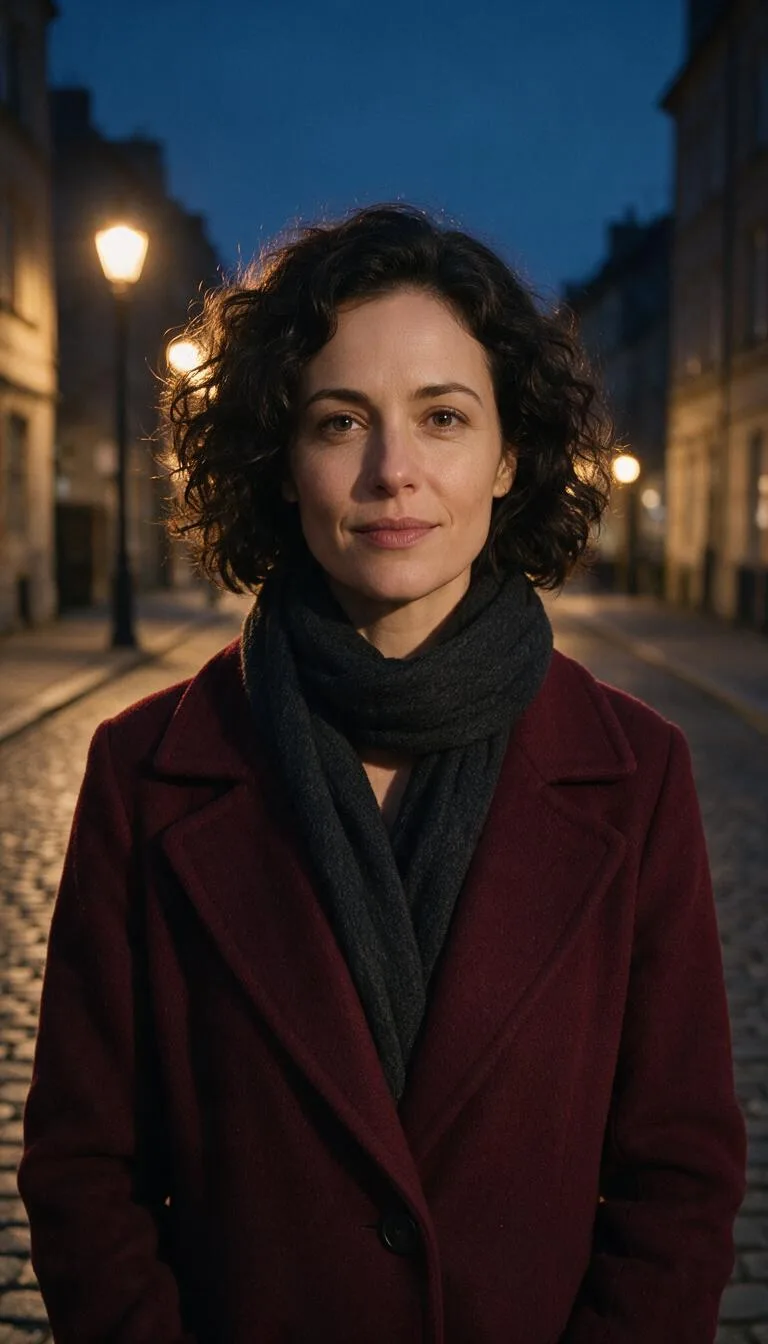 Source for video one
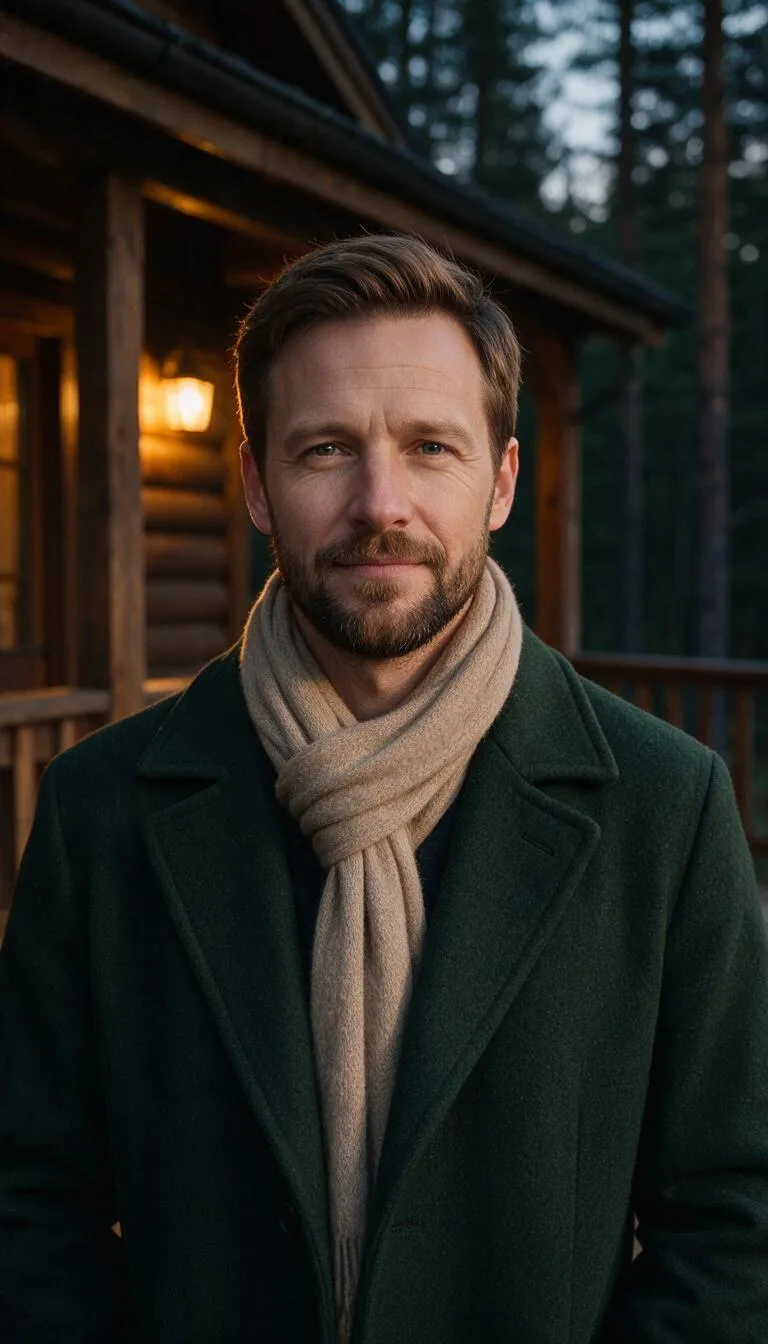 Source for video two
Within the first second the first flakes start falling through the light. The snowfall thickens fast: by the third second it is a heavy, dense snowstorm, big flakes swirling past the lens and glowing where they catch the light. Snow visibly piles up on the hair and shoulders. The final frames hold on the person in a thick white flurry, flakes on their lashes, looking up into the snow and then back into the lens with a smile. The person stays exactly as they appear in the photo.
Both videos use the same prompt and settings; only the reference photo changes. To recreate either one from the prompt card, add its source photo after opening the generator. The card transfers the text and settings, so your reference still needs to be supplied.
How do you keep the snow readable and the face clear?
- Leave space around the head. Sky, dark trees or a dark wall give falling flakes somewhere to show up. A very tight face crop makes the final storm feel crowded.
- Choose lighting that suits winter. Night lamps make flakes bright against a dark street. Daytime snow needs separation from pale walls and a pale sky; avoid adding a heavy storm to hard summer sunlight unless that contrast is deliberate.
- Keep the face unobstructed in the source. A scarf below the chin is easier to preserve than one across the mouth. Avoid sunglasses and hair covering both eyes.
- Frame for the destination. For vertical stories, prepare a 9:16 source before generating. Leave room above the hair and around the shoulders so later cropping does not remove the flakes.
Same prompt, different models: you can explore alternatives through Compare, but our two snow videos both use MiniMax H3. We have not run a model ranking for this guide. If you change the model, make one version first and compare facial stability, snow buildup and camera movement. For other weather ideas, browse Effects.
FAQ
Can I add snow to a video I already have?
Yes, Edit Video accepts a clip and a written change such as making the scene snowy. We checked that page and its source on November 6, 2026; we did not generate a video-edit example for this guide. Snowfall itself starts from a photo, so do not upload an existing clip to that effect.
Does the snow effect change my face?
The prompt asks to preserve the person, but the model redraws moving frames and the expression changes. Check the face across the whole video, especially when the person looks up and when flakes cross the eyes. A clear source photo helps; exact identity preservation is not guaranteed.
How long is the snow video?
The default used here is 5 seconds at 768p with MiniMax H3. More options includes a separate four-second choice. Check both the selected model option and length before generating, because a shorter clip gives the storm less time to build.
Can I add snow to a group photo?
You can try a clear group photo, but we tested one adult per clip. Multiple small faces leave less detail for the model to preserve, and dense snow can obscure them. Start with one version and inspect every person rather than assuming a good result for one face means all faces are correct.
What does adding snow cost?
The 2K still edit shown here costs 72 credits. A 5-second MiniMax H3 video at 768p costs 185 credits. These are separate operations; generating a snowy still first and then animating it pays for both. You can use your existing photo directly for the video.