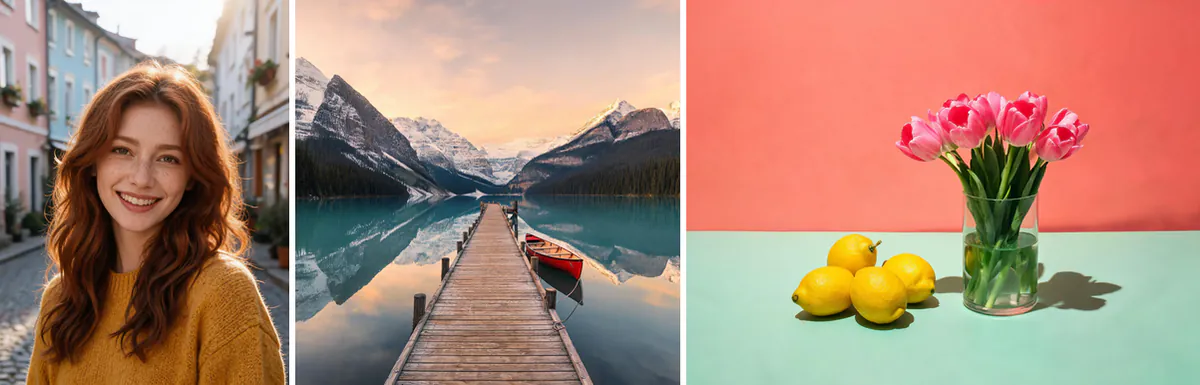
Combine images
Combining images means putting several photos into one picture: two shots side by side for a before-and-after, a vertical stack for a story, or a neat grid for a product sheet or a trip recap. This image merger lines the photos up for you. Side by side they get the same height, stacked they get the same width, and in a grid every photo gets an equal cell, cropped to fill it or shown whole. Everything runs in your browser, so your photos never leave your device and the download has no watermark.
Questions
How do I combine two pictures side by side?
Add both photos and keep the Side by side preset. They are scaled to the same height and placed next to each other. Drag the thumbnails to swap them, then download.
Is it really free, with no sign-up and no watermark?
Yes. The images are combined by your own browser, so there is nothing to charge for. You don't need an account, and the PNG or JPG you download has no watermark.
Are my photos uploaded?
No. The photos are opened and merged on your device. They are only uploaded if you choose Send to, to keep editing in another PopNow tool.
How many images can I combine?
Up to 20 at once. Side by side and stacked layouts look best with 2 to 6 photos; for more, use a grid with 3 or 4 columns.
What size is the result?
You choose the long side: 1080, 2048 or 4096 pixels. PNG downloads are lossless and JPG is saved at high quality.
Can I turn the combined image into a video?
Yes. Use “Turn it into a video” under the download buttons, or Send to, and animate it with an image-to-video model.
How do I put two photos next to each other without a gap?
Pick the Seamless strip preset, or choose Side by side and drag Spacing down to 0. The two pictures then touch edge to edge, which works best when they share the same height and lighting.
Why does one of my pictures look smaller than the others?
In Side by side every picture is scaled to the same height, so a tall portrait ends up narrow and a panorama ends up wide. Use Grid with Fit (whole photo) if you want each picture to take the same amount of space.
Can I make a photo collage with a white frame for printing?
Yes. Choose Grid with border, raise Outer border for a wider frame, keep Background on white and set Long side to 4096 px. Download a PNG so the edges stay crisp for the print shop.
Can the background be transparent?
Set Background to Transparent and download a PNG. The gaps and border then stay see-through, so you can place the combined picture on a slide or a website. A JPG cannot hold transparency, so it fills the gaps with white.
Does it work on a phone?
Yes. The page runs in mobile browsers, you can pick several photos from your gallery at once, and the arrows on each thumbnail replace dragging on small screens. Very large sets at 4096 px may take a moment on older phones.
What is the difference between this and a collage generator?
This tool places your own photos exactly as they are, with no AI involved and no credits. The AI collage art generator instead creates a new illustrated collage, which is useful when you want a styled poster rather than a plain layout.
Go deeper
Before and after: what changes
You start with a handful of separate files and end with one picture that holds all of them, which is handy for a before-and-after post, a product lineup, a recipe in steps or a trip recap that has to fit in a single upload.
- What changes
- Your photos are scaled to a shared height (Side by side), a shared width (Stacked) or a shared cell size (Grid), then placed on one canvas with the spacing, outer border, corners and background you chose.
- What stays the same
- Colors and detail are not filtered or retouched. Side by side and Stacked never crop anything; only Grid in Fill (crop) mode trims the edges of a picture so every cell lines up.
- What to look at when you compare
- Read the size badge under the preview, for example 2048 × 658 px, to see whether the result suits where you will post it. Then zoom in on the seams: with Spacing at 0 the pictures touch, which only looks clean when their edges match.
Images that combine well, and ones that fight each other
Works well
- Two shots taken in the same light, such as a room before and after a makeover, read as a clean pair side by side.
- Photos with the same orientation, all portrait or all landscape, fill a grid evenly and need almost no cropping.
- Screenshots of a chat, a recipe or a long receipt stack neatly into one tall image you can share in one go.
Avoid
- Mixing a very tall phone shot with a wide panorama in one row makes the panorama tiny, because every picture is scaled to the same height.
- Very small images, like thumbnails saved from a chat, look soft once the result is exported at 2048 or 4096 px on the long side.
- Pictures with an important face or word near the edge can lose it in a Grid set to Fill (crop); switch to Fit (whole photo) to keep everything.
Step by step
- Add your imagesPress Upload images and choose several files at once, drag them onto the page, paste from the clipboard or pick from your library. Up to 20 pictures fit in one result.
- Put them in orderDrag the numbered thumbnails under Your images, or use the arrows that appear on each one. Number 1 sits on the left in a row, at the top in a stack and in the first cell of a grid.
- Pick a preset, then fine-tuneStart from Side by side, Stacked, Grid with border, Seamless strip or Dark gallery. Then change Layout, Columns, Spacing, Outer border, Rounded corners and Background until the preview looks right.
- Choose the size and formatSet Long side to 1080 px for chat apps and social posts, 2048 px for most uses or 4096 px for printing. Download a PNG to keep a transparent background, or a JPG for a smaller file.
- Keep going if you likeUse Send to to open the result in another PopNow app, or follow Turn it into a video to animate the combined picture with an AI video model.
How the layouts are calculated
- Side by side
- Every picture gets the same height and keeps its own width, so nothing is cropped. A wide photo takes more room than a tall one, which is why similar shapes look most balanced.
- Stacked
- Every picture gets the same width and keeps its own height. This is the layout for long screenshots, step-by-step guides and comparison strips you scroll through on a phone.
- Grid
- Cells share one shape, worked out from the average of your pictures and kept between 3:4 and 4:3. Fill (crop) trims each photo to the cell; Fit (whole photo) shrinks it inside the cell and lets the background show around it.
- Spacing, border and corners
- Spacing is the gap between pictures, Outer border is the frame around the whole set and Rounded corners softens each picture. All three scale with the image, so they look the same at 1080 or 4096 px.
- Private by design
- The pictures are decoded and drawn on a canvas in your own browser. Nothing is sent to a server unless you choose Send to, and the download has no watermark.
Where to go next