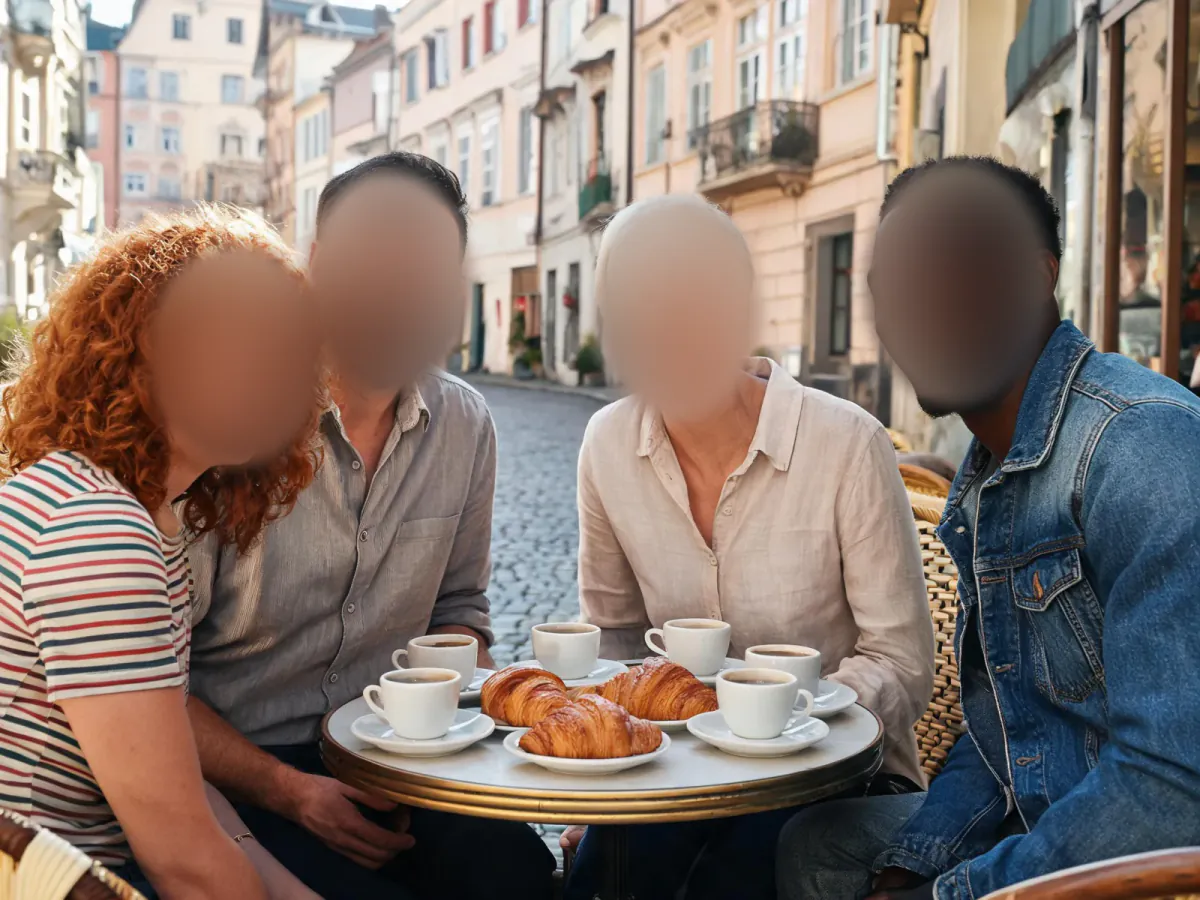
Blur faces in a photo
Blurring a face hides who is in a photo while keeping the rest of the picture: strangers in the background of a holiday shot, children in a school photo you want to post, or customers in a picture of your shop. This face blur tool works in your browser. Press Find faces to detect the faces automatically, or drag a box over each face yourself; switch to the brush to paint over number plates, house numbers, name tags or screens. Choose a soft blur, a pixel mosaic or a solid bar, set the strength and the soft edge, then download a PNG or JPG. Nothing is uploaded, there is no account and no watermark.
Questions
How do I blur a face in a photo?
Upload the photo and press Find faces, or drag a box over the face. The face is blurred straight away. Raise Strength if it is still recognizable, then download the picture as PNG or JPG.
Can it find and blur all faces automatically?
Yes. Find faces runs a face detector in your browser and adds a box over every face it sees. It may miss faces in profile, in deep shadow or very far away, so look over the photo and add those by hand.
Can I blur things other than faces?
Yes. Draw boxes over anything, or switch to the brush and paint over number plates, addresses, name badges, screens, documents or a tattoo. Every area uses the same blur, mosaic or bar.
Is the photo uploaded to a server?
No. The photo is opened, blurred and saved by your own browser. Face detection also runs on your device; only the detector itself is downloaded the first time you press Find faces.
Can someone un-blur my photo?
The saved file only contains the blurred pixels, not the original. For sensitive details, use Heavy blur, Mosaic or Black bar, which remove far more information than a light blur.
Is it free?
Yes. There is no sign-up, no limit on how many photos you blur and no watermark on the download.
How do I blur faces in a photo on my iPhone or Android?
Open this page in Safari or Chrome, tap Upload photo and pick the picture. Tap Find faces or drag a finger over each face, then tap PNG or JPG to save the blurred copy to your device.
How do I blur everyone except me?
Press Find faces, then tap your own box and press × to remove it, or simply drag boxes only over the other people. Everything you leave unmarked stays sharp in the download.
Which is better for privacy: blur, pixelate or a black bar?
A black or colored bar removes everything. Mosaic with big blocks and Heavy blur also make faces unrecognizable. A light blur looks nicer but friends may still recognize a face, so use it for style, not secrecy.
Can I blur a face in a video here?
This tool works on photos. For a video, export the frames you need, or blur a single still before sharing it. The face detector here runs on still pictures only.
Why did Find faces miss someone?
The detector is tuned for faces that look roughly toward the camera. People in profile, wearing masks or helmets, or very small in the frame can be skipped. Drag a box over them and they are hidden just the same.
Can I blur a license plate or a house number?
Yes. Switch Mark areas to Brush and paint over it, or draw a rectangle with Rectangle shape and Solid bar. Mosaic works well too and looks less heavy than a black bar.
Go deeper
Before and after: what changes
The picture you download is the same photo with chosen spots made unreadable: faces turn into soft smudges, chunky squares or flat bars, while the street, the food and everyone you left unmarked stay exactly as sharp as they were.
- What changes
- Only the inside of each box or brush stroke. Blur averages the pixels over a radius of 0.6 to 5 percent of the long side, Mosaic replaces them with blocks of 1 to 6 percent, and Solid bar paints them a single color. Soft edge fades the border so the patch blends in.
- What stays the same
- Everything outside the marked areas is untouched, pixel for pixel, at the same width and height as the photo you opened (full original resolution, up to about 16 megapixels, the largest a browser canvas handles safely). Colors, sharpness and framing elsewhere do not change.
- What to look at when you compare
- Switch between Before and After and look at each hidden face from arm's length. If you can still tell who it is from the hair or glasses, enlarge the box or raise Strength; hair and ears often give people away more than the eyes.
Photos where hiding faces works cleanly, and tricky ones
Works well
- Group shots and street scenes where faces look roughly toward the camera, which the automatic finder catches reliably.
- Photos of kids at school events, customers in a shop or neighbors in the background that you want to share without showing who they are.
- Screenshots and photos with number plates, house numbers, name badges or addresses that a brush stroke can cover in seconds.
Avoid
- Faces seen from the side, from behind or under a cap: the detector may skip them, so mark them by hand.
- Crowds of tiny faces far away: the finder misses some, and a quick brush pass over the whole crowd is faster than dozens of boxes.
- Pictures where the person is recognizable by something else, such as a distinctive tattoo, a uniform or a name on a shirt; hide that too.
Step by step
- Load the photoPress Upload photo, drop a file on the page, paste with Ctrl or Cmd + V, or choose From my library. The café sample opens with four faces already blurred so you can try every control first.
- Find or mark facesPress Find faces to let the detector add an oval over every face it sees. Then drag on the photo to add a box anywhere it missed; a box you drag stays selected.
- Fix the boxesDrag a box to move it, pull the yellow corner to resize it, and press × or Delete to remove it. Undo, or Ctrl or Cmd + Z, steps back; Clear all starts over.
- Paint the odd shapesSwitch Mark areas to Brush, set Brush size and paint over plates, screens or a person in the distance. Each stroke counts as one hidden area.
- Choose the look and savePick Blur, Mosaic or Solid bar, Oval or Rectangle, then Strength and Soft edge. Check Before and After and download a PNG or JPG, or use Send to.
How the blurring and face finding work
- Real blur, not a filter preview
- The photo is scaled down, smoothed with three box-blur passes and scaled back up, which behaves like a wide Gaussian blur and gives the same result in every browser. The saved file contains only these blurred pixels.
- Mosaic and bars
- Mosaic averages each block into one flat color, so fine details such as eyes or letters cannot be read back. Solid bar is the most private choice; pick its color with Bar color.
- On-device face detection
- Find faces uses Google's open-source MediaPipe face detector with the BlazeFace short-range model, both Apache-2.0 licensed. It scans the whole photo and then overlapping tiles, so smaller faces in group shots are found too.
- Nothing leaves your device
- Your photo is never uploaded: decoding, detection, blurring and saving all happen in this tab. The only download is the detector itself, about 3 MB the first time you use it.
Where to go next