
Judge eyelines and anticipation, make two silent cuts from one real Seedance 2.5 take, and practise direction by changing one sentence.
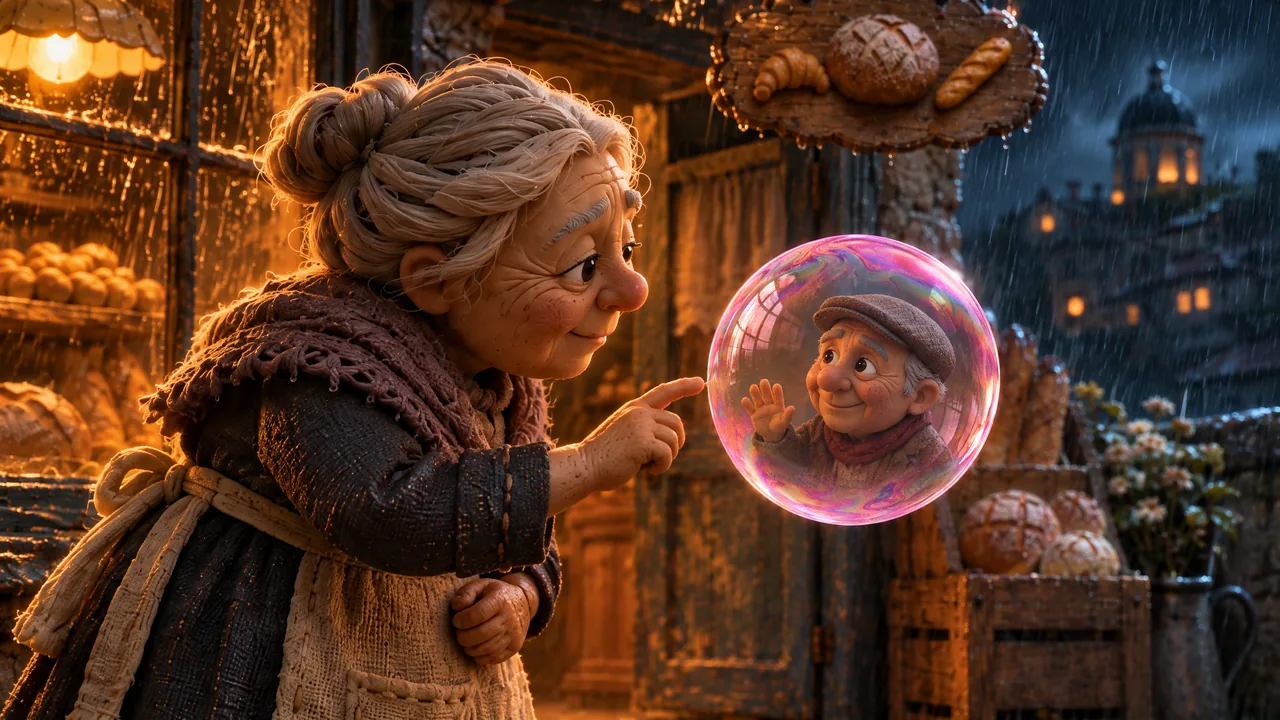
A gesture needs a visible cause. In this production example, a partner appears inside a pink bubble, the woman notices him, and she reaches towards him. You will make two silent edits of the same take: a 6-second discovery and a 4-second reaction after the partner is already established.
Public controls and local browser exports were recorded on November 7, 2026, without an account. Source model: Seedance 2.5. The three saved production takes are historical material. Look and Hold below are new practice directions, with no supplied generated comparison.
Lesson files
Lesson files · Recipe · Illustrated worksheet
The package includes Bakery start, Reach start, Bakery look, Bakery reach, Bakery reunion, the two silent edits and the English recipe. This page and the package are prepared locally; anonymous public downloads must be verified before publication.
Step 1: Give the starting image room to act
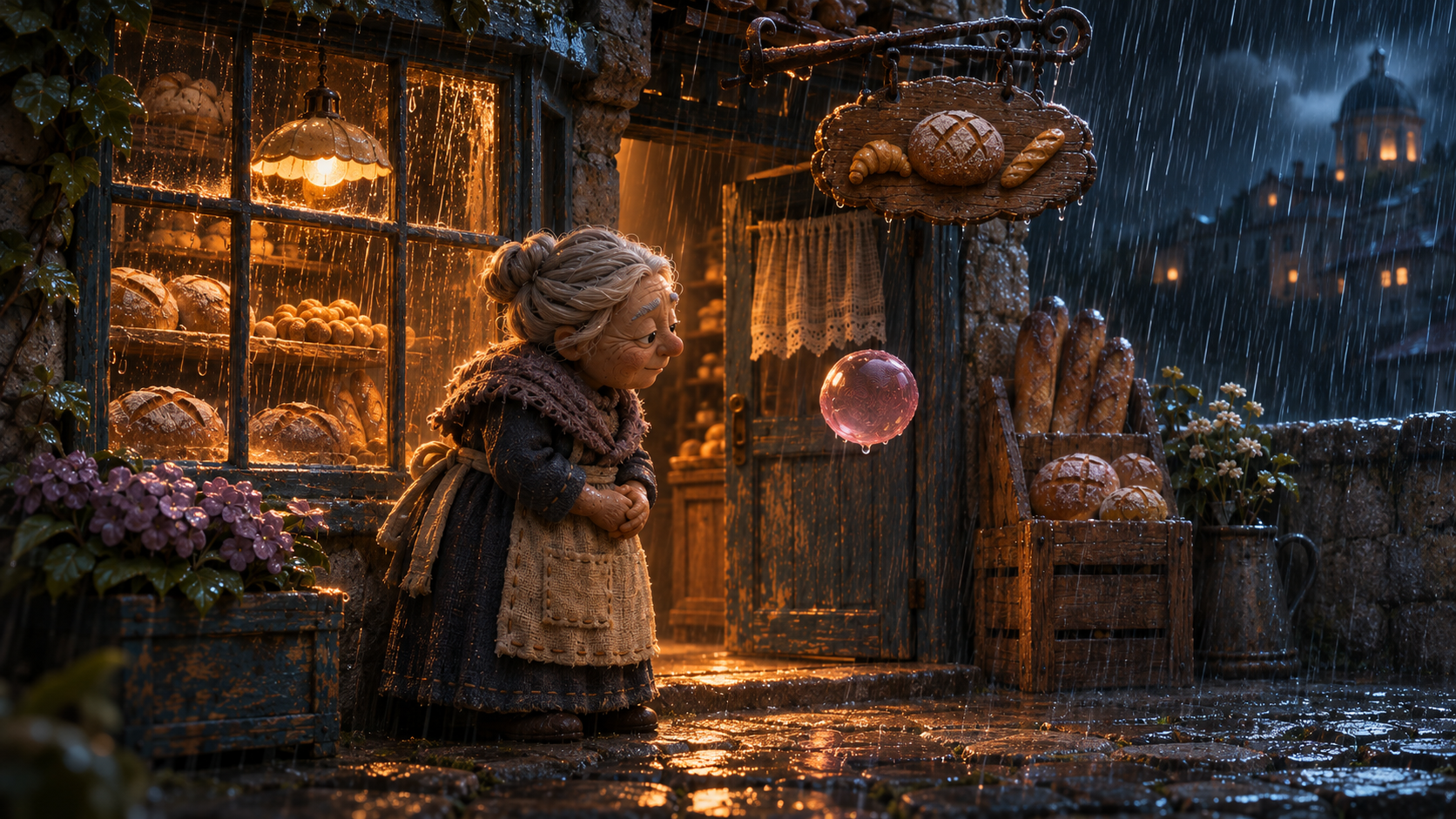
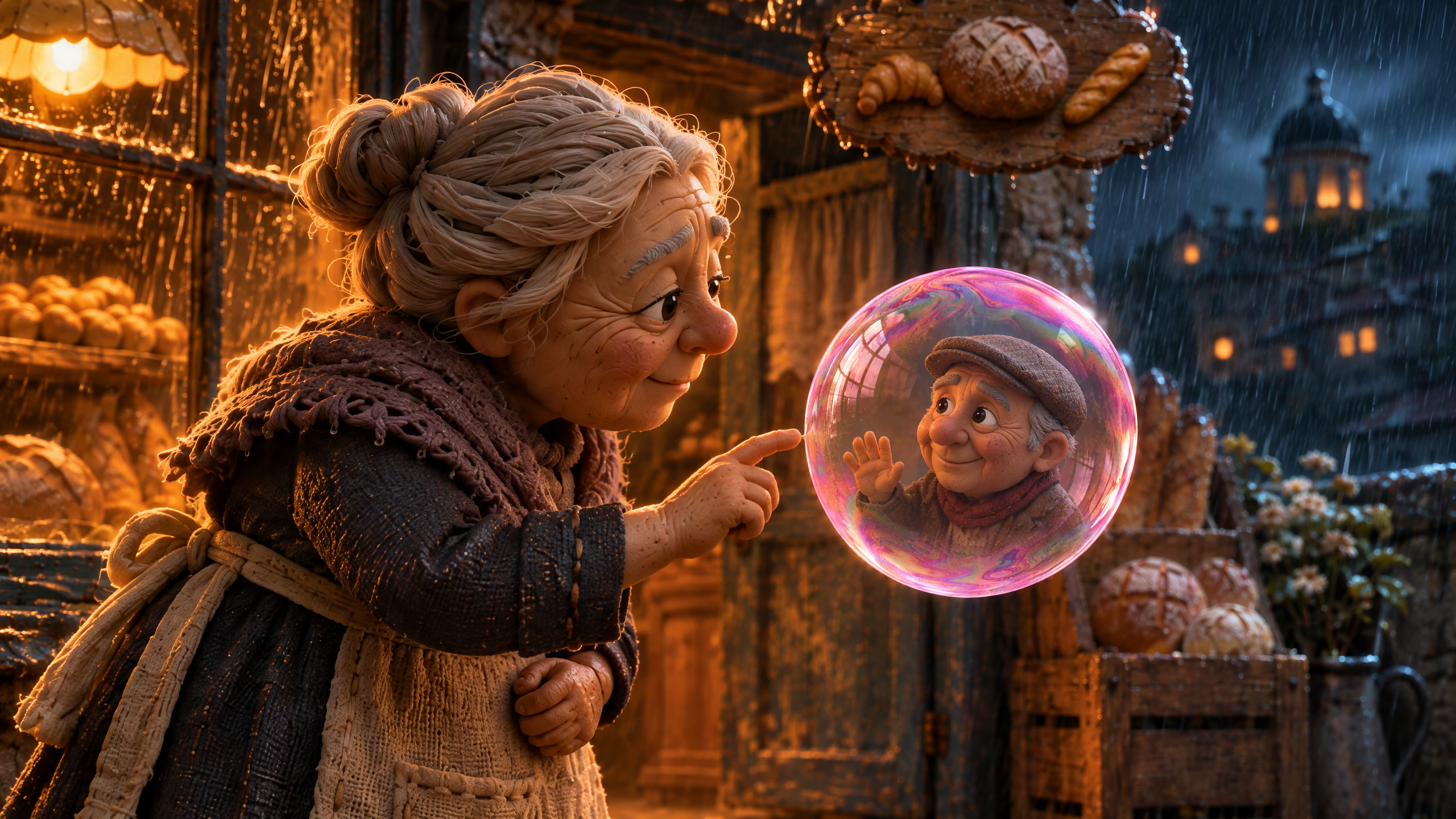
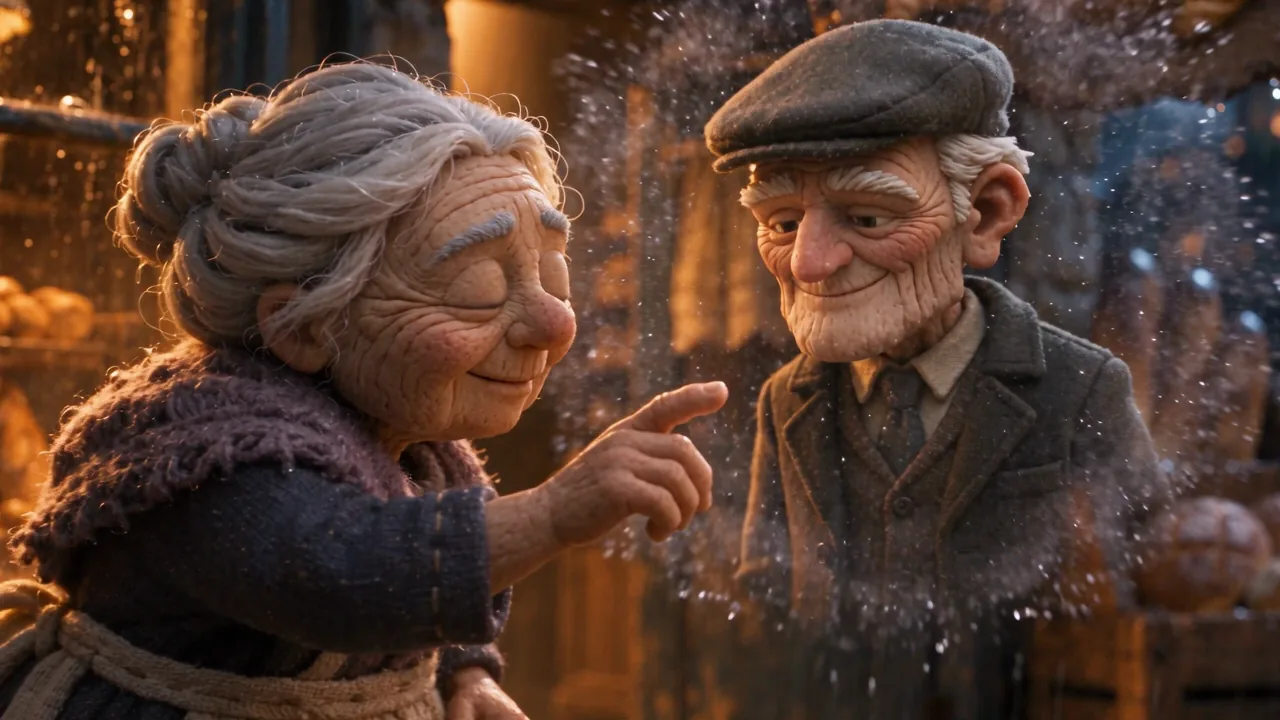
A slow reach has little anticipation to perform when the finger is extended in the first picture. Warm lighting and an attractive camera push do not supply the missing decision.
Translated from our original prompt — historical reach:
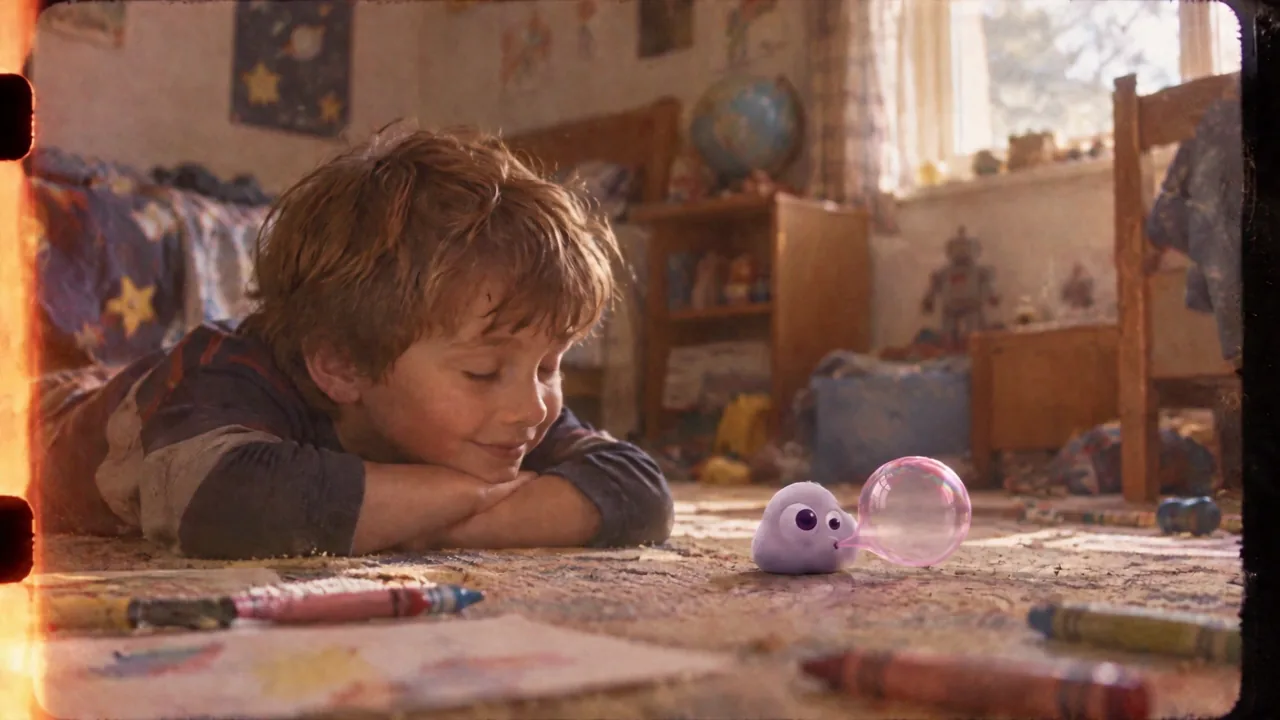
The separate Bakery look take turns the gaze towards the lens near its end. Inspect the eyes first; that changes the target even when the image looks appealing.
Step 2: Import and mute the saved take
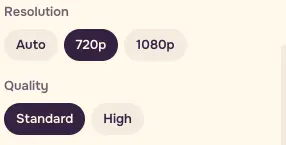
Open Video editor, choose Media, then Choose files from this device. Import bakery-reunion.mp4, select it, and keep Speed: 1×. In Whole video, turn Clip sound off, set 16:9, 720p and Standard.
Step 3: Make the discovery edit
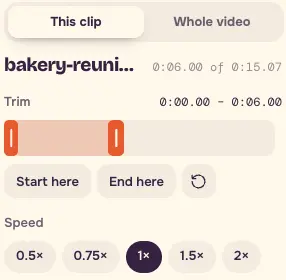
In This clip, set Trim: 0:00.00–0:06.00. Keep the appearance, approach and burst. Play once at normal speed without music.
Step 4: Start after the partner is established
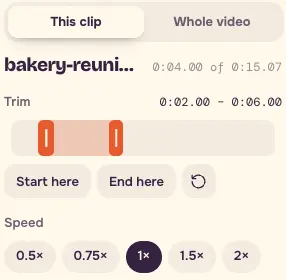
Change the same source to Trim: 0:02.00–0:06.00. Its finished duration is 4.00 seconds, with the same source action and speed.
| Source time | Observed landmark |
|---|---|
| About 2s | Partner visible inside bubble; wave supplies a stimulus. |
| About 4s | Hand moves outward towards him. |
| About 5.5s | Finger reaches the bubble surface. |
| About 6s | Bubble bursts and partner is outside. |
These are observations from this take. Review each new result using its own timing.
Step 5: Cut before continuity breaks
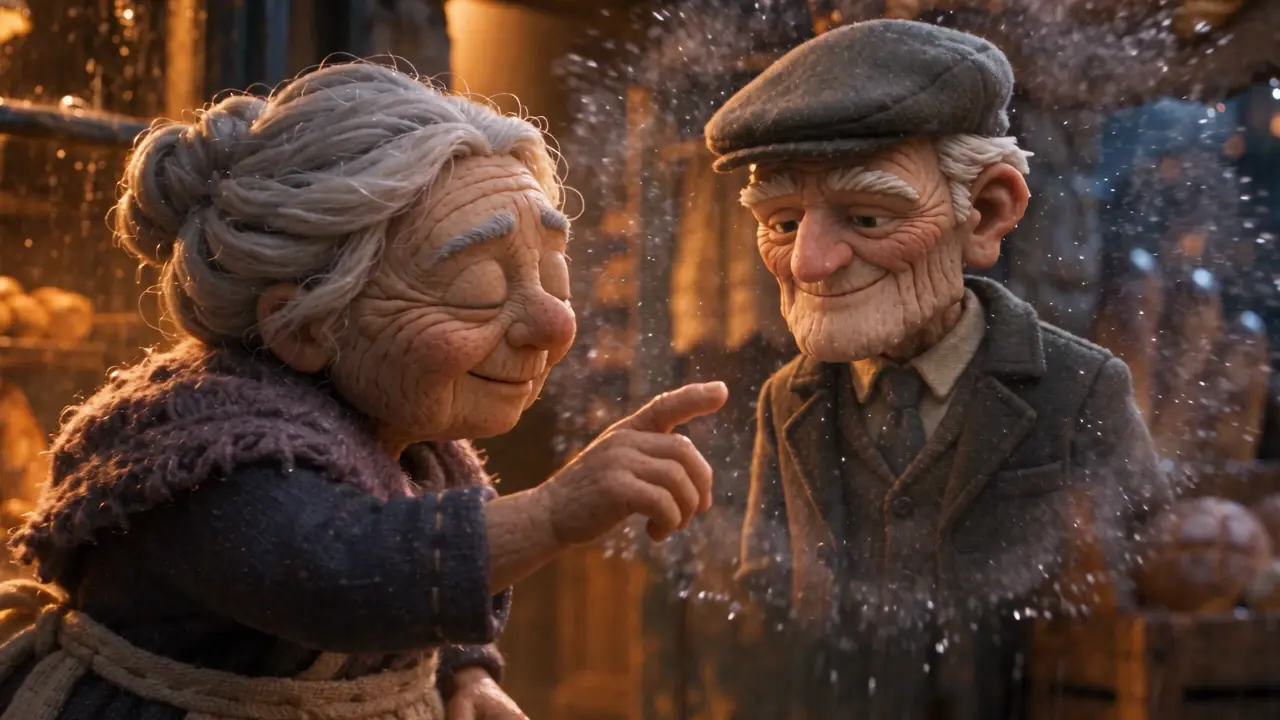
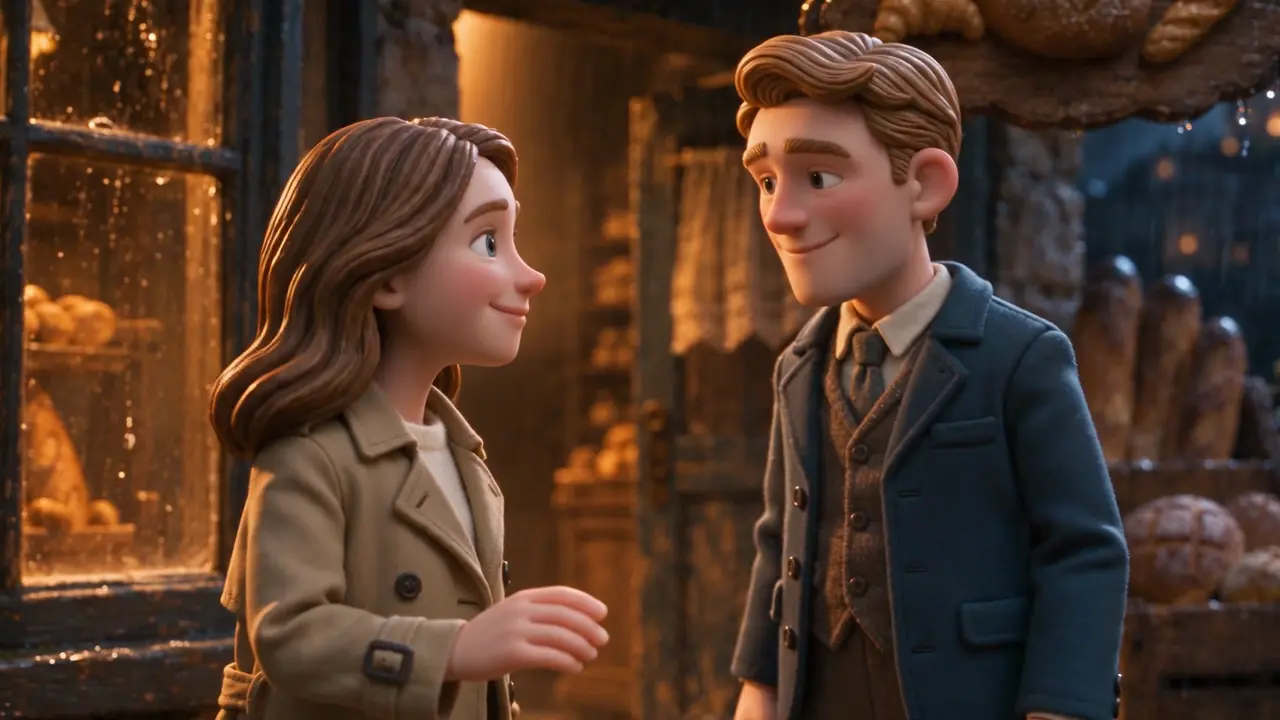
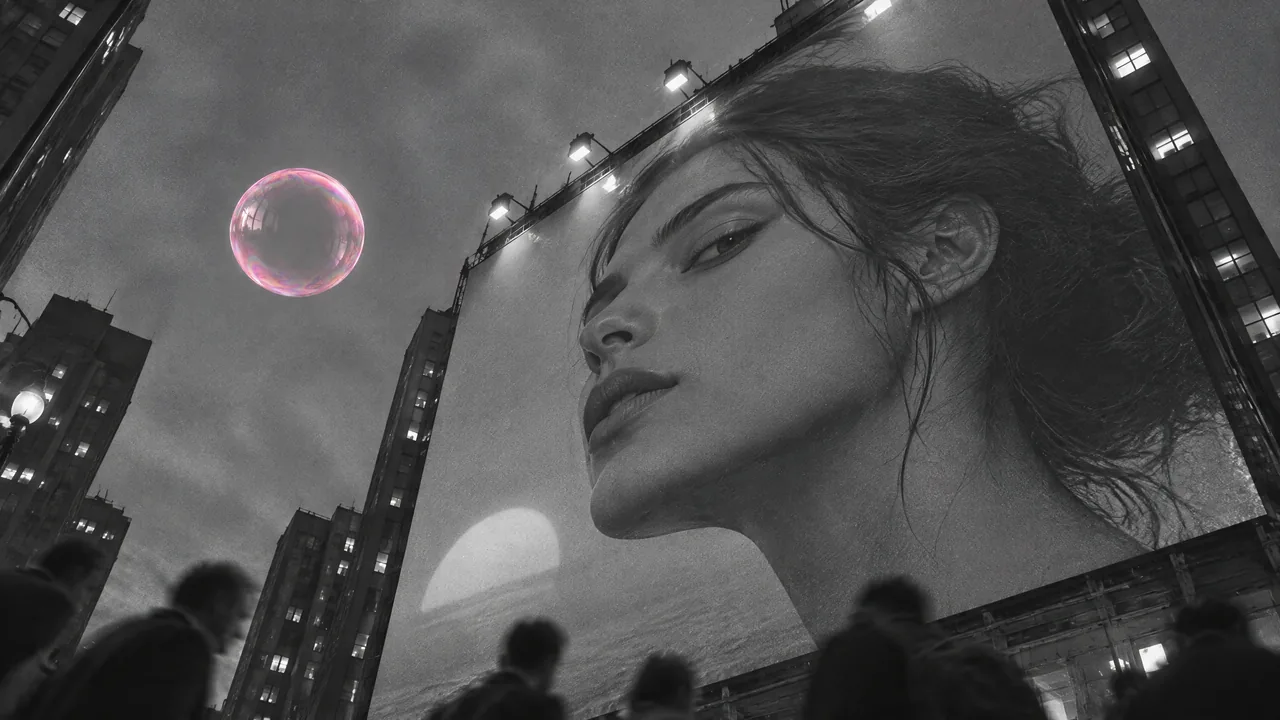
Near 14.8s the photographic street takes over and the couple is no longer clearly held in frame. The early gesture is usable for this exercise; the full transformation is a different editorial decision.
Step 6: Practise one eyeline change
Open Video, choose Generate → Input → From a photo, select Seedance 2.5, and add Bakery start to Start from a photo. Leave End on this photo empty.
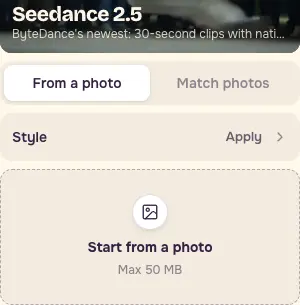
Look — new practice adaptation:
Use 4 seconds, Standard / 480p, Sound off, Videos: 1, and Auto aspect ratio. Read the actual credits beside Generate after completing the inputs. If sign-in is requested, check the quote again after signing in and before submitting.
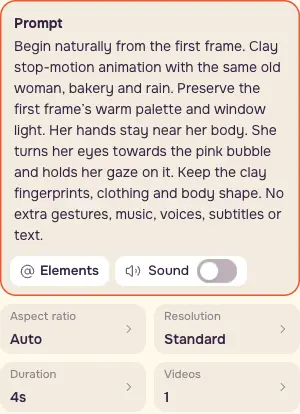
For an optional second test, change only this sentence:
Hold — complete new practice adaptation:
Keep the image and all other settings fixed. Inspect eyes, then hands, then the final pose. Save start, middle and end eye positions, the first readable response time and an honest verdict. The optional second run is another paid generation; compare the first result before choosing it.
Step 7: Export and reopen both edits
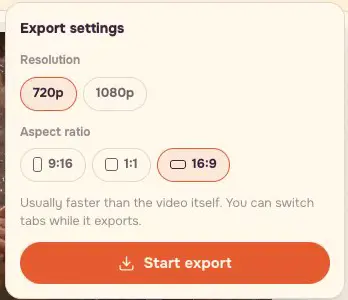
Export the two cuts separately using 720p, Standard, Export video → Start export. Download each file, then reopen it in Video editor. Keep sound muted. Verify 6.00s and 4.00s, matching source action and normal playback speed.
Checklist
- Start image leaves room for the requested gesture.
- Visible cause before response.
- Eyeline stays on the bubble.
- One purposeful gesture.
- Source timing notes are observed editing landmarks; use them to review each new take.
- Cut before clothing changes if the deliverable needs continuity.
- Two trims are two edits of one source, not three performances.
Keep the inputs, prompts, settings, quote, actual charge, exported files and review notes together. For repeatable close-up acting, precise dialogue timing or a delicate gesture across many takes, use a performer and a controlled shoot.
FAQ
Are these different generated performances?
The 6-second and 4-second versions are two edits of one saved take. Bakery look and Bakery reach are separate historical production takes. The new Look and Hold prompts have no supplied generated comparison.
Why review without sound?
Silence lets you judge whether the appearance, gaze and gesture communicate their own meaning. The saved reunion source has audio, so turn Clip sound off explicitly before exporting.
Does the 4-second edit always work better?
Choose it when an earlier shot has already established the partner. Keep the longer discovery when the audience needs to see him appear before she reaches. The choice depends on the surrounding edit.