
Compare a real failed and revised prop shot, rebuild two six-second edits, preserve the cut positions and deliver a clear change log.
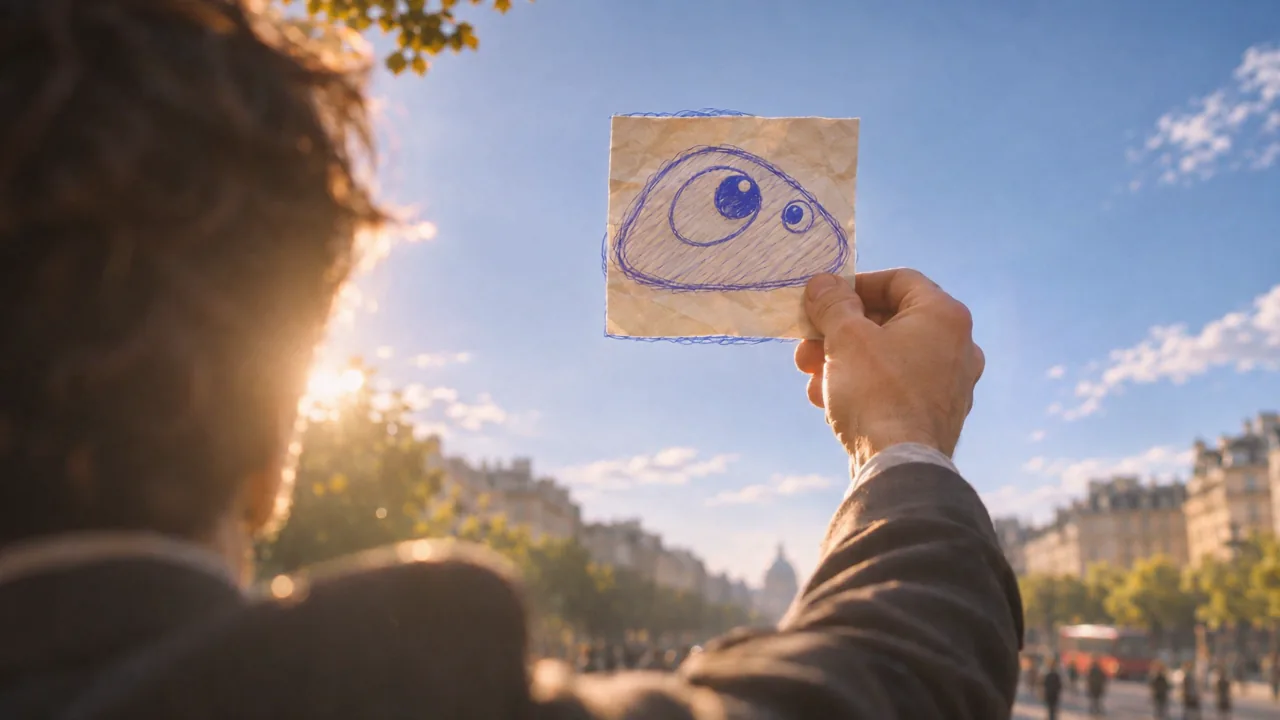
A useful revision has a visible acceptance rule and a clear boundary. Here the request is one physical sheet of paper, with no extra sheet floating in the sky. Replace the middle shot while keeping the drawing shot, bubble shot and cut positions.
The before and after takes come from our own production run using Seedance 2.5. The website settings and browser editor were recorded on November 7, 2026. The two six-second versions are practice edits assembled from those real sources; they are separate from the finished film and do not represent client approval.
Get the exercise files
- drawing.mp4, note-before.mp4, note-after.mp4 and bubble.mp4.
- note-start.png: the starting image for the revision.
- V1 and V2: the two downloaded six-second examples.
- Recipe and completed change log.
Step 1: Write the note you can test
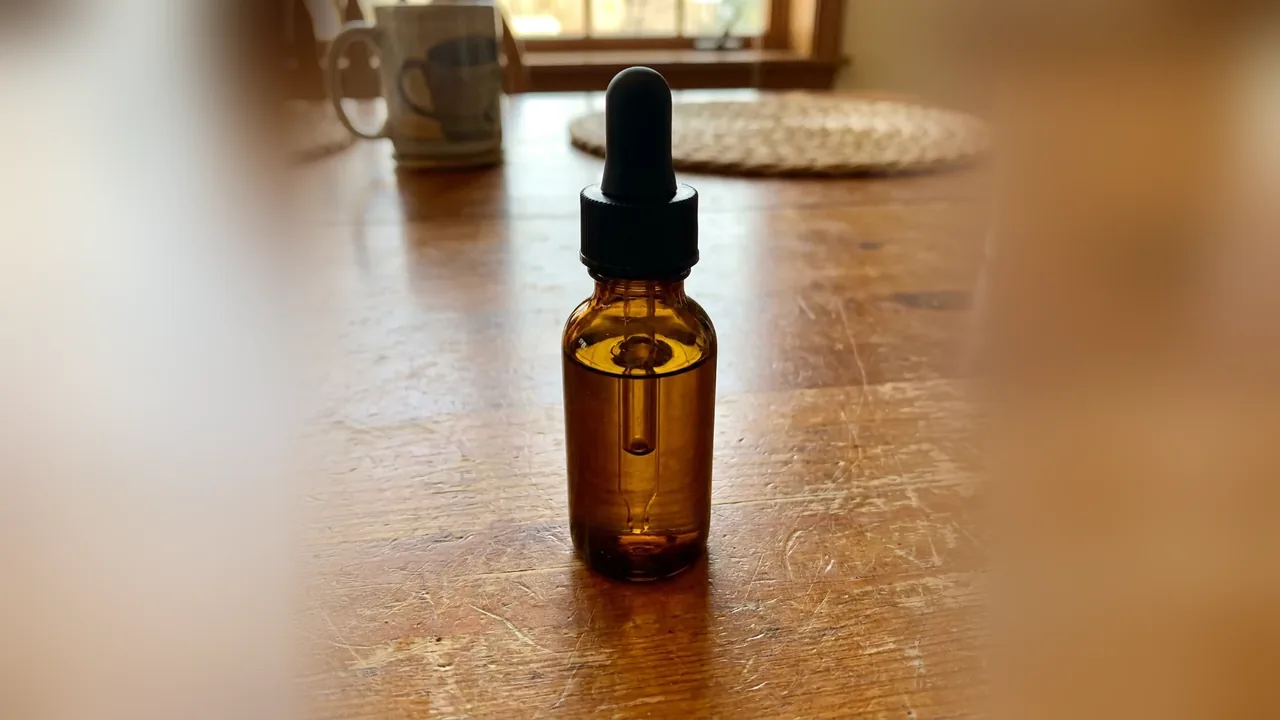
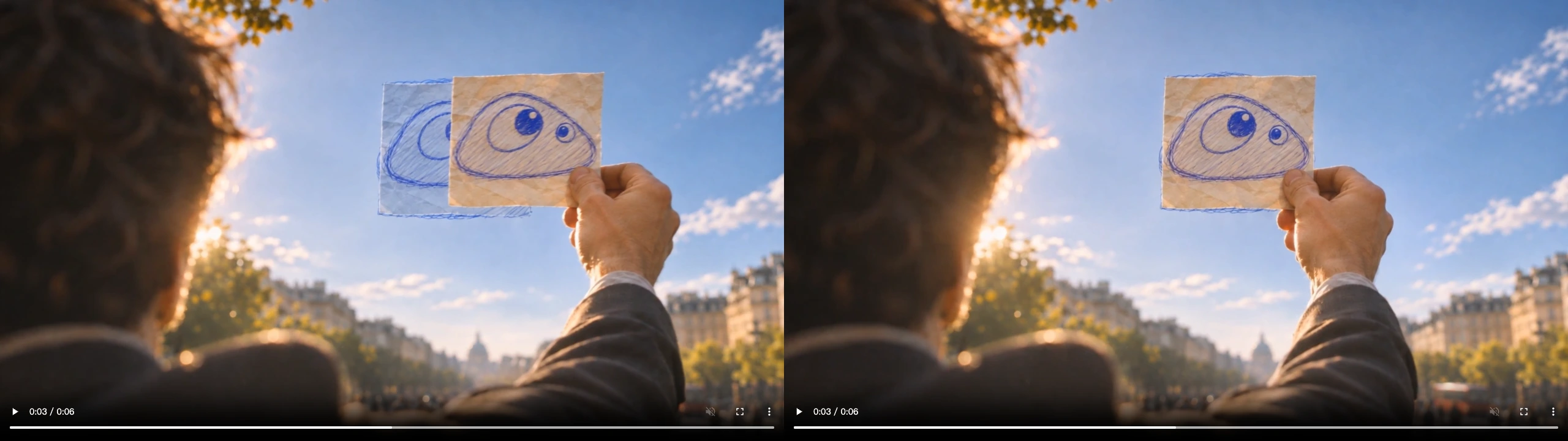
Watch the failed take at 1x. A second paper drawing stays in the sky as the held sheet moves away. This is an extra prop. Compare the two versions at timeline 3 seconds, which is source 1 second into their middle shots.
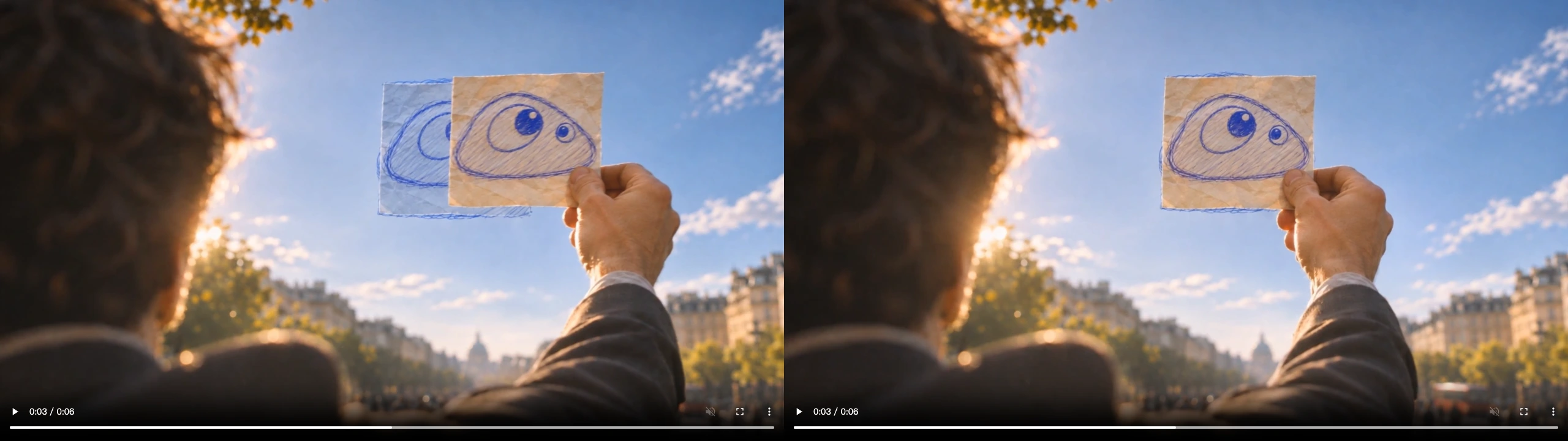
Write: “One physical sheet of paper; no extra sheet in the sky.” Lock the location, the two-second slot, the surrounding clips and the sound policy. Save wardrobe, new camera moves or a different location for a separate request.
Step 2: Prepare the revision
Open Video, choose Seedance 2.5 and From a photo. Add note-start.png under Start from a photo, paste the prompt, and choose 4s, 720p (displayed as Sharp) and the adaptive Auto aspect ratio. Check the current quote before Generate.
Translated from our original revision prompt:
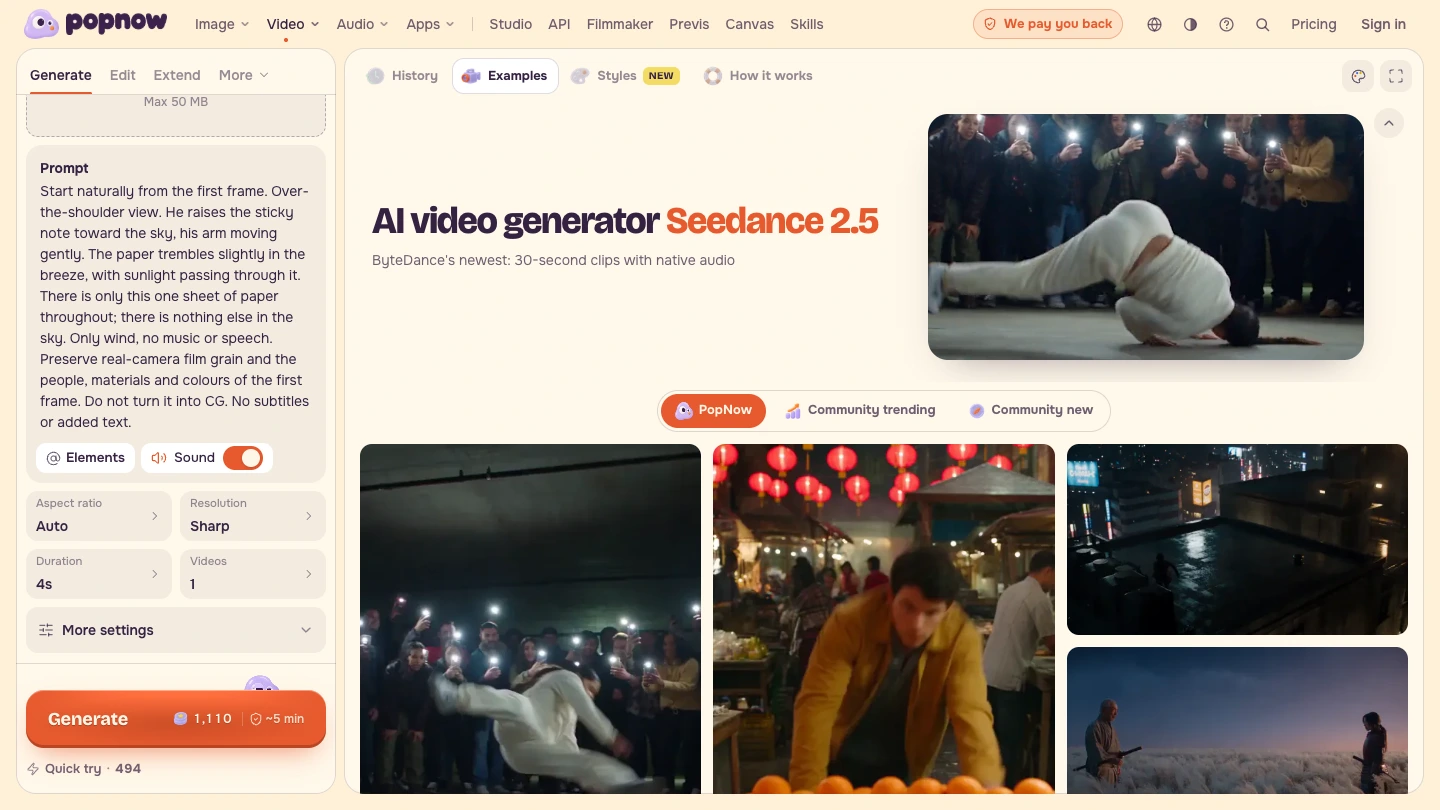
This capture records the public form and its displayed quote. No generation was submitted and no image was uploaded during recording. The supplied before and after takes are historical production results. Read your current quote after adding your own image; a historical displayed price is not a fixed charge.
The revision changes the action as well as the exclusion: he raises the sheet. At source 1 and 3 seconds, the inspected revised frames show one held sheet without the extra floating paper.
Step 3: Export V1
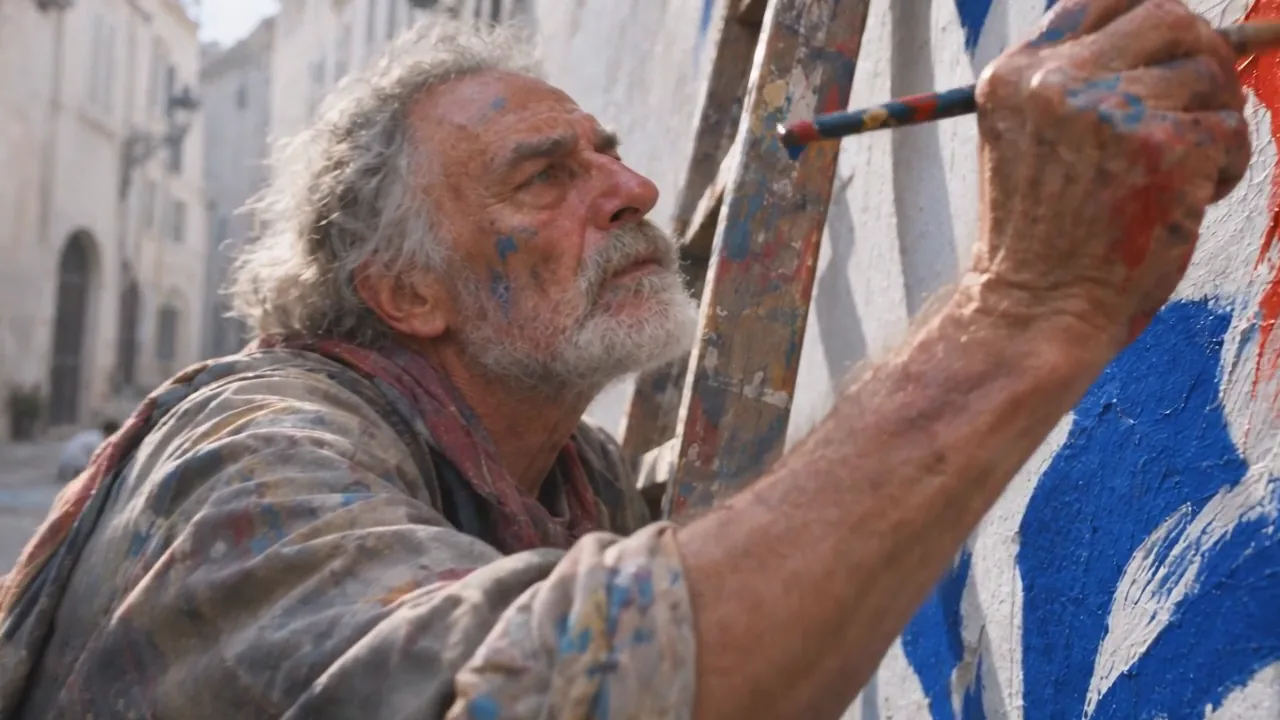
Open Video editor, choose Media, then Choose files from this device. Import drawing, note-before and bubble, in that order. Use the Trim handle and time readout to keep source 0–2 seconds for each clip. Keep Speed 1×.
Under Whole video, choose 16:9 and Show all. Choose transition None, leave fades off and turn Clip sound off. Export V1 and download its MP4 before making the replacement.
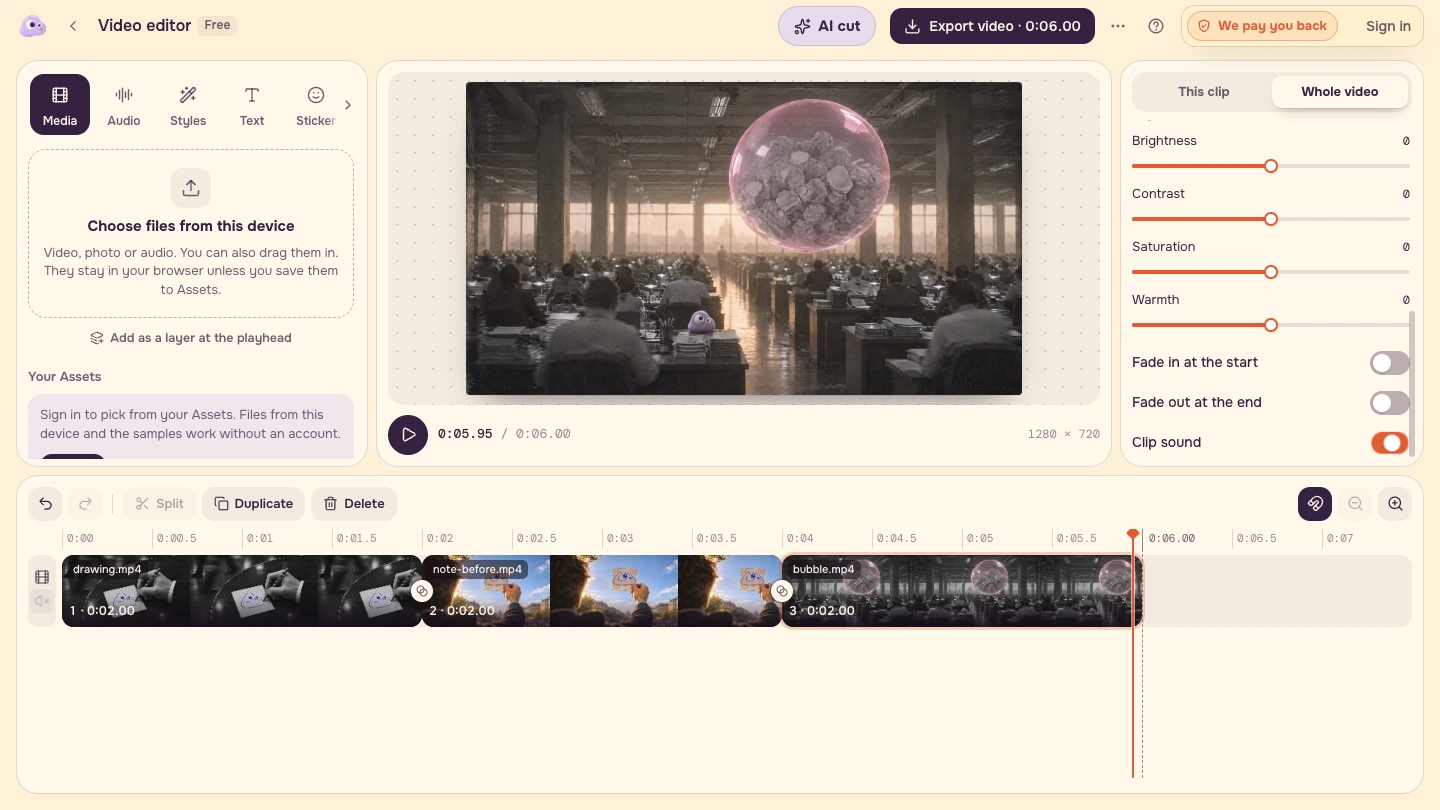
| Timeline | V1 source | Source range |
|---|---|---|
| [0, 2) seconds | drawing.mp4 | [0, 2) seconds |
| [2, 4) seconds | note-before.mp4 | [0, 2) seconds |
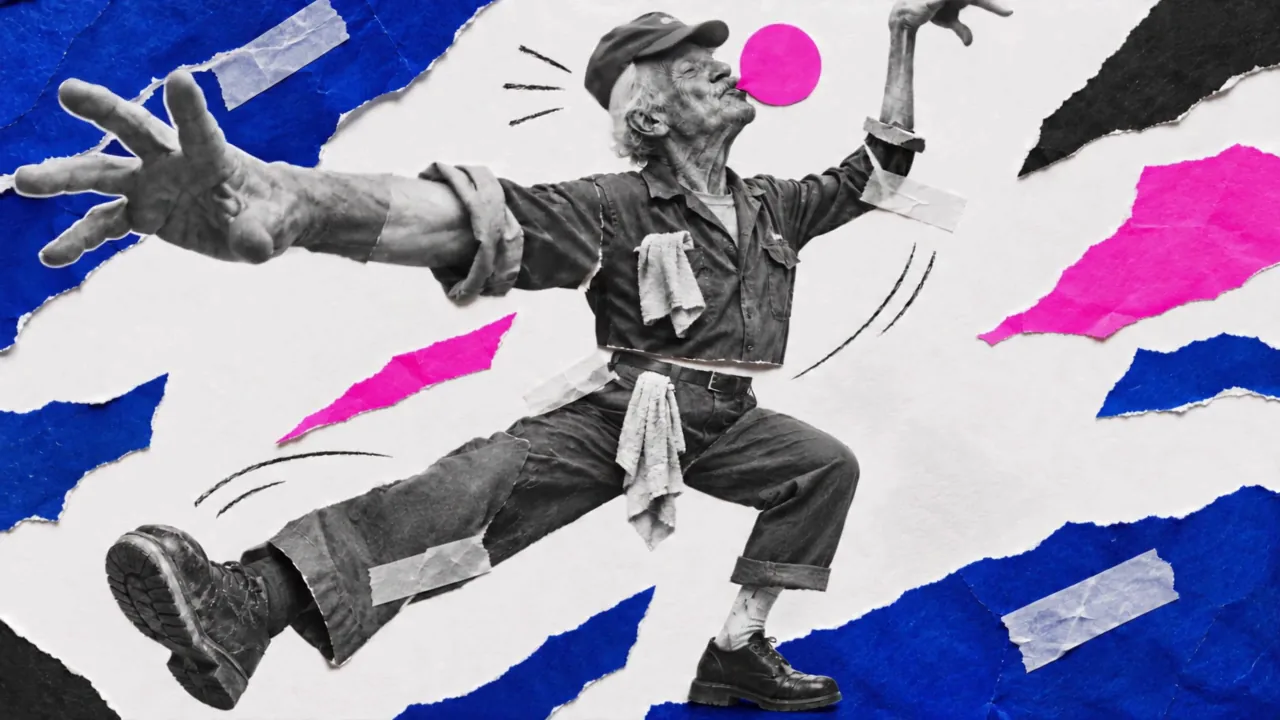
| [4, 6) seconds | bubble.mp4 | [0, 2) seconds |
Step 4: Replace the middle source and export V2
Select note-before, choose Delete, and import note-after from Media. Use Move earlier to place it between drawing and bubble. Trim it to source [0, 2). Confirm the final shot starts at 4 seconds and the total is 6 seconds. Keep the same framing, speed, transition and sound settings. Export and download V2.
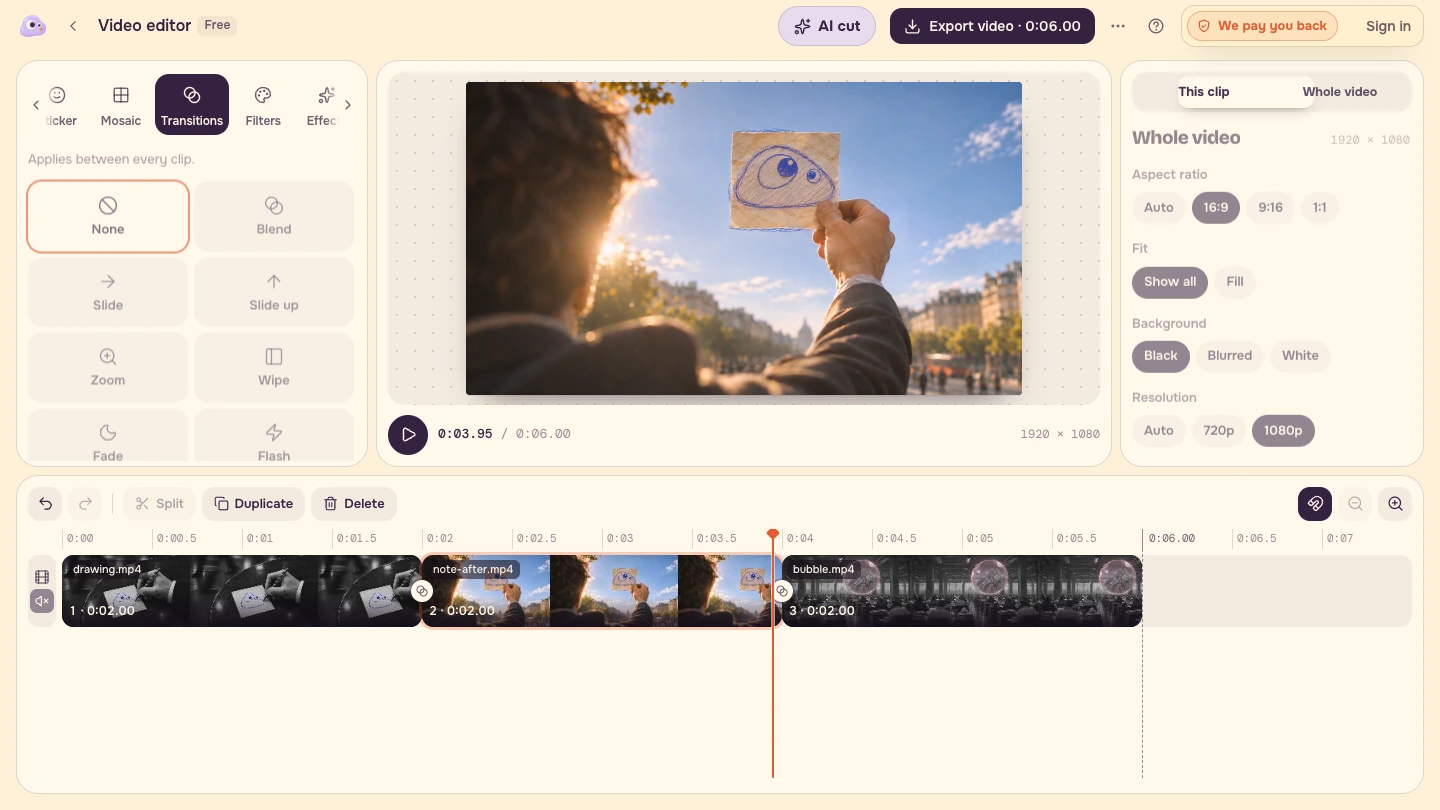
Both recorded downloads are 1920 × 1080, H.264 MP4, 30fps, 180 frames and exactly 6 seconds. They have no audio stream. The larger export dimensions do not add detail to the 720p sources.
Step 5: Compare matching times and fill the log
Reopen the two downloaded files in separate players. Pause both at timeline 3 seconds. Do not compare source 1 second in one version with source 3 seconds in the other. Inspect another matching source time when reviewing the original four-second takes.
| Record | Completed change log |
|---|---|
| Request | One physical sheet; no extra sheet in the sky. |
| Changed | Middle source, visible paper count and note action. |
| Unchanged | Drawing and bubble sources; 0/2/4/6 second cut boundaries; 16:9; Show all; 1×. |
| Sound | Both practice versions intentionally silent. |
| Scope | Practice edits assembled from real takes, not historical final-film versions or client approvals. |
Play each whole download at 1x before delivery. Check both cuts, the frame edges and the absence of an audio track. If the new shot needs more than two seconds, make that a new edit decision and review every later cut.
The finished Poppie: a PopNow short film uses its own zoom, cuts and sound. Its note scene does not establish the timing of this exercise.
Checklist
- Name one visible change and its acceptance rule.
- Compare matching source times.
- Preserve the agreed cut positions and neighbouring sources.
- Keep the same framing and speed.
- State the sound policy for both versions.
- Reopen and play each complete downloaded file.
- Deliver V1, V2 and the completed change log.
Recipe
Use the downloadable JSON for the complete prompt, settings, timeline and log. Repeat the exercise with your own footage: replace one source in an agreed slot, write what changed and what stayed fixed, and verify the exported result. A request that changes duration, framing or sound needs another check of the whole sequence.
FAQ
Is the revision generated live in the recording?
The before and after are existing production takes. The recording demonstrates the real public form and a local editor workflow. The start image is provided separately and was not uploaded during recording. The displayed quote is separate from an actual charge.
Why are both practice versions silent?
Silence makes the exercise’s sound policy explicit and consistent. The finished film has its own sound and timing. If your delivery needs sound, check the replacement against the surrounding audio as a separate acceptance condition.
What if the replacement needs a longer slot?
Treat the duration change as a new edit decision. Check every later cut, transition and sound cue, then replay the whole downloaded revision before delivery.