
Start from what you already have. Match a sentence, a photo or a clip to the right PopNow mode and first model, and get a usable result in minutes.
The quickest way to waste credits is to start in the wrong place: describing a photo you already have, or generating a whole new clip because one detail is off. Before you write a word, look at what is already on your desk, then open the mode that starts from it.
Step 1: Name what you already have
There are four starting points: words, one photo, a few photos of the same person or product, and a clip. Each one settles different things. Words settle nothing, so the model invents the whole picture. A photo settles the people, the place and the light. Several photos of one subject settle who or what appears. A clip settles the motion and the timing too.
Start from the most finished thing you have. Every detail that is already decided is one less thing the model has to guess.
Step 2: Open the matching mode
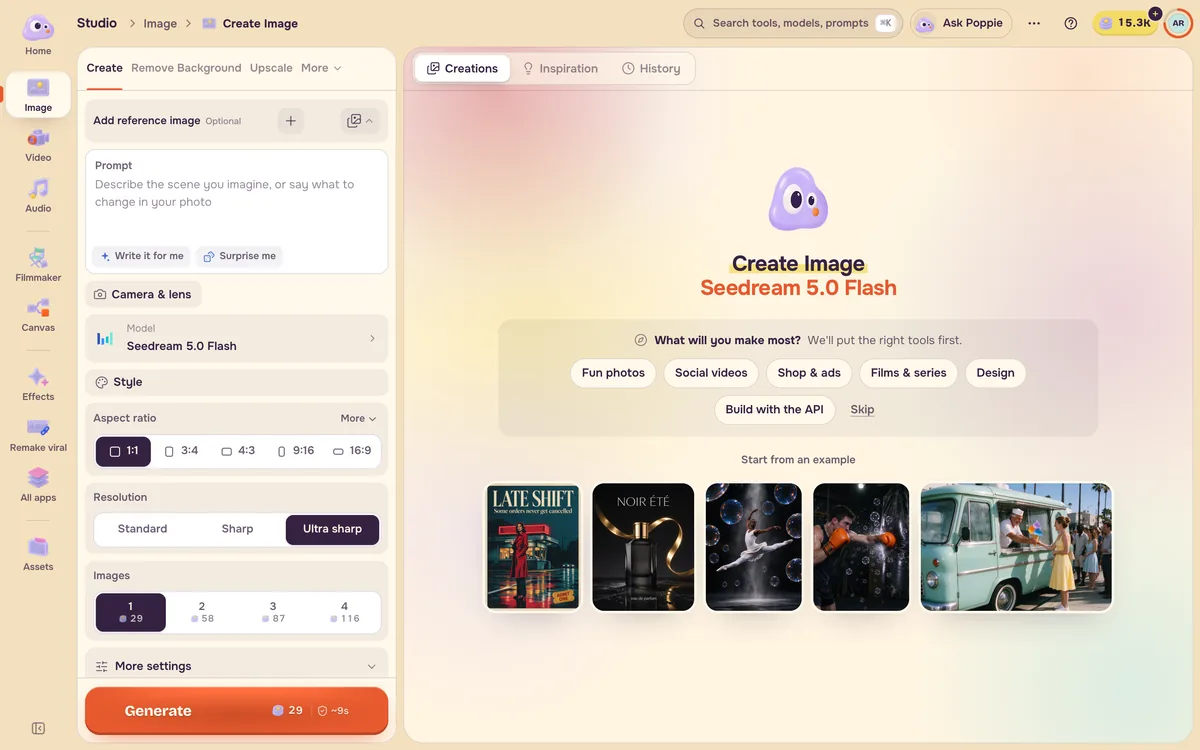
Every combination below opens from the left rail in Studio.
| You have | You want | Open |
|---|---|---|
| Words | A still picture | Image → Create |
| Words | A moving shot | Video → Generate |
| A photo | The same photo, changed | Image → Create, with the photo as a reference |
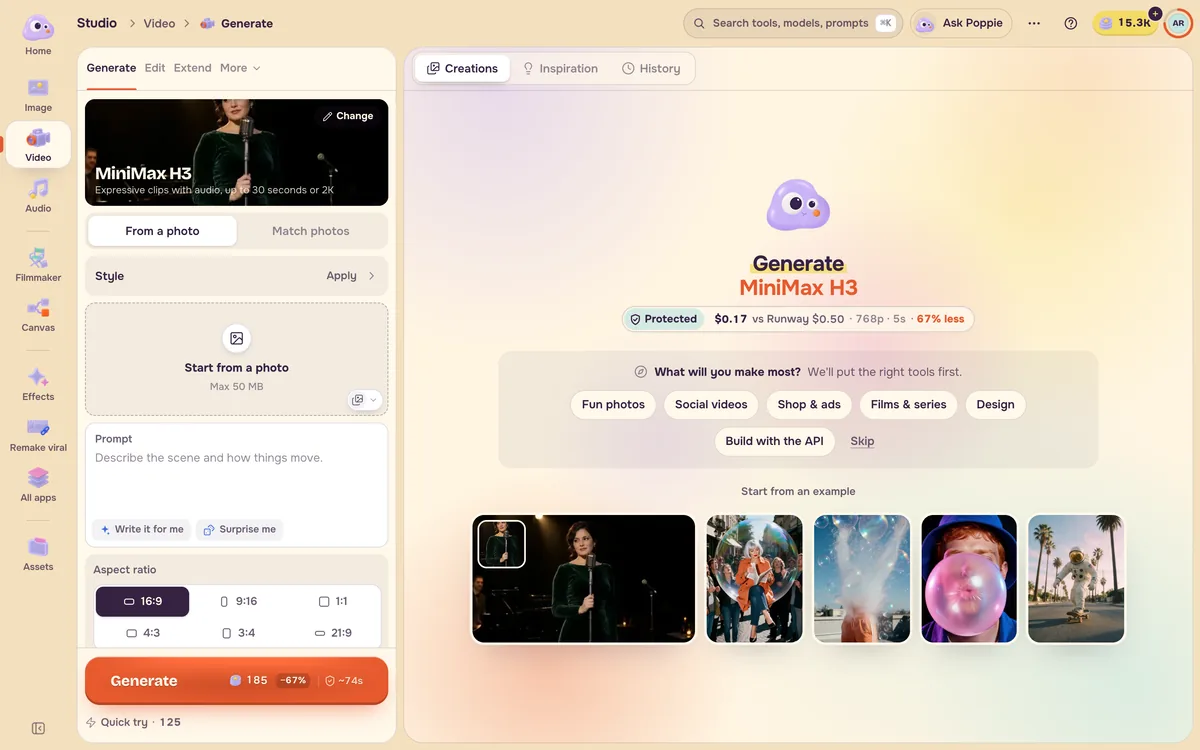
| A photo | That photo in motion | Video → Generate → From a photo |
| Photos of one person or product | A clip that keeps them | Video → Generate → Match photos |
| A clip | The same clip with one thing changed | Video → Edit, or Video Swap |
| A clip | More of the same shot | Video → Extend |
| A line to say, or a sound in mind | A voice, music or sound effects | Audio |
Step 3: Keep the recommended model for the first run
Each mode opens with a recommended model already chosen, marked Auto at the top of the model list. It is picked to be dependable and fairly priced, so your first result tells you whether the idea works rather than whether an unusual model suits it. Switch models once you know what you want to improve. The price is always on the Generate button before you press it.
A quick way to decide
- If you would describe the result as "make it move", start from a photo.
- If your idea includes the words "the same person", start from photos of that person.
- If you like a clip except for one detail, edit it instead of starting over.
- If the sound is the point (a line of dialogue, a jingle, a beat), make the sound first.
FAQ
Can I start from words and add a photo later?
Yes, and it often saves credits. Make a still first, keep the version you like, then open Video and start from it. A still is cheap to redo; a clip is not, so settle the look while it is still a picture.
What if my photo is small or blurry?
Video models stretch the first frame to the output size, so a soft photo becomes a soft clip. When a start photo is clearly too small or too blurry, the video page shows Upscale first under the upload slot. The sharper version then goes straight back into your video. See Photo to video.
Does the recommended model always cost the least?
No. It is a dependable default for that mode. Each model page lines up the lower-cost and sharper versions of the same family with live prices, so you can try ideas on one and finish on another. See Spend fewer credits.