

Write the voices, sounds and music first, then let the track drive the picture. Use as soundtrack sets the clip length to match the audio for you.
For a line of dialogue, a jingle or a cut on the beat, the sound is the point and the picture serves it. Making the picture first and fitting sound afterwards rarely lines up. Turn it around: make the track, check it, then make a clip that follows it.
Step 1: Write the track in the order it plays
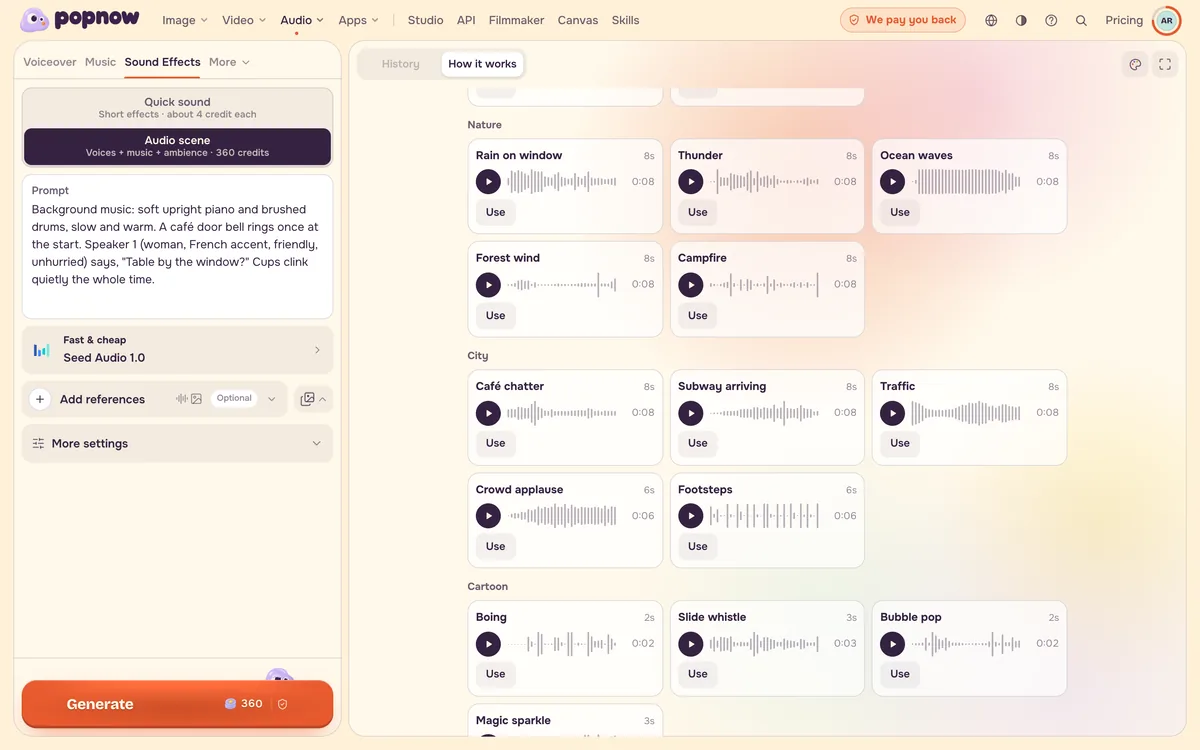
Open Audio, choose Sound Effects and pick Audio scene, which runs Seed Audio. It renders a whole scene from one prompt (voices, effects and music together) and plays the text in order, so write it like a timeline.
- Start the music with Background music: so it runs under the whole track. Music that is not labelled may come out as a short sting.
- Give each speaker a tag and a short voice sketch before their first line, then the words in quotation marks.
- Describe each sound by its source first, then its moment in the track, its volume, and its length or number of repeats.
- To drop a sound into the middle of a line, split the quote in two and put the sound between the halves.
Background music: soft upright piano and brushed drums, slow and warm. A café door bell rings once at the start. Speaker 1 (woman, French accent, friendly, unhurried) says, "Table by the window?" Cups clink quietly the whole time.
Step 2: Listen before you spend on video
The track is the cheap part: one Seed Audio run costs 360 credits. Fix the timing, the voices and the mix now, because every change after the video exists means a new clip.
Step 3: Use as soundtrack
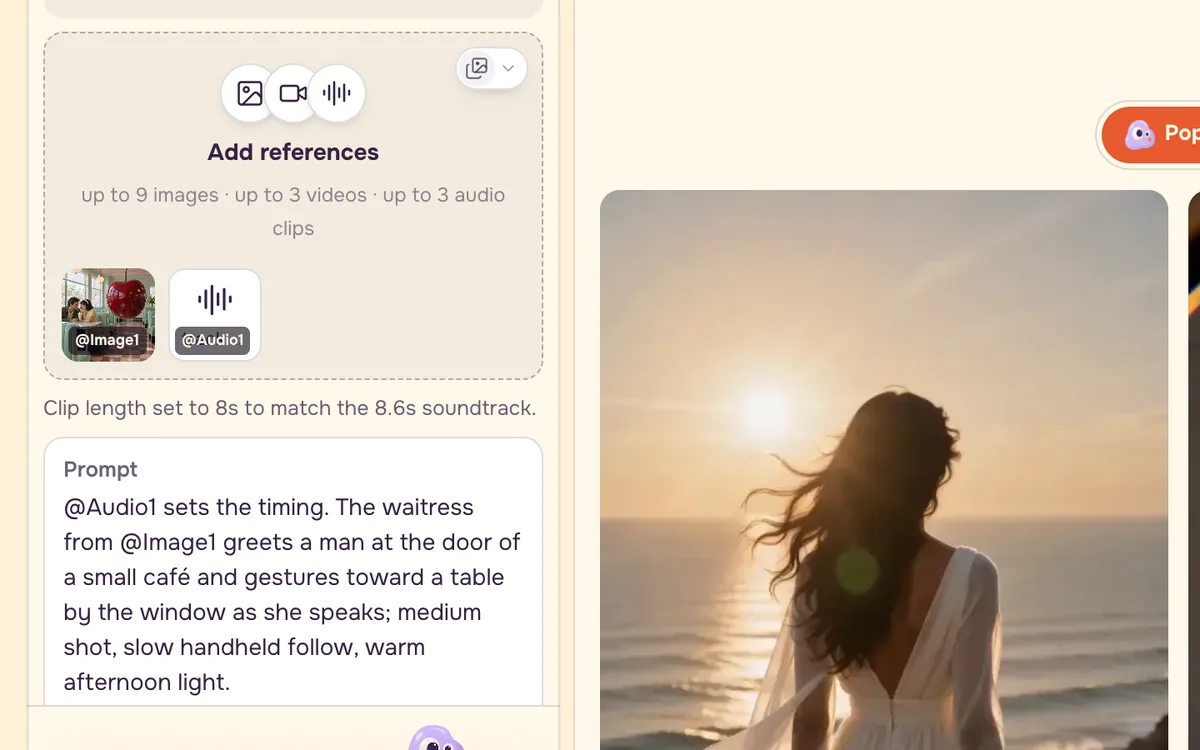
Under the finished audio, choose Use as soundtrack. It opens Seedance 2.0 reference to video with your track attached as the reference audio, and sets the clip length to the closest allowed length that does not run past the track. A note under the references says what it chose. If the track is longer than the model can follow (Seedance 2.0 follows up to 15 seconds of audio), the note says so: trim the track first, or pick a model that takes longer audio, such as Seedance 2.5 with up to 30 seconds.
Step 4: Add a picture and write a short prompt
Reference to video needs at least one picture or clip of who or what should appear, so add a photo of the speaker or the place next to the audio. The track already sets the timing, so the prompt can stay short: who is there, what they do and how the camera moves. Refer to the track as @Audio1 and leave out any dialogue the track does not already contain; extra lines make the model squeeze in speech and the lips drift.
@Audio1 sets the timing. The waitress from @Image1 greets a man at the door of a small café and gestures toward a table by the window as she speaks; medium shot, slow handheld follow, warm afternoon light.
FAQ
Which models can follow a soundtrack?
Seedance 2.0, including its Mini and Fast versions, follows up to 15 seconds of reference audio. Seedance 2.5 follows up to 30 seconds.
Why is my clip shorter than my track?
Clip lengths come in whole-second steps, so the clip is set to the closest step that does not run past the track: a 12.6-second track becomes a 12-second clip. If the track is longer than the model's limit, trim it first.
Can I use my own recording?
Yes. In Match photos mode, add it to the audio references. Use your own voice or recordings you have the rights to.