Create video turns a still image into a short moving shot. The photo fixes the look of the scene — the people, the light, the set — and your prompt decides what happens next. A five-second clip takes about a minute, and the price is printed on the Generate button before anything runs.
The clip below started from a single still of a knight facing a stone golem. We added it as the first frame, wrote one paragraph of action and camera movement, and generated it with MiniMax H3 Max.
Step 1: Open Create video
Go to Create video. The left panel holds everything you need: the photo slot, the prompt, the model and the quality. The right side shows examples until you generate, then your results.

Step 2: Add your photo
Click Start from a photo and choose an image, or pick one from your library. The photo becomes the first frame, so everything you see in it — faces, clothes, colors, framing — carries into the video. A second slot, End on this photo, appears if you want the clip to finish on a specific frame.
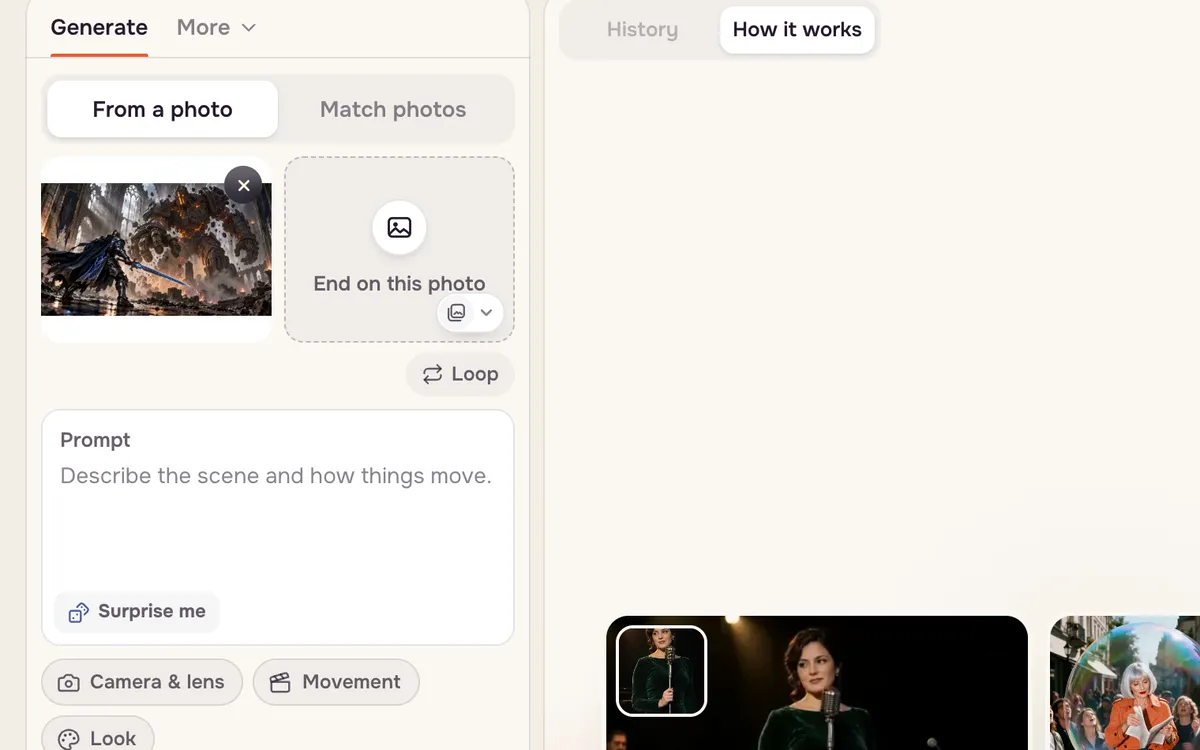
Use a sharp, well-lit image at the aspect ratio you want to publish. A wide 16:9 still makes a wide clip; a vertical still makes a vertical one.
Step 3: Describe the motion
Write what moves, in the order it happens, then how the camera behaves. You do not need to describe what is already visible in the photo — the model can see it. Spend your words on action and camera.
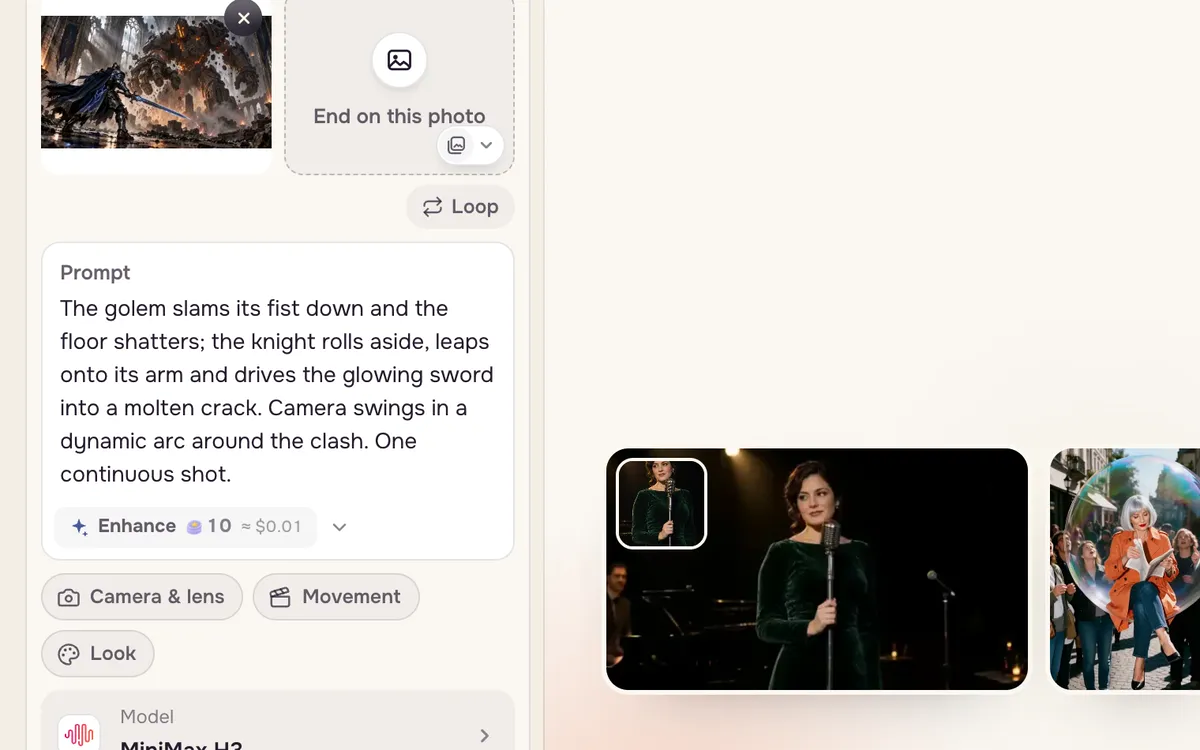
The golem slams its fist down and the floor shatters; the knight rolls aside, leaps onto its arm and drives the glowing sword into a molten crack. Camera swings in a dynamic arc around the clash. One continuous shot.
Step 4: Pick quality and generate
Open the quality options and choose a resolution. Standard is the cheapest way to check an idea; Sharp is a good default for sharing; Ultra sharp is for the final take. Each option shows its price, and so does the Generate button.
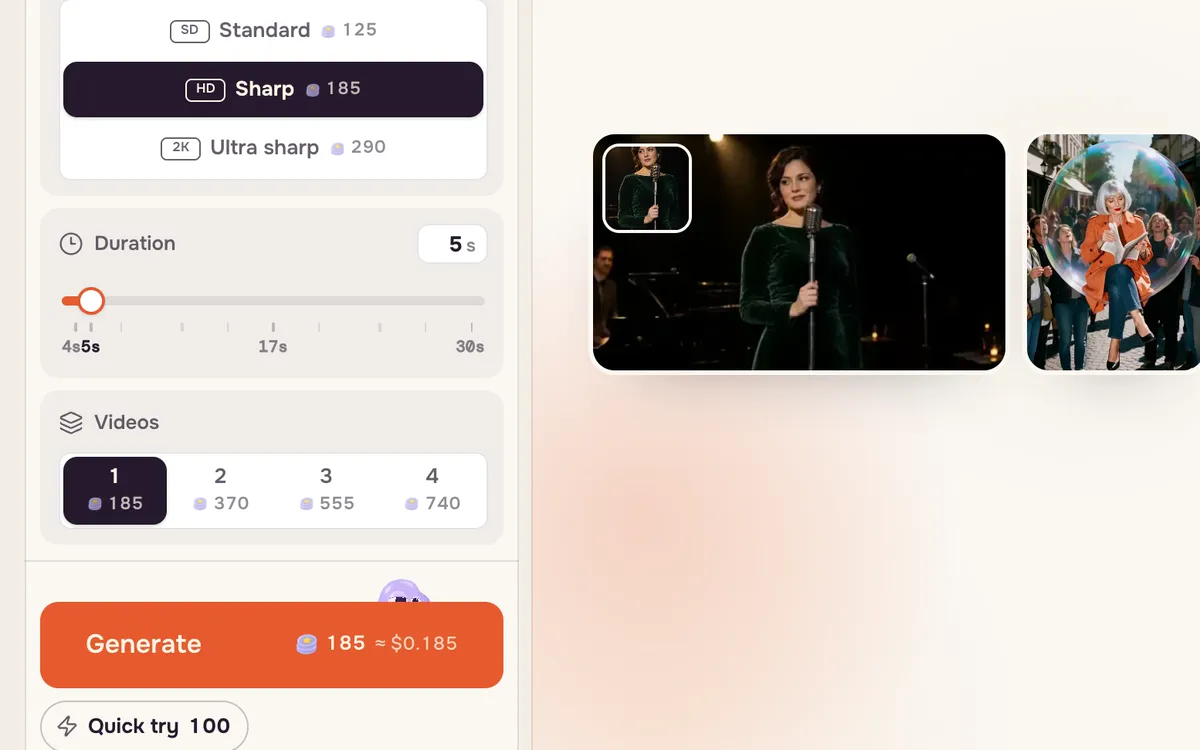
With MiniMax H3, a five-second clip costs 125 credits at Standard, 185 credits at Sharp and 290 credits at Ultra sharp. Quick try makes a cheaper preview first, so you can check the motion before paying for a sharper take. If a generation fails, the credits go back to your balance.
Tips for better results
- One idea per clip. Five seconds fits one action and one camera move. Chain clips with Extend video for longer scenes.
- Keep the subject consistent. Ending with "Same faces, hairstyles and outfits throughout" reduces drift on people.
- Name the camera. "Slow push-in", "arc around", "FPV dive" and "locked-off" all change the feel. See Camera moves.
- Avoid text in the frame. Signs and captions tend to come out garbled; add text afterwards.
FAQ
Can I make a video without a photo?
Yes. Switch the mode to text to video and describe the whole scene in the prompt. Starting from a photo gives you much more control over how the shot looks.
Which model should I start with?
The default, MiniMax H3, is a good balance of quality and price. Switch to MiniMax H3 Max, Kling or Seedance in the model picker when you need more detail or a specific look; the button price updates as you switch.
How long can one clip be?
It depends on the model; most produce five to ten seconds per generation. Use Extend video to continue a clip from its last frame.
Do I lose credits if a video fails?
No. If a generation fails, the credits it used are returned to your balance automatically.