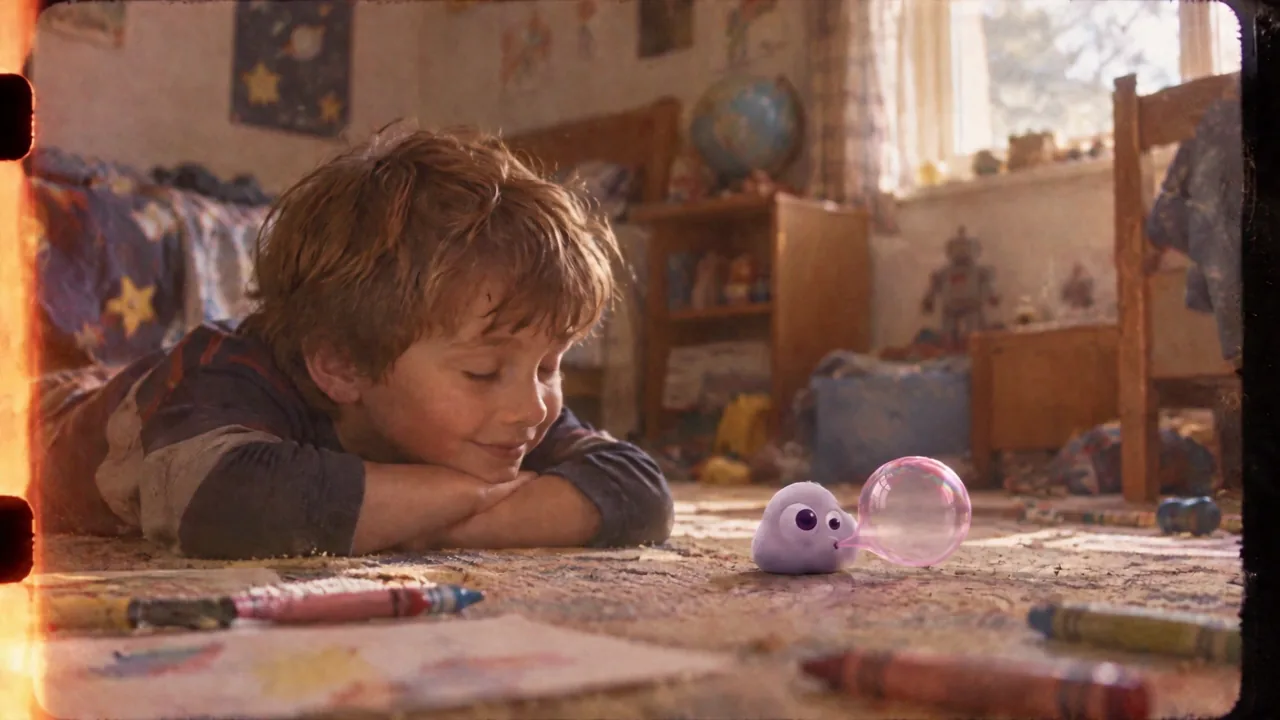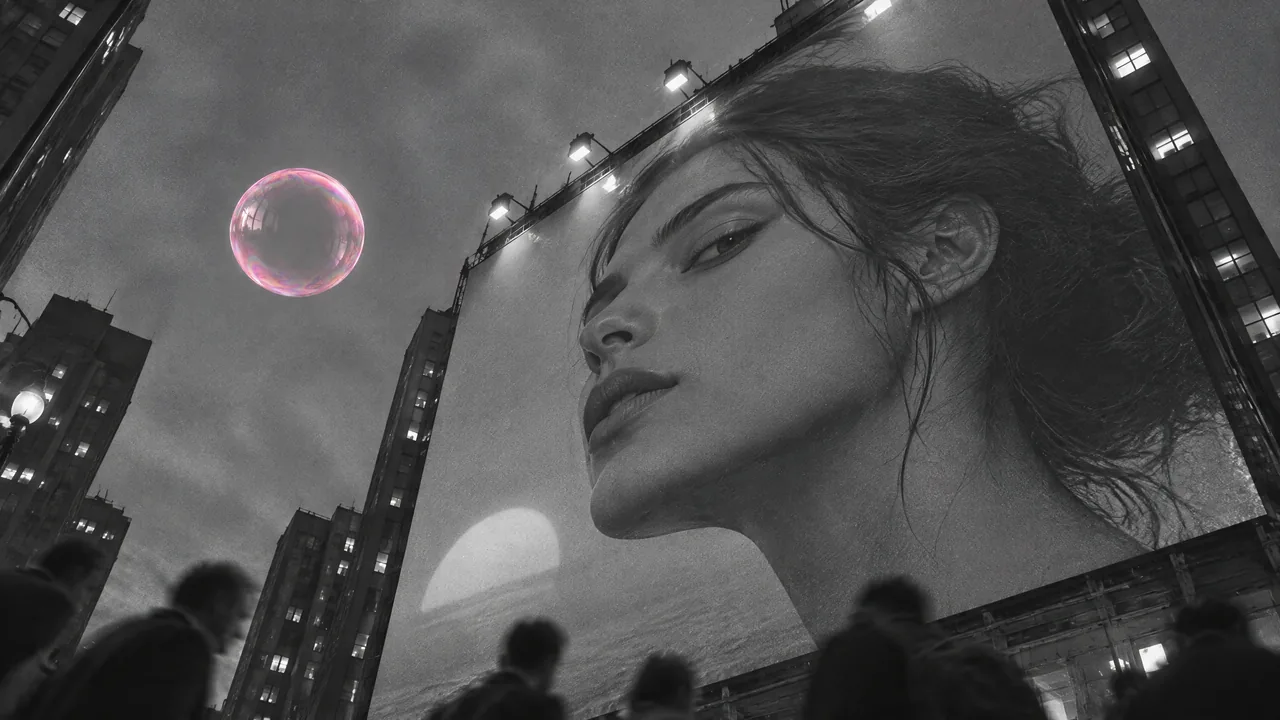

Mute four source clips, place two voice recordings and a bubble effect, then balance one continuous score in a fifteen-second PopNow edit.
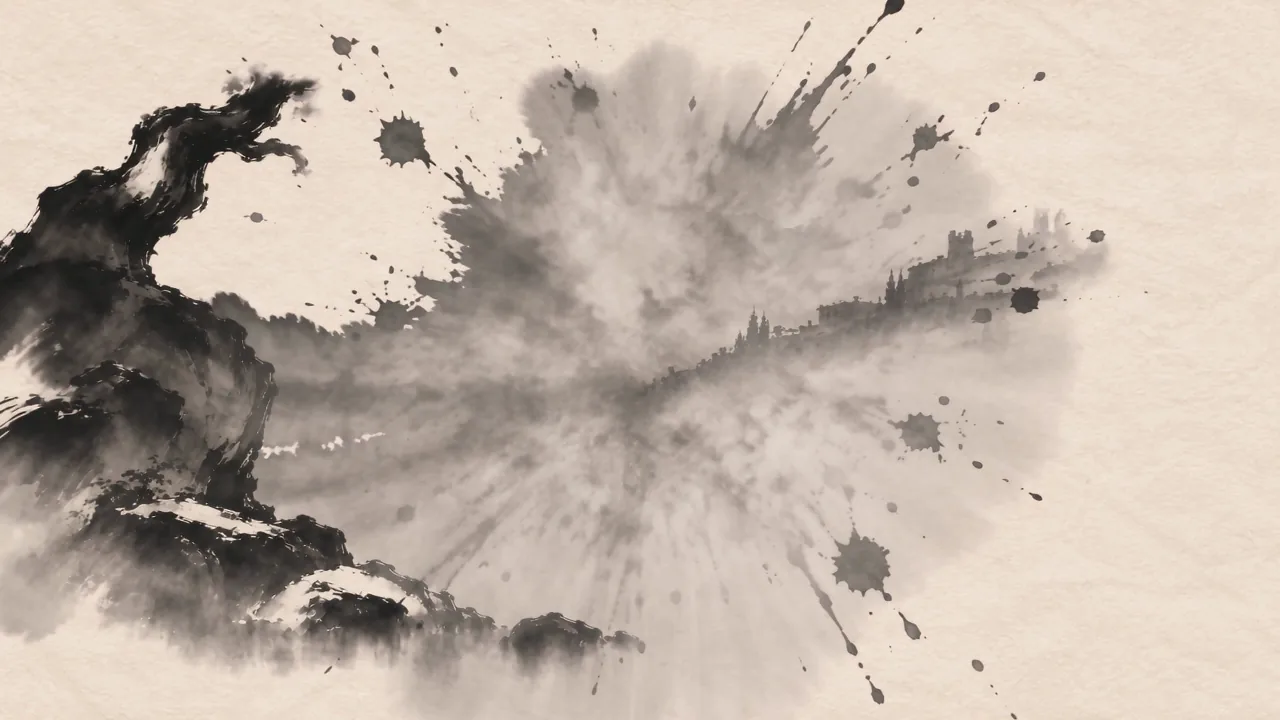
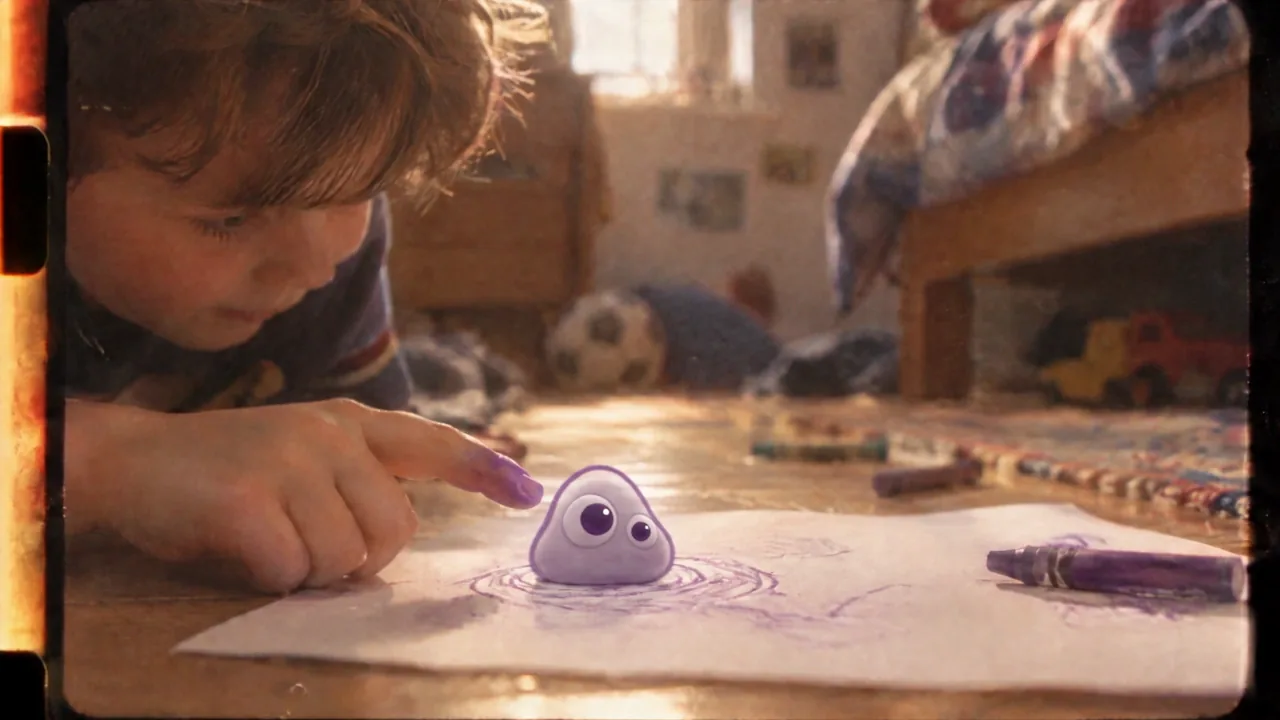
Build a 15-second drawing-to-flight scene with three independent kinds of sound: a storyteller, a physical bubble effect and one continuous score. The sources come from our production run for Poppie: a PopNow short film. The last picture cut deliberately enters a different imagined world.
Public controls and local editing were recorded on November 7, 2026, without an account. The supplied production effect used Seed Audio 1.0; the music setup uses Suno v6. Optional Quick sound uses Foley v1. The lesson host uses Gemini 3.8 Flash TTS / Puck. No optional sound or music generation was submitted while recording.
Lesson files
Download the exercise files · Download the recipe
The package contains four picture clips, n03.wav, n04.wav, bubble.mp3, score.mp3, the two audio-only mix comparisons, three-layers.mp4, and the English recipe. These files are prepared locally; verify the public download links before publishing this page.
Step 1: Start with silence
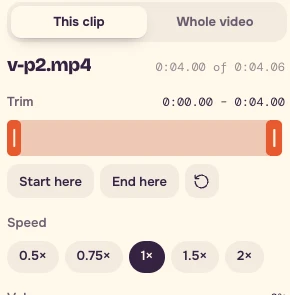
Open Video editor. Choose files from your device and import these four clips in order. Set every picture's Speed to 1× and Volume to 0%.
| Picture | Part to use | Project start |
|---|---|---|
| v-p2.mp4 | 0–4s | 0s |
| v-p3.mp4 | 0–4s | 4s |
| v-p3d.mp4 | 0–4s | 8s |
| 25.mp4 | 0–3s | 12s |
Use Transitions → All cuts → None so the pictures meet without overlap. If a sample project appeared first, remove its clips, text and stickers, and set Effects and Filters to None. The project clock should read 0:15.00.

Step 2: Hear the real failure
Listen to v6-audio-37-52.wav, then v7-audio-37-52.wav, each once at its original speed. These are the same fifteen-second passage from the earlier and rebuilt production mixes. Their pictures are intentionally excluded from this comparison.
At passage times 0.208s, 10.708s and 12.125s, the earlier mix has level changes of approximately 8.09, 6.12 and 7.80 dB. The rebuilt mix measures approximately 3.22, 0.18 and 2.89 dB. Each measurement compares 200 ms of RMS energy on either side of the cut. Both silent sides count as zero change; exactly one silent side counts as an infinite jump.
This measures level continuity. It does not judge musical quality, harmony or whether a key change belongs. The useful repair is to choose one background instead of inheriting several native soundtracks.
Step 3: Place the voice and physical effect
In Audio → Choose audio from this device, add the four supplied sound files. Use the cue sheet below. Imported audio defaults to 60%: set each volume explicitly. Keep Speed at 1× and fades at zero except for the score's final fade.
| Audio | Source range | Project start / volume |
|---|---|---|
| n03.wav | Full 0–3.44s | 4s / 100% |
| n04.wav | Full 0–4s | 8s / 100% |
| bubble.mp3 | 0–4s | About 7s / 50% |
| score.mp3 | 0–15s | 0s / 20% |
For each part, move the playhead to its project start and press Start at playhead. Use Part to use to trim the sound. Four audio parts leave room below the editor's eight-part limit.
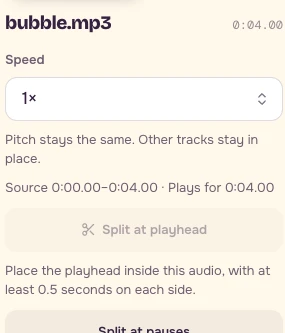
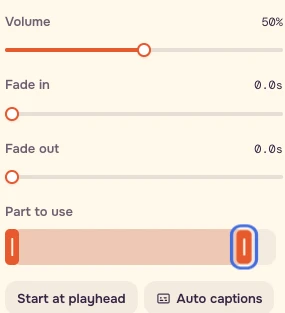
The visible finger touch and burst occur around project 10.58s, or source 2.55–2.60s within v-p3d.mp4. The effect's pop is near source 3.6s; starting it at 7s places it around 10.6s. Audition the join and adjust to the nearest preview frame. A late sound can make a convincing touch feel detached.
Trim is a draggable slider, not a time text box. Read the clock while dragging. For picture cuts, focus the preview or timeline, use Left / Right for one-frame playhead steps, and use Start here / End here. Trim-handle arrows nudge 0.1s; Shift plus an arrow nudges 1s. Save your actual chosen setting.
Step 4: Try a small sound before buying a scene
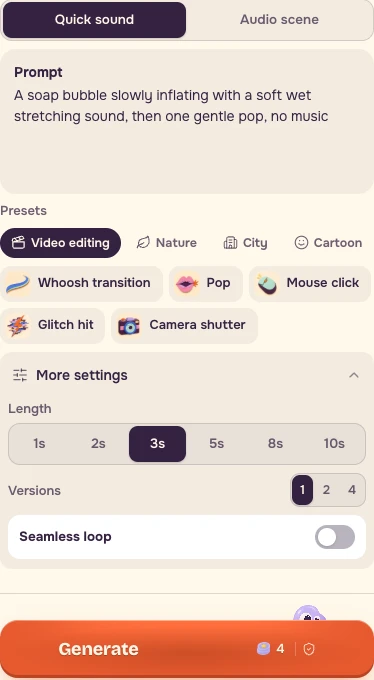
Open Sound Effects and choose Quick sound. Paste:
``text A soap bubble slowly inflating with a soft wet stretching sound, then one gentle pop, no music ``
Open More settings, choose Versions 1, and turn Seamless loop off. Read the actual quote before generating.
Recording-day difference: Quick sound offered 1, 2, 3, 5, 8 or 10 seconds, with no four-second option. The captured setup is 3s, one version, loop off, quoted at 4 credits on November 7, 2026. That quote does not describe a four-second request. Use the supplied bubble recording trimmed to four seconds for this exercise. If making a new effect, choose an offered duration that includes the action and decay, then trim it.
Extra ingredients are useful only when the shot needs them. Try the supplied effect and trim its tail before paying for a different recording.
Step 5: Give one score a continuous job
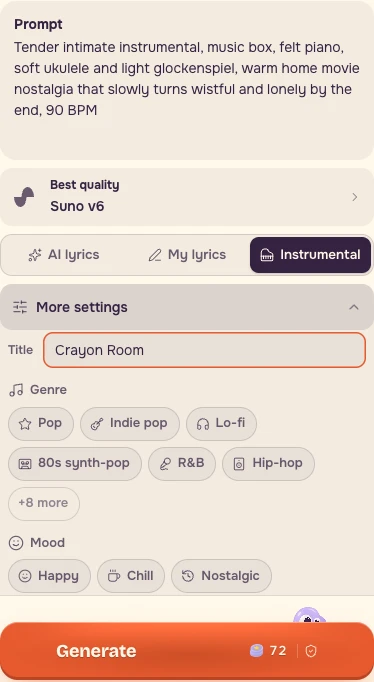
Open Music. Choose Suno v6, turn Instrumental on, and use Title: Crayon Room under More settings. Paste this prompt:
``text Tender intimate instrumental, music box, felt piano, soft ukulele and light glockenspiel, warm home movie nostalgia that slowly turns wistful and lonely by the end, 90 BPM ``
The captured button quoted 72 credits on November 7, 2026. Check the current quote before paying. The practice edit uses the supplied score, so a new request is unnecessary.
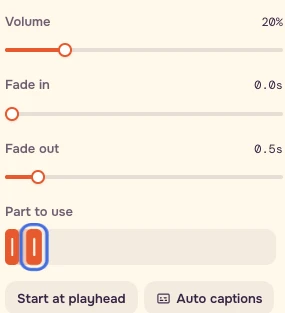
Back in the editor, keep score.mp3 → Part to use 0–15s, start it at zero, set Volume 20%, and Fade out 0.5s. Twenty percent is a starting point: adjust under the voice by ear.
Step 6: Check timing, belonging and balance
- Turn the score to zero and watch the touch.
- Listen to the voice and effect without looking.
- Restore the score and play the whole scene. Check speakers and headphones.
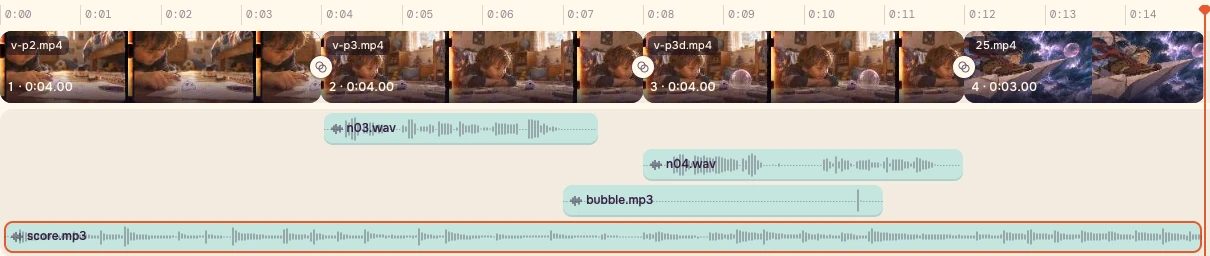
Choose Whole video → 16:9 → 720p → Standard, then Export video and Start export. Download the MP4 and reopen it. The downloadable three-layers.mp4 is the exact fifteen-second recipe assembled from the supplied sources, without subtitles burned into the picture.
Checklist and recipe
- Every picture's Volume is zero; every source plays at 1×.
- Four picture clips total fifteen seconds, with straight cuts.
- Keep the full 3.44s and 4s voice recordings at 4s and 8s.
- Keep the bubble's attack and decay; compare its pop with the visible touch.
- Keep one continuous score below speech; restore its volume after checking.
- Save the timeline screenshot, export, prompts, settings, actual quote and date.
- Use a dedicated audio editor for dense automation or detailed repair.
Use the downloadable recipe for the cut table, audio cue sheet, both prompts, sync landmarks and recording-day settings. Spend effort on placement before buying detail.
FAQ
Do I need to generate new sound effects or music?
The package includes both voice recordings, bubble.mp3 and score.mp3 for the practice edit. Use those supplied recordings first. New sound and music requests are optional, and the page asks you to read the current quote before generating.
What should I adjust if the bubble pop feels late?
The visible touch and burst occur around project 10.58 seconds. The supplied effect's pop is near source 3.6 seconds, so starting the effect around project 7 seconds places it near the touch. Play across the join, adjust to the nearest preview frame and save the actual offset while preserving the attack and decay.
Must the score stay at exactly 20% volume?
Twenty percent is the lesson's starting point. Adjust the continuous score under the voice by ear, then check the whole scene on speakers and headphones. Restore the score after muting it for the timing check.