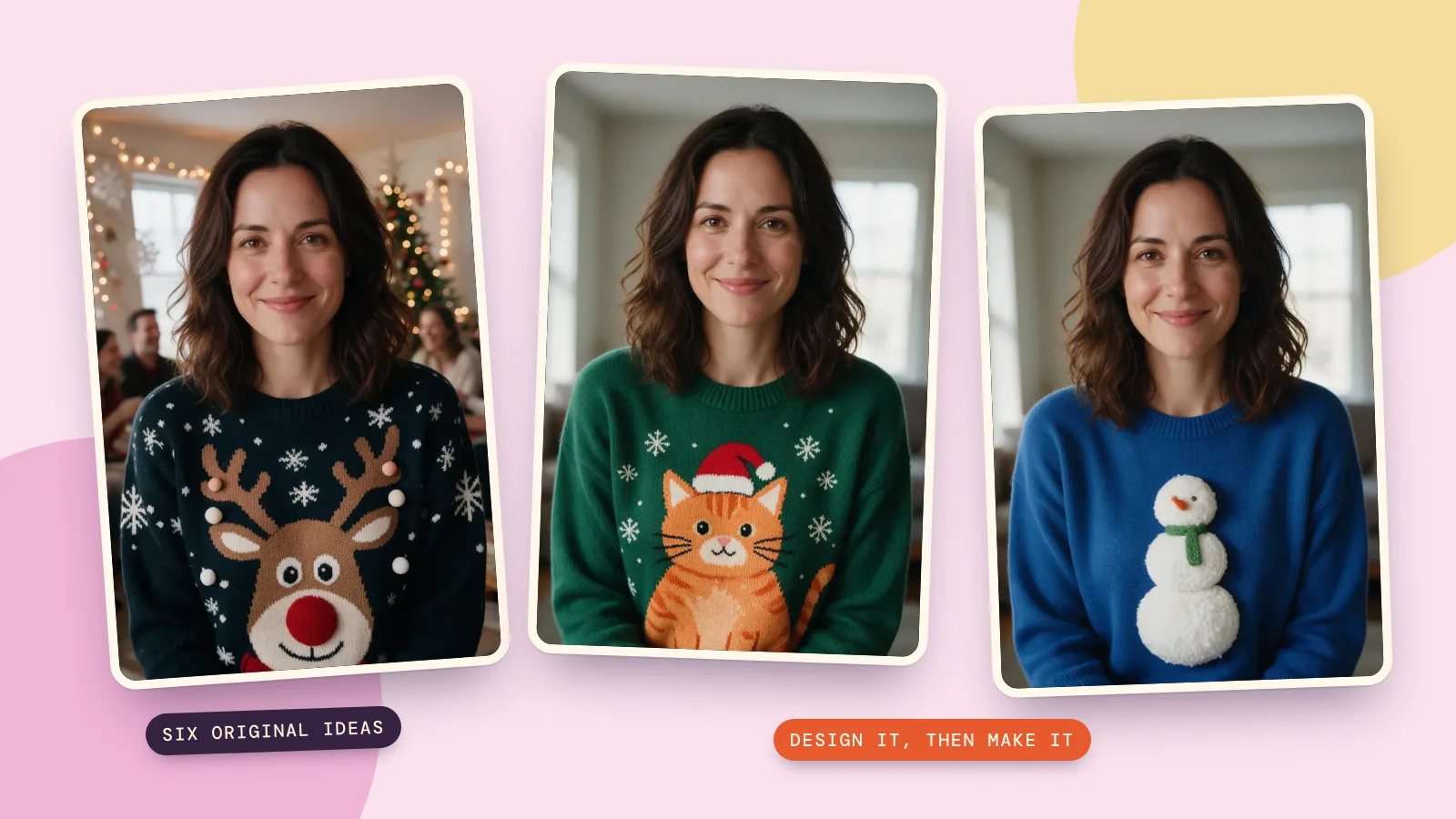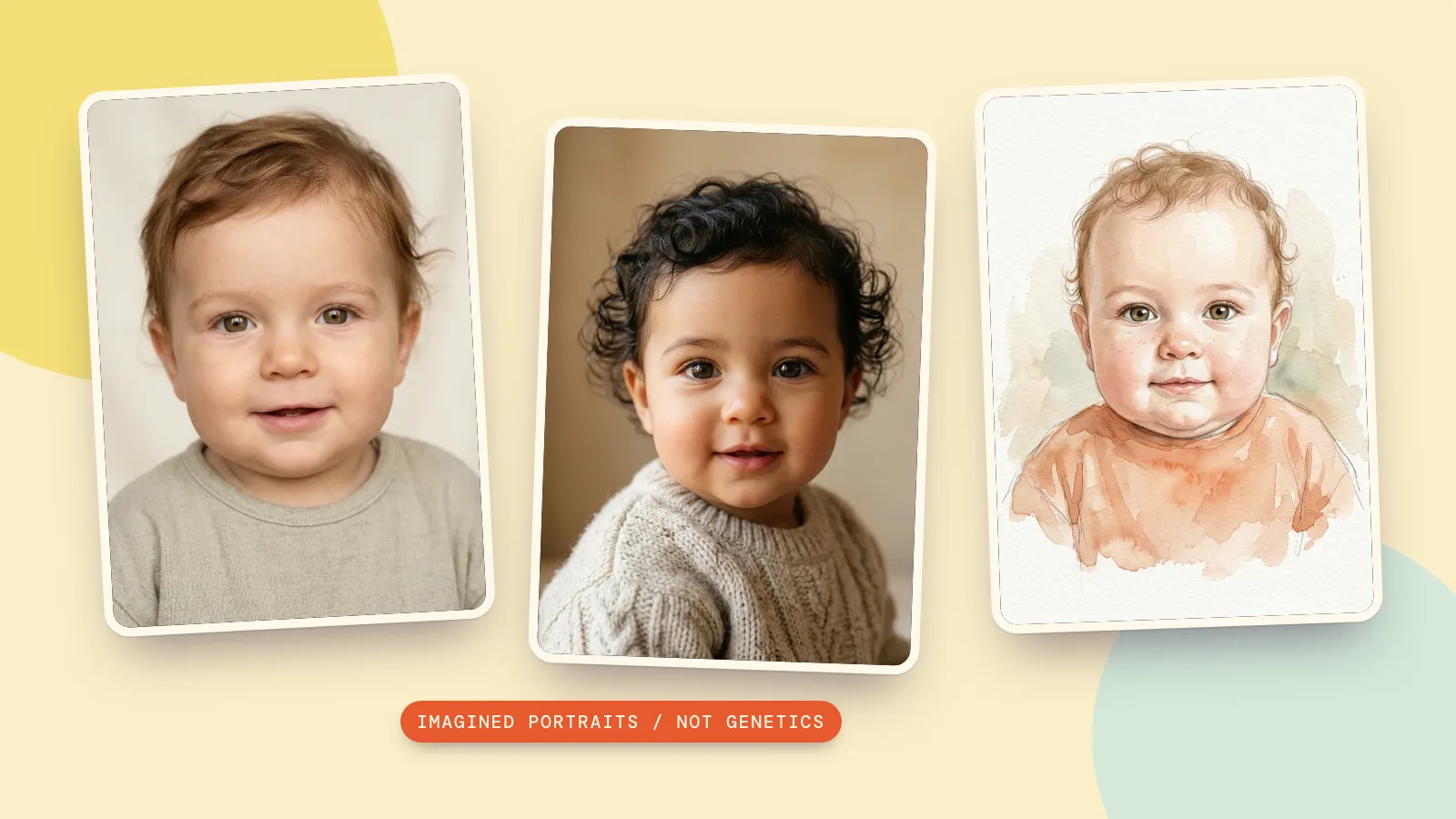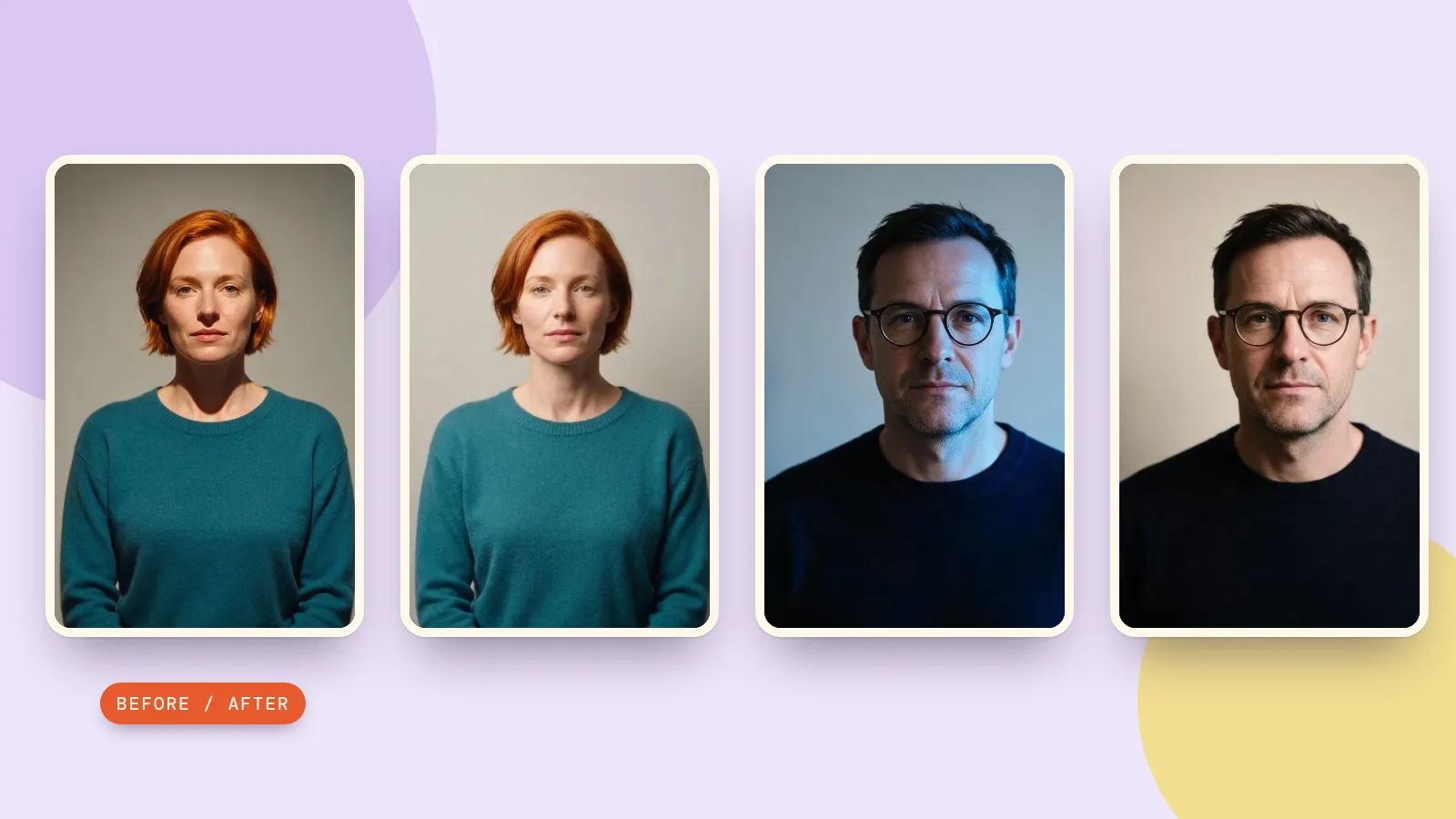


Seedream 5.5 is an AI image generation and editing model from ByteDance's Seed team. It supports creating images from text, editing with reference images, refining a picture over multiple rounds, and generating transparent PNG assets.
Seedream 5.5 is now available on PopNow. You can upload an image and describe a specific change. For example, you can change the sunglasses in a portrait or replace one ring while preserving the surrounding details.
What can Seedream 5.5 do?
- Targeted edits. Describe the object or region to change, such as one accessory, a product color, or the headline at the top of a poster.
- Multi-round editing. Use the result of one edit as the input for the next. Save versions as you work so you can return to a good result if details start to drift.
- Text and layout. Specify the exact copy and placement of titles, labels, and small print in posters or infographics. Proofread the finished image, especially numbers and multilingual text.
- Transparent PNG assets. Describe which parts should be opaque, translucent, or fully transparent. Check the exported file's alpha channel before placing it on another background.
- Realistic lighting and reference images. Describe the light direction, material, and shadows. When you combine references, tell the model which image supplies the subject, the layout, or the look.
- Separate layers. In PopNow, Layer Splitter separates a finished image into a base and transparent layers. You can request 2 to 100 outputs, counting the base image, to prepare elements for further composition.
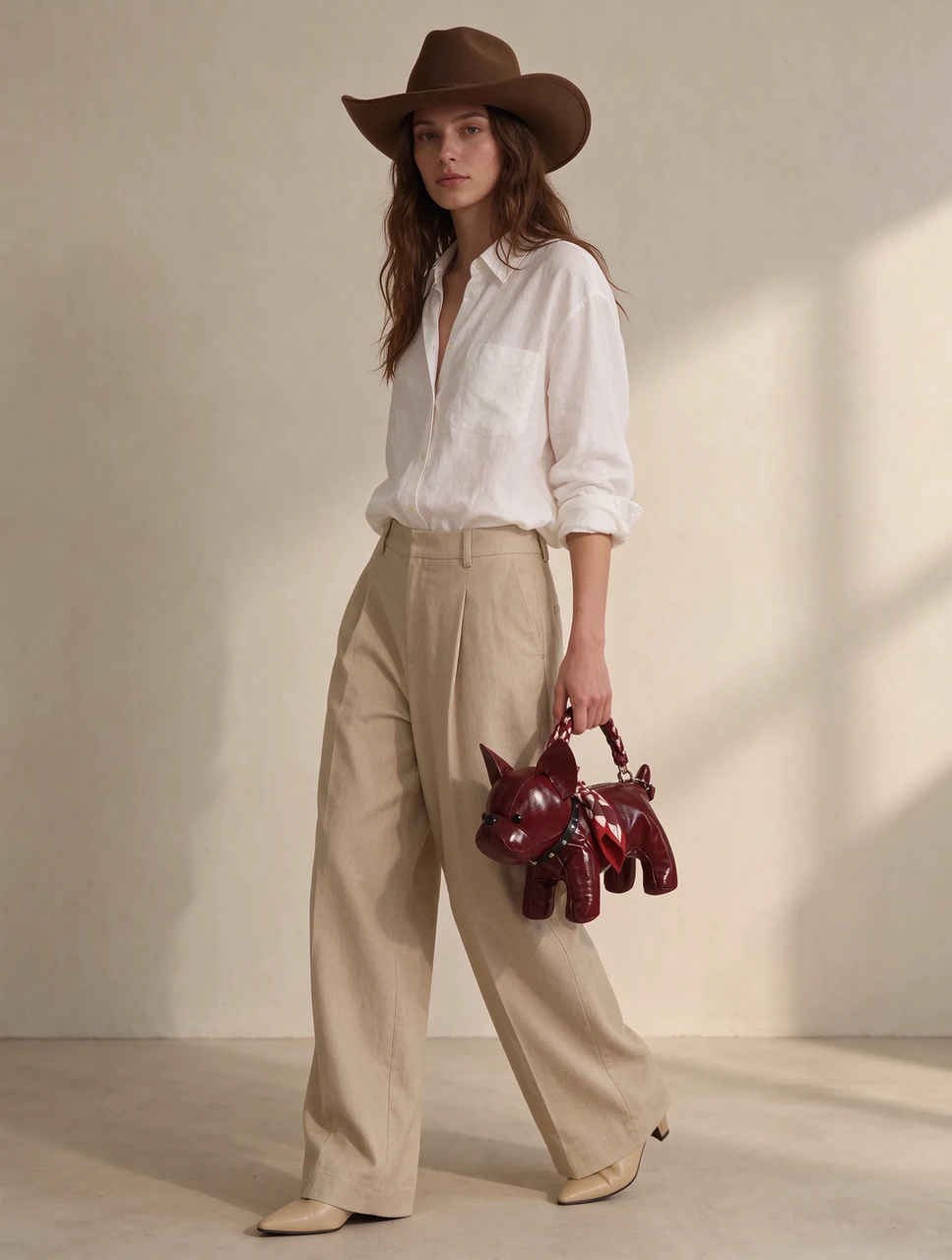
The six prompts below show how to turn those features into specific tasks.
How to write a Seedream 5.5 edit prompt
Start with the current image. If you attach several references, say what each one supplies. For example, use image 1 for the product and camera angle, and image 2 for the color of the background. Then name the object or region you want to edit, describe the desired result, and list the details that should stay fixed.
- Locate it. Use a position and a visual feature, such as the small gold ring on the right.
- Describe the change. Give the new color, material, text, or position. Add a degree of change if it matters.
- Lock the surroundings. Name the text, objects, reflections, shadows, or framing you need to preserve.
- Check the output. Compare it with the input at full size, especially around the edit boundary and any small text.
In PopNow, edits accept up to ten reference images. Call them Image 1, Image 2, and so on in the prompt. Pick the aspect ratio yourself because Seedream 5.5 edits use the selected output shape rather than automatically following the source.
1. Change glasses across several edits
For a portrait edit, identify the accessory, its replacement, and the person's features you need to preserve. Keep each instruction focused on one change so you can inspect the face and clothing between rounds.
Try this prompt
For another revision, use the latest accepted picture and describe the next change in full. To remove the glasses, for example, ask to remove them and restore the visible area around the eyes while preserving the expression and hairstyle.
2. Replace one product detail
Jewelry edits need a precise target. In a hand wearing several rings, identify the ring by its position and appearance. Then specify its new design and the surrounding details to preserve.
Try this prompt
Inspect the contact between the ring and the finger, the shape of the setting, and the nearby rings. For a commercial product image, also compare the design with the item you intend to sell.
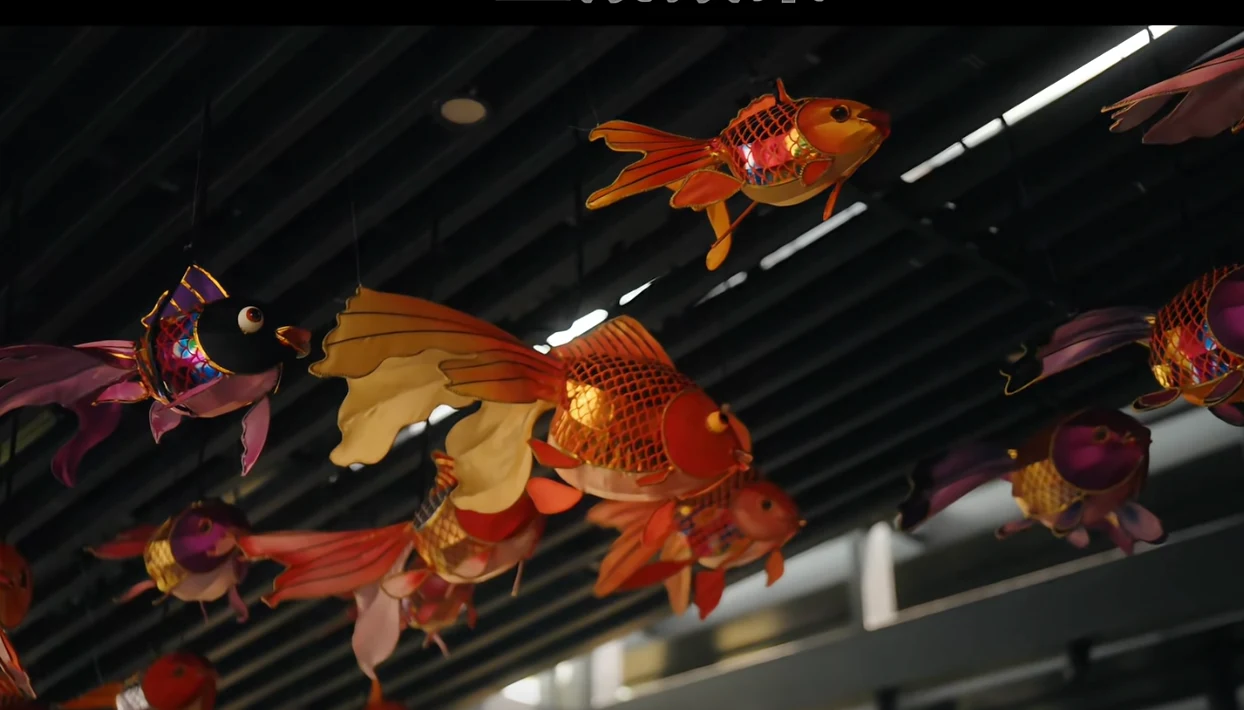
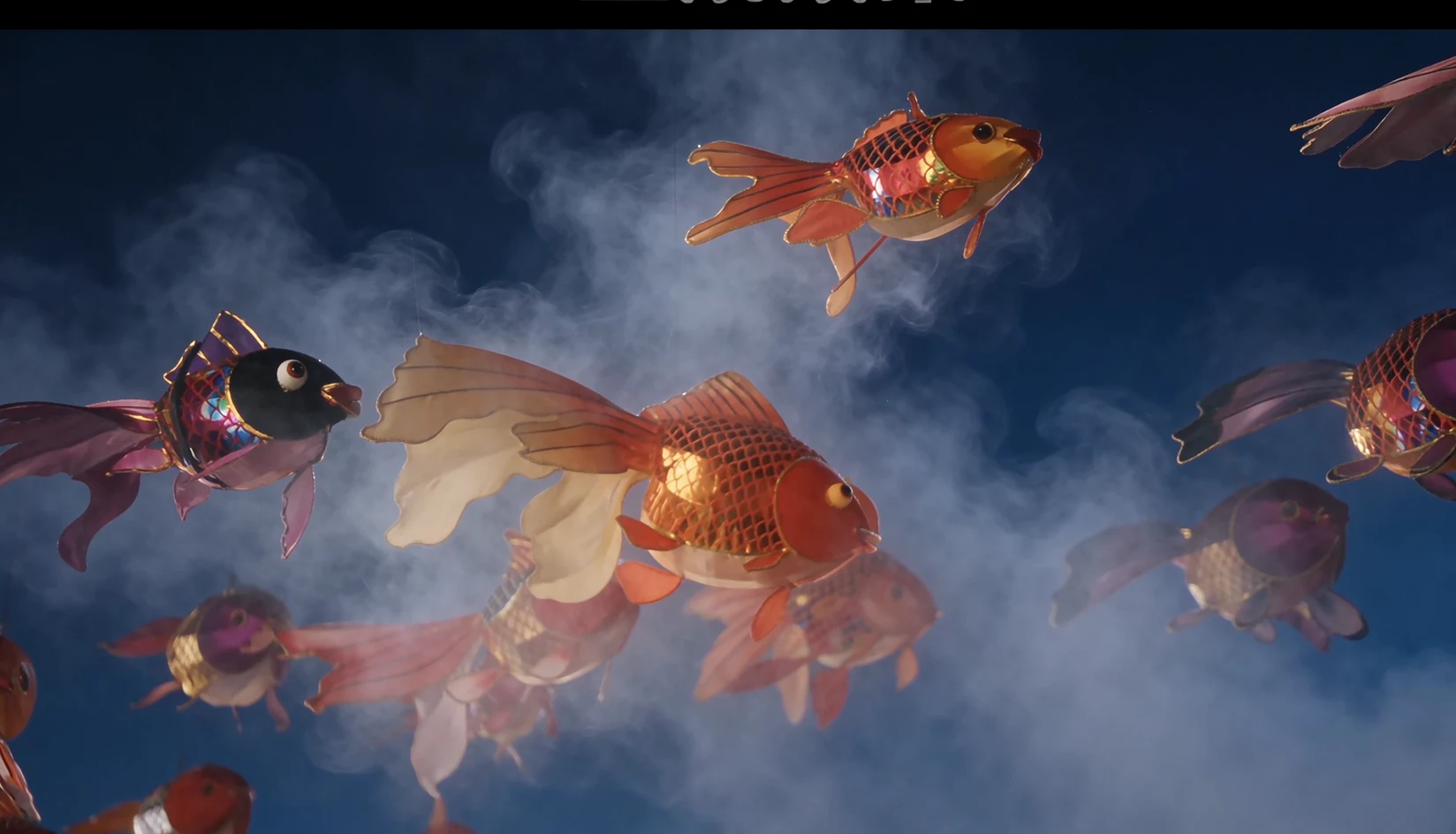
3. Add haze that fits the light
Describe where the haze appears and what it passes in front of or behind. These spatial details help define the edit and the objects you want to keep clear.
Try this prompt
 Before
 After
Check how the haze meets the lanterns and ceiling. A soft atmospheric effect should still leave the important silhouettes readable.
4. Organize a text-rich poster
Describe the main subject and the reading order before listing the text. Give the large headline, side labels, and small print their own positions and sizes. With multilingual copy, write the wording you need exactly and check every line after generation.
Try this prompt
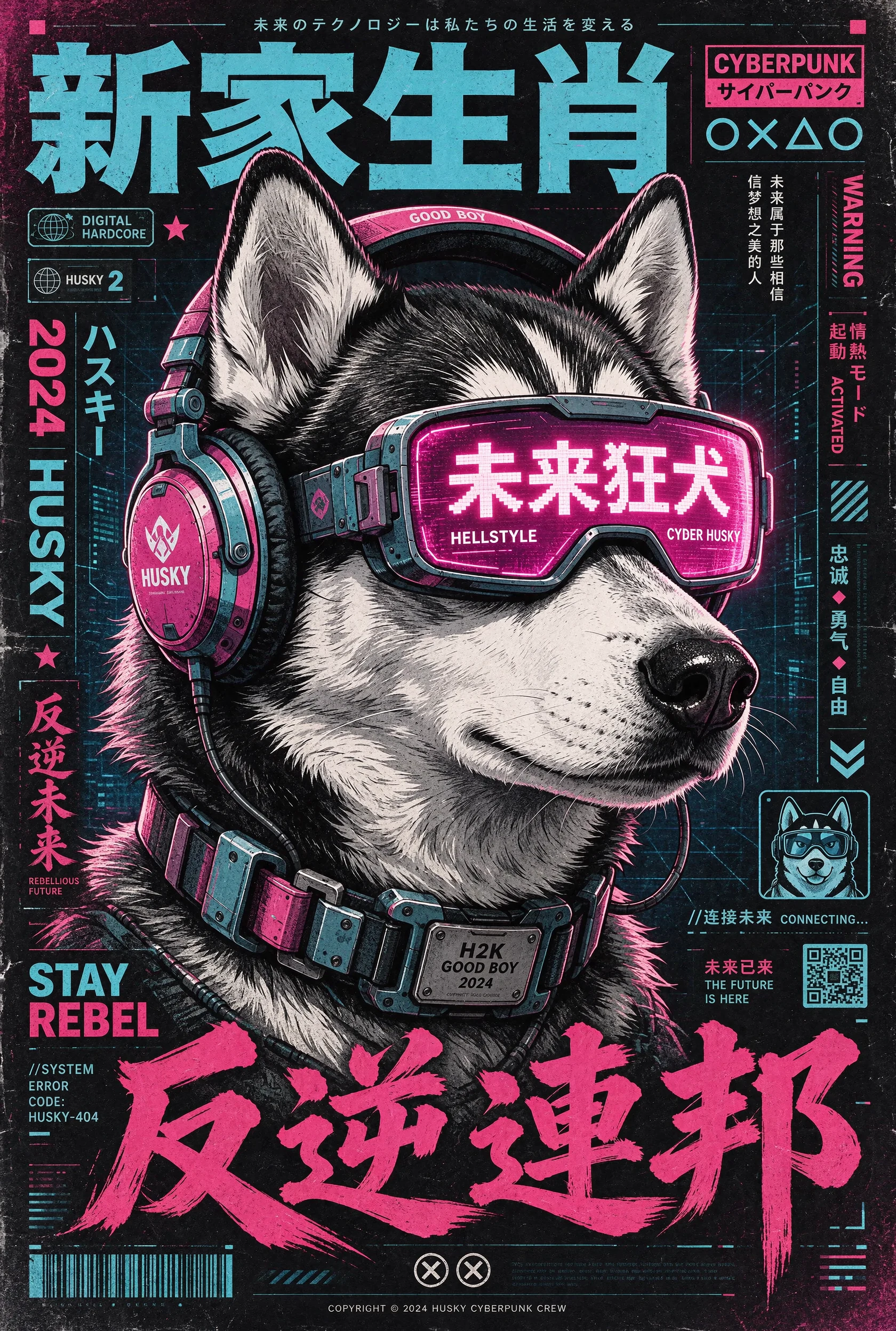
For a real event, replace the example wording with the exact approved copy. Check spelling, dates, and numbers before exporting the final design, and use editable text for any copy that must be exact.
5. Give lettering a material
When the word itself is the main visual, describe its shape and surface. You can reuse the same lettering while trying different fibers, metal, flowers, or other materials, changing one material instruction at a time.
Try this prompt
Check the letter count and the spaces inside the letters. If a texture makes the word difficult to read, simplify the surface detail or ask for a wider letter shape.
6. Create stickers for different backgrounds
For a sticker sheet, identify the individual elements and leave clear space between them. Define which parts should be opaque or translucent and which areas should be fully transparent.
Try this prompt
In PopNow, choose PNG output and set Background to Transparent. Keep the transparency instruction in the prompt as well.
Check the exported PNG over both light and dark backgrounds and inspect its alpha channel. To move elements independently, use Layer Splitter and inspect the returned base and transparent layers before assembling the final layout.
How does Seedream 5.5 compare with other PopNow models?
Choose by the output you need and the references you have. The table lists current PopNow capabilities, checked on November 11, 2026.
| Model | Still-image size | Reference images for an edit | A setting that may decide your choice |
|---|---|---|---|
| Seedream 5.5 | Up to 4K | Up to 10 | Transparent PNG generation and a separate layer-splitting mode |
| Seedream 5.0 Pro | Up to 2K | Up to 10 | Auto aspect ratio can follow your source image |
| Nano Banana 2.1 | Up to 4K | Up to 14 | Very wide and tall formats, including 4:1 and 1:4 |
| GPT Image 2.6 Sunburst | Up to 4K | Up to 16 | Image edits can use a mask or a markup reference |
Try the workflow in PopNow
Open the PopNow AI photo editor, select Seedream 5.5, and upload a photo you can use. Choose one of the edit prompts above and adapt it to the objects and details in your image.
Start with one change that is easy to verify, such as a glasses swap or a ring replacement. Save the result only after comparing the edited area and the details you wanted to keep.
How much does Seedream 5.5 cost on PopNow?
These are PopNow website prices checked on November 11, 2026. Dollar estimates use the Starter pack rate of 1,000 credits per $1. An edit adds a charge for every reference image, including the first.
| Output size | One text-to-image result | One edit with one reference image |
|---|---|---|
| 1K or 1.5K | 20 credits (about $0.020) | 27 credits (about $0.027) |
| 2K | 27 credits (about $0.027) | 35 credits (about $0.035) |
| 4K | 53 credits (about $0.053) | 60 credits (about $0.060) |
Layer Splitter bills for the images actually returned, including the base image. Its per-image rate is 19.5 credits (about $0.0195) at 1K or 1.5K, or 27 credits (about $0.027) at 2K or Auto. The full task charge is rounded up to a whole credit. Check the displayed quote for a multi-image job.
For consecutive edits, budget each round separately. The editor shows the exact quote for your settings before you generate. See PopNow pricing for credit packs.
FAQ
Which reference image should I use for the next edit?
Use the latest version you have checked and want to keep. If you are making several independent variants, use the same original for each one so a change from one variant does not carry over to the next.
Should I choose Seedream 5.5 or GPT Image 2.6?
Choose Seedream 5.5 when you want transparent PNG assets or a design separated into layers. GPT Image 2.6 supports edits guided by a mask or a marked-up image, and accepts up to 16 reference images, compared with 10 for Seedream 5.5. Both offer still images up to 4K. For a specific photo, compare how well each preserves the details you need, alongside the quote shown for your settings.
What if the edit changes something outside the target?
Return to the last good image and identify the target more narrowly, using its location, size, and appearance. If your editor accepts a region selection, use it to point at the part you want to change. Inspect the edge of that region against the original after the next edit.