


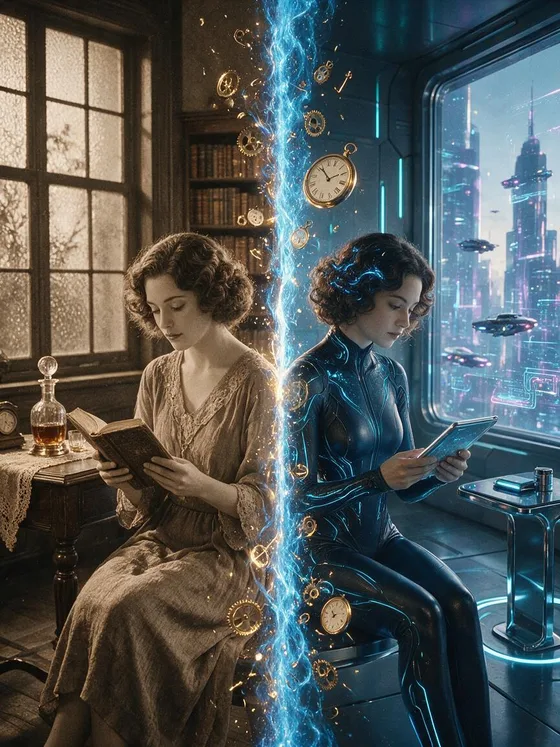

Past and Future AI Image Generator: Time Split
Half 1920s, half 2120, split down the middle.
- Works on your own photo
- Best shape: 3:4 · 1:1
Works on
- Seedream 5.0 Pro
- Qwen Image 3.0
- Nano Banana 2.1
- Seedream 5.0 Flash
About Time Split
Time Split stages two eras within one continuous composition. The left side takes on a sepia film look with 1920s clothing and objects, while the right imagines a glossy future of chrome and cool neon. A glowing center seam and clock fragments make the transition explicit. The approach draws on split-image montage and speculative design rather than a historical prediction. Matching position and scale across the divide help the two treatments feel like one scene.
Describe a subject or upload a photo to reinterpret it across both eras. A person seated at a desk, a station platform, a bicycle outside a shop, or a street corner with a central doorway can offer useful continuity. An uploaded image provides the starting arrangement, while clothing, surfaces, and surroundings shift with the era. Keep the key subject near the middle so the divide can reveal related forms on both sides.
Try “a traveler standing at a station, half in a sepia 1920s scene and half in an imagined chrome future” or “a small corner shop divided between an early film photograph and a cool neon city.” For an object study, use “a desk with a continuous curved edge crossing two eras.” A centered subject emphasizes direct comparison; a wider setting lets architecture and props carry more of the time change.
Tips
- Use a central doorway, desk edge, or body position to connect the two eras across the seam.
- Give the older half a few period objects, such as a felt hat or mechanical desk clock.
- Keep the futuristic materials specific, using chrome and cool light instead of many unrelated inventions.
- Choose an upload with a clear central subject and enough surroundings for both era treatments.
- Leave the center uncluttered so the glowing divide does not obscure the most important facial or structural detail.
What the style adds
Your words go where it says “your subject”. Everything else is added for you.
your subject, split exactly down the middle into two eras: the left half is a 1920s sepia film photograph with period clothes and props, the right half is a glossy 2120 future with chrome details and cool neon light, a glowing seam of rippling time with floating clock fragments runs along the centre line, one continuous composition
Models and price
- Seedream 5.0 Pro36 credits
- Qwen Image 3.030 credits
- Nano Banana 2.148 credits
- Seedream 5.0 Flash29 credits
One 1K image from a description. The button always shows the exact price before you spend anything.
How to use Time Split
- Describe itWrite who or what should be in the picture. A small action and a clear place work best. Or switch to “My photo” and drop in a picture you have the right to use.
- Pick a shapeKeep the suggested ratio and model, or change them in the bar at the bottom.
- Paint itPress “Paint it”. The price is on the button before you spend anything.
Questions about Time Split
Can I use Time Split on my own photo?
Yes. Switch to “My photo” at the bottom, drop in a picture you have the right to use, and the style redraws it while keeping the composition and pose.
How much does one Time Split image cost?
29 credits for one 1K image on Seedream 5.0 Flash. 2K costs more, and the button shows the exact price before you run it.
Will the future half predict how I will look?
It is a speculative visual treatment, not a forecast of appearance or technology. An uploaded portrait can guide the subject, but the futuristic clothing, materials, and setting are imaginative interpretations.
How does it differ from City Pop?
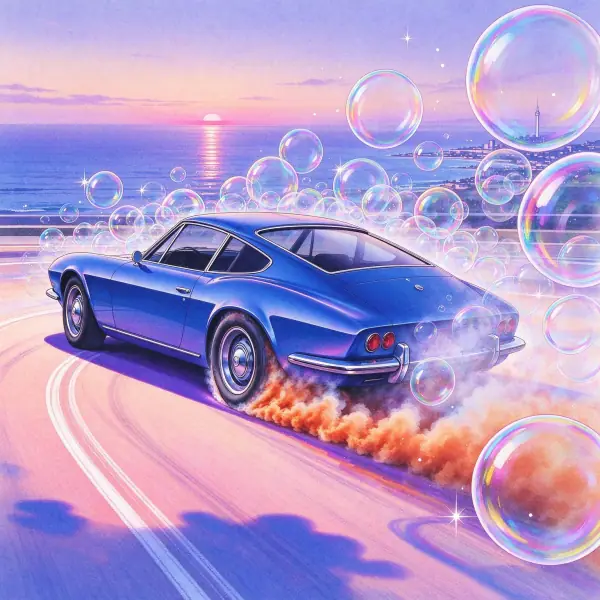
City Pop uses a cohesive retro illustration atmosphere across the image. Time Split makes a deliberate side-by-side contrast between a sepia historical half and a glossy imagined future, connected through one continuous subject and a visible central seam.
Does a portrait need to face straight ahead?
A frontal or gently turned portrait makes the two halves easier to compare. Strong profiles and off-center faces give the split less shared information, so choose an image with clear features around the center line.
Similar styles
 Monotype Ghost
 City Pop
 Encaustic Memory
 Ink and Gouache
Bring it to life
Effects that turn a still in this look into a short video.
 Day to Night
 Glitch