
Remove people from an office hall, prepare a painted-area edit and compare the result at equal scale, including changes outside the mask.
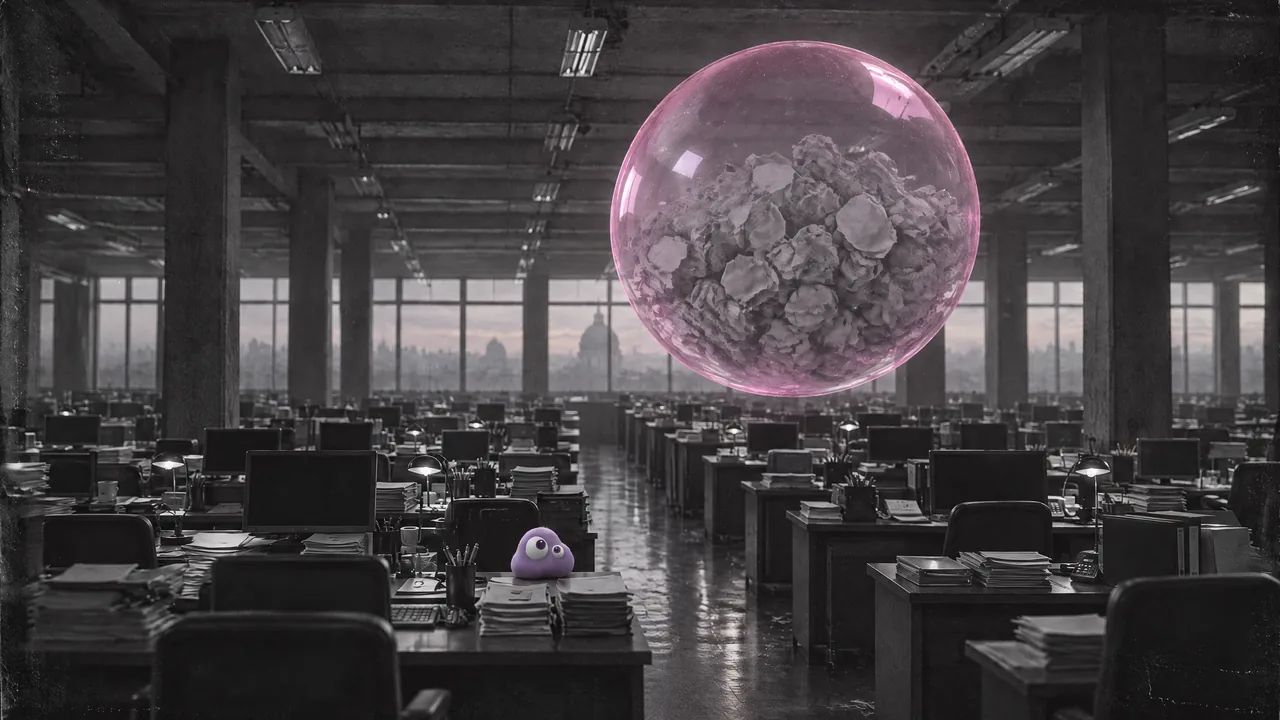
A repair has two checks: did the requested change happen, and is the rest of the image still usable? Our empty-hall brief failed because the starting picture contained seated workers. This lesson removes the people while checking the pink bubble, Poppie, desks and window light.
Website setup was captured as a signed-out visitor on 7 November 2026. The archived comparison comes from the first decoded frame of a later video; its original edited PNG is missing. The separate painted test below was made through the API with an externally drawn mask. The website demonstration did not generate that result.
Get the exercise files
- Hall before — original 2560 × 1440 image.
- Archived comparison frame and full motion clip — keep them together. The PNG is video frame 0, not the missing edited-image original.
- Test mask — 2560 × 1440. Transparent pixels indicate the area to change.
- Painted test result — native 2688 × 1536 file.
- Download the English recipe and editable review record.
Step 1: Define the change and the anchors
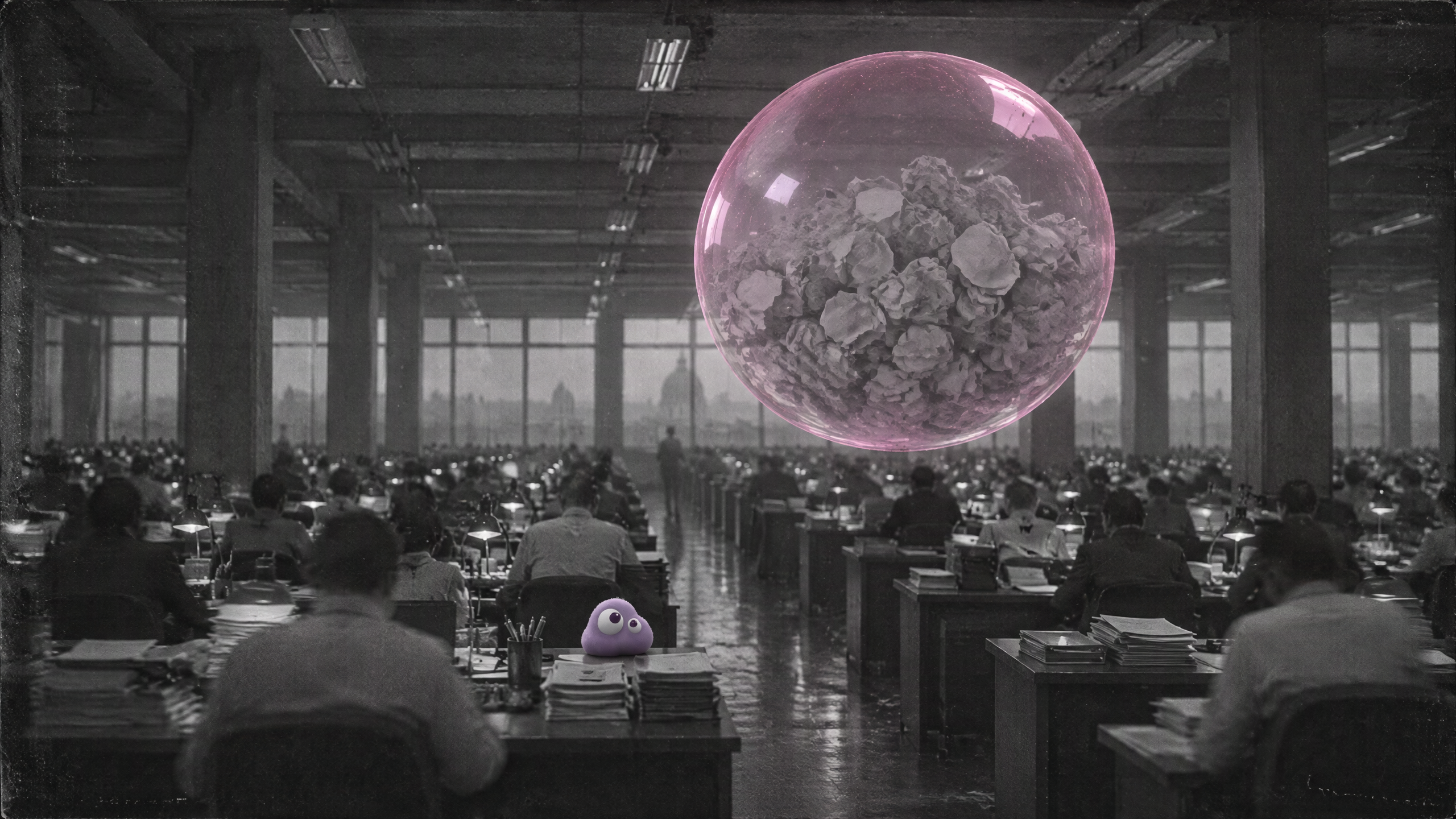
Write a concrete request: remove every visible person, leave all chairs empty and switch off the monitors. Keep the camera, hall, huge pink bubble, tiny creature, desk rows and grey dawn light. A picture can be well made and still fail its brief.
Step 2: Load the first source and the full prompt
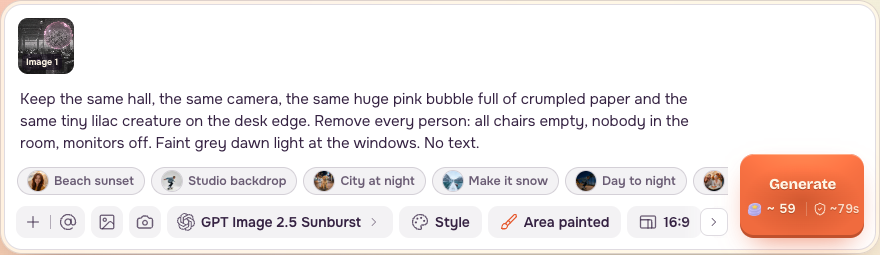
Open Edit Image, choose GPT Image 2.5 Sunburst, and add Hall before as the first source. Paste this original English repair prompt:
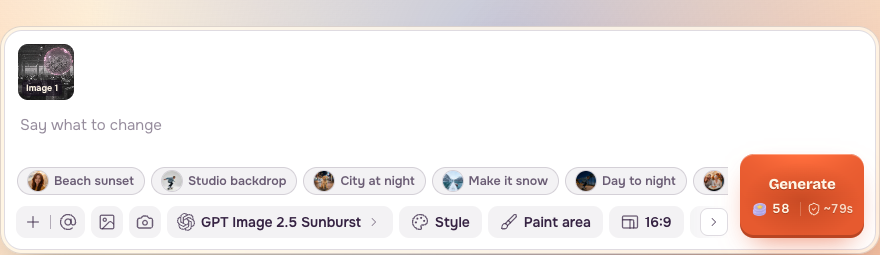
Step 3: Set detail retention and output settings
Set Keep details: High; the control defaults to Low. Choose one image, 16:9, High quality and Sharp / 2k. Keep details asks for closer source detail; it does not lock every pixel.
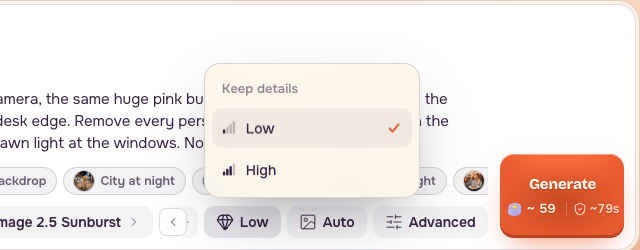


The November 6 catalog snapshot estimates 48.07 PopNow credits as a base image rate. The November 7 populated website form estimates about 59 credits, including the source-dependent quote. Reference-image and prompt charges can add to the base. Read the current Generate quote before submitting.
Step 4: Paint the workers and restore an accidental stroke
Click Paint area. With Brush, cover each worker’s head and body, including the distant rows. Adjust Brush size for small people. Leave the bubble, Poppie and empty desks outside the strokes. The demonstration follows the supplied mask’s worker regions with actual mouse strokes.
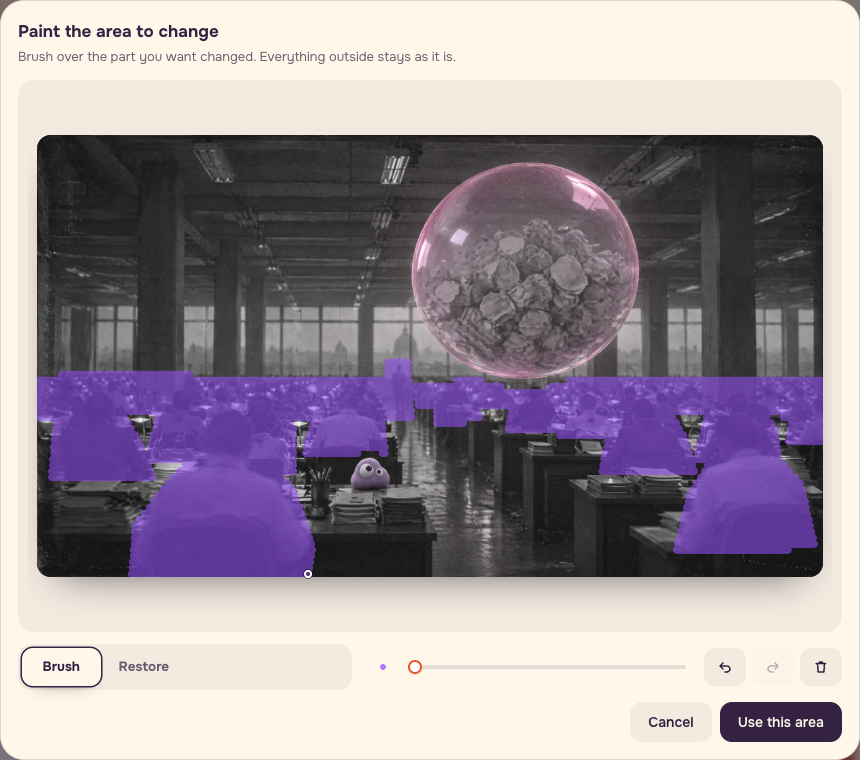
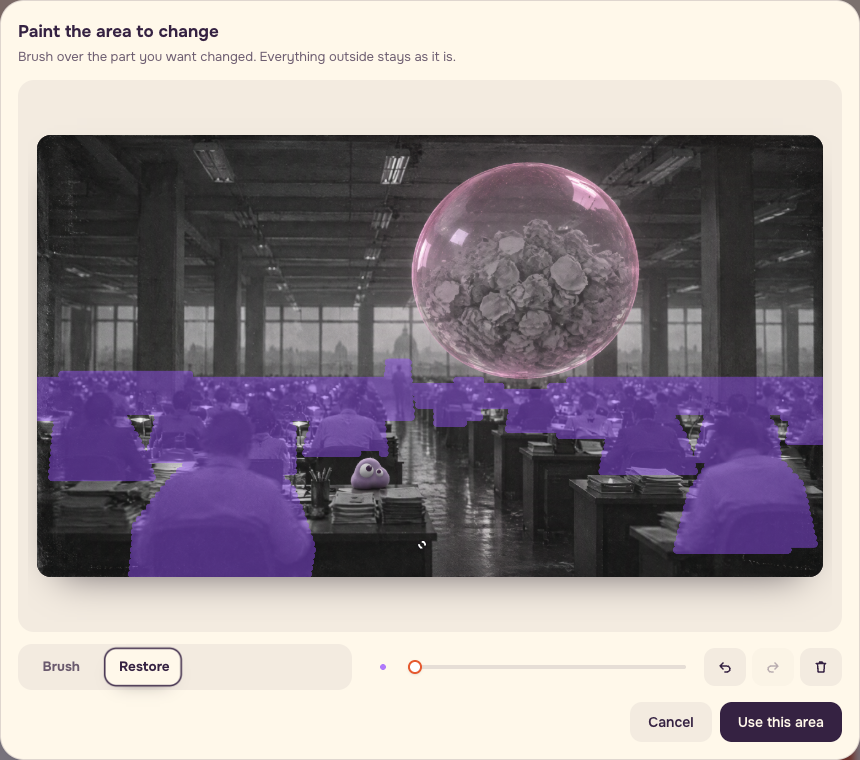
If a stroke catches a desk edge, choose Restore and brush over the accidental mark. Click Use this area and confirm Area painted and the correct first source thumbnail.
Step 5: Keep the two comparisons separate
Archived unmasked repair. The later video’s first frame removes the people. At equal scale, Poppie, the pink bubble, foreground desk edges, pen holder and paper stacks remain aligned. Newly visible chair backs and paper occupy the former seated-person areas. Do not use this archived comparison as proof of the painted test.
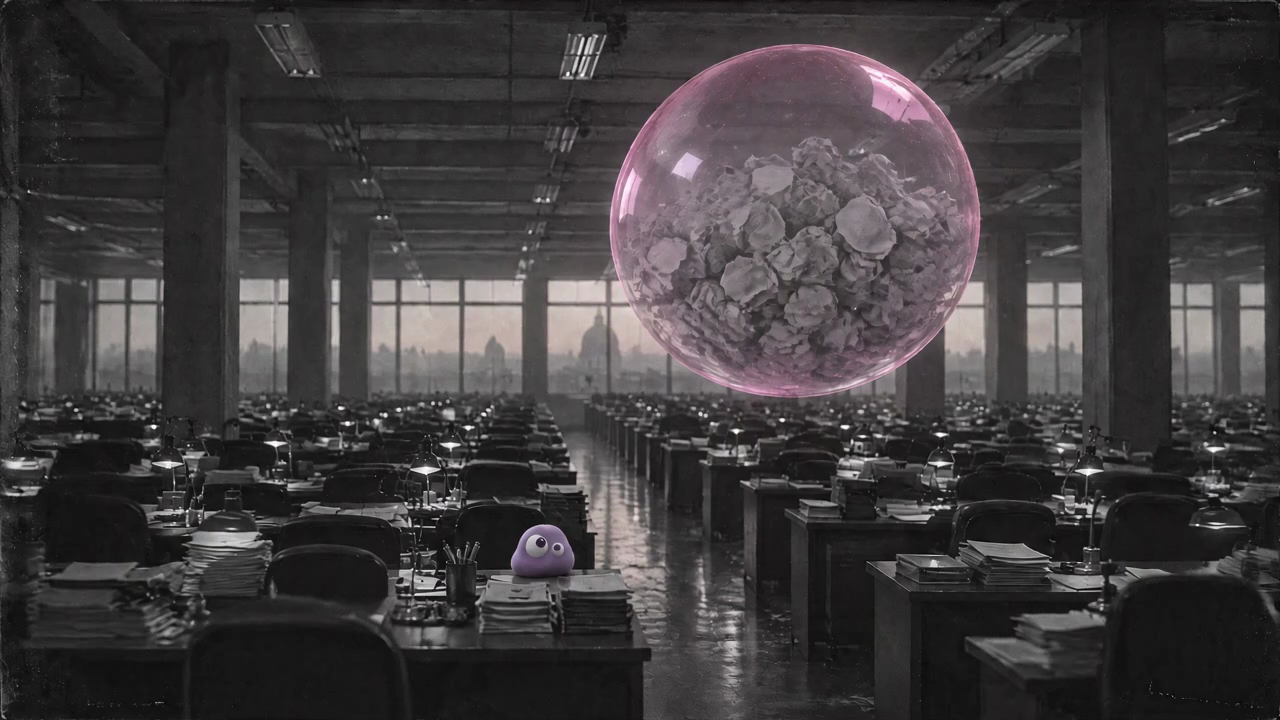
Separate painted test. Test render · same settings · mask drawn outside the page · 7 Nov 2026.
The supplied mask was drawn outside the page in the Paint area format, then submitted through the API. The model was GPT Image 2.5 Sunburst edit, using the official route, input fidelity High, quality High, 2k, 16:9, one output. The economy route does not accept the mask and High combination. This test cost $0.0578944, approximately 57.9 PopNow credits; it is an actual prior charge, not the website estimate.
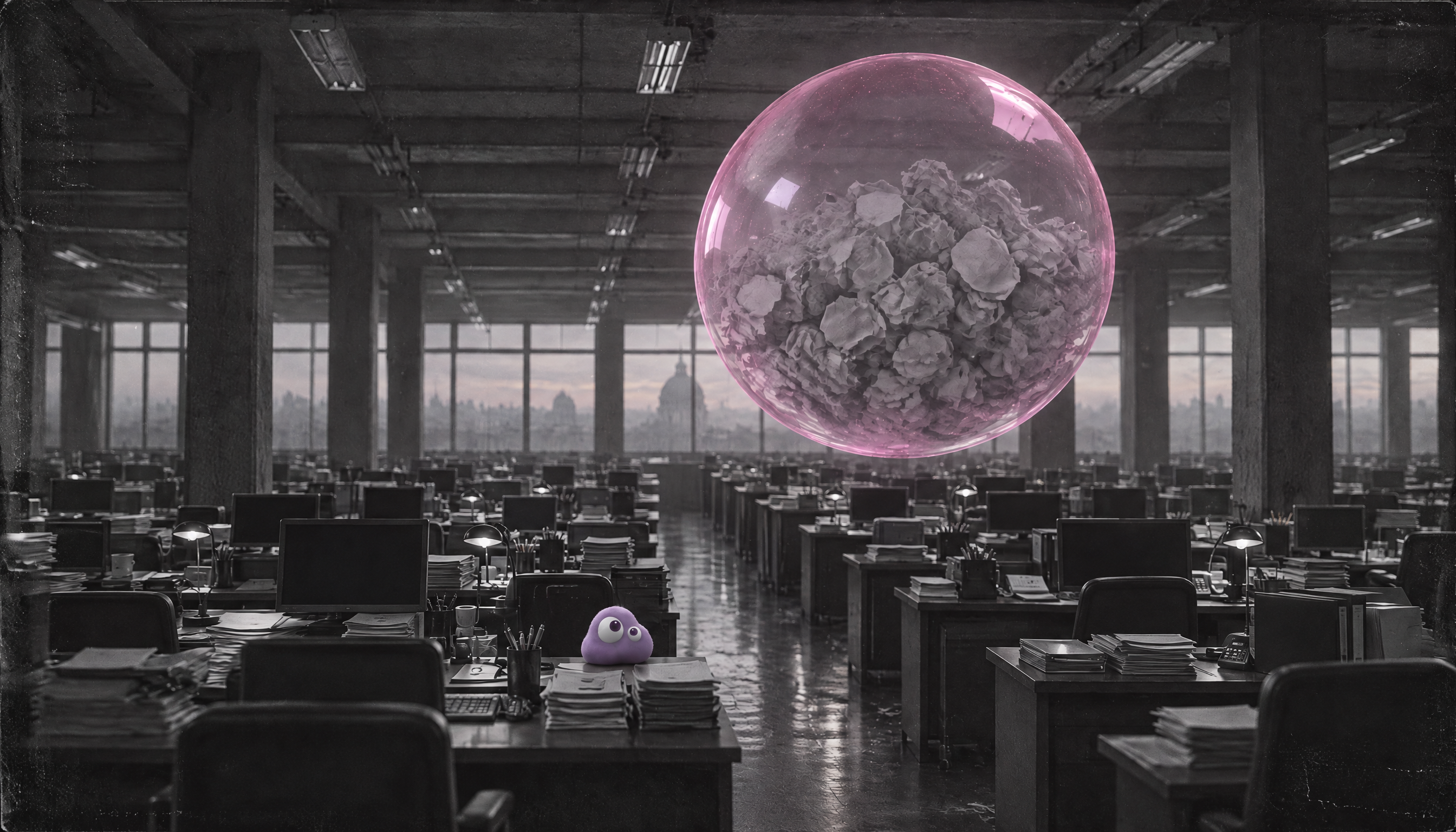
All visible people are gone. The bubble, Poppie, pen holder and paper stacks remain in place. Chair backs and closed or switched-off monitors appear where people were sitting. The window light changed from grey-white to pink outside the mask. A painted area is not a guarantee that everything else stays fixed.
The video comparison normalizes the result into the source’s 2560 × 1440 coordinate space; the original native files remain available above. Their aspect ratios differ slightly, so inspect native geometry as well as the aligned view.
| Check | Archived video frame 0 | Separate painted test |
|---|---|---|
| People removed | Yes | Yes |
| Bubble, Poppie and foreground anchors | Aligned | Positions retained |
| New content at former seats | Chair backs and paper | Chair backs and off monitors |
| Window light | Review the archived frame separately | Grey-white became pink outside the mask |
| Decision | Useful archived repair comparison | Removal passes; whole-image approval depends on the brief |
For a strict grey-dawn brief, return to the original and revise. If the warmer light is acceptable, record that decision explicitly before moving on. This test is not an unconditional whole-image pass.
Step 6: Approve the still before adding movement
The setup demonstration uses the archived video frame, whose comparison is separate from the new painted test. Open Image to Video, choose Seedance 2.5 and From a photo, and add an accepted still. Use four seconds, Sharp / 720p, one video, Sound off and Auto aspect ratio.
Translated from our original prompt:
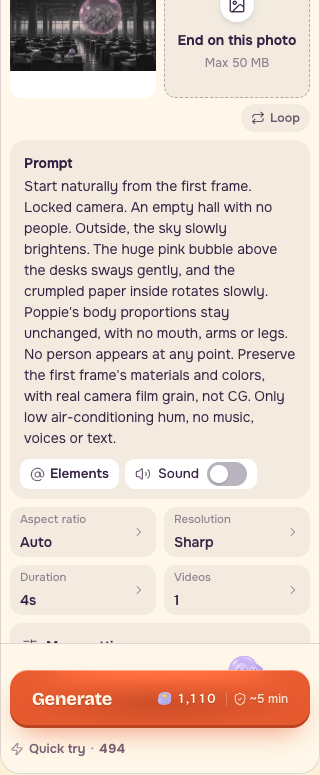
A locked camera and gentle bubble movement reduce how much needs to stay coherent. Inspect the empty chairs across the whole take, plus Poppie’s eyes and silhouette. Use ordinary compositing when exact lettering, a logo or an existing patch needs controlled placement.
Save this checklist with your result
- Every visible worker is removed, including distant heads, hands and silhouettes.
- Chair backs, desk edges and shadows around each removal look coherent.
- Bubble, Poppie, pen holder, paper stacks, windows and perspective are compared at aligned scale.
- Light and colour outside the painted region are checked; any drift is written down.
- Original, mask, settings, prompt, native output and review notes are saved together.
- Removal and whole-image acceptance each have a separate decision.
- The still passes its brief before an optional motion test.
Keep one accepted comparison and a clear next action. If the repair introduces a new distraction, revise from the original rather than accumulating unexplained retries.
FAQ
Does Paint area lock everything outside the mask?
No. In the separate test, the window light changed from grey-white to pink outside the mask. Inspect the whole image after checking the people removal.
Did the website demonstration produce the supplied test result?
The demonstration prepared an area as a signed-out visitor. The supplied result used a mask drawn outside the page and submitted through the API with the documented settings. Keep those two records separate.
Why are the before and after images different sizes?
The input and mask are 2560 × 1440; the native test output is 2688 × 1536. Align scale and framing before comparing, keep the native files, and inspect geometry because the aspect ratios differ slightly.
Should I animate the new painted result immediately?
First decide whether its warmer window light fits the brief. The motion setup shown here uses the archived comparison frame. Approve your still before paying for movement.