
Build a front and back reference pack, audit ten real production shots, and identify where expression, intended transformation and identity drift differ.
Keep a reference pack, ten illustrated decisions, three framings and a four-second motion example. The aim is to recognise what stayed consistent and record what needs a trim or rejection.
The existing shots come from our production run for Poppie: a PopNow short film, using Seedance 2.5. The reference practice below uses GPT Image 2.5 Sunburst. Public website controls were recorded on November 7, 2026. The saved motion sources are 720p; the lower-cost practice setup is 480p.
Lesson files
Lesson files · Recipe · Illustrated worksheet · Four-second motion example
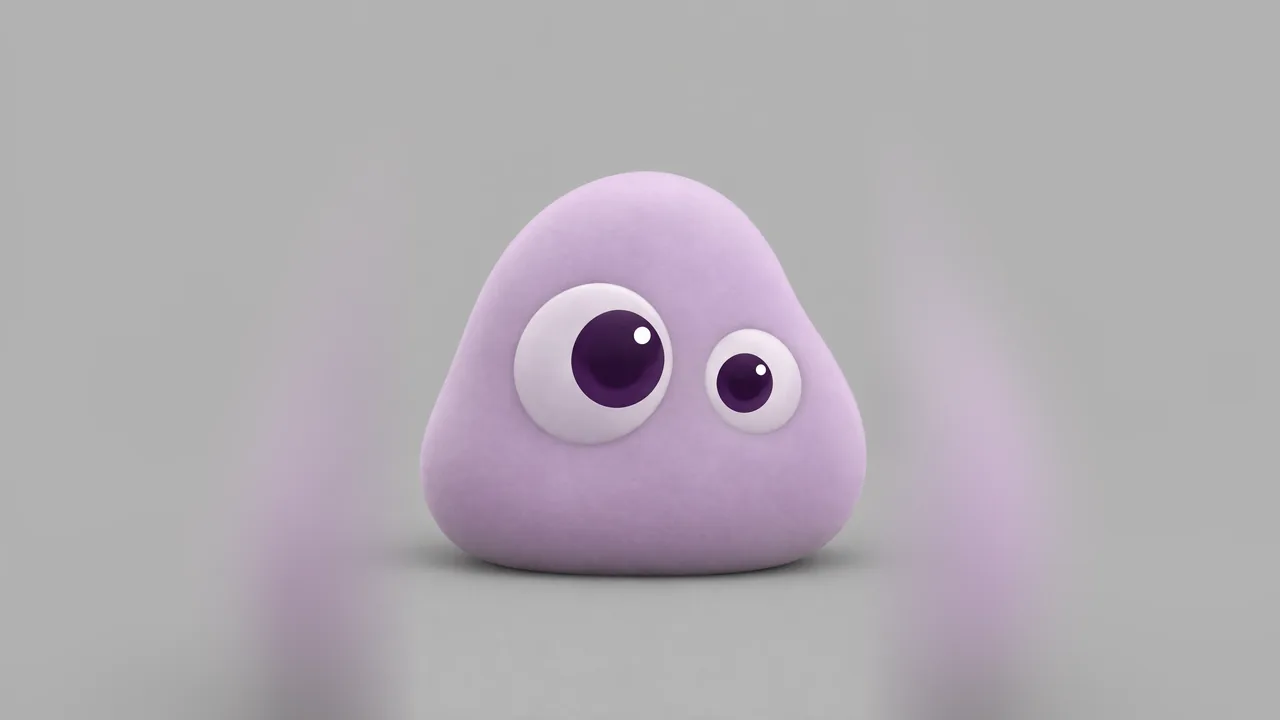
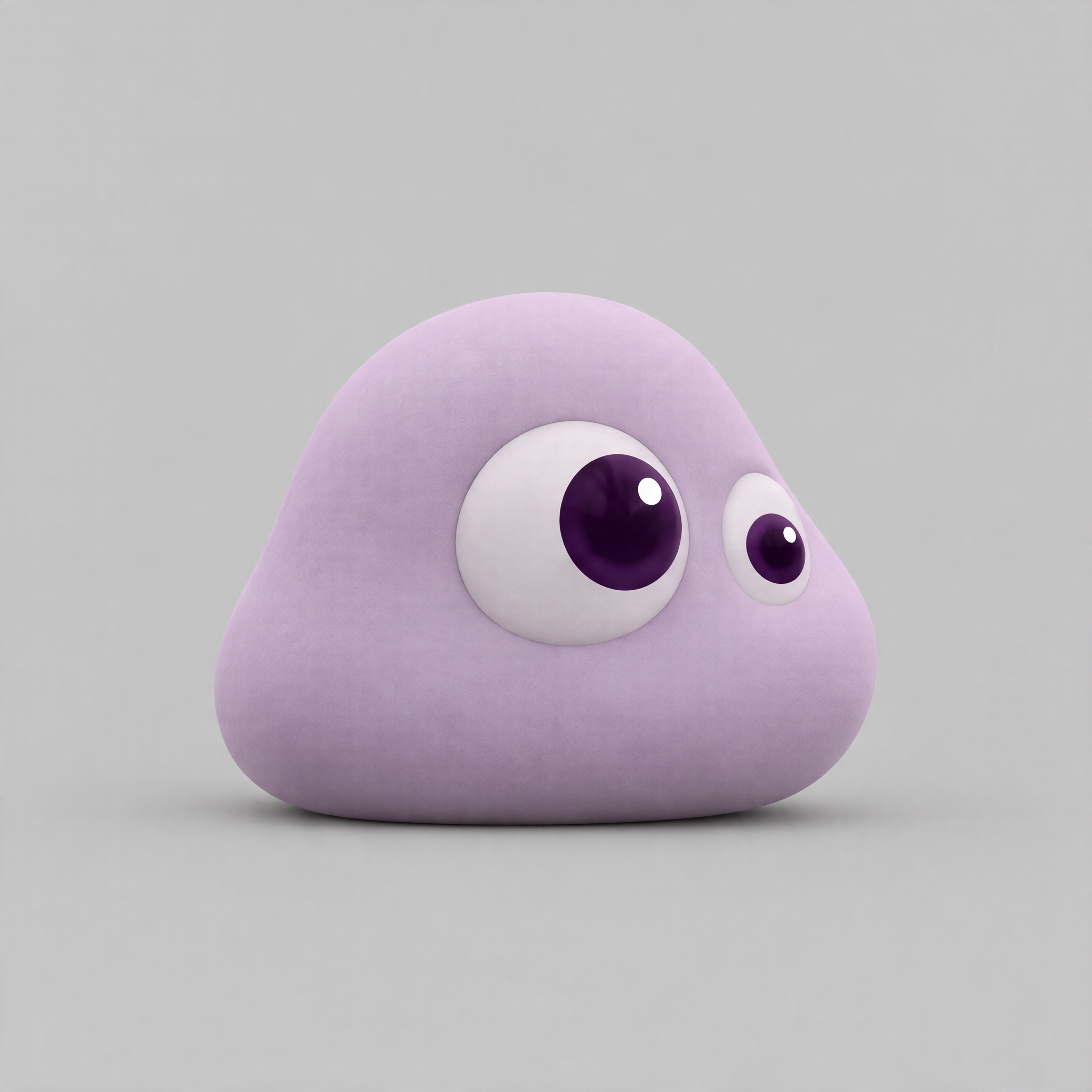
- Front, three-quarter, back and tired expression.
- Bedroom reference.
- Bubble start and bubble end.
- The package includes the ten audit clips, both bedroom versions, all three reference prompts, the motion prompt, settings and checklist.
These are the intended publication destinations. This lesson and its package are prepared locally and have not been uploaded; public download checks remain pending.
Step 1: Turn the design into visible checks
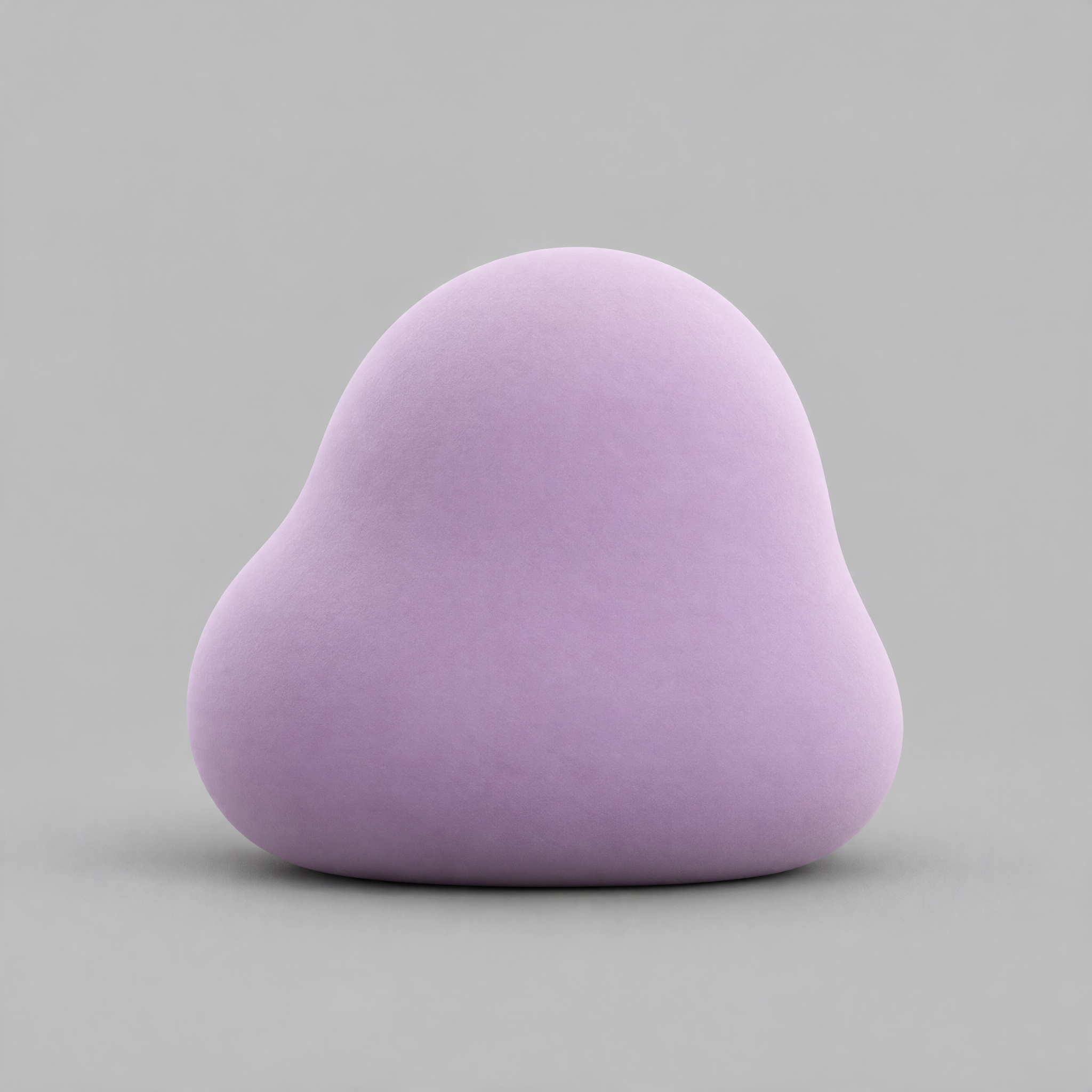
Use the front reference to write concrete tests before asking for another view. A name cannot tell you whether a model preserved the design.
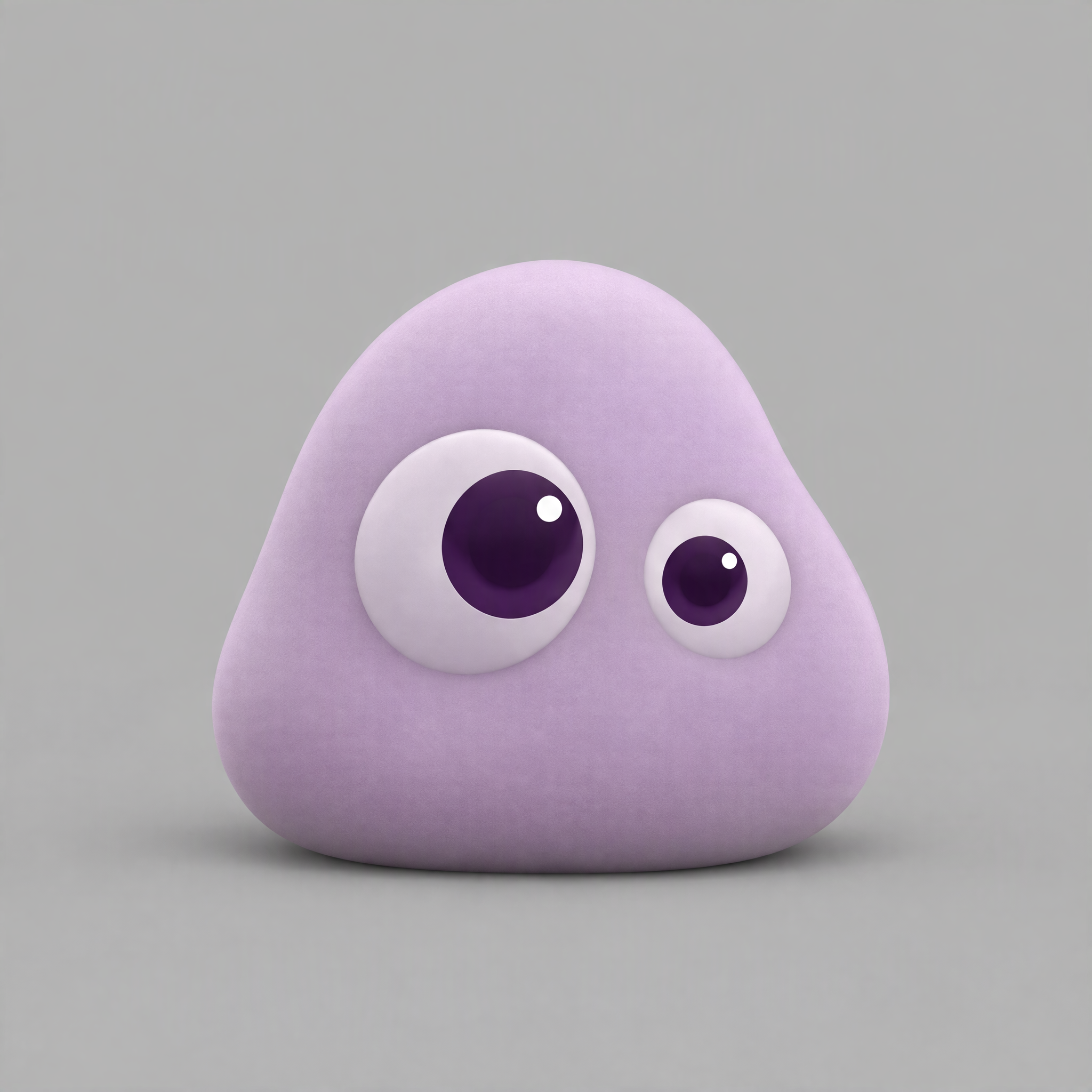
- Same lilac matte material.
- One big eye and one small eye when visible.
- Back has no face.
- No unplanned limbs, fur or mouth.
- Check late flattening separately from intentional drawing transformations.
- Inspect start, middle and ending; permit an inconclusive verdict at small scale.
Step 2: Prepare a reference variant in Edit Image
Open Edit Image, choose GPT Image 2.5 Sunburst, add Bedroom reference, and paste the complete Front prompt. Use one complete prompt for each view.
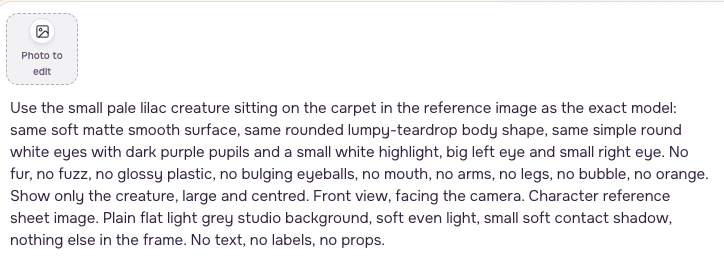
Front prompt
Original English production prompt.
Side request prompt
Original English production prompt.
Back prompt
Original English production prompt.
Step 3: Set square framing and inspect the quote
Choose one image, 1:1, and Sharp / 2048px (2k). This recording used the visible High quality setting. The archived production record does not recover its original quality setting.

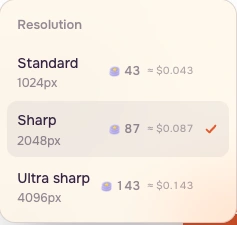
Add your reference before relying on the final quote. Generate only when that specific amount fits your budget; if sign-in is requested, complete it and check again. Inspect the eyes and silhouette before saving. Revise a wrong view instead of labelling it an exact turnaround.
Step 4: Write ten separate audit decisions
Inspect the start, middle and end of each supplied clip. Use a short normal-speed pass before comparing paused frames. An intentional drawing, an expression change and an accidental loss of body volume need different checks.
| Shot | Representation | Decision |
|---|---|---|
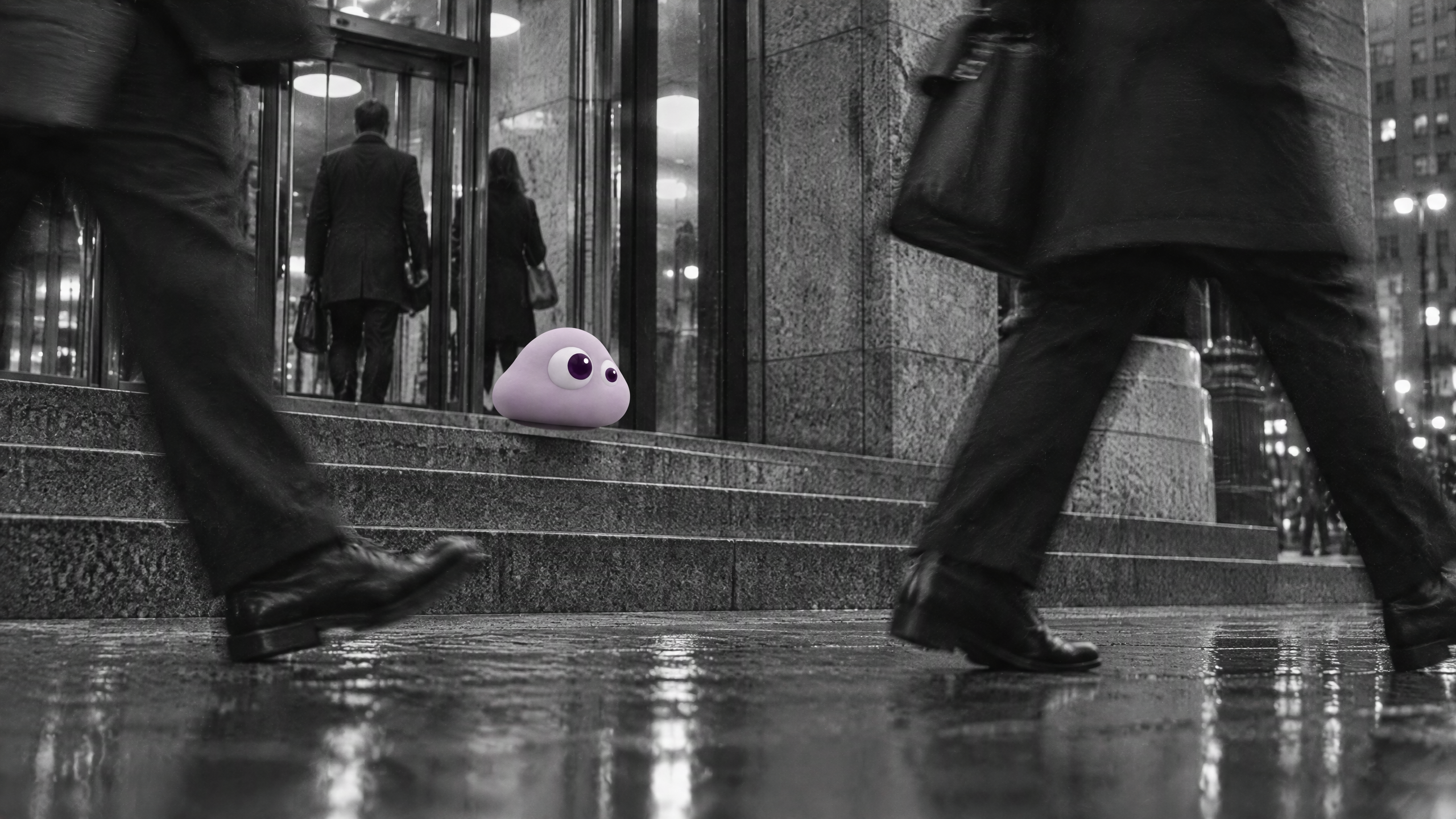
| 1: steps | Volume | Keep the short landing; body and uneven eyes remain readable. |
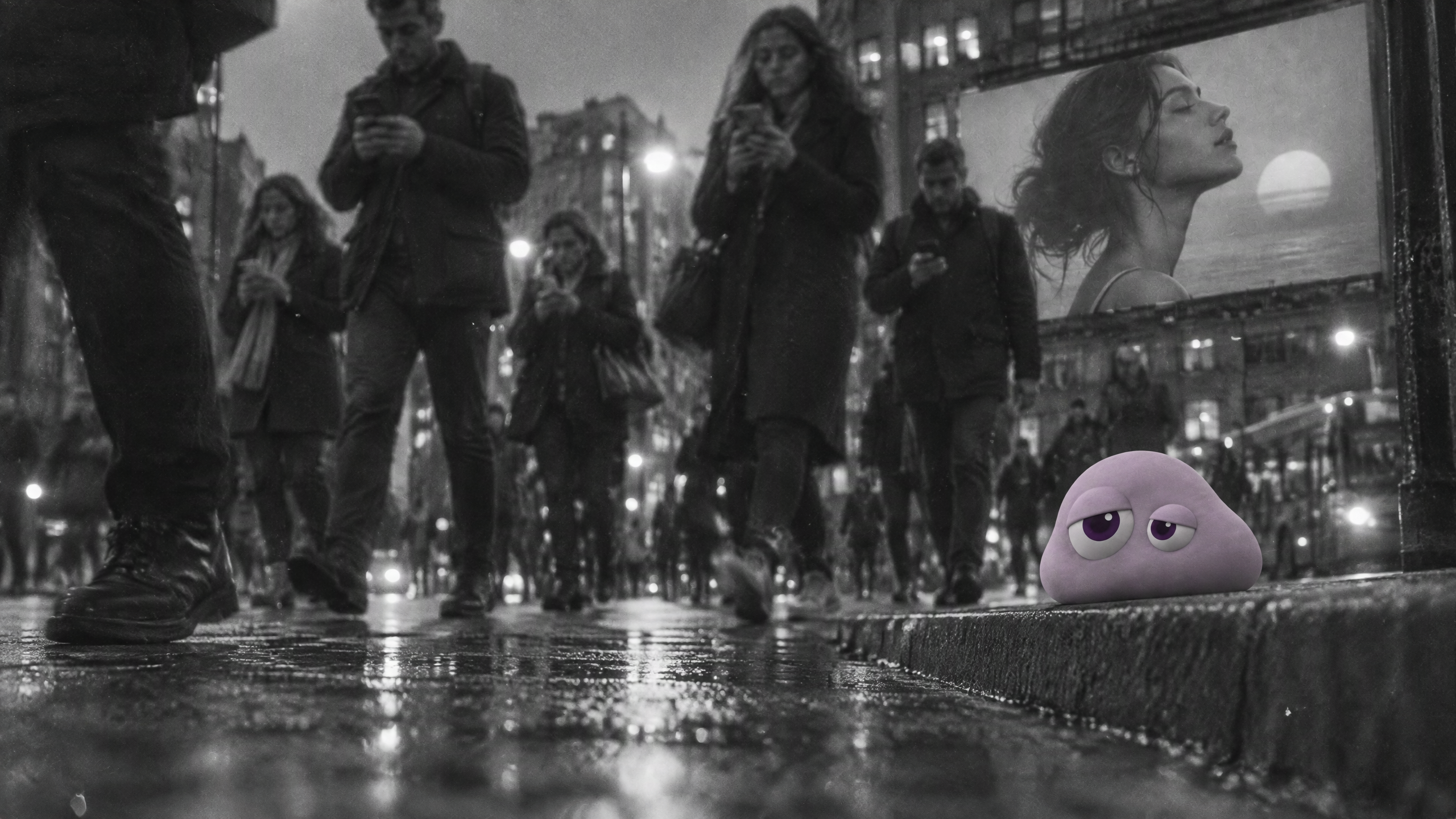
| 2: kerb | Volume | Keep the tired expression; the prompt asks for a noticeable sigh and sag. Watch late squash before a longer hold. Shot six is rejected because its late collapse loses the upright silhouette required for continuity. |
| 3: surveillance | Volume, small scale | Keep the small lilac silhouette; fine eye-size check is inconclusive at this scale. |
| 4: bubble | Volume | Keep bubble growth; no new limbs visible in the inspected range. |
| 5: sneeze | Volume | Keep closed eyes as expression; inspect squash independently. |
| 6: sill sigh | Volume with identity drift | Reject late ending for upright-character continuity: body collapses into a low pancake. |
| 7: paper hop | Intended drawing | Keep as a deliberately flat line drawing hopping across the sill. |
| 8: objects | Volume | Keep rounded body and blink among objects. |
| 9: drawing to poppie | Intended transformation | Keep flat-to-volume transformation because it is the intended action. |
| 10: sky drawing | Intended drawing | Keep uneven-eye drawn outline in the sky; volume is not required. |
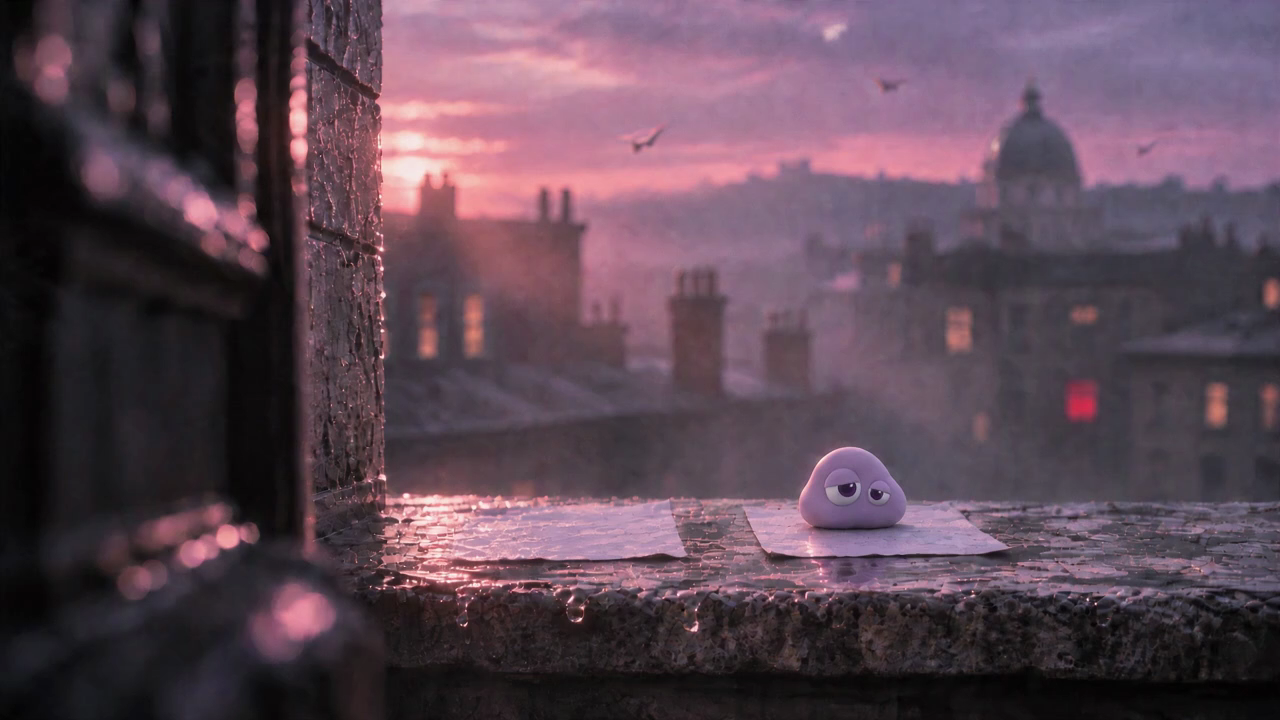
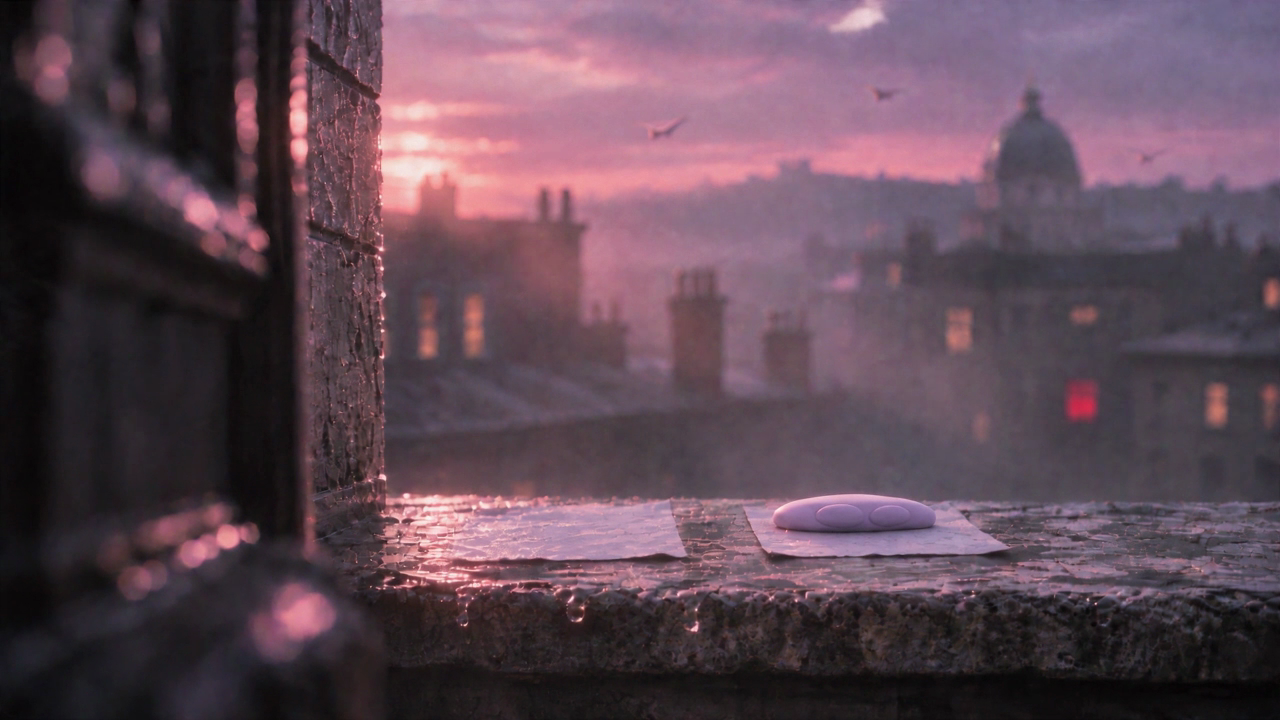
The kerb prompt requests a sigh and sag, so its squash is recorded as something to watch. The sill ending loses the upright silhouette required for continuity. The convincing background does not make that ending acceptable. Surveillance is too small to certify fine eye sizes; an inconclusive verdict is useful information.
The basket clip intentionally changes a drawing into a body. Keep that transformation because it is the action. Paper hopping and the sky outline intentionally remain drawings.
Step 5: Compare the two bedroom versions
Watch Earlier bedroom and Bedroom revision, each once at normal speed. The earlier bubble is already large when the child reaches. The revision starts tiny and grows. The revision was kept in the production edit.
These are two saved versions of the same bedroom scene. The street bubble is a separate shot; it cannot prove which bedroom instruction improved the result.
Step 6: Check three framings
Use the steps as Wide, the kerb as Closer and the front reference as Close-up. The close-up is a still reference, not an extra generated video. Compare the eyes before judging cinematic texture.
Step 7: Prepare a four-second motion check
Open Image to Video. Choose Seedance 2.5, Generate, and From a photo. Add Bubble start to Start from a photo, then add Bubble end to End on this photo. Paste the translated Bubble growth prompt.
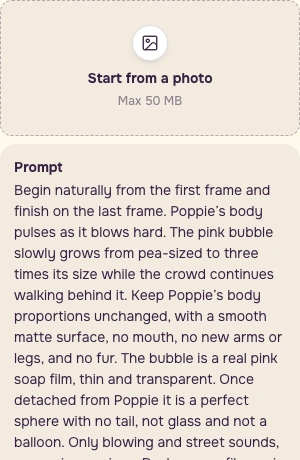
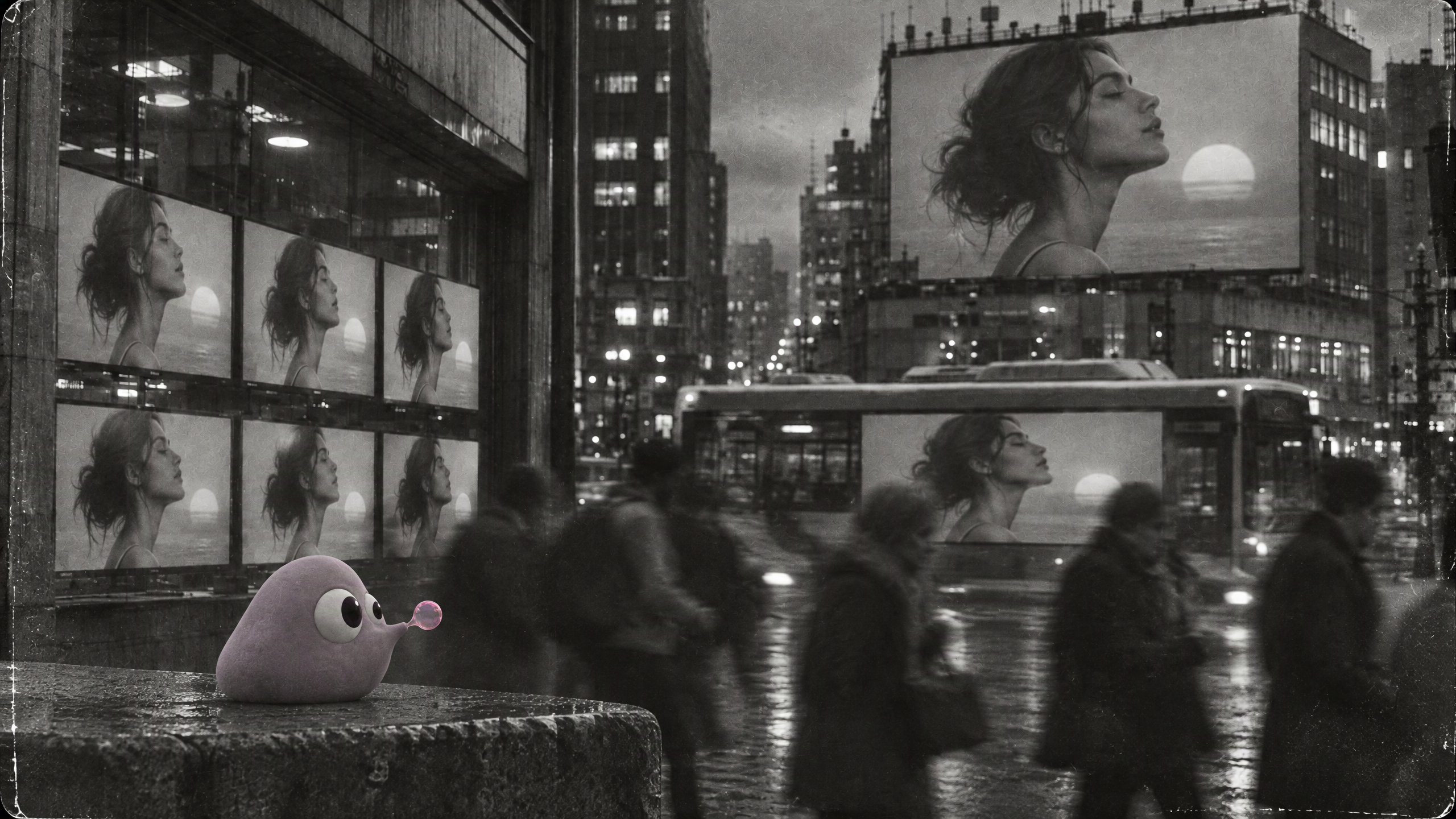
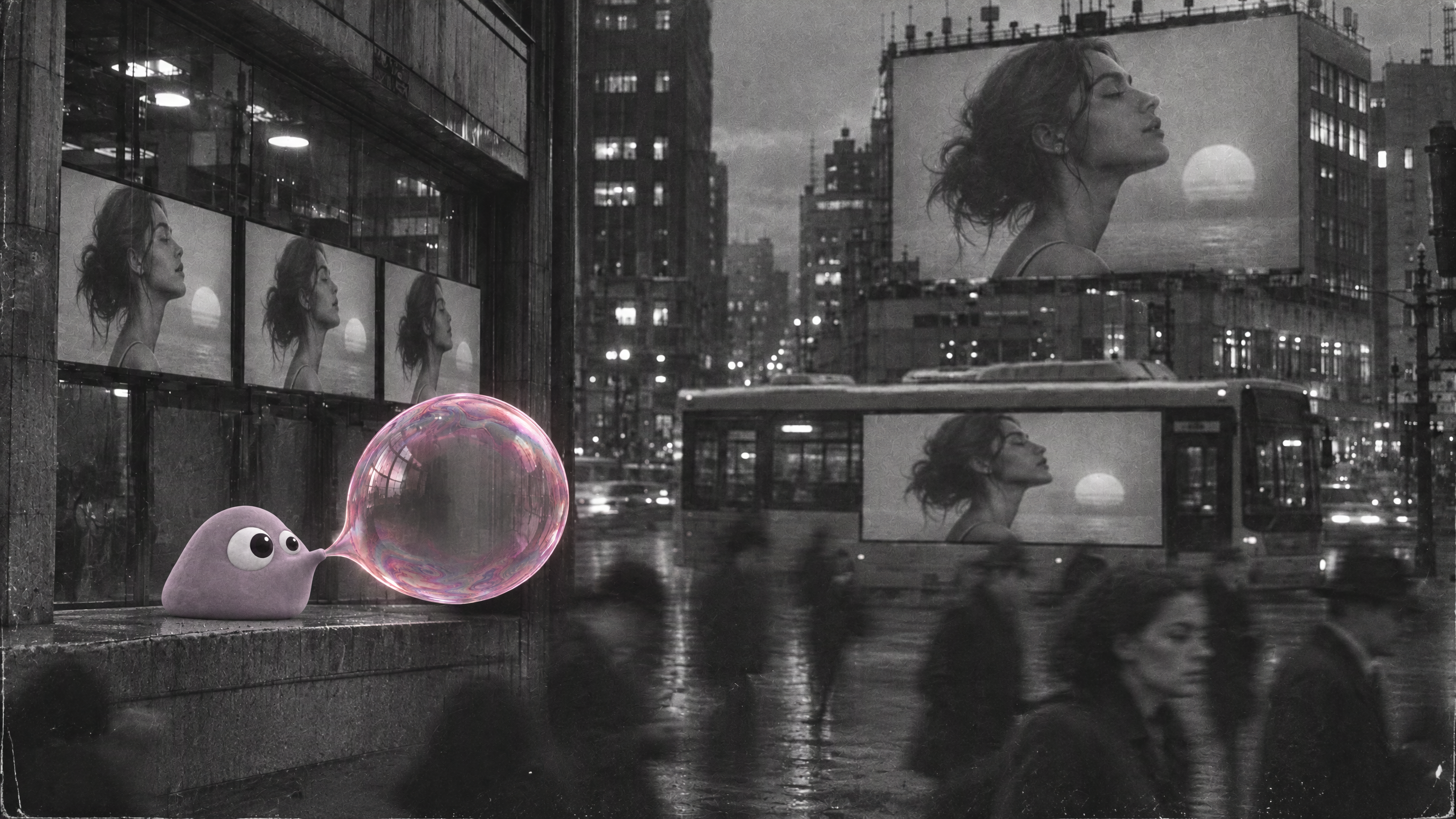
Translated from our original prompt:
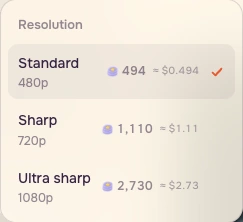
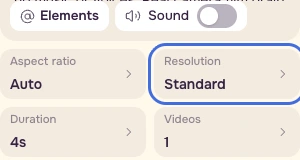
Use 4 seconds, Standard / 480p, Sound off, Auto aspect ratio and one video for the first check. The original production prompt mentions street sounds; Sound off is the practice review setting, rather than a recovered flag for the archived run.

Step 8: Save evidence beside the kept result
Watch the supplied four-second example once at normal speed. It is a silent trim of the archived source, separate from the website setup recording. Save its start, middle and end beside the reference pack and your ten written decisions.
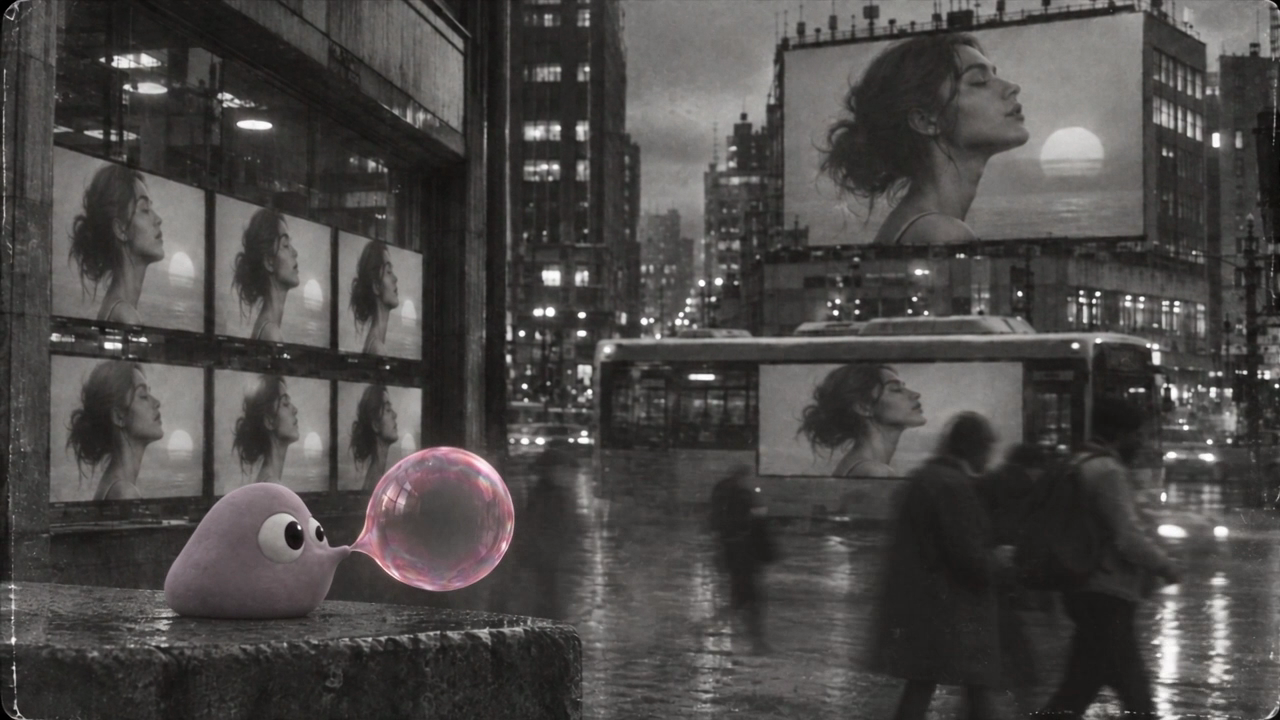
For photo sets of a face in several scenes, Characters is another route. It did not generate the mascot film shown here. For a strict mascot silhouette, inspect every reference yourself; a controlled 3D asset provides firmer control over exact turnarounds and proportions.
Checklist
- Keep front, three-quarter and back files together.
- Write one decision for each of the ten clips.
- Check start, middle and ending at a useful viewing size.
- Distinguish expression from accidental body drift.
- Label drawing transformations as intended actions.
- Save the exact prompt, settings, quote and chosen range with the result.
FAQ
Did all ten shots pass unchanged?
No. The audit includes a rejected sill ending, a kerb squash to watch, and a surveillance view too small for a detailed eye check. This selection is not a model success rate.
Is the side file a true profile?
No. It shows both eyes. Use it as a three-quarter reference and request a revision if a strict profile is needed.
Was the example generated in this recording?
The example is archived production material. The public recording covers prompt and settings preparation; no login, upload or Generate submission was performed.