
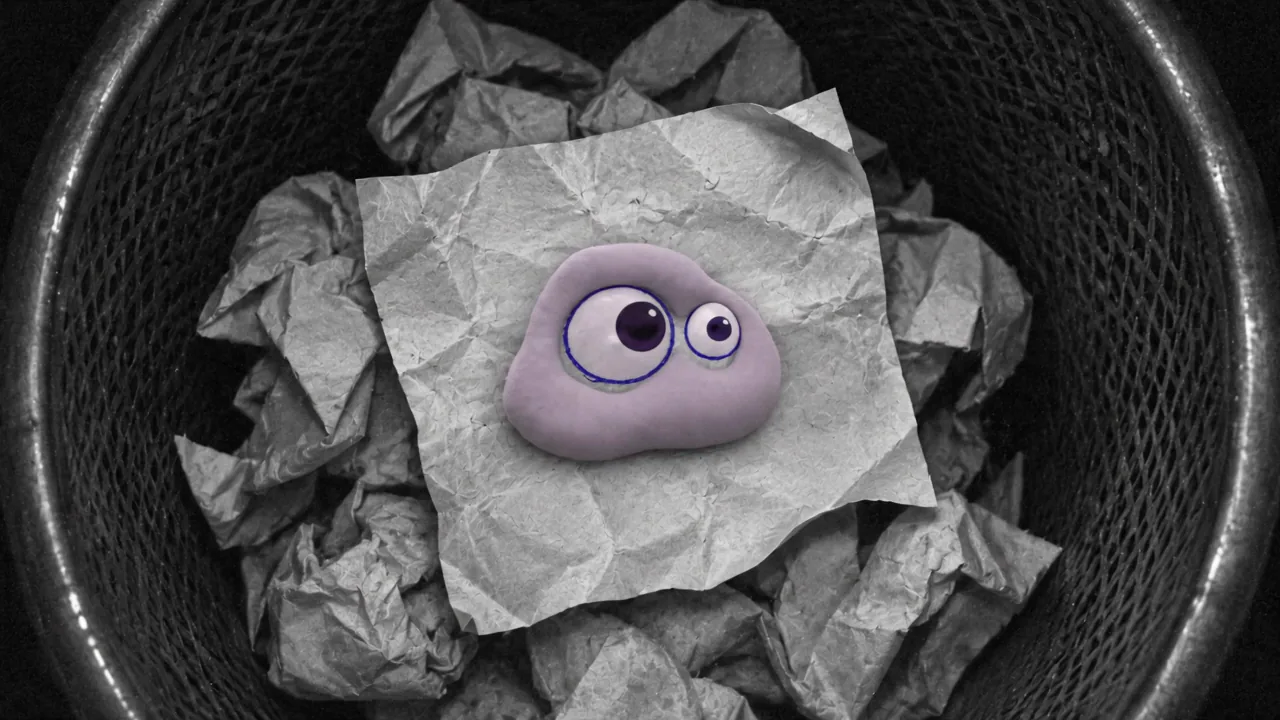
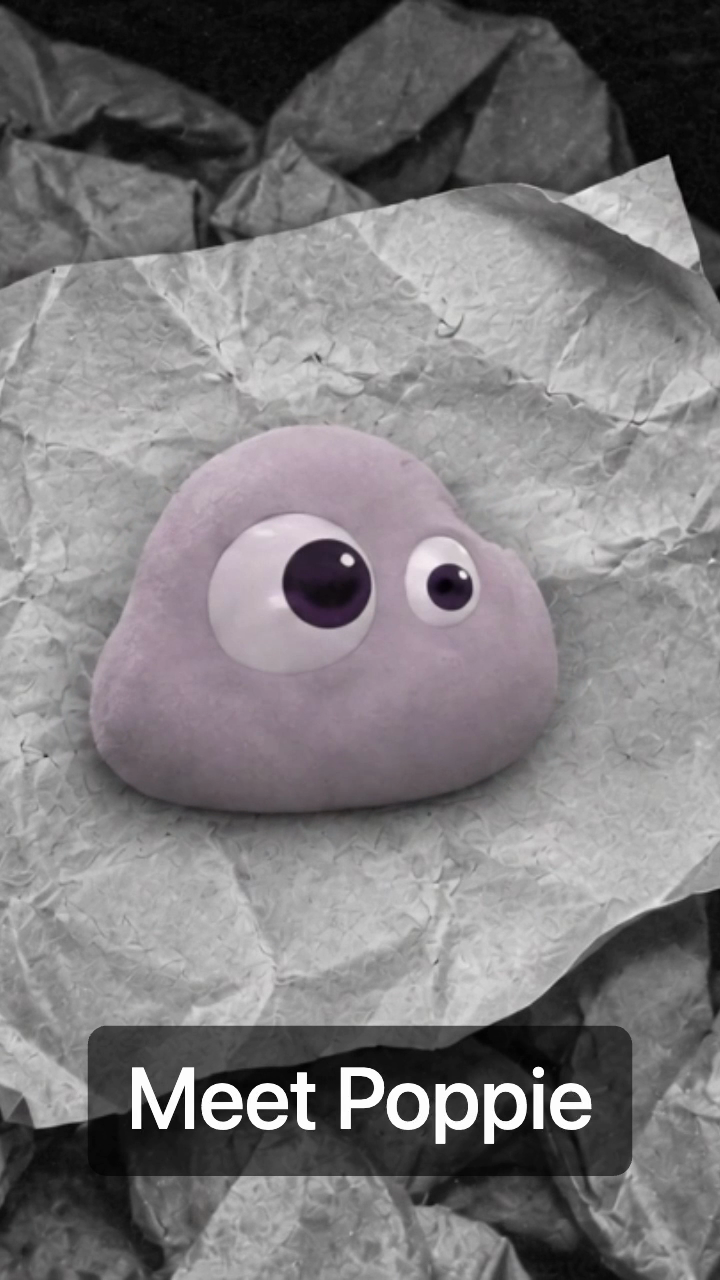
Crop a drawing-to-Poppie shot to 9:16, add two captions and a free music track, then inspect the downloaded file.
Make a four-second vertical Reel from one saved production shot. The blue drawing becomes a lilac Poppie; the lesson adds two captions and Moonlit Reverie. This is a finishing exercise, not a new generation.
Website controls and the browser export were recorded on November 7, 2026. The existing production take used Seedance 2.5 at 720p. The optional single-start-image exercise below uses 4s at 480p; it is an adaptation of the production prompt.
Lesson files
Lesson files: source, result, recipe and illustrated worksheet · English recipe · Worksheet
- Drawing start image
- Drawing-to-Poppie source
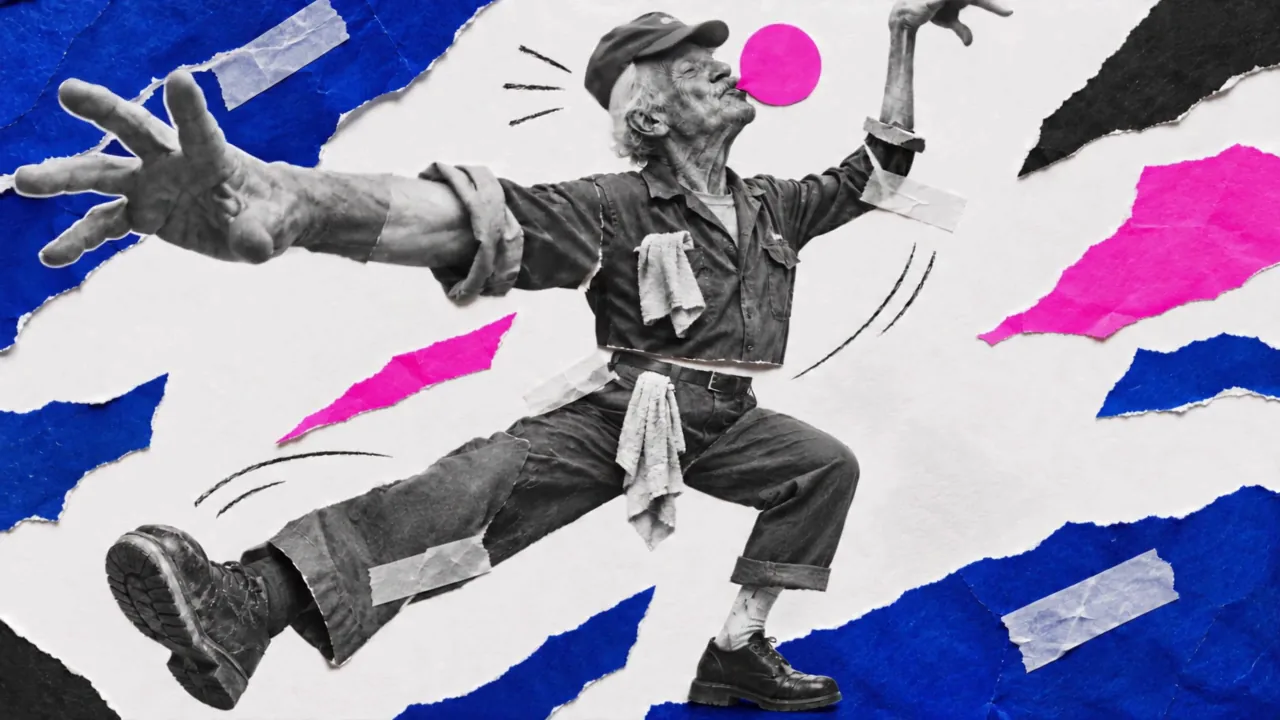
- Separate held-pose reject
- Finished four-second portrait MP4
Step 1: Import the source once
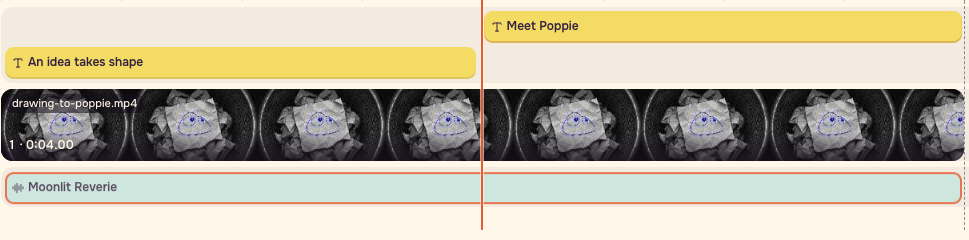
Open Video editor, choose Media, then Choose files from this device. Select drawing-to-poppie.mp4. Keep a single instance on the timeline. Select This clip, trim 0.00-4.00 seconds and keep Speed at 1x.
Step 2: Make the canvas portrait
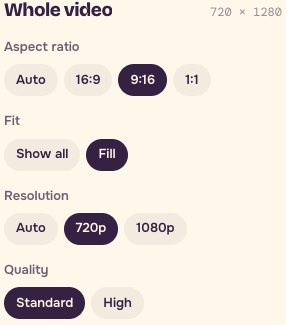
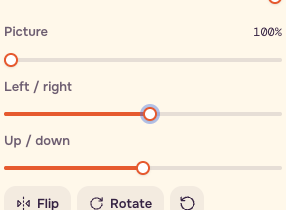
Choose Whole video > Aspect ratio > 9:16 > Fit > Fill. Under This clip > Picture, adjust Left / right only if necessary. This export used +5% with Zoom 100%. Check 0.00, 2.00 and 3.95 seconds: the entire drawing, both eyes and the base must remain visible. A subject crossing the full wide frame may need a different composition.
Step 3: Add two manual captions
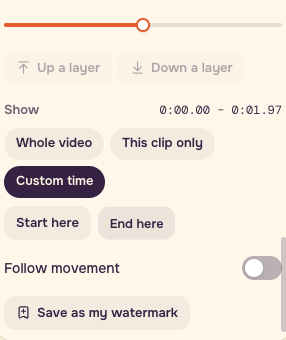
Move to 0.00, choose Text > Add a subtitle here, and enter An idea takes shape. Add Meet Poppie at 2.00. Keep the captions below the creature and above the bottom edge. Use Custom time, then Start here / End here to set the bars.
The current editor includes the last timestamp in an overlay. To avoid both captions appearing on frame 60, end the first bar at 1.97 seconds (frame 59), then begin the second at 2.00 seconds (frame 60), ending at 4.00. The exported visual change is at 2.00. The inspected export used Size 9% for the longer first caption and 12% for the shorter second one. Make text readable before making it smaller. Auto captions is a separate paid action; this exercise uses manual text.
Step 4: Choose one free music track
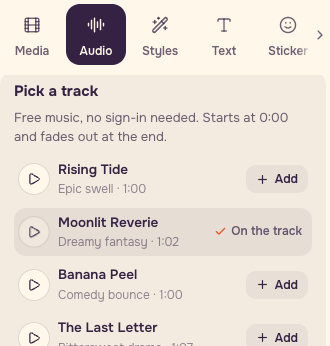
Choose Audio > Pick a track. Preview Moonlit Reverie, then choose Add. It starts at 0.00 and is limited by the four-second edit. Under Whole video, switch Clip sound off. Do not use Make a score for this exercise.
Step 5: Export and reopen the actual file
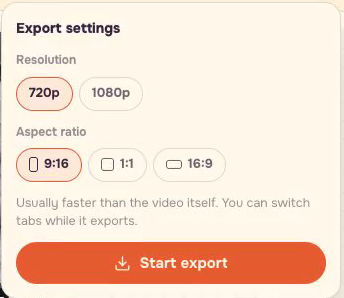
Under Whole video, choose Resolution > 720p and Quality > Standard. Choose Export video > Start export and wait for Download. Save the format your browser offers; this recorded export was an MP4, 720x1280, 30fps, 120 frames and 4.00 seconds. Reopen the downloaded file. Check 0.00, 1.97, 2.00 and 3.95 seconds for crop, caption timing and one music track.

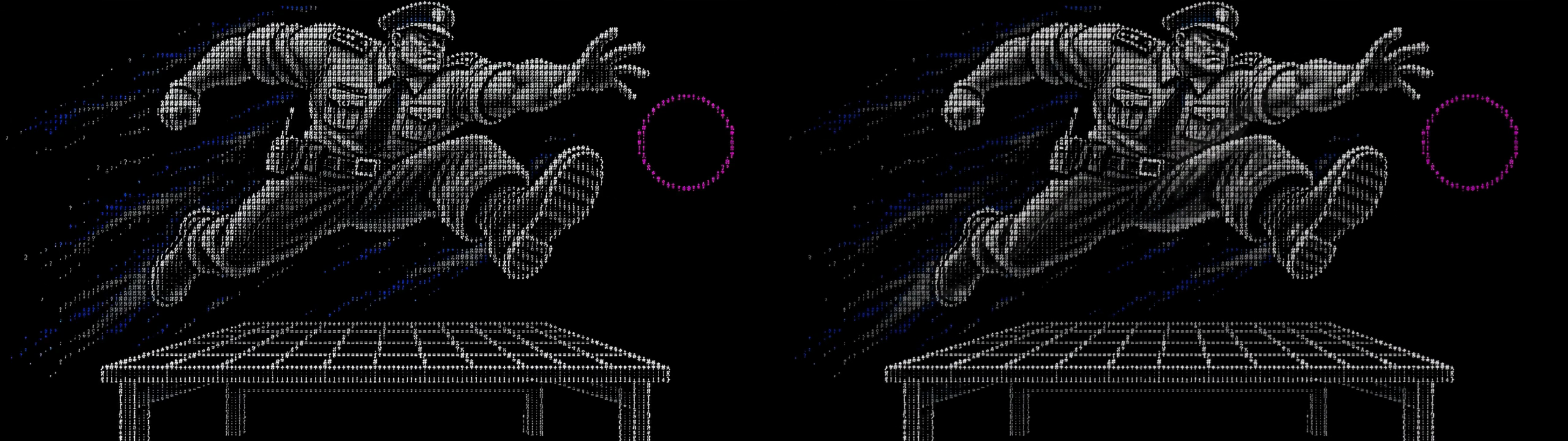
Step 6: Reject flicker without action
Watch the separate held-pose reject. Follow the lifted knee and extended hand from beginning to end. The texture flickers while the pose stays held. This is a different brand-film shot, not an earlier take of the drawing clip. Choose a clip with a visible change before spending time on captions.
Step 7: Try a single-frame variation
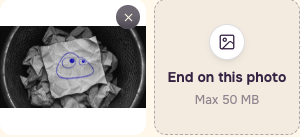
Open Video, choose Generate > Input > From a photo, select Seedance 2.5, and add drawing-start.png to Start from a photo. Leave End on this photo empty. Paste this practice adaptation, translated from our original prompt:
``text Begin naturally from the first frame. Fixed overhead view with an infrared night-vision texture. The blue lines on the note slowly swell from flat marks into a three-dimensional Poppie, which blinks. Keep Poppie’s body proportions unchanged, with a smooth matte surface, no mouth, no new arms or legs, and no fur. Only paper rustling, no music or voices. Real camera film grain and slight handheld shake, with ordinary imperfections. Keep the people, materials and colours of the first frame; do not turn it into CG. Do not add subtitles or text. ``
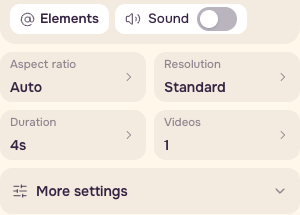
Set 4s, 480p (the interface calls it Standard), Sound off, 1 video, and Auto aspect ratio. On November 7, 2026, the signed-out form displayed 494 PopNow credits. This is a recorded website quote, not the cost of the saved production take. Check the current amount beside Generate before submitting; if sign-in is requested, sign in and check again. This lesson's recording did not submit a generation.
Finishing checklist
- The whole drawing and creature stay inside the portrait crop.
- Both eyes and the base remain visible.
- Captions change at 2.00s and remain legible.
- One score plays; original clip sound is off.
- Export is 4.00 s, 9:16, normal speed.
- A held pose with flicker is not an action.
Keep the exported Reel, both caption times and your inspection notes together. For precise filmed products or a real place, start with your own camera footage.
Cost context
The first 42-video 720p brand-film batch cost 3,864 production-tool credits, according to the production ledger. Those units are different from PopNow credits, and that batch total does not price this individual drawing clip. Finishing this saved shot in the editor and its existing free library does not require another generation.
FAQ
Does changing the aspect ratio generate a new video?
No. This exercise crops an existing source and adds manual text and free library music. A new Seedance practice run is a separate paid action.
Why use Fill instead of Show all?
Fill covers the portrait canvas. It also removes the sides of a wide source, so inspect the drawing, both eyes and the base through the whole take. Keep the wide view if the crop removes the action.
Why does the first caption end at 1.97 seconds in the editor?
The editor includes an overlay's end timestamp. On a 30fps export, frame 59 at 1.9667s is the last frame before the change. Frame 60 at 2.00s starts the second caption. This avoids a one-frame overlap.