

Line up two to eight models, run one prompt on all of them, keep the winner and save the lineup as a set. Then fit the prompt to the model you chose.
Reading about models only gets you so far; the fastest way to find the right one for an idea is to give several the same words and look. Compare models runs one prompt on up to eight models at once and lays the results side by side.
Step 1: Pick what to make and the models
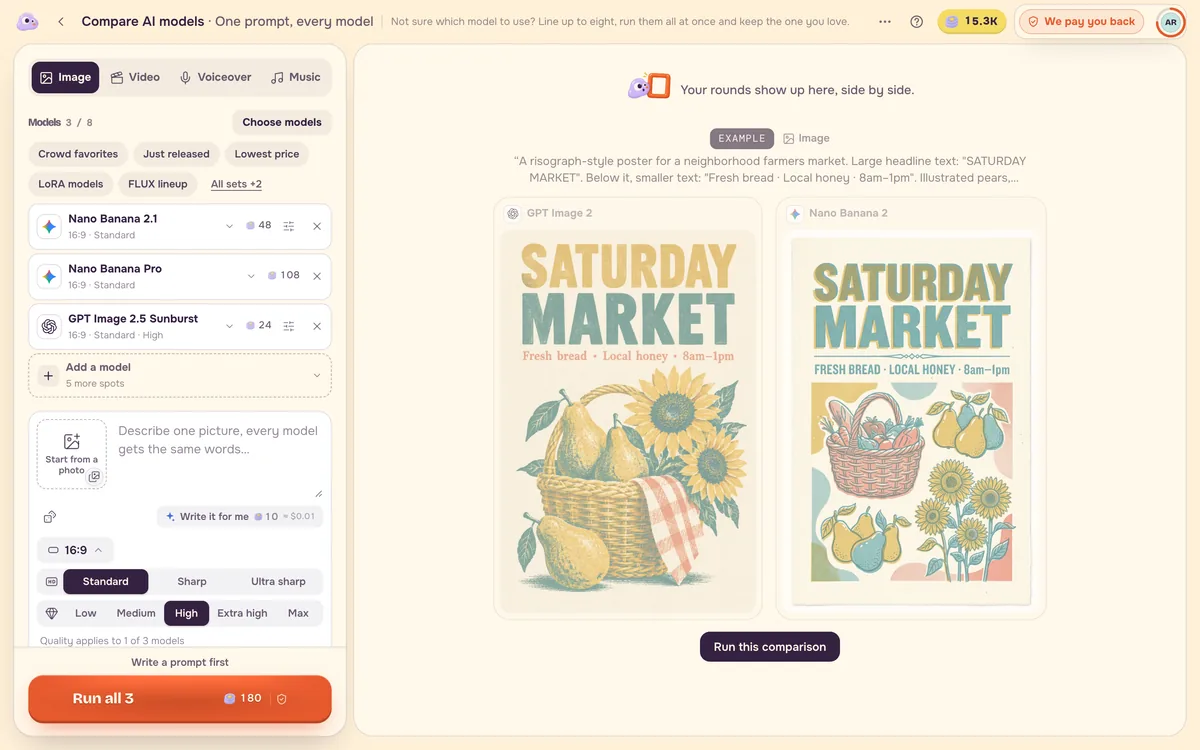
Open Compare models, choose Image, Video, Voiceover or Music, then press Choose models. Start with two or three: the recommended model for that mode, one lower-cost version and one sharper version. A quick lineup such as Crowd favorites or Lowest price fills the slots for you.
Step 2: Write one prompt and read the total
Every model gets exactly the same words, so write a plain prompt that does not depend on one model's special syntax. The run button shows the combined price before anything starts. A model that cannot do the job (for example one that does not take photos when you added one) is marked; swap it before you run.
Step 3: Keep the winner
Results arrive side by side. Open the viewer to put two results next to each other or compare them with the slider, then press Keep this one. Open in generator takes the winning model and your prompt to its own page; Continue on canvas carries the result into a project.
Step 4: Save the lineup as a set
If you often compare the same few models, select them and choose Save as a set, then give it a name. Next time, pick the set and run.
Fit the prompt to the model you chose
Models read prompts differently. Once you know which one you will use, open its model page. Prompt shape shows the skeleton that model follows best, with an example and a Use this shape button that fills it into the generator, and Common problems and fixes lists what usually goes wrong with that model and how to fix it. For video, Video to Prompt turns a reference clip into a prompt in each model's style: the MiniMax style uses the three labelled fields MiniMax H3 reads, and the Veo style can be sent straight to Veo.
FAQ
How many models can I compare at once?
Up to eight. Two or three is usually enough to see a clear winner and keeps the cost down.
Am I charged for models that fail to start?
No. Models that do not start are not charged, and the page tells you which ones ran.
Can I compare starting from my own photo?
Yes. Add a photo and choose how to use it: as one photo to edit or animate, as first and last frames, or as references. Models that need a photo, or cannot take one, are marked in the model list.