To remove text from a picture, open PopNow's AI eraser, add your image, choose Text, mark the words you want gone and press Erase. The model rebuilds the covered surface from its surroundings, and the eraser blends that patch back into your original. This works for date stamps, captions and sign lettering in your own photos and screenshots; it cannot recover the exact hidden pixels.
How do you remove text from a picture step by step?
Start with the largest original you have, rather than a small copy downloaded from a chat. A JPG, PNG or WebP up to 10 MB works. If the writing is still an editable layer in your own design file, delete that layer instead: AI filling is for text already flattened into the picture.
- Add your picture. Use Drop a photo here or click to choose a file.
- Choose Text. It finds text in your browser and marks detected lines. Tap a box to keep that line; use Keep all if you want to start with none selected.
- Check the marked area. Cover every letter, number and outline, with a small margin. Brush adds missed areas and Unpaint takes paint off. Zoom in for small dates or thin lettering.
- Press Erase. The default is Seedream 5.0 Flash at 2K, costing 29 credits per pass. Check the selected model and displayed price before running.
- Compare and download. Inspect edges at full size, then use Download. Keep the original until you have checked the saved file.
If text detection cannot start, the page offers manual brushing. Manual-only erasing uses the general removal instruction, so start with one small area and check it carefully. A narrow leftover stroke can look like a new letter, so inspect both ends of every line before another pass. Each additional erase uses credits.
What happened in our three before-and-after tests?
We made three source images with Seedream 5.0 Flash on October 27, 2026: a fictional adult's vacation photo, a generic notes-style screen and an invented shop sign. We covered their lettering locally with solid purple boxes, RGB 150, 80, 255 at full opacity, and used the eraser's exact text-removal instruction with Seedream 5.0 Flash, 2K, automatic aspect ratio and PNG output. Each source costs 29 credits, and each erase costs 29 credits.
The pairs below show our original and a locally feathered patch composite of the returned image. That follows the eraser's approach of retaining the original outside the edited patch, although our local compositing is not a pixel-for-pixel reproduction of its browser blending. These web illustrations are compressed WebP files; use the tool's PNG download when the final image matters.
1. A date stamp over lake water
The orange date is baked into the lower right corner of a generated vacation photo. We covered the entire stamp, including its dark outline, and the model filled it with water. Because the patch is far from the fictional woman's face, there is no reason to include her in the selection.
 Before
 After
AfterA plain stretch of water gives the model useful neighboring color and texture. If a date crosses a railing, mark the letters carefully and inspect whether the repaired railing still joins up; a plausible fill can still invent the wrong geometry.
2. Writing on a notes-style screen
Our source is an invented notes layout, not a screenshot of a real app or someone's private notes. It contains three readable lines on ruled paper. We covered the whole text block, and the result removes the words while continuing the horizontal rules; the orange square remains outside the patch.
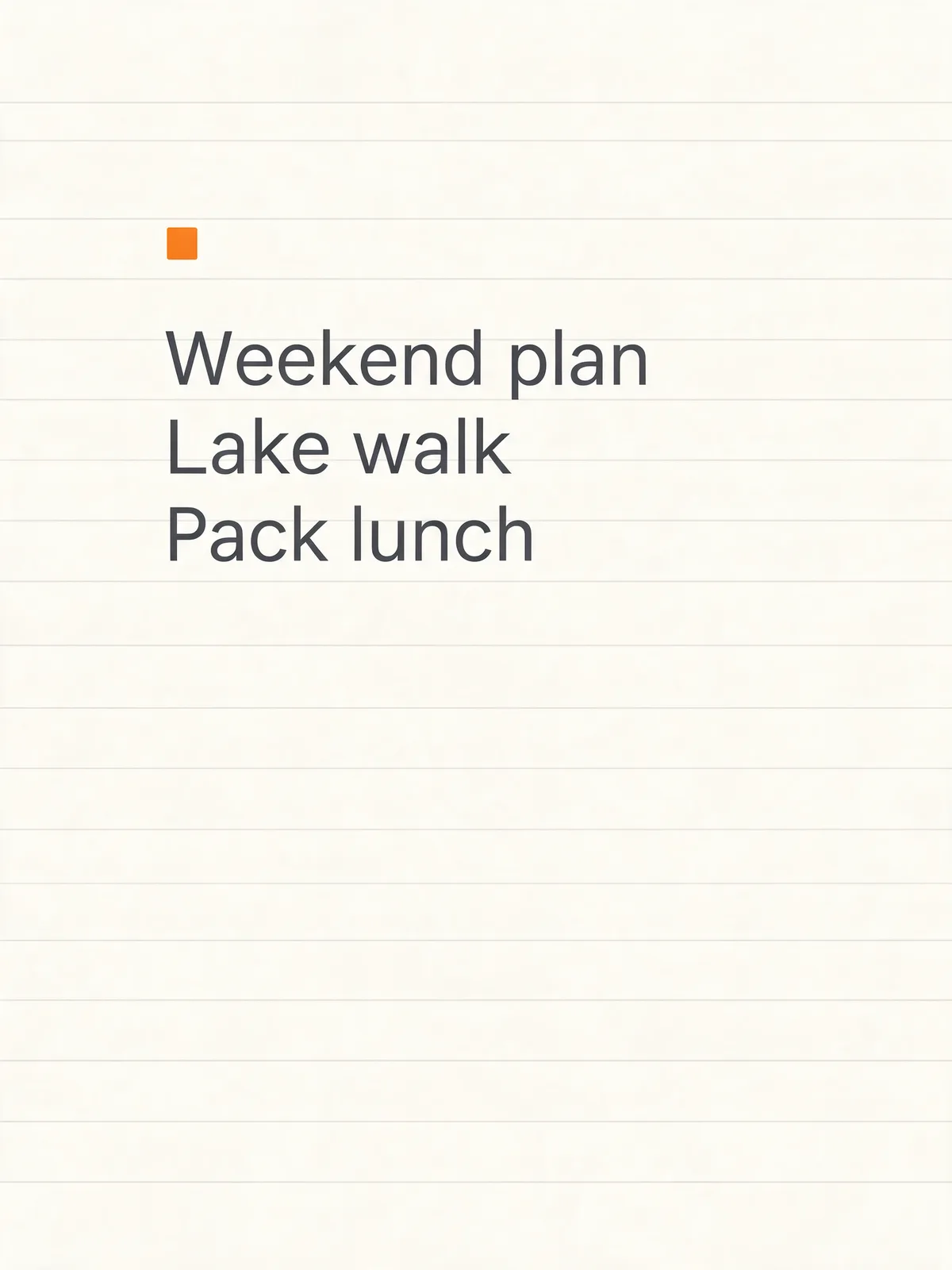 Before
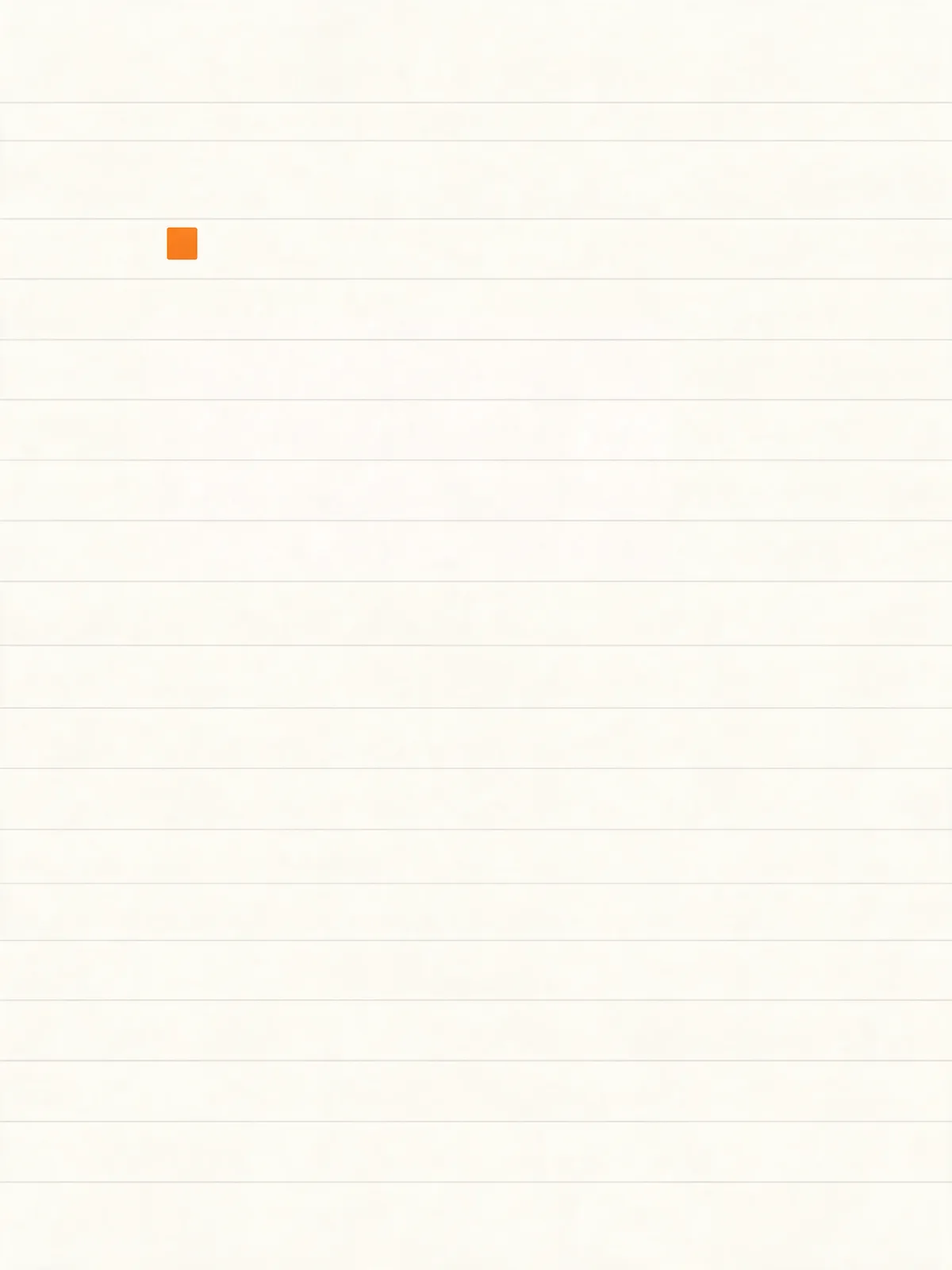 After
AfterFor your own screenshot, leave menu labels, icons and separators unmarked if you need them. If you still have the original note, editing the note and taking a new screenshot gives more reliable layout control than asking a model to rebuild its background.
3. Lettering on an invented wooden sign
The sign says MOSSVALE, an invented name made for this example. We marked only the lettering inside the wooden board. The edit produced a blank board with horizontal grain, while the unmarked frame, window and plants remain from the original.
 Before
 After
AfterHere is the exact instruction used for all three edits. To reproduce the marked-input experiment with this prompt card, first supply a copy with the target words covered in solid purple. For normal use, the eraser prepares that input for you.
Remove all the text covered by the purple highlight: every letter, number, symbol and handwritten mark. Restore the surface underneath so it continues naturally from the surrounding area, with the same material, color, texture, pattern, lighting and edges (for example a blank sign board, plain paper, an empty label or a clean screen background). Do not write any new text, letters or symbols, and do not add new objects. Remove the purple highlight completely. Keep every other part of the image exactly the same.
Can you remove text with the tools already on your phone?
Apple's iPhone guide, Use Apple Intelligence in Photos on iPhone, checked October 27, 2026, describes Clean Up: open a photo, tap Edit and Clean Up, then tap, brush or circle the distraction and finish with Done. Availability depends on supported hardware, language and region. This is a general object-removal feature; the guide does not promise perfect text reconstruction.
Google Photos Help, Edit your photos, checked the same day, describes opening a photo on Android, choosing Edit, finding Magic Eraser through Search, selecting an area and tapping Erase. Save as copy keeps a separate result. Device requirements vary. Try a small area first and compare the repaired surface, especially if the writing crosses a pattern.
How can you handle a busy background or change a word?
On patterned fabric, brickwork or a perspective sign, start with one line and inspect how the pattern continues. Keep the selection inside the surface you want to rebuild where possible. If filling looks wrong, undo or return to the original version and adjust the selection before spending on another pass. The separate object-removal guide covers larger distractions and shadows.
If your goal is a different word, use Edit Image and give the replacement wording in quotation marks, plus instructions to keep the lettering style and surrounding picture. That is a different task from producing a blank sign. We did not run a word-replacement example for this guide, so proofread any result yourself.
Same task, different models
The eraser also offers Nano Banana 2.1 for another interpretation of a difficult fill. We used Seedream 5.0 Flash for all three removal examples here and have not claimed a winner between models. Visit Compare when choosing a model; compare the same image and selected region, then judge texture continuity and edges rather than the whole scene's appearance.
FAQ
Can I remove a watermark?
This guide is for text in your own photos and screenshots. Removing someone else's watermark can break copyright, and this tool is not for that.
Will it change the rest of my photo?
Normally the eraser pastes back only the painted area with a soft edge; the rest is your original. If the browser cannot blend the result, the page warns that it is showing the model's full picture. Check the comparison before downloading.
What about text on a busy background?
The model guesses what belongs under the letters; it does not reveal the original surface. Work in small sections and check straight lines, repeating patterns and transitions at full size.
Can I change the text instead of deleting it?
Yes, ask Edit Image for the exact replacement and what to preserve. Eraser Text mode is designed to leave the marked surface blank, so it is the wrong instruction for changing a name or date.
How much does text removal cost?
One pass with the default Seedream 5.0 Flash at 2K costs 29 credits. A second pass is another request. The price shown beside Erase reflects the selected model.