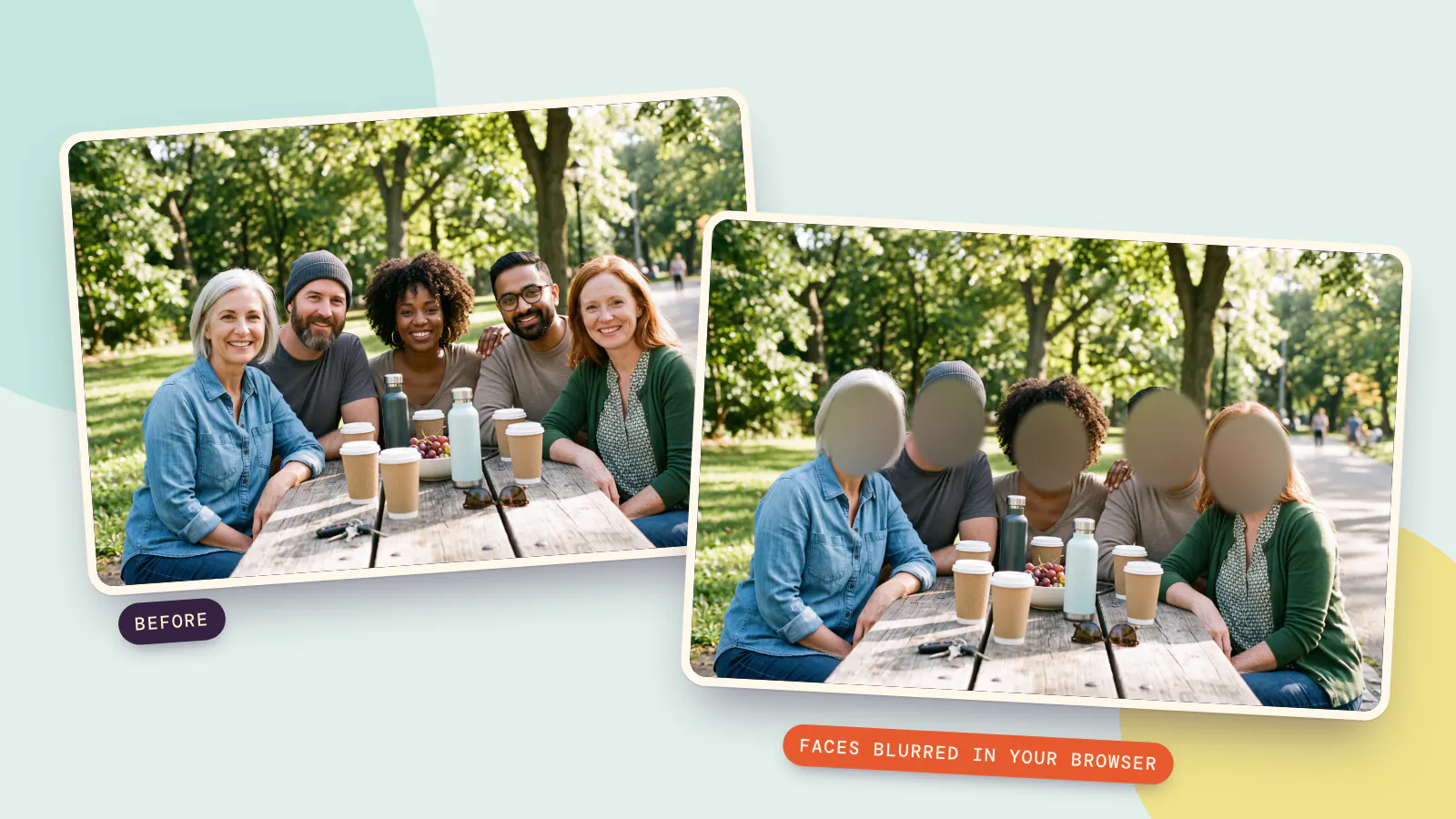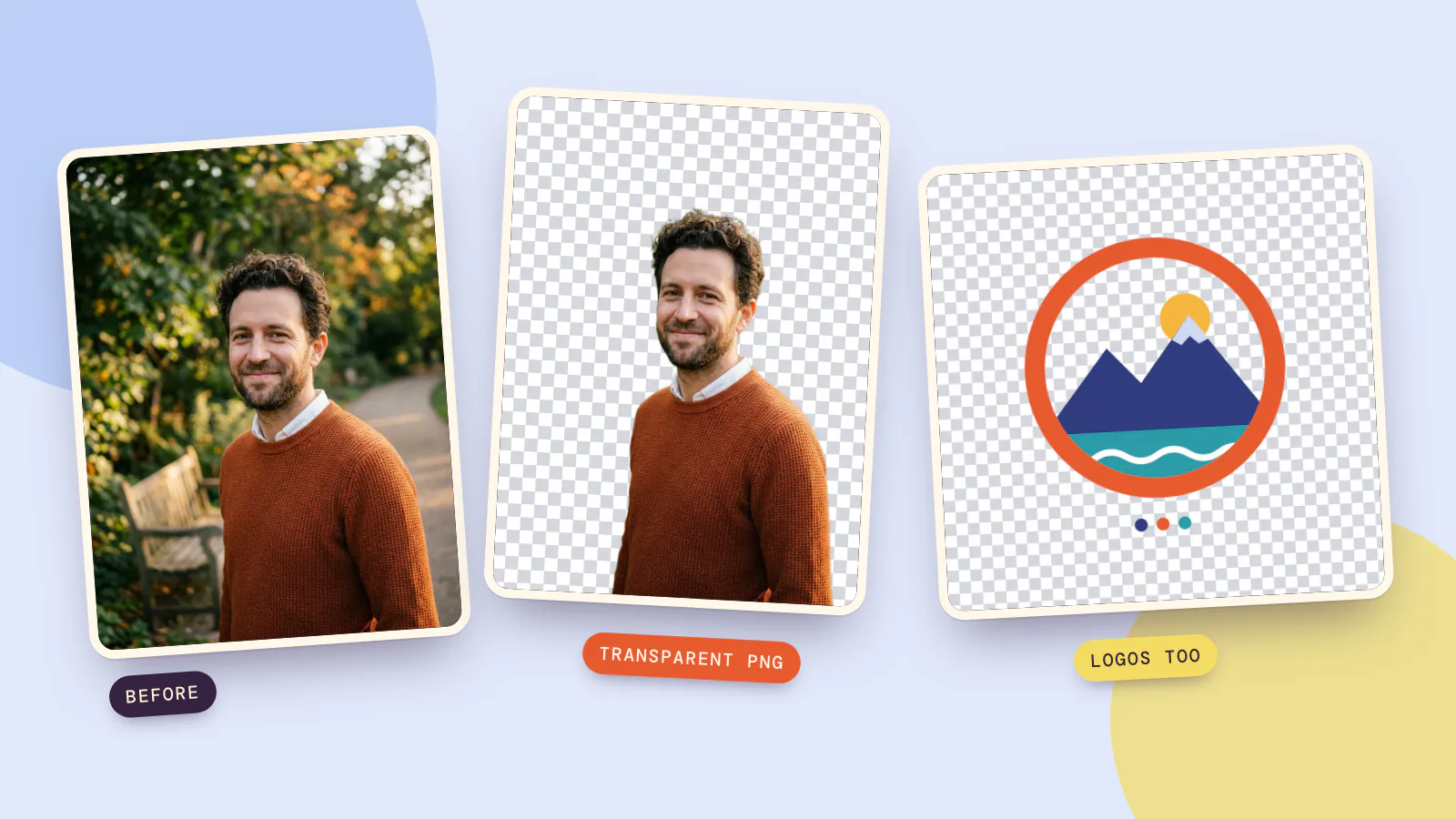
To remove something from a picture, open an AI eraser, brush over the object, person or text you want gone, and press Erase. The AI fills the painted area with background that continues the rest of the scene: the wall behind a trash bin, the sea behind a passer-by, the wood grain under a napkin. On PopNow's AI eraser one erase costs 5 credits with the default model, and everything you didn't paint stays exactly as it was.
We tested it on October 17, 2026 with the three jobs people ask about most: a stranger in a travel photo, clutter on a table, and something ugly in front of a house. Here's what came out, how to do it yourself, and where it still struggles.
Three things we removed
All three photos are made-up scenes generated for this test, so nobody real is being edited.
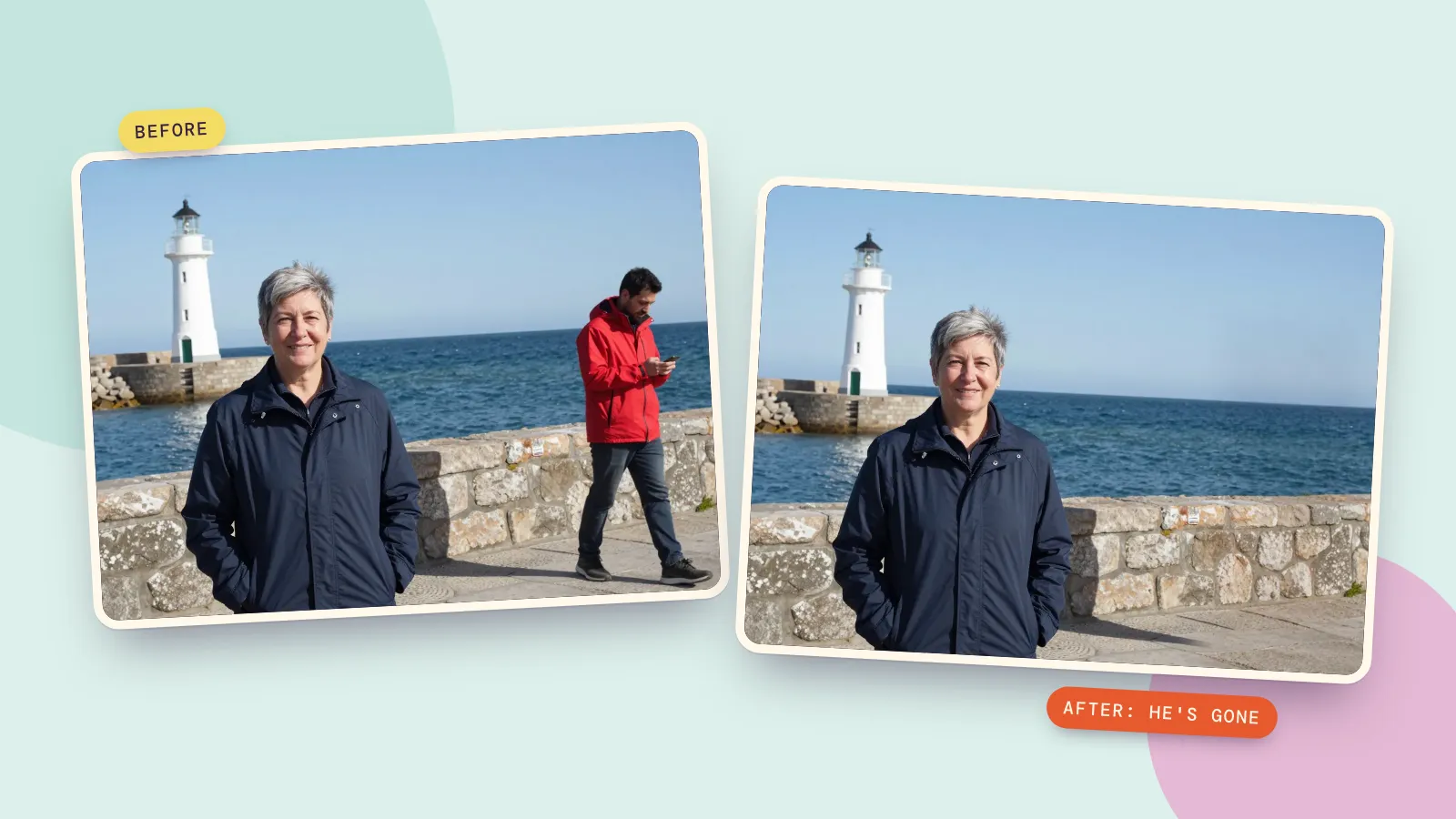
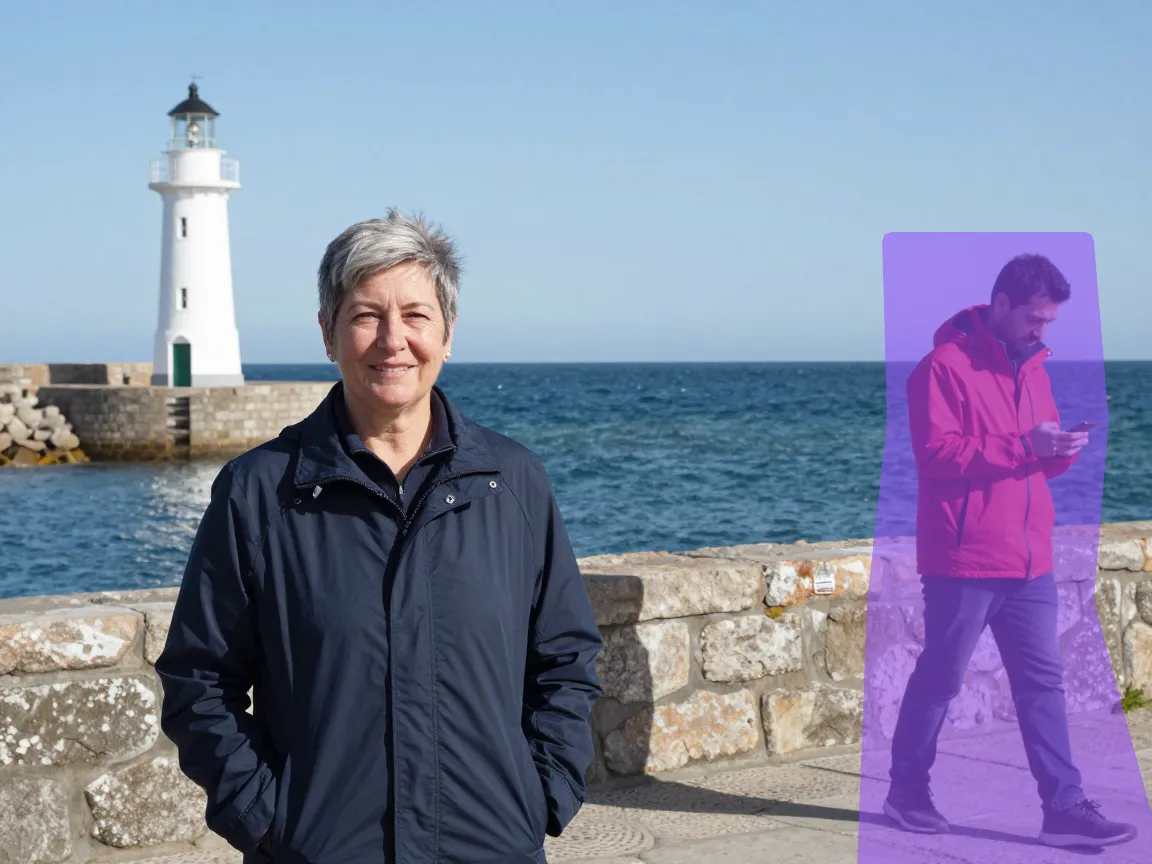
A stranger walking through a travel photo. The man in the red jacket was painted over, shadow included.
 Before
 After
AfterClutter on a breakfast table. A crumpled napkin in one corner and a phone with a tangled cable in the other.
 Before
 After
AfterA trash bin in front of a house. A tall green bin covering part of the brick wall and the basement window.
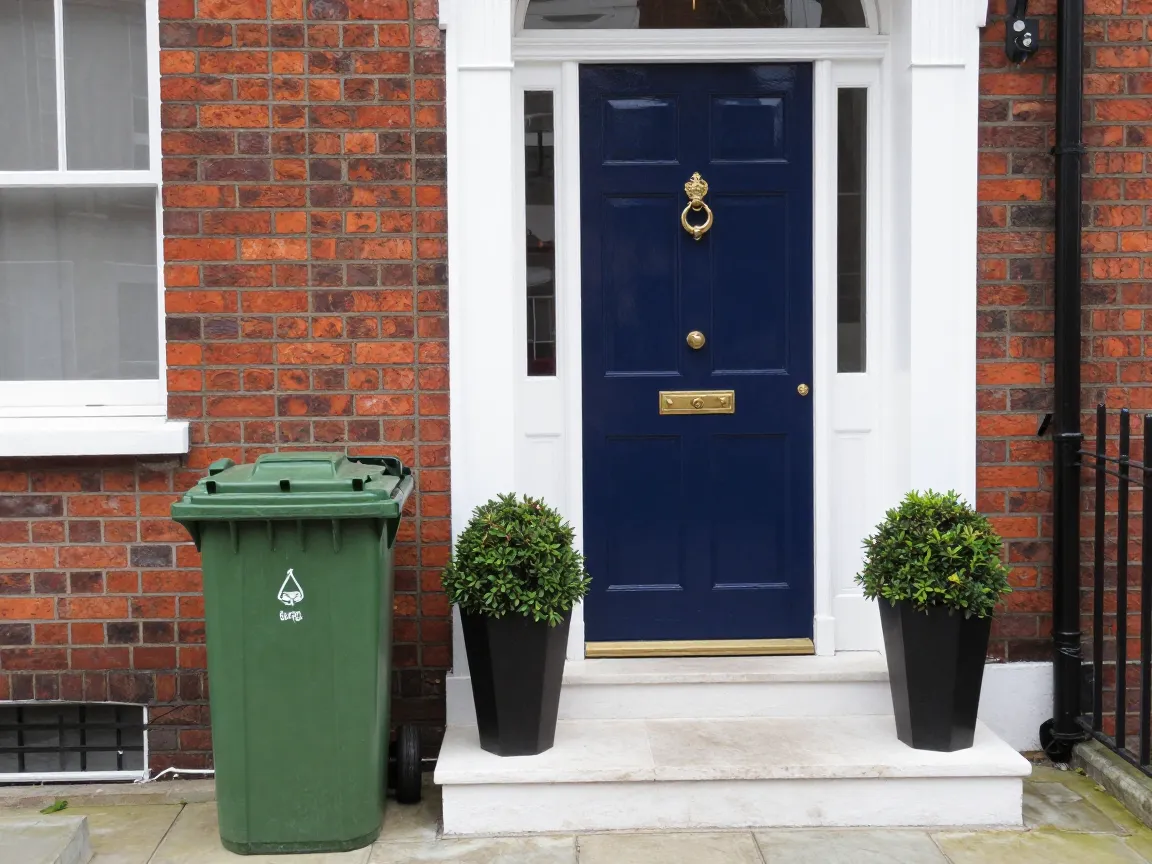 Before
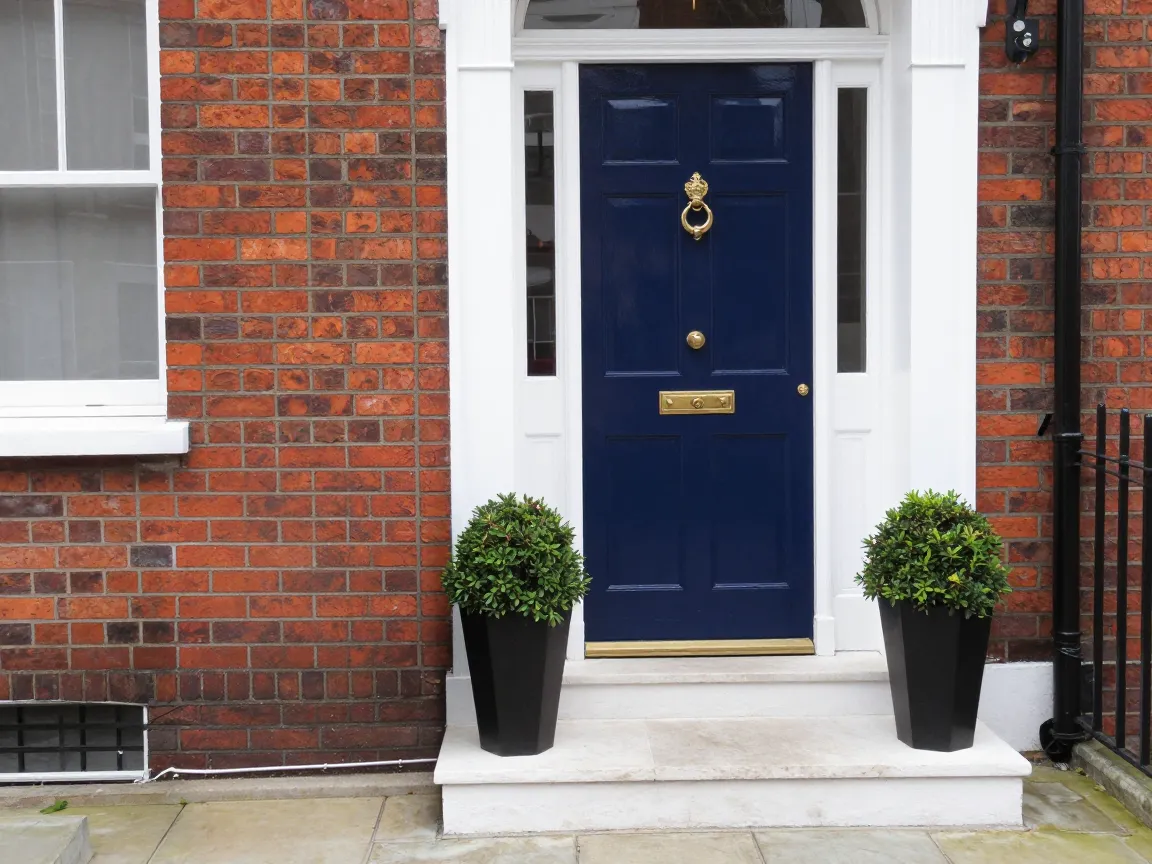 After
AfterAll three came out clean on the first try. One thing to know about speed: the tool usually answers in under a minute, but on the evening we tested, our three erases took between four and six minutes to come back.
How to remove something from a picture
- Open the AI eraser and add your photo. JPG, PNG or WebP, up to 10 MB. You can also start from one of its three examples: passers-by, desk clutter, and wires with a sign.
- Mark what should go. Tap Select and click the object to have it outlined for you, or cover it with the brush. Be generous: paint a little past its edges, and include its shadow and any reflection.
- Fix mistakes before you erase. Undo and Redo step through your strokes.
- Press Erase. The button shows the credits before you start.
- Compare and keep going. Drag the slider to compare before and after. If a small bit is left, paint it and erase again; each pass is saved as a version, so you can go back.
- Download, or send it on. Send it to another tool, for example the upscaler if you cropped in and want it bigger.
How to remove a person from a photo
People are the most common request and the easiest to get slightly wrong. What made our harbor photo work:
- Paint the whole person, plus their shadow. A leftover shadow on the ground is the giveaway that someone was removed.
- Include what they're holding. Phone, bag, leash, umbrella: if it's attached to them, paint it.
- Watch for overlaps. If the stranger stands behind your friend's shoulder, paint only the stranger and leave a small gap around your friend. The edge where two people overlap is where erasers most often blur.
- Big crowds are a different job. Removing ten tourists from a square means rebuilding most of the photo. It works better in two or three passes, a few people at a time.
Can you remove text from an image?
Yes, the same way. Brush over the text, a watermark you have the right to remove, a date stamp or a sign, and press Erase. Short text on a plain surface, like a date in the corner of a photo, comes out cleanest. Text on a busy pattern, like lettering across a striped shirt, is harder, so check the result closely and paint over anything left for a second pass. There's no separate text mode: the brush is the tool.
Which eraser model to pick
The eraser lets you switch models under Model. The default handles most photos:
| Model | Best for | Cost per erase |
|---|---|---|
| Seedream 5.0 Flash (default) | Most photos: people, clutter, signs | 5 credits |
| Object Eraser | Quick, simple removals on plain backgrounds | 5 credits |
| Nano Banana 2.1 | Tricky backgrounds with lots of texture | 8 credits |
Whichever model you use, the eraser only blends the painted area back into your photo. Faces and anything else you didn't paint keep their original pixels, which is why the woman in our harbor photo looks exactly the same afterwards.
When removing something doesn't work well
- The object covers most of the photo. If the thing you remove is a third of the picture, the eraser is inventing a third of the picture. It will look plausible, not like what was really there.
- The object is in front of a face or hands. The eraser has to redraw part of a person, and that's where results drift. Try the photo editor instead and describe the change in words.
- Strong repeating patterns. Tiles, fences and bookshelves have to line up. Our brick wall did; a tiled floor in steep perspective is harder.
- Tiny, low-resolution photos. There isn't enough detail around the object to copy from. Upscale first, then erase.
FAQ
How much does it cost to remove a person from a photo?
One erase with the default model costs 5 credits, paid per image with no subscription, and if an erase fails the credits go back to your balance. If you only need to hide a stranger rather than remove them, the Blur face tool runs in your browser and costs nothing.
How do I erase a person from a photo on my phone?
The PopNow eraser works in a phone browser: upload from your camera roll, paint with your finger and press Erase. Phones also have their own tools: Clean Up in the iPhone Photos app and Magic Eraser in Google Photos on many Android phones, depending on the model and software version.
Will the rest of my photo change?
No. Only the area you painted is replaced. Everything else stays pixel for pixel, including faces.
Can I remove a watermark?
Only from photos you own or have permission to edit. Removing a watermark from someone else's photo to reuse it can break copyright law and the photographer's license.
Why is there a blurry patch where the object was?
Usually because the paint didn't fully cover the object or its shadow, so the AI tried to blend the leftovers. Paint a little wider and erase again.