To blur a face in a picture, open a face blur tool, mark the face by drawing a box over it or letting the tool find faces for you, choose a blur, a mosaic or a solid bar, and download the result. PopNow's Blur face tool does all of that in your browser. It's free, there's no account and no watermark, and the photo never leaves your device.
We tested it on October 19, 2026 with the three pictures people most often need to clean up before sharing: a group photo, a street shot full of strangers, and a chat screenshot. Nobody in them is real. The photos were generated with Nano Banana 2.1 for this article and the chat is a mock-up we built, but every blurred result below is the tool's own download, exactly as it came out.
Why blur faces before you post a photo?
A face is the fastest way to recognize someone, and once a picture is online you can't control where it goes next. A few everyday reasons to blur before you share:
- Strangers didn't agree to be in your post. The people walking behind you in a travel photo, other diners in a restaurant, the crowd at a concert: you chose to share the moment, they didn't.
- Other people's children. Many schools, sports clubs and parents ask that photos showing other families' children aren't posted publicly. Blurring lets you share your own child's game or party without sharing everyone else's.
- Details that point to a home or a car. A number plate, a house number or a street sign next to someone's face can tell a stranger where that person lives or what they drive.
- Screenshots carry more than you think. Group chats and comment threads show names, profile pictures, phone numbers and sometimes addresses. That's someone else's information, even if the conversation was with you.
- Work and school photos. Customers in a picture of your shop, colleagues in the background of a video call, classmates in a lecture hall.
There's also a legal side, and it depends on where you live. In the EU, for example, the GDPR defines personal data as any information relating to an identified or identifiable person, and a clear face can make someone identifiable. This article isn't legal advice: if you post for a business, a school or a club, check the rules that apply to you. Blurring the faces you don't need is an easy way to stay on the safe side.
How do you blur a face in a picture?
- Open Blur face and add your photo. Press Upload photo, drag the file onto the page, or paste it. JPG, PNG and WebP all work. Before you add anything, the tool shows a sample group photo with four faces already blurred, so you can see how it behaves first.
- Press Find faces. The first time, it downloads a small face detector (about 3 MB) and runs it on your device. It puts a box over every face it recognizes. You can skip this and drag a box over each face by hand instead.
- Check for faces it missed. Drag over any face without a box. Drag a box to move it, pull its yellow corner to resize it, and press × or the Delete key to remove one. Undo steps back one change at a time.
- Pick how it should look. The presets are Soft blur, Heavy blur, Mosaic, Black bar and Round pixels. Below them you can fine-tune the effect, the Strength, the Shape (oval or rectangle) and the Soft edge.
- Compare. Tap Before and After above the photo to check that nothing recognizable is left.
- Download. Save it as PNG or JPG. The file keeps your photo's full size; only extremely large photos get scaled down to what the browser can handle.
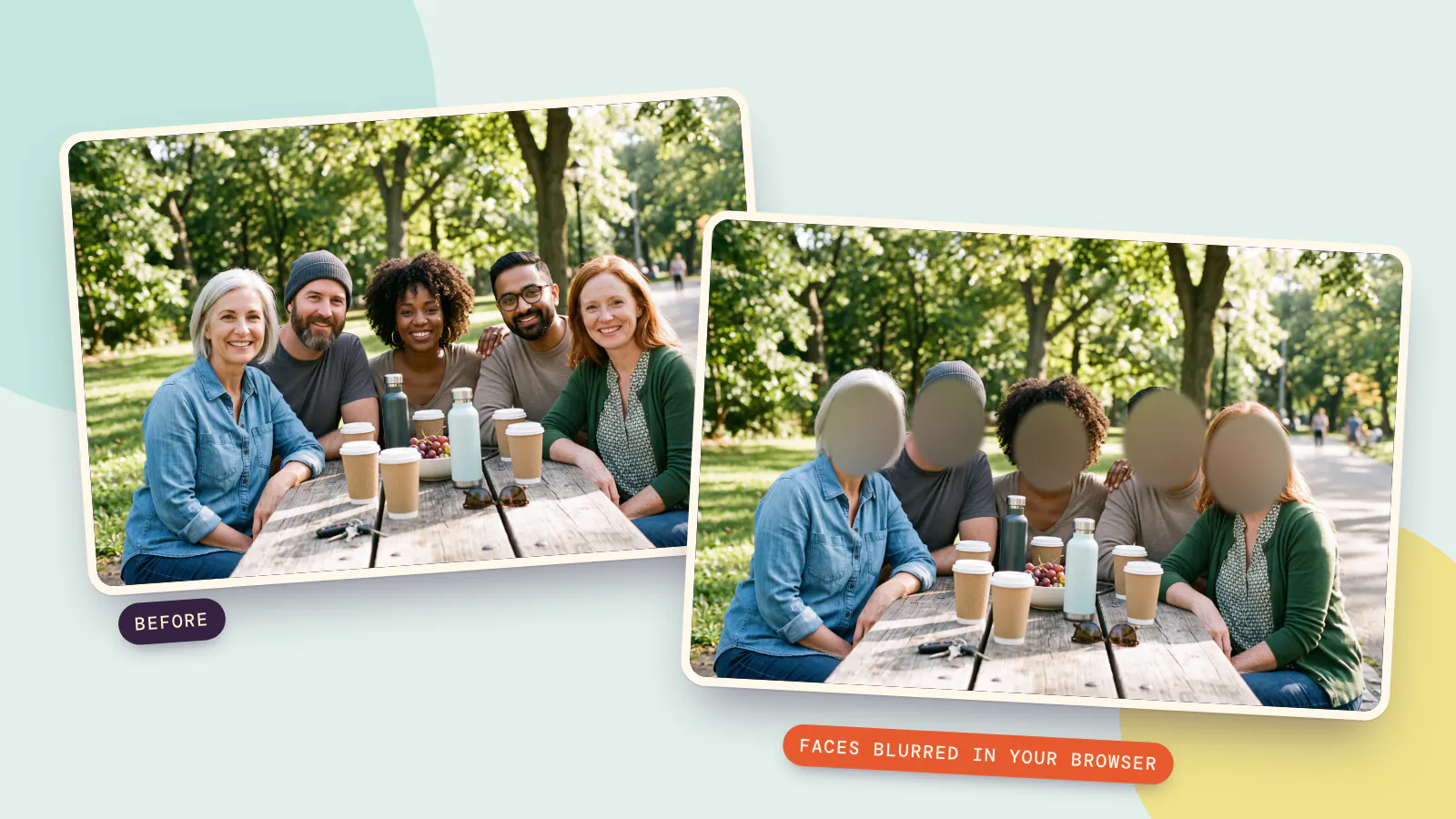
Here's our group photo. Find faces found all five faces on the first try, and we picked the Heavy blur preset:
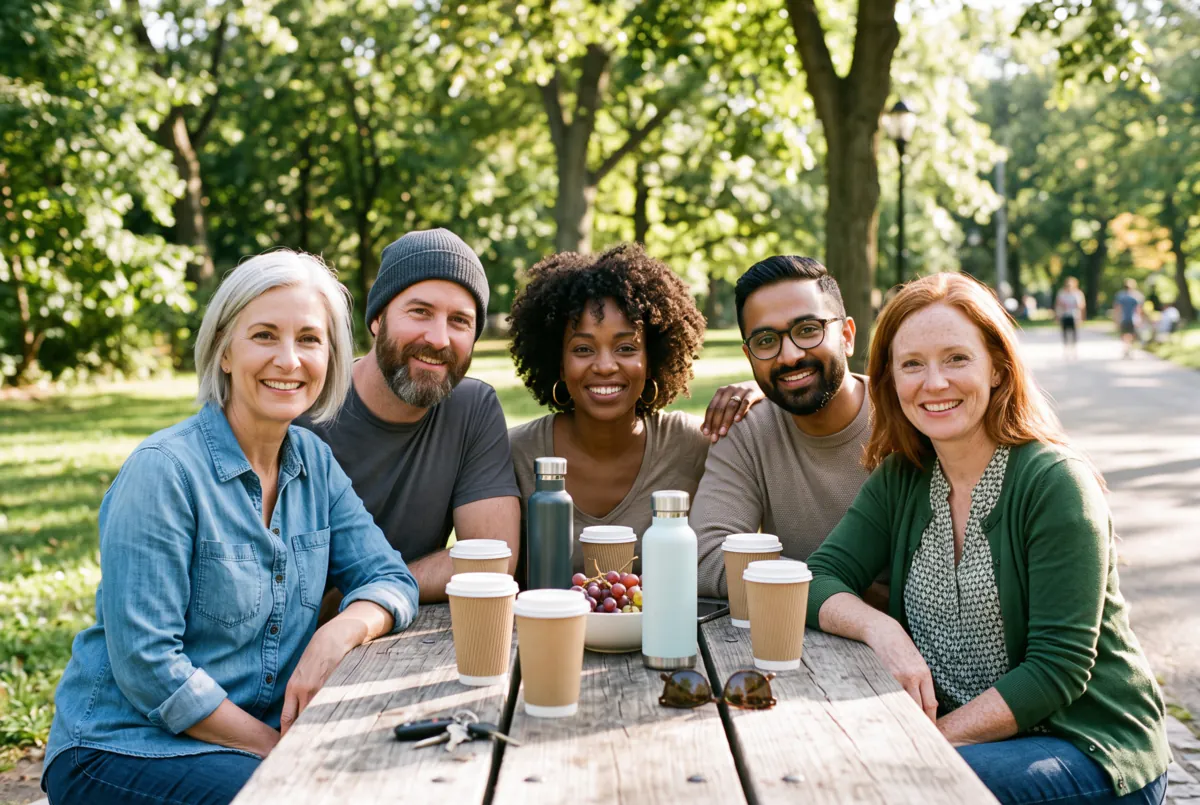 Before
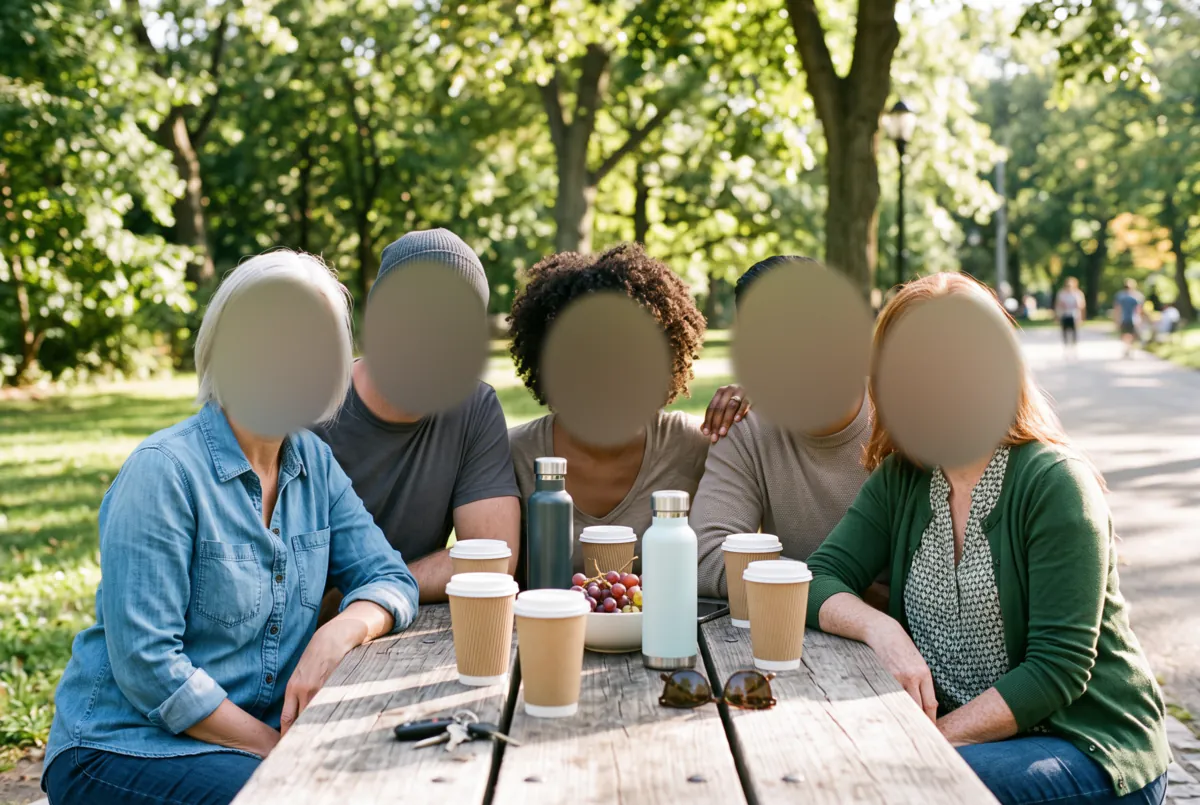 After
After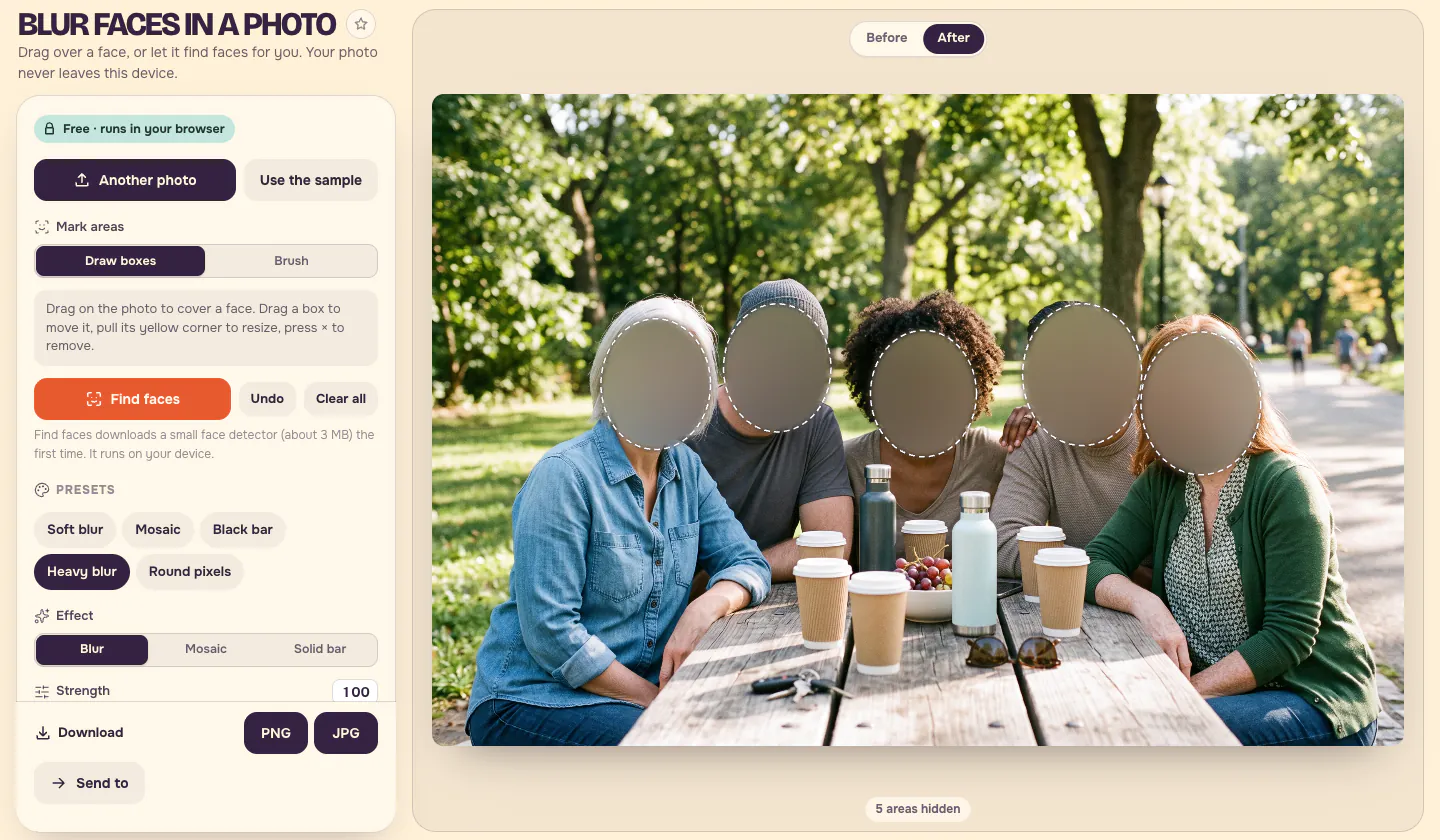
How to blur only the strangers and keep your friend sharp
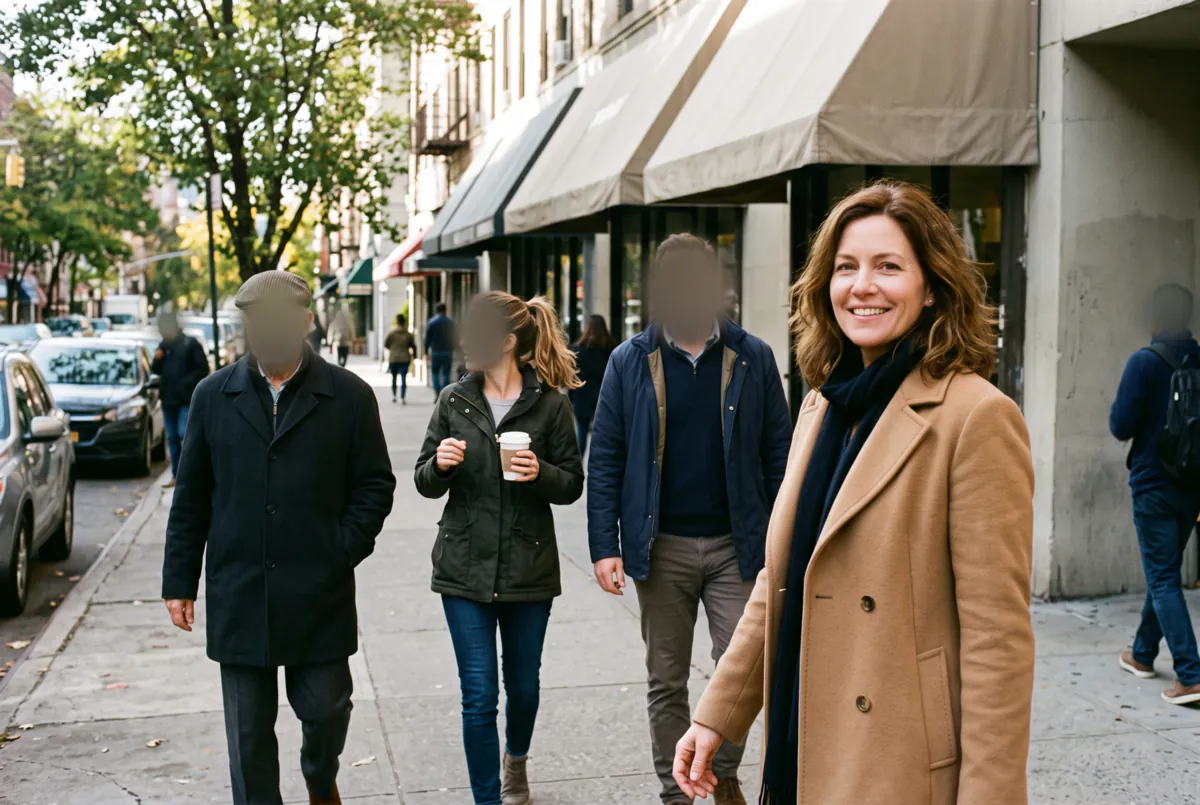
Most of the time you don't want every face gone, only the people you don't know. This street photo has one person we want to keep (the woman in the camel coat) and several strangers walking behind her.
Find faces found just two faces here: hers and the man in the navy jacket. It missed the man in the flat cap, even though he faces the camera, and two people seen from the side or behind: the woman with the ponytail and the man with the backpack at the right edge. So we:
- Selected the box on our friend's face and pressed Delete to remove it.
- Dragged a box over each of the three faces the detector missed.
- Added two more boxes over small figures further down the street, to be thorough.
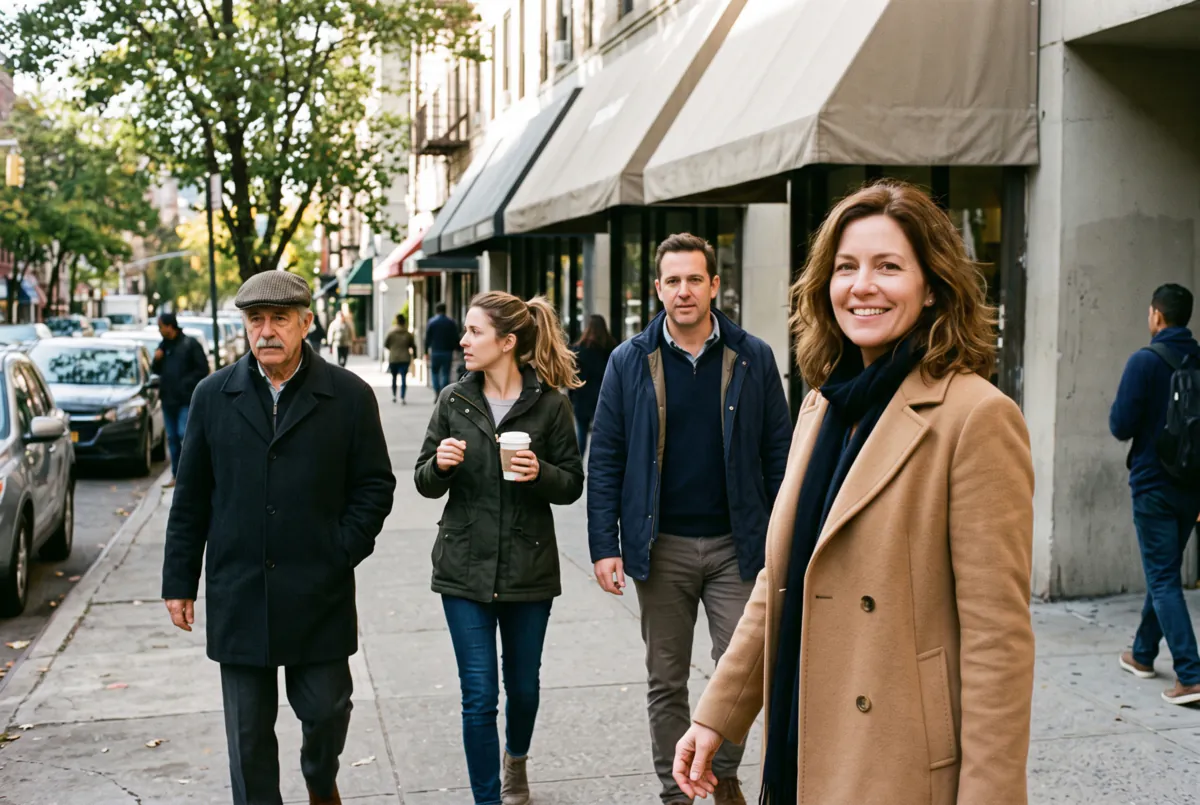 Before
 After
AfterThat's the habit worth building: never trust automatic detection on its own. Face detectors are best at faces looking toward the camera. Profiles, hats, sunglasses, faces in shadow and small faces far away are the ones that slip through, so look over the whole photo, and zoom in on a phone, before you download.
Blur or mosaic: which hides a face better?
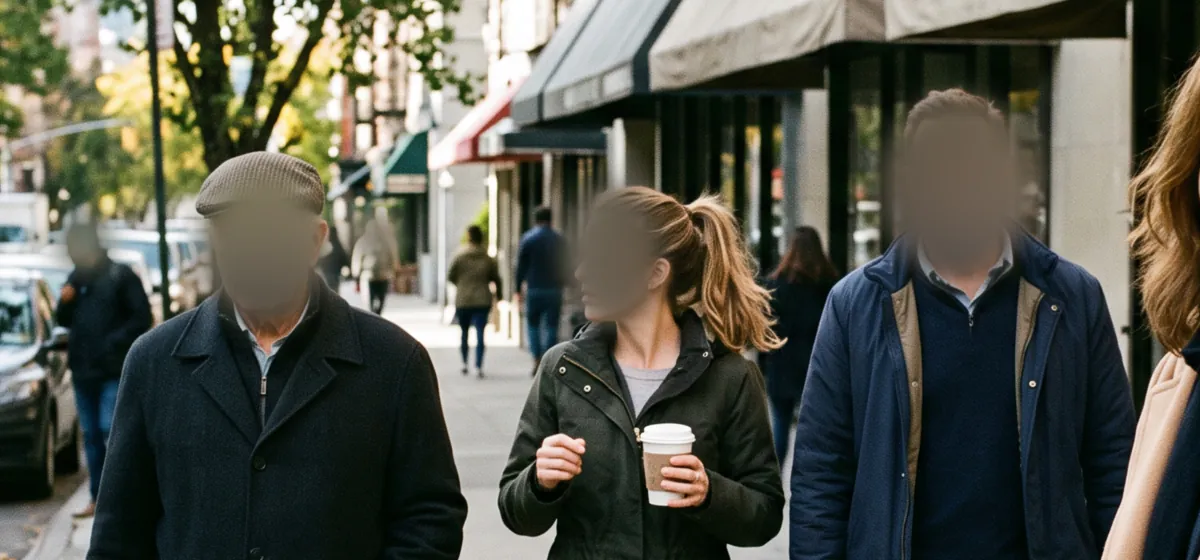
Here are the same strangers with the two most common effects, Soft blur and Mosaic, side by side:
 Blur
Blur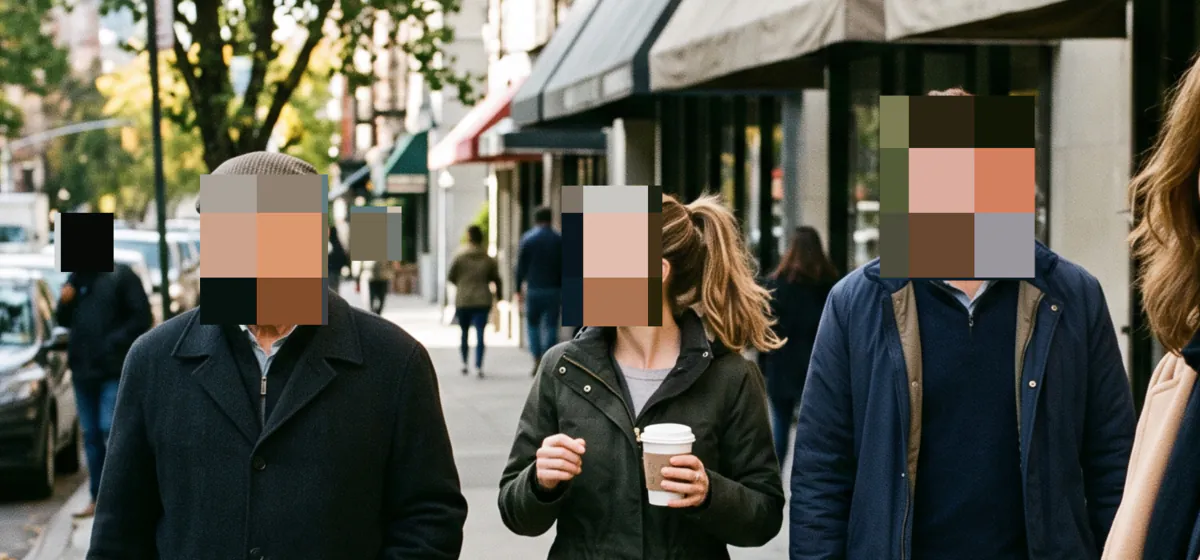 Mosaic
Both work, as long as they're strong enough. Blur looks softer and blends into the photo; mosaic gives the classic "this was hidden on purpose" look. What matters more than the style is how much detail is left. A light blur over a large face can still leave the outline of the hair, the glasses and the jawline, and that's enough for friends or family to recognize someone.
Software can sometimes do even better than people. In 2016, researchers at Cornell Tech and the University of Texas at Austin published a study, "Defeating Image Obfuscation with Deep Learning", showing that recognition software trained on pixelated and blurred photos could still match many of those faces to people it already had pictures of. So for anything sensitive, go stronger than looks necessary.
| Preset | What it looks like | Use it for |
|---|---|---|
| Soft blur | A gentle, natural blur with soft edges | Strangers in the background of casual photos |
| Heavy blur | A full-strength blur with no features left | Faces you really need to hide |
| Mosaic | Large square blocks | The same job as Heavy blur, with a more obvious look |
| Round pixels | Rounded mosaic dots | A lighter, more playful look for social posts |
| Black bar | A solid color shape, no detail at all | Text, numbers, documents, and anything that must be gone |
The downloaded file only contains the blurred pixels, not the original underneath, so nobody can lift the blur off your saved picture. The question is only whether enough is left to guess from, and with Heavy blur, Mosaic or Black bar, very little is.
How to blur names and numbers in a screenshot
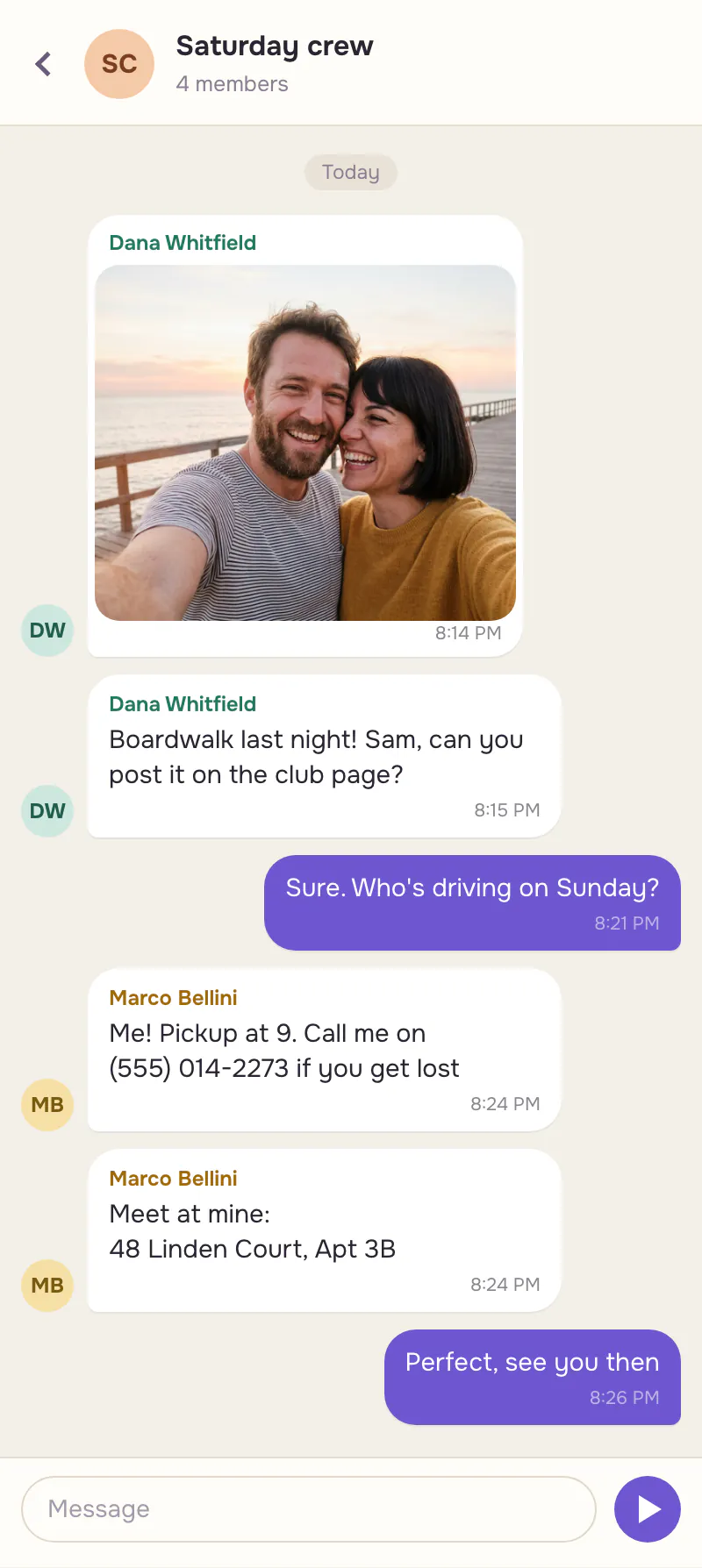
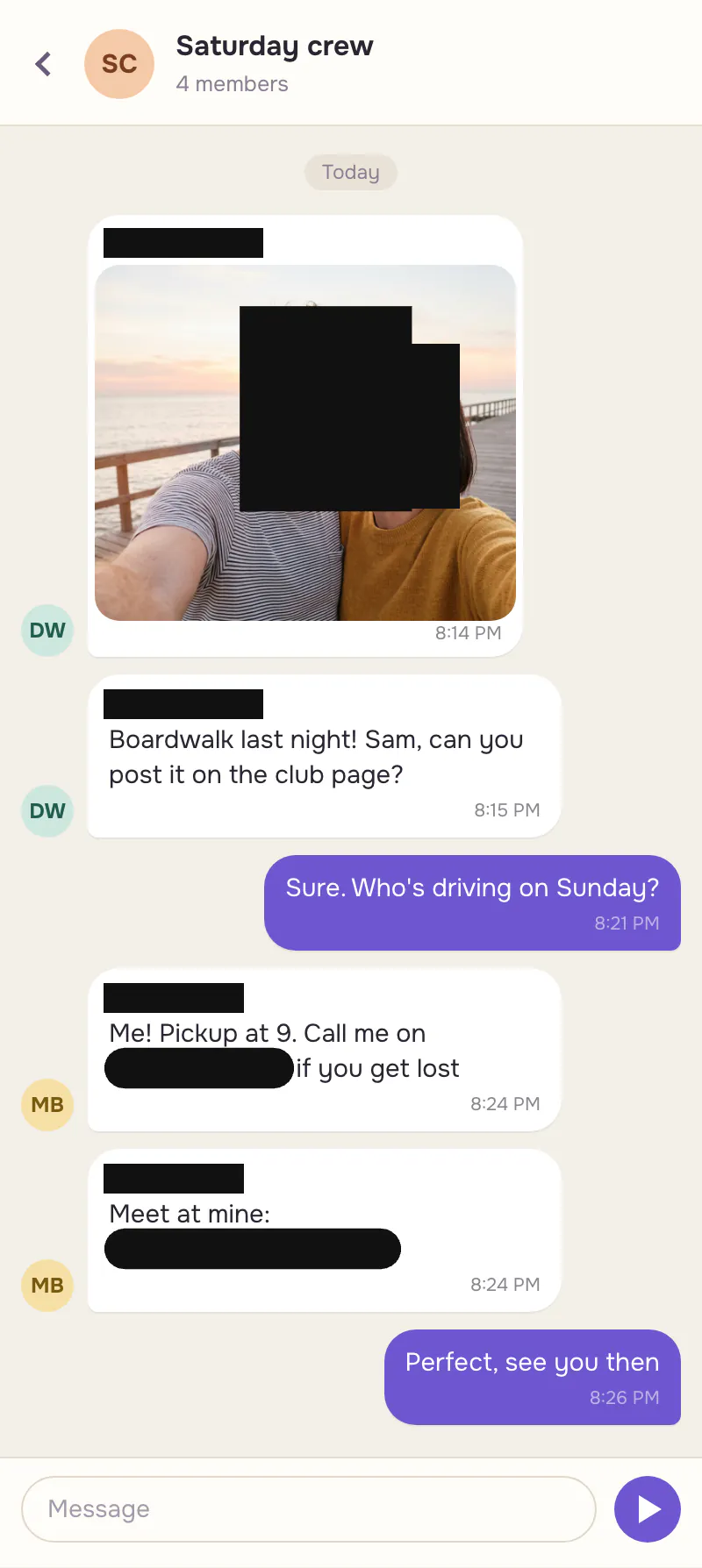
Screenshots are where people slip up most, because the private details are small and easy to miss. Our mock group chat has a shared photo with two faces, two people's names, a phone number and a home address. We used the Black bar preset this time, since text should be removed completely rather than softened:
- Find faces put one box over the pair in the shared photo, covering the man's face and half of the woman's, so we dragged a second box over her face.
- Draw boxes over the four names above the messages.
- Switch to Brush and paint over the phone number and the address, the way you'd use a marker. The brush is easier than a box for a line of text inside a sentence.
 Before
 After
AfterBefore you share a screenshot, also check the bits people forget: profile pictures next to each message, a contact name at the very top of the screen, and anything visible in a photo inside the photo, like a name badge or a letter on a table.
What else should you blur before you post?
The brush works on anything, not just faces. Things worth a second look:
- Number plates on cars parked in front of a house.
- House numbers and street signs in photos taken at or near home.
- Name badges, lanyards and school or work uniforms that show a name or a place.
- Screens and paperwork: laptops, phones, boarding passes, letters, prescriptions.
- Reflections in mirrors, windows and sunglasses, which can show a face you didn't notice.
- Distinctive tattoos, which can identify a person as clearly as a face.
When you want someone gone, not blurred
Blurring keeps the person in the picture but makes them anonymous. If you'd rather the stranger wasn't there at all, use the AI eraser: paint over the person and it fills the space with background that matches the rest of the scene. Unlike the blur tool, the eraser runs on an AI model, so each erase costs 5 credits with the default model, paid per image, and the credits come back if an erase fails. Our guide to removing something from a picture shows three before-and-after tests. The blur tool itself never costs anything.
FAQ
Is the Blur face tool really free?
Yes. There's no account, no watermark and no limit on how many photos you blur. It runs entirely in your browser, so there's nothing on our side to pay for. Only the AI tools on PopNow, such as the eraser, use credits.
Is my photo uploaded anywhere?
No. The photo is opened, blurred and saved by your own browser, and Find faces also runs on your device; only the face detector itself is downloaded the first time you use it. The one exception is Send to: if you choose to send the result to another PopNow tool, it's uploaded for that tool.
Can a blurred face be unblurred?
Not from the file you download, because it only contains the blurred pixels. What remains is only a guess, and how good a guess depends on the strength. Heavy blur, Mosaic or Black bar leave very little to guess from, and a solid bar leaves nothing.
Can I blur faces on my phone?
Yes. Open the tool in your phone's browser, upload from your camera roll, then press Find faces or drag a finger over each face. Everything still happens on the phone itself, and the result is saved straight to your phone.
Why didn't Find faces catch every face?
The detector is best at faces turned toward the camera. Faces in profile, under a hat, in deep shadow, partly hidden or very small can be missed; in our street photo it found two of the five people near the camera. Check the photo and add a box for anything it missed.
Can I blur a face in a video?
Not with this tool, which works on photos and screenshots. For a video, you need a video editor that can track a face from frame to frame. For a single frame, take a screenshot of it and blur that here.