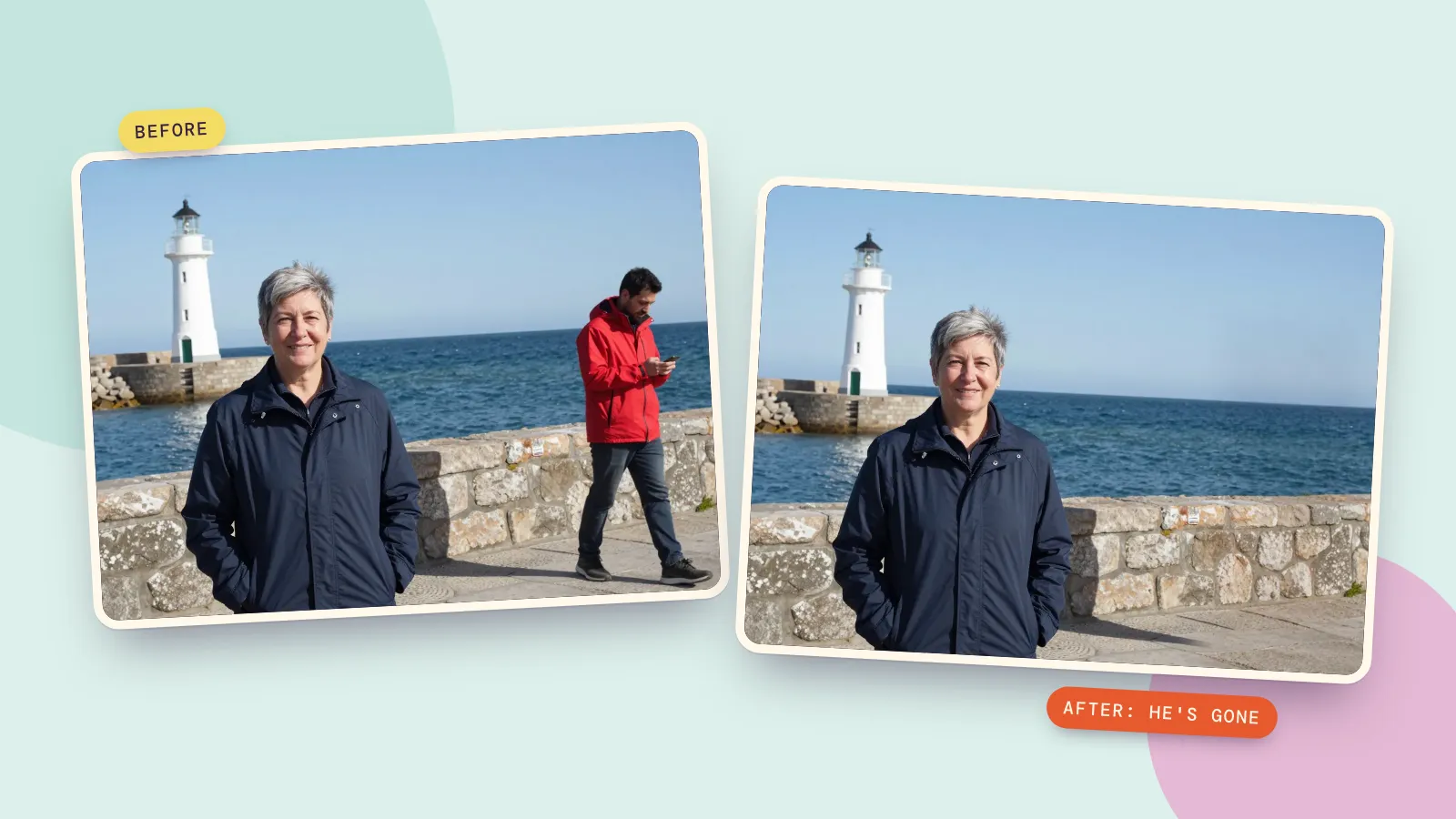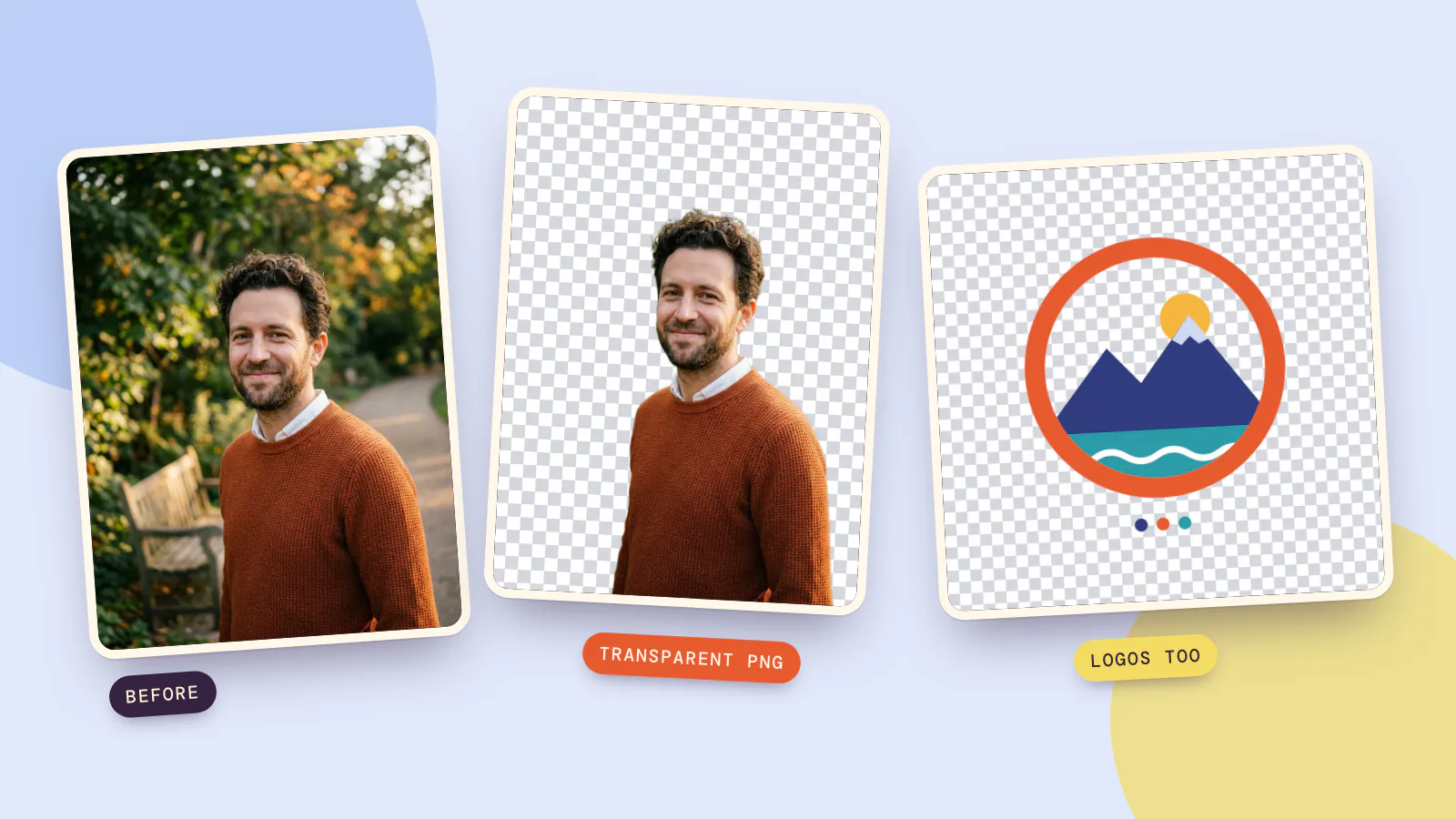
To remove the background of an image, upload it to an AI background remover, press one button and download the result as a PNG. The AI finds the main subject, keeps its pixels exactly as they were and makes everything around it transparent, so the picture drops cleanly onto any color, slide or product page. On PopNow's background remover that costs 1 credit per image, and each of our tests took between 10 and 30 seconds.
We ran three typical jobs through it on October 19, 2026: a portrait in a busy park, a mug on a kitchen counter, and a logo on a white background. Below are the results exactly as they came out, with the transparent parts shown as a gray checkerboard, plus what to check before you use a cut-out anywhere.
How do I remove the background of an image?
- Open the background remover. Go to PopNow's background remover. There are no settings to choose.
- Add your photo. JPG, PNG or WebP, up to 10 MB. You can add up to 10 photos at once; each one is charged on its own.
- Press Generate. The price is on the button before you press it. The subject is found automatically, so you don't trace anything.
- Check the edges. Drag the before-and-after slider and look at the hard places: hair, the gap inside a handle, thin lines in a logo.
- Pick a background and download. Leave it on Transparent to get a PNG with no background at all, or pick one of eight colors, your own color, a blurred copy of the original photo or an image of your own, and you get a flat picture with that background instead.
Changing the background in step 5 happens in your browser, so you can switch between colors as often as you like without spending more credits. With several photos, Download all gives you a ZIP of the whole batch with the background you picked.
Example 1: a portrait with curly hair
Curly hair in front of leaves and sunny blur is the classic hard case. Strands overlap the background, and the colors behind them change from one curl to the next. The man in this photo is a made-up person: we generated the photo with Nano Banana 2.1 for this test, so no real person's picture is on this page.
 Before
 After
AfterWhat came back:
- The hair. Every curl at the top of his head is still there, including the loose strands, with no green fringe from the leaves.
- The collar and sweater. The white collar kept its shape against the bright background, and the knit texture runs right to the edge of the sweater.
- The background. The bench, the path and the trees are gone completely, including the bright spots of light between the leaves.
Example 2: a product photo for a shop listing
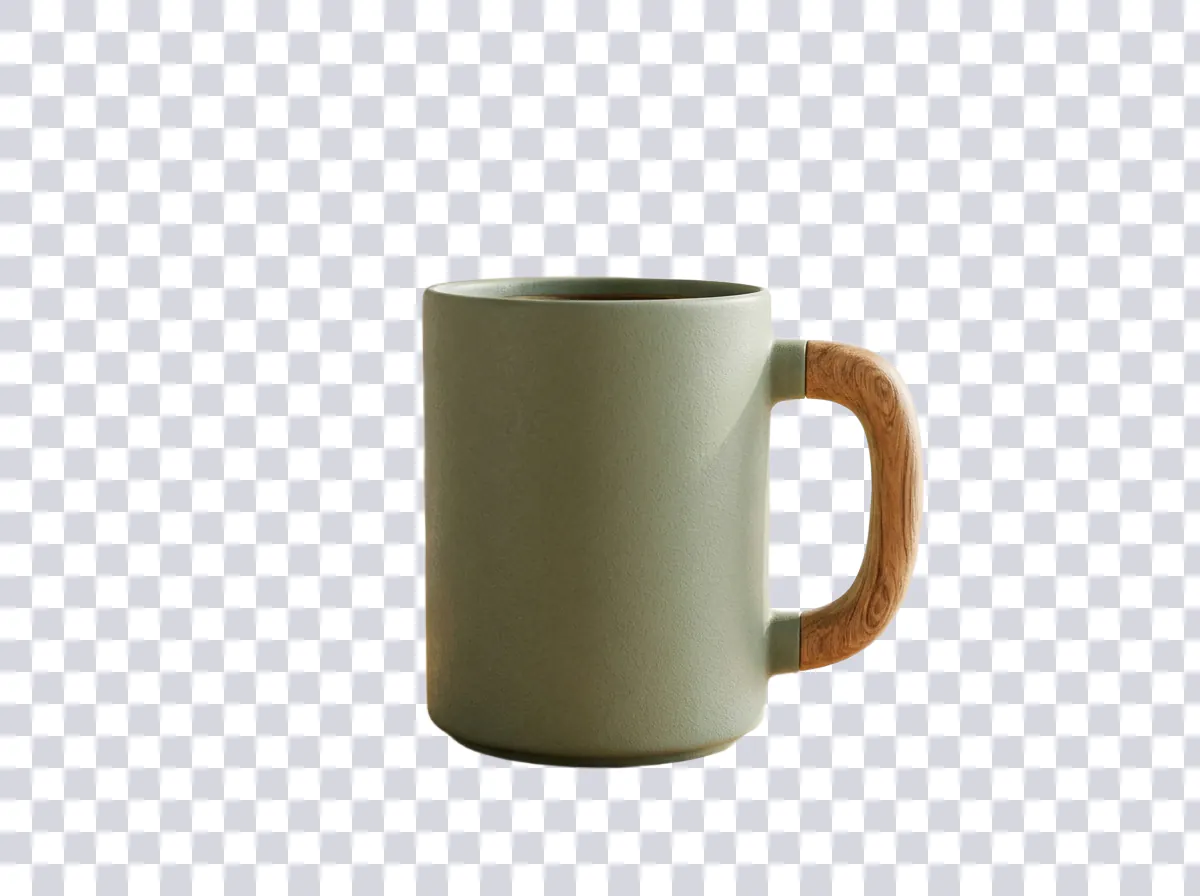
Product photos are where most people need this. Our test was a sage-green mug with a wooden handle on a kitchen counter, with shelves, a plant and a window behind it.
 Before
 After
AfterThe edge of the mug is smooth all the way round, and the gap between the handle and the body is transparent too. That gap is the part you would otherwise trace by hand. Two things to notice before you use a cut-out like this:
- Small props can go. The remover decided the mug was the subject and removed the coffee beans along with the counter. If the props matter, keep them in the shot when you place the product in a new scene instead.
- The shadow goes too. On plain white, a product with no shadow can look like it is floating. The page's Product white export (more on it below) adds a faint contact shadow back under the product.
If you are selling the product, Product photo goes a step further: it cuts the product out with the same background remover and then places it in up to four scene photos, such as a marble counter or a studio set.
Example 3: removing a white background from a logo
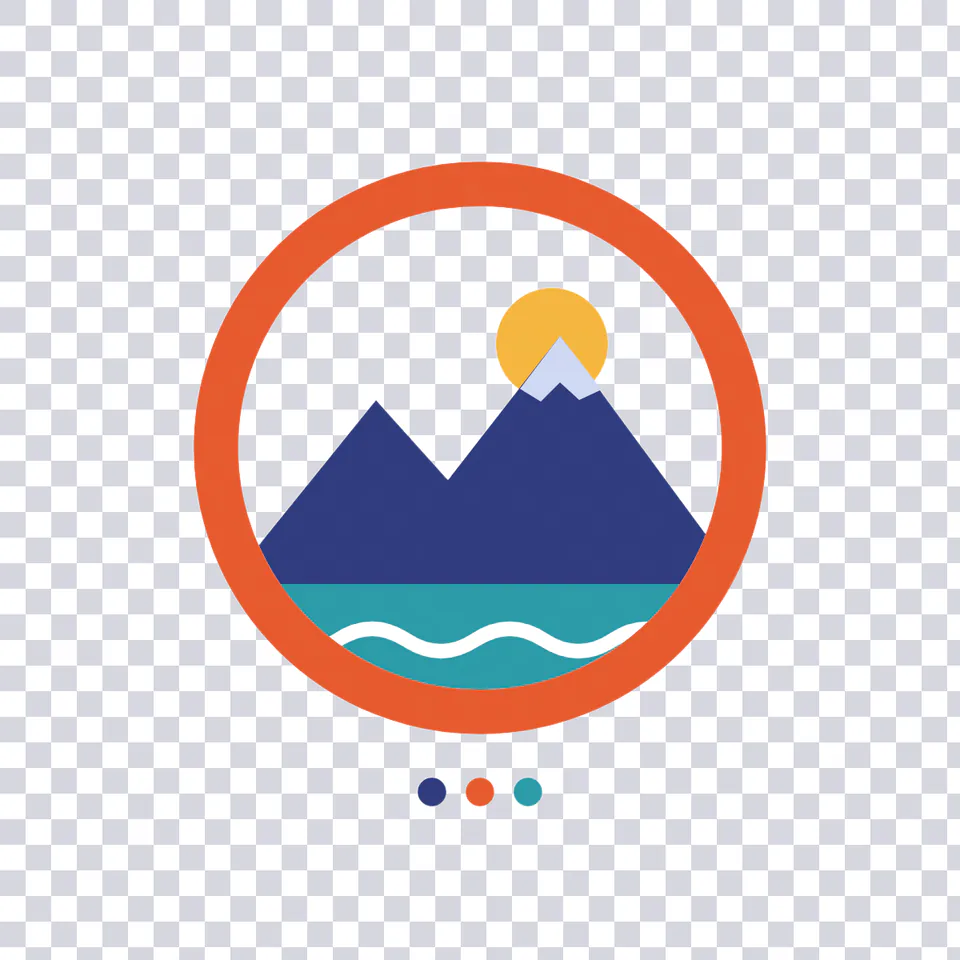
Logos are a special case: flat colors, sharp corners, and often white inside the design as well as around it. The logo below was drawn for this article; it isn't anyone's real brand mark. It has a white sky inside the orange ring and a white wave line across the lake, which makes it a fair test.
 Before
 After
AfterThe remover made both the outer white and the enclosed sky transparent, but it kept the white wave line, because the wave is part of the artwork rather than background. That is usually what you want, and it is the fiddly part of doing this by hand, where you have to decide area by area which white is background and which white is design.
One thing to know: zoom in to 300% on a black background and you can see a hairline of lighter pixels along the mountain edges. Those were the soft edge pixels of the original, half logo color and half white. At normal size you won't notice them on light or mid-tone backgrounds. For a logo that will sit on black, start from the largest version of the file you have, or export the original design file with a transparent background if you still have it.
Put the cut-out on any background
Here are the same three transparent PNGs placed on flat colors from the page's color swatches:
 Light blue
 Cream
Cream Black
BlackUnder the background picker there are a few more ways to finish the cut-out:
- Export as. Four ready-made sizes, made in your browser at no extra cost: a sticker with a white outline and soft shadow (PNG), Product white (2000 by 2000 pixels, pure white, with the product filling 85% of the frame), a round avatar (1080 by 1080) and a vertical Story (1080 by 1920).
- AI scene. Pick one of eight scenes, such as a beach, a café or a studio, and Nano Banana 2.1 places your subject in it with matching light and a natural shadow. That step costs 8 credits on top of the background removal.
- Describe your own background. If none of the scenes fit, open the cut-out in the photo editor and describe the new background in one sentence.
How to make a picture have a transparent background
Transparency is stored in the image file itself, in what editors call an alpha channel: for every pixel, a value saying how see-through it is. PNG and WebP files can store it. JPG files can't, so a JPG always has a solid background, even if it looks empty.
So to make a picture have a transparent background:
- Remove the background as above and leave the background choice on Transparent.
- Download the result. It is a PNG.
- Keep it as a PNG. If you convert it to JPG, take a screenshot of it or paste it into an app that flattens images, the transparent area turns solid again, usually white or black.
The gray checkerboard in our pictures isn't in the file. It's only how editors show "nothing here". If you open your PNG and see white behind the subject, the app you are viewing it in is drawing white. Drop the file onto a colored slide or document to check: if the color shows through, the transparency is there.
Other ways: tools already on your phone or computer
For a single picture, the tool you need may already be on your device. As described in each maker's own help pages, read on October 19, 2026:
- iPhone. Apple's iPhone User Guide: open a photo in full screen, touch and hold the subject, and when an outline appears, tap Copy or Copy Subject, Add Sticker or Share. It works in Photos, Safari and other apps, and is quick for pasting a cut-out into a message or note.
- Mac. Apple's Preview User Guide: open the image in Preview and click the Remove Background button. Preview may ask to convert the file to PNG, which is what keeps the transparency.
- Windows. Microsoft describes Background Removal in Paint as a tool that "uses AI to help you isolate a subject and remove the background with just one click". It was announced to Windows Insiders on September 7, 2023, as a remove background button in the Paint toolbar, and you can limit it to a rectangle selection.
These are the quickest choice for one picture that is already on that device. A web tool like PopNow's background remover helps when you have a batch of photos, need a colored or blurred background, or want ready-made sizes like a 2000 by 2000 product image.
When background removal struggles
- Several possible subjects. The remover picks the main subject on its own. If a photo has two people, or a product next to other products, crop it first so the thing you want is clearly the subject.
- Glass, smoke and very fine strands. These are the hardest edges. They may lose a little detail or keep a faint trace of the old background, so zoom in before you publish.
- Blurry or cut-off subjects. A subject in sharp focus that doesn't touch the edge of the frame gives the cleanest outline. Hair and fur come out cleaner against a plain, evenly lit background.
- Tiny files. A 200-pixel logo has soft edges before you start. Look for a bigger original first; if there isn't one, the image upscaler can enlarge it before you remove the background, for 2 credits.
FAQ
How much does it cost to remove a background?
1 credit per image on PopNow, paid from your credit balance, with no subscription. A batch of ten photos costs ten times that. Changing the background color, the blurred background and the Export as sizes run in your browser and cost nothing extra, and if a run fails, the credits go back to your balance.
Does removing the background lower the quality of my photo?
No. You get a PNG with the same width and height as the photo you uploaded, and the subject keeps its original pixels; only the background becomes transparent. Our portrait went in at 896 by 1,200 pixels and came out at 896 by 1,200.
How do I remove a white background from a logo?
Upload the logo to the background remover and download the result with the background left on Transparent. The outer white and any white areas that belong to the background, like the inside of a ring, become transparent, while white parts of the design are kept. If you have the original design file, exporting it with a transparent background gives the cleanest edges of all.
Why does my transparent PNG still show a white background?
Usually the app you are viewing it in draws white behind transparent pixels. Place the PNG on a colored slide or document: if the color shows through, the file is fine. If it doesn't, the image was saved or converted as a JPG somewhere along the way.
Can I remove the background from several images at once?
Yes. Add up to 10 photos in one go; each is processed and charged separately. Download all saves the whole batch as a ZIP, with the background you picked applied to every image.
Can I remove a background on my phone?
Yes. The background remover is a web page, so it works in your phone's browser: upload from your camera roll and download the PNG. On an iPhone you can also touch and hold the subject in Photos to copy it without the background.