To invert colors on a picture, open the image inverter, add your photo and keep the Negative preset. It changes each red, green and blue value to its opposite, so dark areas become light and colors reverse. Download a PNG to save the result; the tool is free and processes the picture in your browser.
You can also invert just the brightness or make a black-and-white negative. Below are three before-and-after sets, the exact settings for each, and the difference between changing a picture and changing how your phone or computer displays it.
How do you invert a picture and save it?
- Add the picture. Open Invert a photo and choose Upload photo. You can also drag in a file or paste a picture.
- Choose a preset. Start with Negative for a full color inversion. Keep Amount at 100 and Contrast at 0 for the simplest result.
- Compare the two sides. Drag the divider across an edge or shadow. The position of the divider changes the preview, not which pixels are inverted in the downloaded picture.
- Download the result. Choose PNG to preserve the calculated pixels and any transparency. Choose JPG for a smaller file when transparency is unnecessary. Your original file stays unchanged.
The local inversion itself requires no account or credits. Your picture stays on your device during this operation; choosing Send to to use another tool is a separate action. There is no prompt to write and no generation queue to wait for.
What does a full color negative look like?
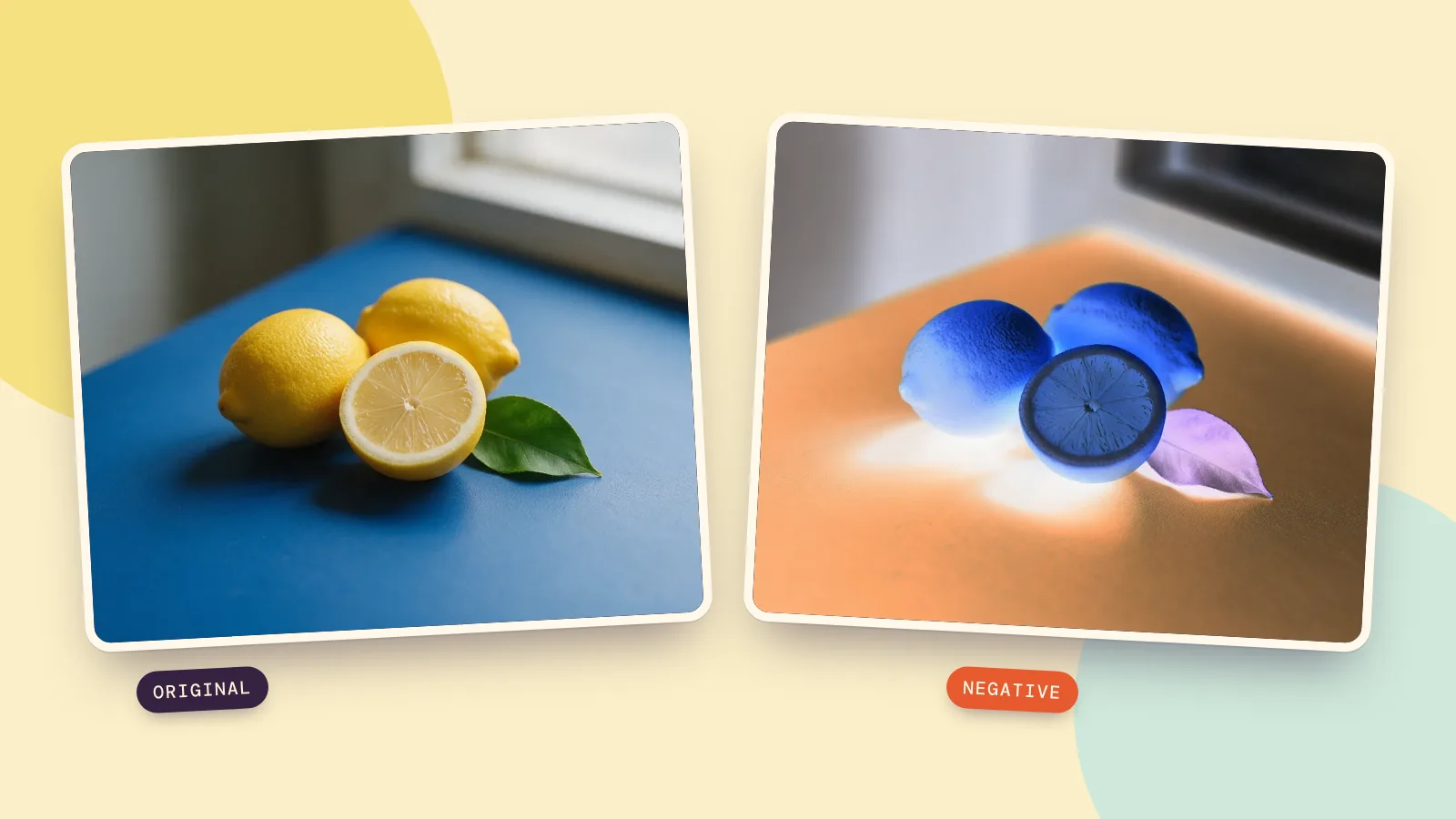
We generated three original pictures with Seedream 5.0 Pro on October 26, 2026, one call per picture at 1K, 4:3, PNG. Each source image costs 36 credits to generate; applying the inversion afterward is free. The results use the same pixel calculation as the tool; the images on this page are compressed for the web, so download your own PNG if you need exact values.
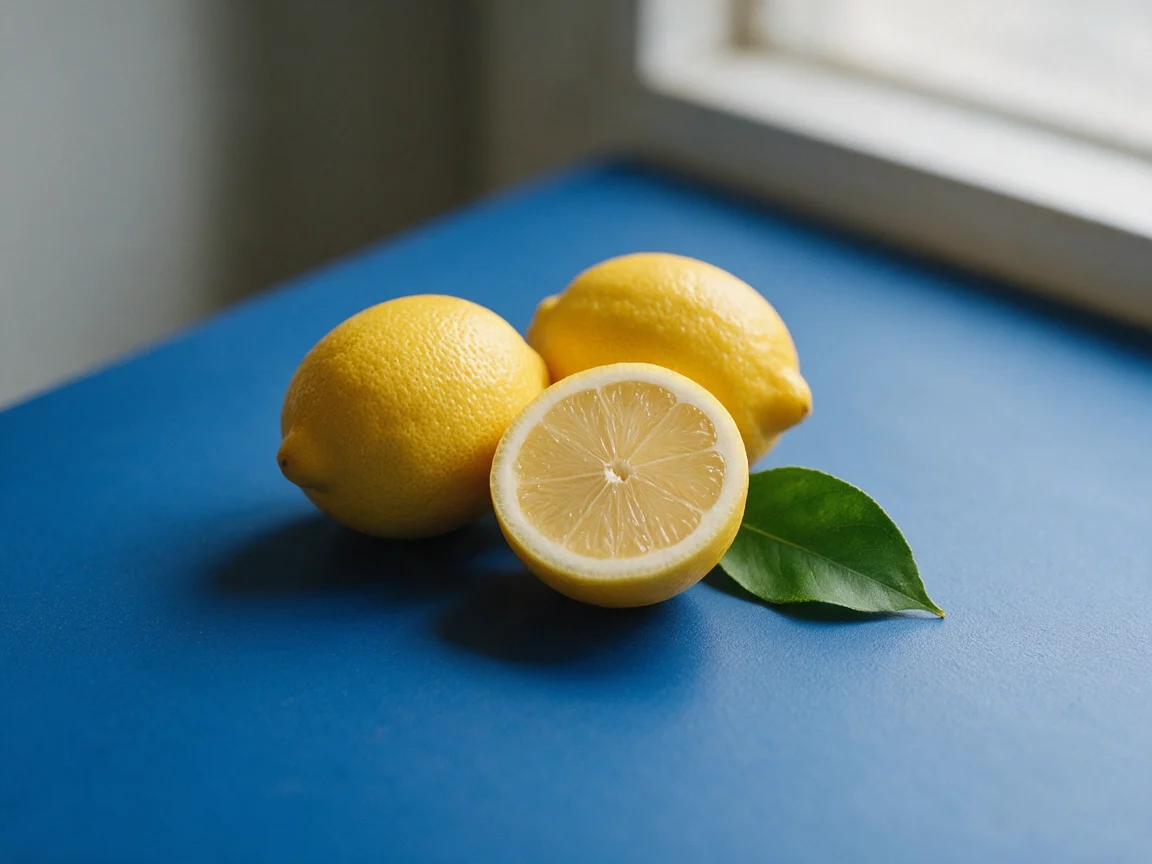 Original
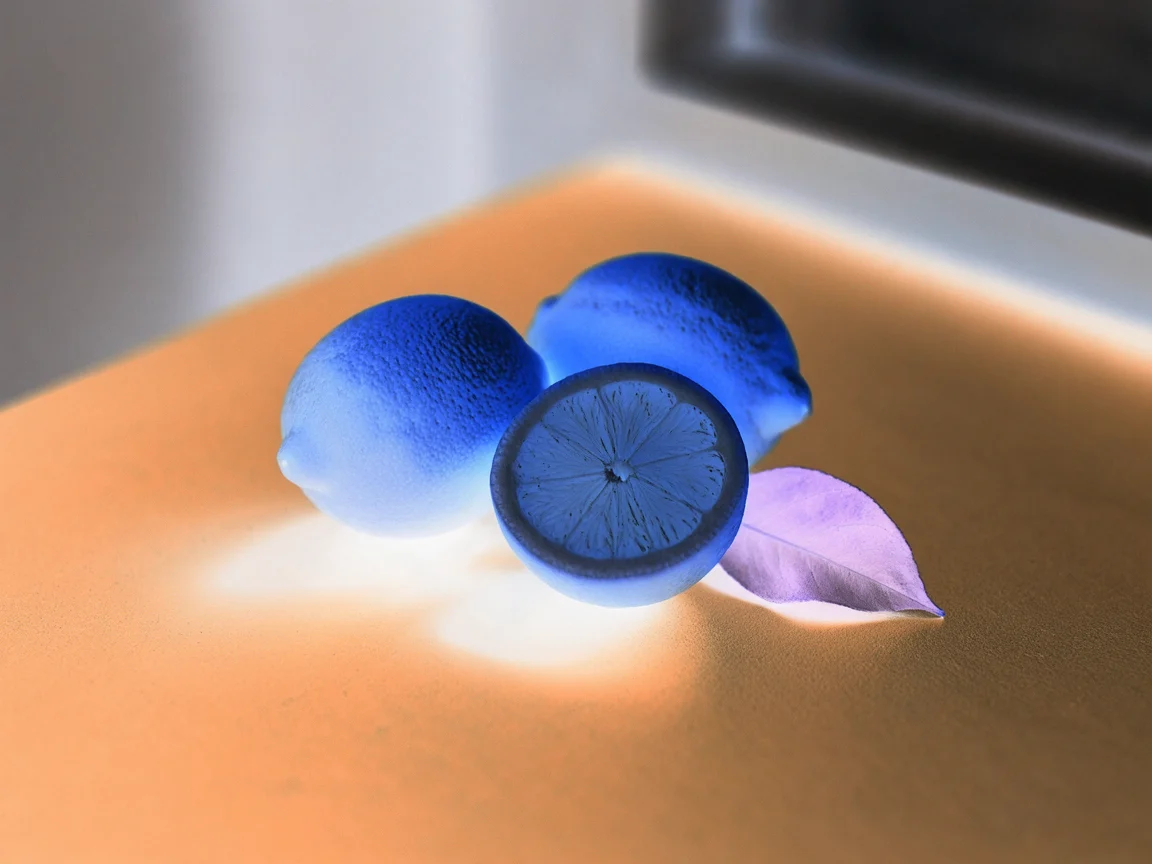 Negative
The lemons turn blue, the table becomes orange and the dark shadows become pale. Their shape and peel texture remain in the same positions because this is arithmetic on existing pixels, rather than a model drawing a different scene. For an 8-bit RGB channel, the rule is new value = 255 minus original value: 0 becomes 255, and 200 becomes 55.
At Amount 50, this particular full inversion blends every RGB channel toward the middle gray value. Lowering Amount does not simply produce a gentler version of the opposite hue. Keep it at 100 if you need a true negative that you can invert back later.
Realistic still-life photograph of two whole yellow lemons, one halved lemon and one green leaf on a matte cobalt blue tabletop, soft side window light, clean simple composition, fine natural peel texture, no text, no logos, no people.
How do you invert brightness without reversing every color?
Choose Flip brightness. This preset selects Brightness under Invert, leaves Black & white off and keeps Contrast at 0. It reverses the brightness component while retaining the original color information during the calculation.
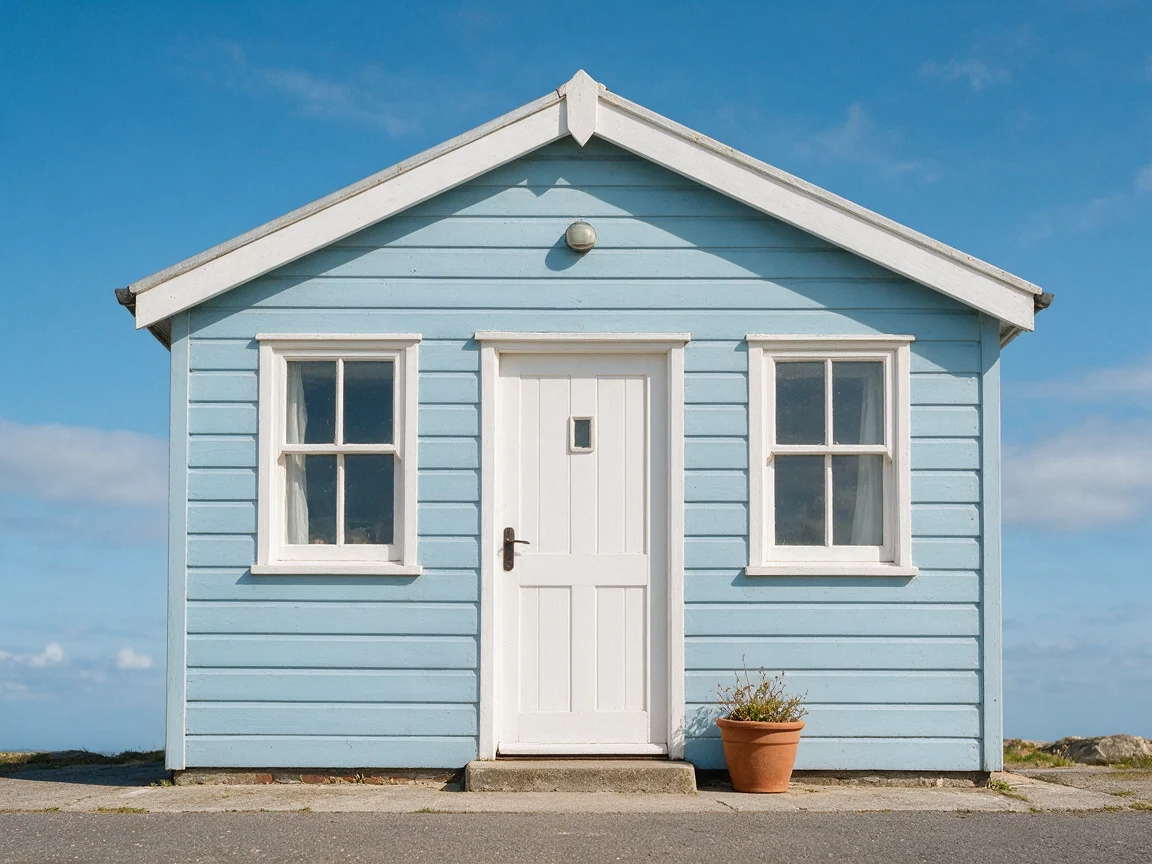 Original
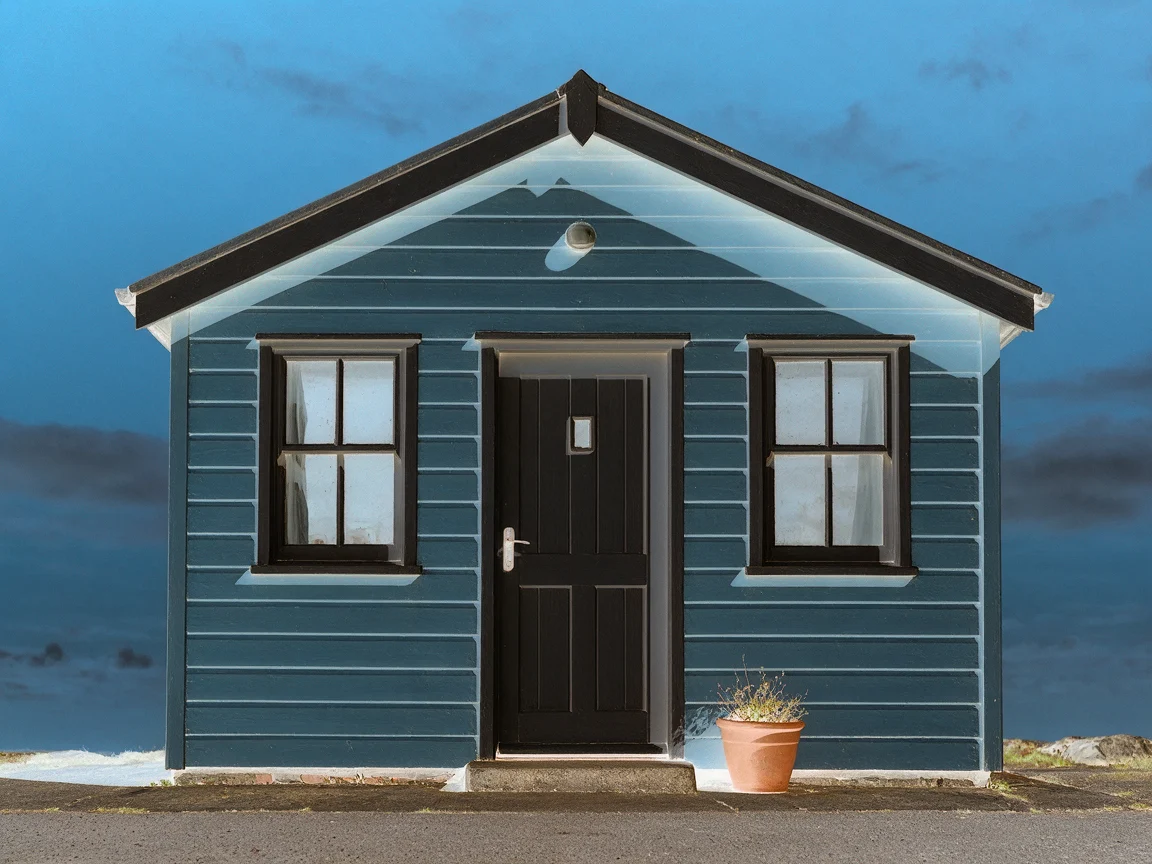 Flip brightness
The pale door and trim become dark, while the cottage still reads as blue rather than becoming the orange building a full negative would produce. Technically, the tool changes Y to 255 minus Y in YCbCr color space, keeps the two color components, then converts back to RGB. Some values reach the available channel limits, so strongly saturated colors can lose detail; keeping color information is not a guarantee of perfectly unchanged perceived color.
Realistic architectural photograph of a small pale blue wooden seaside cottage with a white door and white window frames, a terracotta plant pot beside the door, bright blue sky above, soft daylight, straight-on composition, no signs, no text, no logos, no people.
How do you make a black-and-white negative?
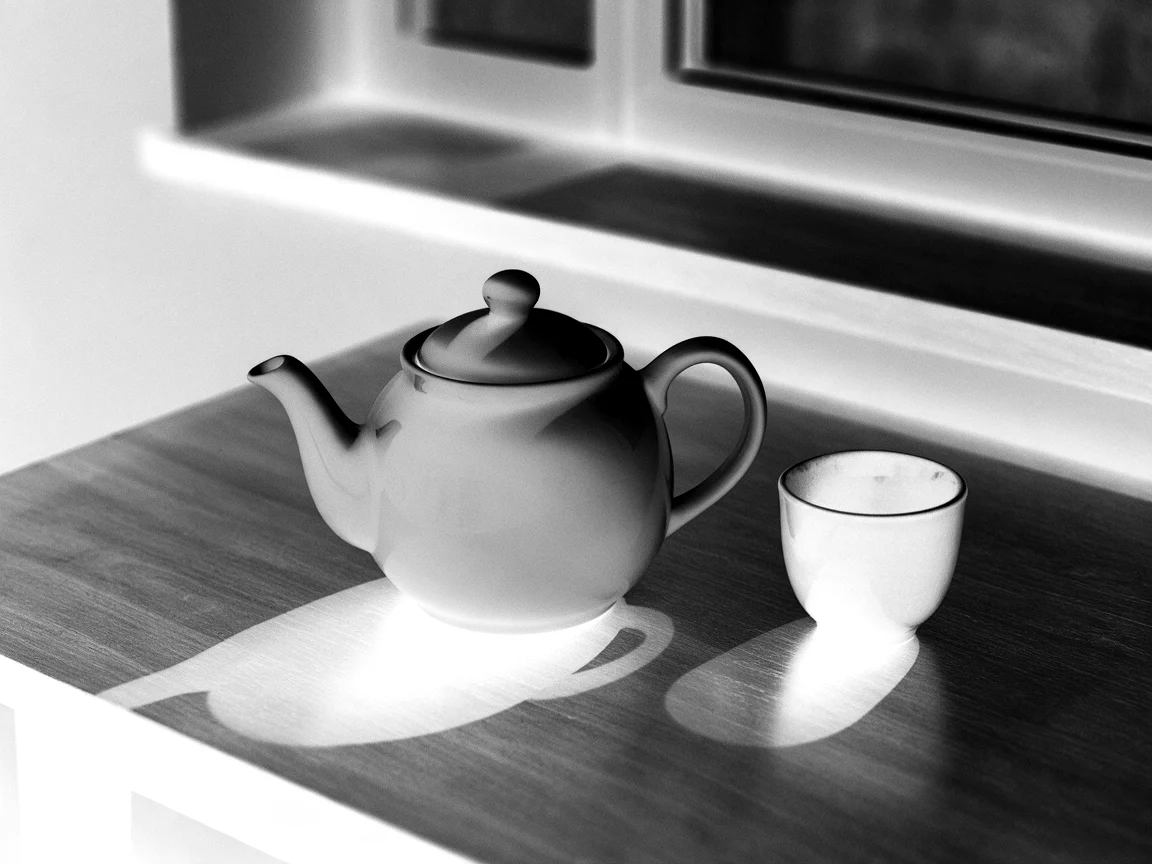
Choose X-ray for a monochrome negative with extra contrast. Its settings are Amount 100, All colors, Black & white On and Contrast 25. The name describes a visual effect; it does not reveal anything inside an object.
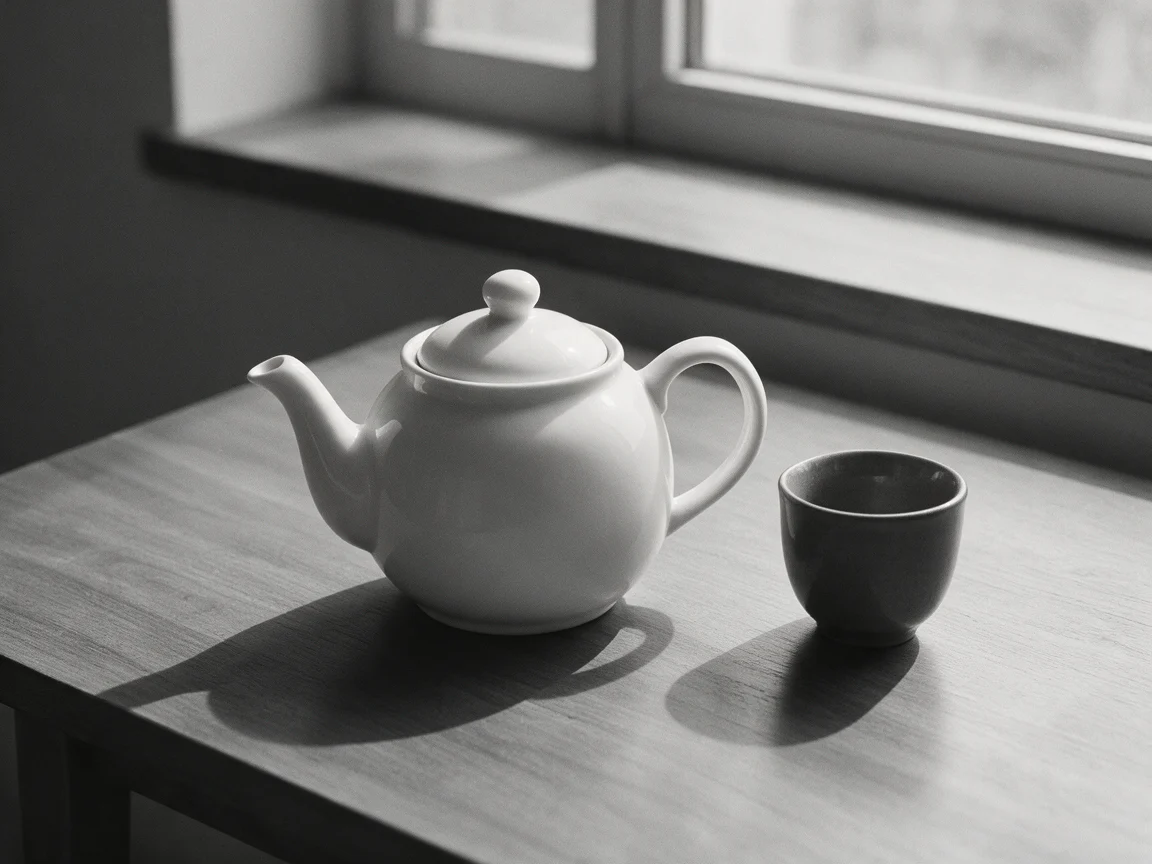 Original
 X-ray
X-rayThe white teapot becomes dark and the dark cup becomes pale. After inverting RGB, the tool combines the channels with weights of 0.2126 red, 0.7152 green and 0.0722 blue, then increases contrast around 128. If you want a plain black-and-white negative without that extra contrast, lower Contrast to 0. This matters when faint texture is more useful than a dramatic outline.
Realistic monochrome black and white still-life photograph of a plain white ceramic teapot and one dark gray cup on a wooden table by a window, clear soft shadows and subtle wood grain, simple uncluttered composition, no text, no logos, no people.
What are the other inversion modes for?
One channel changes only red, green or blue, useful for a selective color experiment. The Red channel preset keeps Contrast at 0; Blue channel also sets Contrast to 10. These are different from turning all the colors into their opposites. If you want to choose a replacement color for one part of a photo, use Change image color instead.
Scan a negative selects Film negative: it inverts the picture and stretches each channel using sampled 0.5% and 99.5% endpoints. This can reduce a scanned color negative's orange cast. Crop away the film border first, use even backlighting and judge the preview carefully; it is an automatic correction, not a guarantee of accurate film color restoration.
Can you invert colors with the built-in iPhone and Windows settings?
On iPhone, open Settings > Accessibility > Display & Text Size, then enable Classic Invert to reverse display colors. Smart Invert preserves images and other media in many cases, so it is not the same choice for viewing a photo as a negative. Source: Apple Support, Change display colors on iPhone to make it easier to see what's onscreen, read October 26, 2026.
On Windows, press Windows + Plus (+) to open Magnifier, then Ctrl + Alt + I to toggle inverted colors while Magnifier is active. Windows + Esc closes Magnifier. Source: Microsoft Support, Appendix A: Keyboard shortcuts for Magnifier, read October 26, 2026.
These accessibility controls are useful for viewing content with a different display treatment. They do not export an edited picture file. To send a negative photo to someone else, create and download the inversion in a picture editor rather than relying on what your own screen currently shows.
Do different AI models change the inversion?
The inversion tool uses no AI model: the same source pixels and settings produce the same output. Our three source pictures were generated, but you can use your own photos just as easily. If you want to create a different starting picture, compare image models using the same prompt; that comparison concerns the source image, not the inversion algorithm.
FAQ
Is inverting a picture free?
Yes. This tool performs the calculation locally in your browser, with no sign-up or watermark. Generating an original picture with an AI model is a separate operation that uses credits; inverting an existing file does not.
Can I get the original colors back?
A full Negative at Amount 100, Black & white Off and Contrast 0 is reversible when saved without pixel changes: invert it again. JPEG compression, contrast changes, brightness clipping and conversion to black and white can discard information, so keep the original file.
Will a transparent PNG stay transparent?
Yes. The operation changes RGB values and leaves the alpha channel unchanged. Download PNG to retain transparency. JPG fills transparent areas with white.
Why does the picture look gray instead of inverted?
Check Amount. With All colors and Amount 50, the original and its opposite meet at middle gray. Set Amount to 100, Black & white to Off and Contrast to 0 to see a normal full color negative.
Does this invert only a selected area?
No. The tool inverts the whole image. The divider is only a before-and-after preview control, not a selection mask, and moving it does not restrict the downloaded effect to one side.