Change colors of an image
Want to see the sofa in green, the car in blue or the wall in a different paint before you buy it? This tool changes one color in a photo while keeping its light and shadow. Tap the color you want to change directly on the photo, pick the new color, and every matching area is recolored, with highlights, folds and texture still in place, because the tool shifts the hue and color strength and keeps each pixel's brightness pattern instead of painting a flat layer. Tolerance controls how similar a color has to be to change, Soft edge smooths the border, and Show selected area lights up exactly what will change. Turn the rest of the photo black and white for a color splash, or rotate the hue, saturation and warmth of the whole picture. It all runs in your browser.
Questions
How do I change the color of an image?
Upload the image, tap the color you want to change on it, then choose a new color. Adjust Tolerance until only the right area changes and download the result.
How do I replace one color with another?
Tap the color on the photo to set Color to change, pick New color, and every area within the Tolerance range is replaced while keeping its light and shadow.
Can I make a photo black and white except one color?
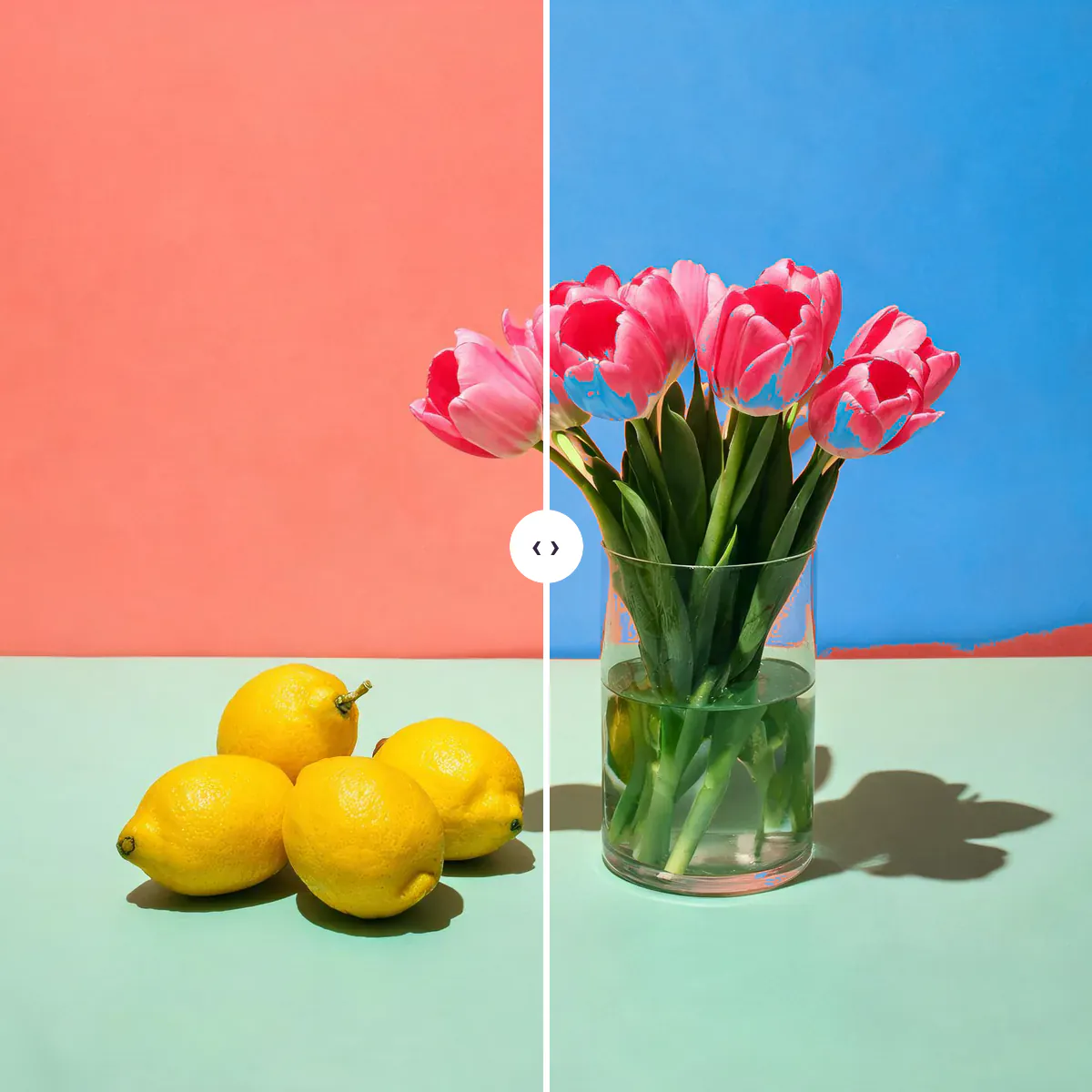
Yes. Tap the color you want to keep, then set Rest of the photo to Black and white. The preset Color splash does this for the yellow lemons in the sample.
Will the new color look natural?
The tool keeps the original brightness pattern, so folds, shadows and highlights stay. Very shiny objects and big jumps from dark to light colors may need a lower Amount.
Is my photo uploaded?
No. Colors are changed in your browser on your own device. It is free, needs no account and adds no watermark.
Can I change the color of clothes in a photo?
Yes, when the clothing is one main color. Tap the fabric, pick a new color and raise Tolerance until the folds and shadows change too. Patterned clothing needs one pass per color.
How do I change a white or black object to a color?
Tap it and pick the new color as usual. Pure white and black have little color to work with, so the result looks lighter or darker than the swatch; lower Amount or choose a deeper shade to compensate.
Can I change more than one color?
Change one color, download the result, then open the download and change the next color. Each pass keeps the earlier changes.
What is the difference between Hue and replacing a color?
Replacing changes only the areas close to the picked color. Hue under Whole photo rotates every color in the picture at once, which suits creative looks rather than recoloring one object.
Can AI change colors for me instead?
Yes. If an object is hard to select, describe the change in the AI photo editor, for example make the car dark green. It costs credits, while this tool is free and runs in your browser.
Go deeper
Before and after: what changes
Changing a color here works like repainting with the light still on: the hue and color strength of the chosen areas change, while their highlights, shadows, folds and texture are carried over from the original photo.
- What changes
- Only the areas close to the color you picked. A coral wall turns blue, yellow lemons turn green, pink petals turn purple. Color splash removes the color from everything else, and the Whole photo sliders shift every color at once.
- What stays the same
- Brightness patterns, edges, size and transparency. Areas far from the picked color are untouched, and the download has the same dimensions as your original photo, processed at full resolution.
- What to look at when you compare
- Toggle Before and After and look along the edges of the recolored object. A thin line of the old color means Tolerance or Soft edge is a little low; a tint spreading onto nearby things means Tolerance is too high.
Photos where a new color looks real, and ones that resist
Works well
- Objects in one clear, even color: walls, cars, sofas, clothes, bags, fruit or flowers against a different-colored background.
- Product photos where you want to show the same item in several colors.
- Bright, evenly lit photos without strong colored light falling on the subject.
Avoid
- Objects that share their color with the background, such as a beige coat on a beige wall. Both change together.
- Patterned or multi-colored fabric, where each color needs its own pick.
- Very dark or very shiny surfaces like black leather or chrome, where little color is left to change.
Step by step
- Open a photoDrop it on the page, paste with Ctrl or Cmd + V, press Upload photo or choose from your library. The still life sample loads with the wall already recolored, and the presets show other changes.
- Pick the color to changeTap the object in the photo. The tool averages a small patch to avoid stray pixels and sets Color to change; on a computer a small swatch follows the pointer to preview what you will pick.
- Choose the new color and the rangeTap a swatch or pick any color under New color. Raise Tolerance until the whole object changes, use Soft edge for smooth borders, and switch on Show selected area to see the exact range.
- Finish and saveLower Amount for a subtler tint, set Rest of the photo to Black and white for a color splash, adjust Hue, Saturation and Warmth for the whole picture, then download a PNG or JPG.
How the color is replaced
- A color space built for this
- Each pixel is converted to Oklab, a color space where lightness, color strength and hue are separate and evenly spaced, so a change of hue does not make a color look suddenly brighter or duller.
- Finding the area
- Every pixel's distance from the picked color is measured with lightness counting less, so the shaded side of an object is found along with the lit side. For whites and grays lightness counts fully.
- Recoloring
- Selected pixels take the new hue while keeping their small hue differences, their color strength is scaled to the new color's, and their lightness is shifted by the difference between old and new color.
- Full resolution
- The preview is calculated on a smaller copy so sliders respond instantly. The download repeats the work on the full-size photo in strips, which keeps memory low on phones.
Where to go next