Rotate and mirror an image
A photo that shows up sideways, a selfie that comes out mirrored, a scan that is a few degrees crooked: this tool fixes all of them in your browser. Turn an image 90 degrees left or right or 180 degrees, mirror it left to right or flip it upside down, and straighten a tilted horizon with a slider in half-degree steps. When you straighten, the empty corners can be cropped away automatically so the picture keeps its shape, left transparent, or filled with a color. Phone photos often look upright on your phone but sideways on a website because the rotation is only stored as a tag in the file. This tool writes the correct orientation into the pixels, so the image is upright everywhere. PNG and WebP keep their transparency, and you can rotate a whole batch and download a ZIP.
Questions
How do I rotate an image?
Upload the image and tap Rotate right or Rotate left. Each tap turns it 90 degrees. Use the Straighten slider for small angles, then download it.
How do I mirror a photo?
Upload the photo and tap Mirror. It flips left to right, the way you see yourself in a mirror. Tap it again to undo, then download the mirrored picture.
Why do my phone photos appear sideways on some websites?
Phones store some photos sideways and add a tag that says how to turn them. Sites that ignore the tag show them on their side. Saving the photo here writes the rotation into the pixels so it is upright everywhere.
Can I rotate an image by any angle?
Yes. Use the 90-degree buttons for big turns and the Straighten slider for any angle between −45 and 45 degrees. Type an exact number in the box next to the slider if you need one.
Will rotating reduce the quality or remove transparency?
90-degree turns and flips keep every pixel. PNG and WebP keep their transparency, and Save as Same format keeps the original type. JPG is saved at the quality you set.
Can I rotate many images at once?
Yes, up to 30 images. With Apply to all switched on, every rotation or flip applies to the whole batch, and Download all saves a ZIP.
How do I flip a picture horizontally?
Upload it and tap Mirror. The image is flipped left to right, like a reflection. Tap Flip instead for a vertical flip that turns it upside down.
Is mirroring the same as rotating 180 degrees?
No. Rotating 180 degrees turns the picture upside down but keeps text readable when you turn your head; mirroring reverses left and right, so text appears backwards.
How do I straighten a crooked photo?
Drag the Straighten slider until the horizon or a vertical edge lines up with the grid. Keep Corners on Crop so the empty triangles are trimmed away automatically.
Can I rotate a PDF or a video here?
No, this tool works with images such as JPG, PNG, WebP, GIF and HEIC. For videos, the free resize tool changes the frame shape for vertical or square posts.
Why does my photo look fine on my phone but sideways when I upload it?
Your phone reads the rotation tag in the file, but the website does not. Save the photo through this tool once and the rotation becomes part of the pixels, so it is upright everywhere.
Go deeper
Before and after: what changes
Rotating and mirroring move pixels without inventing new ones: a 90-degree turn or a flip is perfectly lossless, while straightening by a few degrees resamples the image and then trims or fills the corners it leaves behind.
- What changes
- Orientation and, after a quarter turn, the shape: a 1200 × 1280 portrait becomes 1280 × 1200. Straightening with Crop makes the picture slightly smaller so no empty corners show; Transparent or Color keeps the whole picture on a larger canvas.
- What stays the same
- Sharpness for quarter turns and flips, colors, and transparency in PNG and WebP. Save as Same format keeps a JPG a JPG and a PNG a PNG, so the file drops back into the place it came from.
- What to look at when you compare
- Tap Before and After. Check that text reads the right way round after mirroring, that horizons and door frames line up with the grid after straightening, and that nothing important was cropped from the corners.
Photos that are easy to fix, and ones that need care
Works well
- Phone photos and screenshots that show up sideways or upside down on websites, in emails or in documents.
- Selfies taken with the front camera where text, logos or a parting look reversed; Mirror puts them back.
- Scans and photos of documents taken at a slight angle, which straighten nicely with the slider.
Avoid
- Pictures that are tilted in perspective, like a poster shot from below. Rotation cannot correct converging lines.
- Tight shots where the subject touches the edge: straightening with Crop trims the corners and may cut into it. Use Transparent or AI expand instead.
- Animated GIFs: only the first frame is rotated and saved.
Step by step
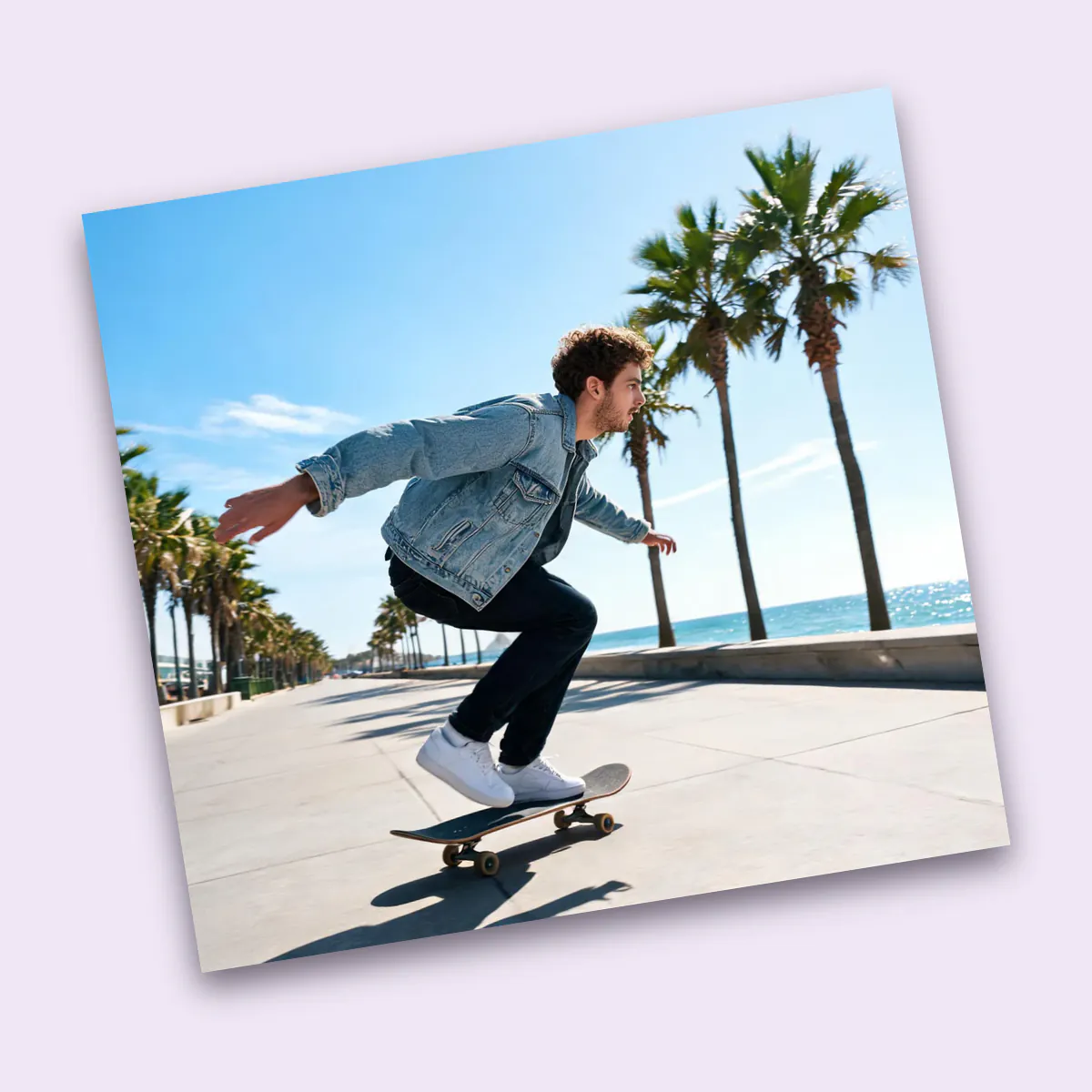
- Open your photosDrop them on the page, paste with Ctrl or Cmd + V, press Upload photos or choose from your library. The sideways skateboard sample is already turned upright to show the idea.
- Turn and flipUse the Left, Right, Mirror and Flip buttons under the picture, or the presets such as Rotate right 90° and Flip upside down. With several photos, Apply to all sends each tap to the whole batch.
- Straighten if neededDrag Straighten or type an angle; a grid appears so you can line up the horizon. Under Corners choose Crop to trim, Transparent to keep everything, or Color to fill the corners.
- SavePick Save as, set the quality for JPG or WebP, then download one photo or the whole batch as a ZIP. Files keep their names with -rotated added.
Why photos end up sideways, and how the fix works
- The camera rotation tag
- Phones save the sensor image as it was captured and add an EXIF Orientation value from 1 to 8 that tells viewers how to turn it. Apps that read the tag show it upright; many upload forms and older programs do not.
- Baking in the orientation
- This tool applies the tag, then writes plain upright pixels without the tag. The thumbnail strip marks photos that had one, and the saved copy looks the same in every app.
- Quarter turns and flips
- Turning by 90 or 180 degrees and mirroring only move pixels to new positions, so nothing is blurred. Flips act on the picture as you see it, so Mirror always swaps left and right on screen.
- Straightening
- Small angles need resampling, done with high-quality smoothing. Crop keeps the original proportions and uses the largest rectangle that fits inside the turned picture.
Where to go next