To change a JPG to PNG, open the image in an app that can export PNG, choose that format and save a new copy. On any device with a compatible browser, PopNow's PNG converter accepts JPG as well as WebP and converts locally for free. Changing the extension alone does not convert the image or improve its detail.
How do you convert JPG to PNG in a browser?
The page is called WebP to PNG, but its input also accepts JPG, PNG, JFIF, AVIF, GIF and BMP. No AI model, account or credits are needed for conversion; your pictures stay on your device unless you choose Send to, which uploads them for another tool.
- Open the converter and select Upload images, or drop files onto the page. You can add up to 30 images in one batch.
- Leave Convert to on PNG. Under Maximum size, choose Original to keep the current dimensions, subject to your browser's canvas limits.
- Wait for each file row to show its new format, dimensions and size. PNG has no quality slider because its compression is lossless.
- Select Download PNG for one file, or the ZIP download button for the whole batch. Open the downloaded copy to check it before deleting anything.
Keep the original when camera metadata matters: the converted copy does not carry the original camera or location data. Animation is another limit: the converter produces a still image, so it does not preserve an animated WebP or GIF as a moving PNG sequence.
How do you change JPG to PNG on Windows or Mac?
Windows: Paint can save images in PNG format. Open your JPG in Paint, use File > Save as, choose PNG picture or PNG in the format list, and save with a new name. Avoid saving as a Paint project when you need an image file.
Mac: Open the JPG in Preview, choose File > Export, set Format to PNG, then name and save the copy. If the format you need is hidden, hold Option while opening the Format menu. These steps follow Apple's Preview conversion guide, read October 29, 2026.
How do you convert a photo on iPhone or Android?
iPhone: If your iPhone has Apple's Preview app, open the image there, tap the actions menu next to its filename, choose Export, then PNG, finish the export and save to a location you can find. Leave Alpha enabled when you need existing transparency. Apple's iPhone export guide, read October 29, 2026, documents these controls; availability depends on your iOS version. Otherwise use the browser steps above.
Android: First make the file available locally. Google Photos documents selecting a photo and choosing More > Download; the option is absent if the photo is already on your device. This saves a copy and is not a PNG format selector. Then open the browser converter, select that downloaded file and export PNG. See Google's Android download instructions, read October 29, 2026; gallery export options vary by phone maker.
What changed in three real conversion tests?
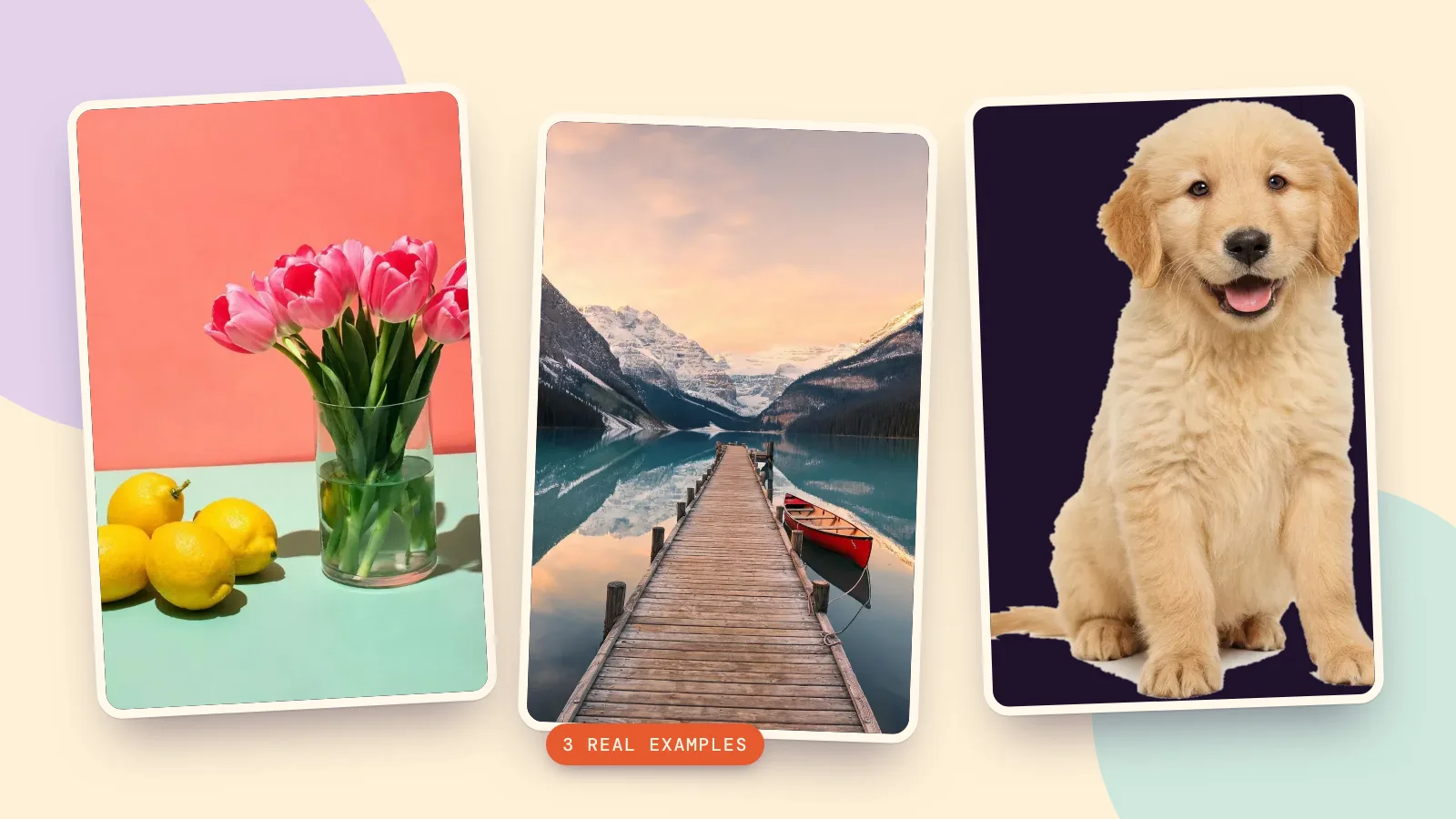
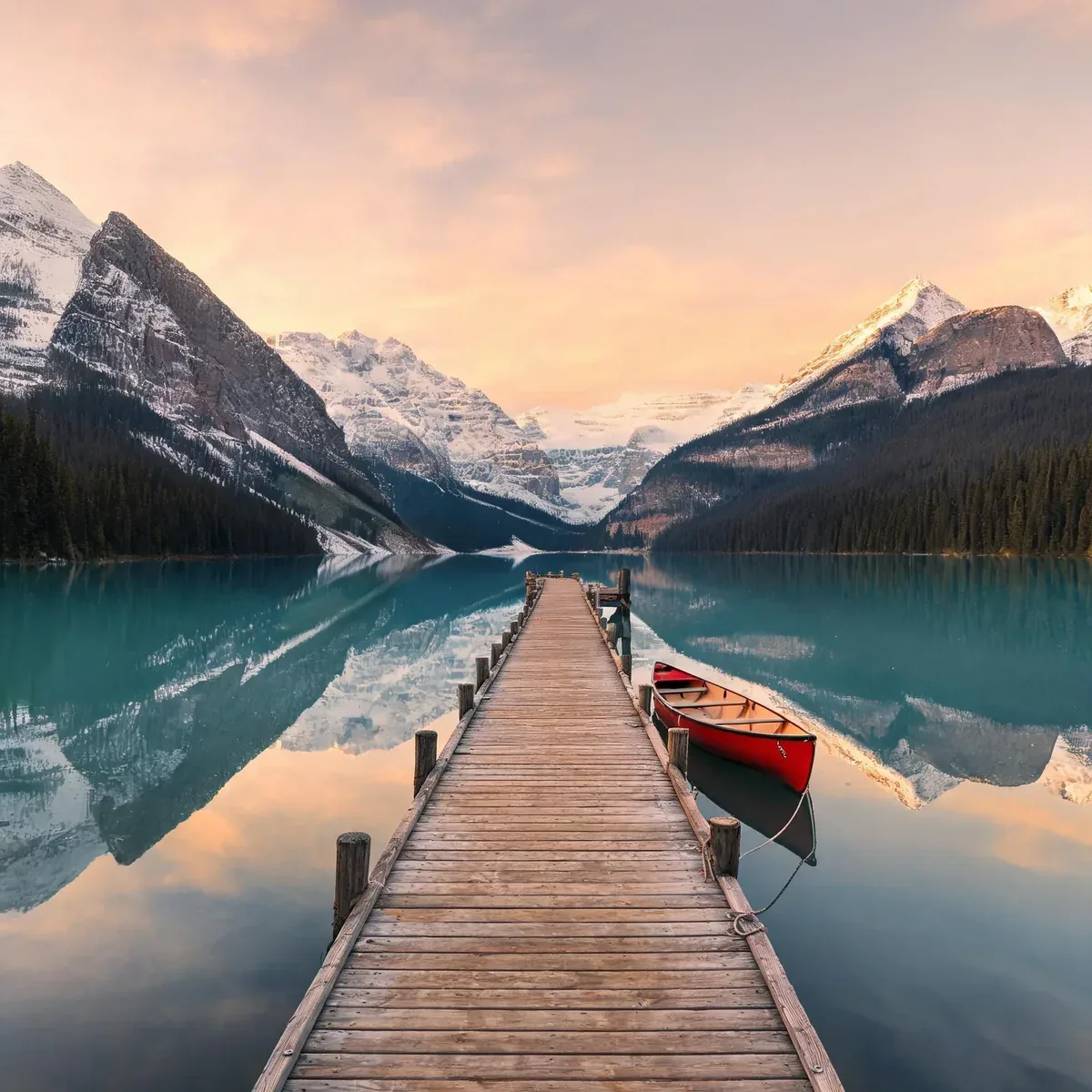
We reused three existing PopNow sample images and converted them locally with ImageMagick on October 29, 2026, without resizing during conversion. These are measured file sizes, not promised browser results: a different encoder may produce different sizes. The table uses exact bytes so rounding cannot hide the increase; the web previews below are compressed WebP display copies of the converted images.
| Sample | Dimensions | Input bytes | PNG bytes |
|---|---|---|---|
| Lemon still life · JPG | 1200 × 900 | 83,464 | 628,934 |
| Mountain lake · WebP | 1200 × 1200 | 181,174 | 1,480,596 |
| Transparent puppy · WebP | 675 × 931 | 70,186 | 593,973 |
 JPG to PNG
 WebP to PNG
 Transparent WebP to PNG
All three PNG files became larger. The still life and lake kept their framing and visible detail; conversion did not invent sharper texture. The puppy kept its transparent surroundings. A JPG source, by contrast, starts with an opaque background, and saving it as PNG does not automatically remove that background.
When should you keep PNG, or convert PNG to JPG?
Choose PNG when you need existing transparency, sharp graphic edges or an editing copy that avoids another lossy save. Keep JPG when an opaque photograph needs to fit a small attachment or upload limit. PNG cannot recover detail already discarded by JPG compression, and a bigger file is not proof of a better picture.
For the reverse direction, open Convert to JPG, add the PNG and check the new size. Its default High quality preset uses quality 92 and original dimensions. Transparent areas receive the background color you choose, so check them before downloading. Keep the transparent source separately if you may need it again.
FAQ
How can I change JPG to PNG without installing an app?
Use the browser converter, choose PNG and download the new file. It runs locally without an account, and accepts JPG even though the page name highlights WebP.
Does converting JPG to PNG improve quality?
No. It preserves the decoded image without another lossy encoding step, but does not restore missing detail or increase the original resolution.
Can I make a JPG transparent by converting it to PNG?
PNG can store transparency, but conversion alone keeps the JPG's existing background. Removing a background is a separate edit; keep that edited result as PNG.
Why is my PNG much larger than my JPG or WebP?
PNG stores pixels with lossless compression. Photographs often take more space in PNG than in a lossy JPG or WebP; our three measured examples all grew.
How do I convert PNG to JPG without a white background?
JPG always needs an opaque background. Choose a fill color that matches its destination, or keep PNG if the background must remain transparent.