AI Transitions builds the move from one shot to the next: a portal opens, the glass shatters, the camera whips sideways into the new scene. You bring two to six photos or clips, in order, and pick how they connect. It is the fastest way to join shots from different tools into one sequence.
Step 1: Open AI Transitions
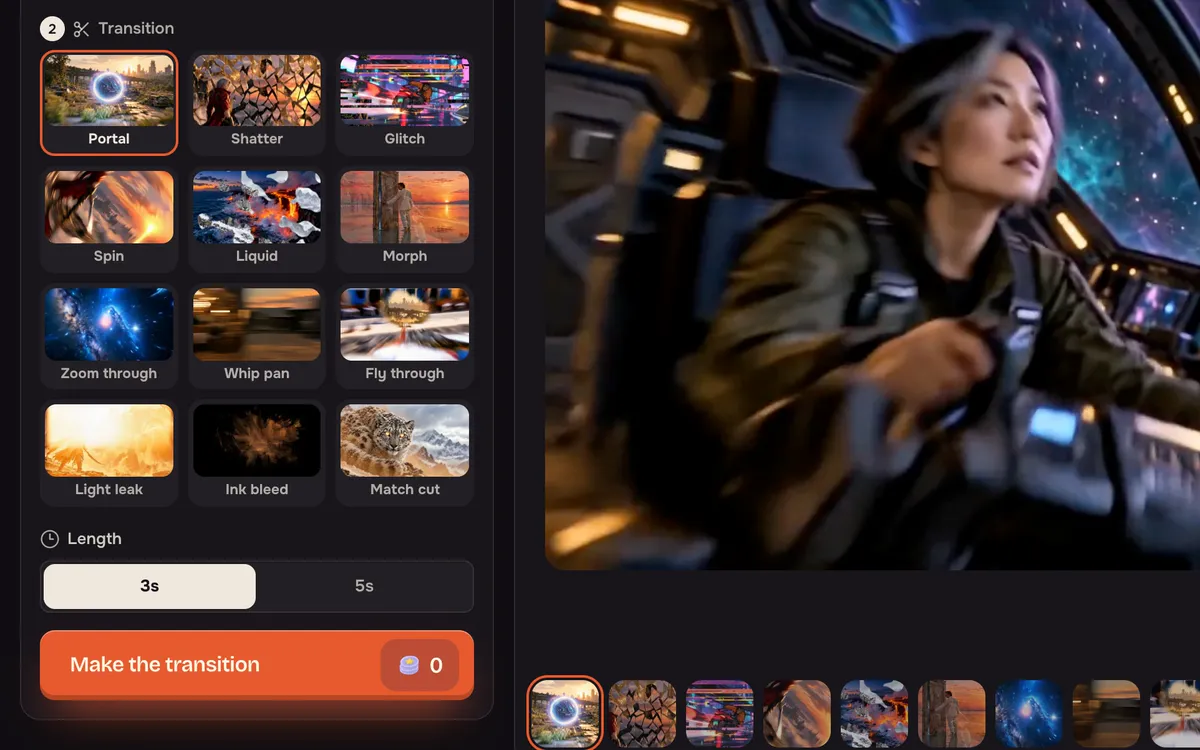
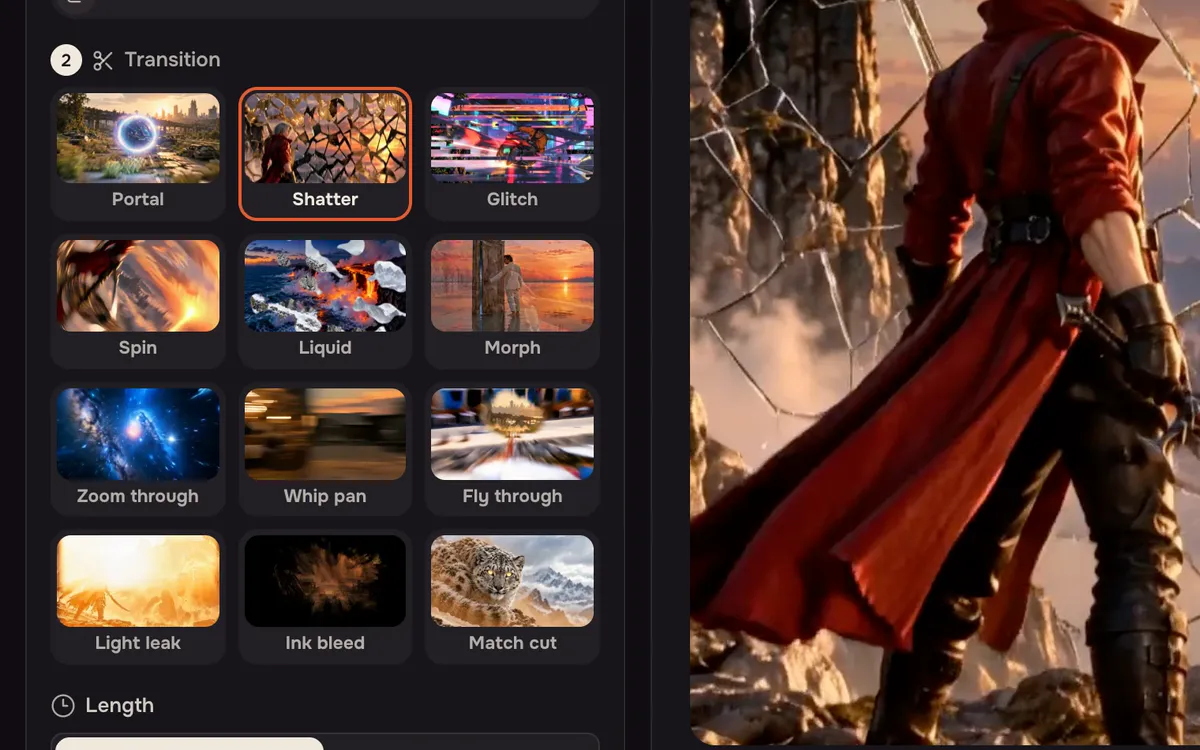
Open AI Transitions. The panel has two parts: Photos or clips at the top and Transition below. The stage shows a sample of the selected transition.
Step 2: Add your shots in order
Add two to six photos or clips. They play in the order shown; use Move earlier and Move later to reorder, or press Try this one to load the example pair.
Step 3: Pick a transition
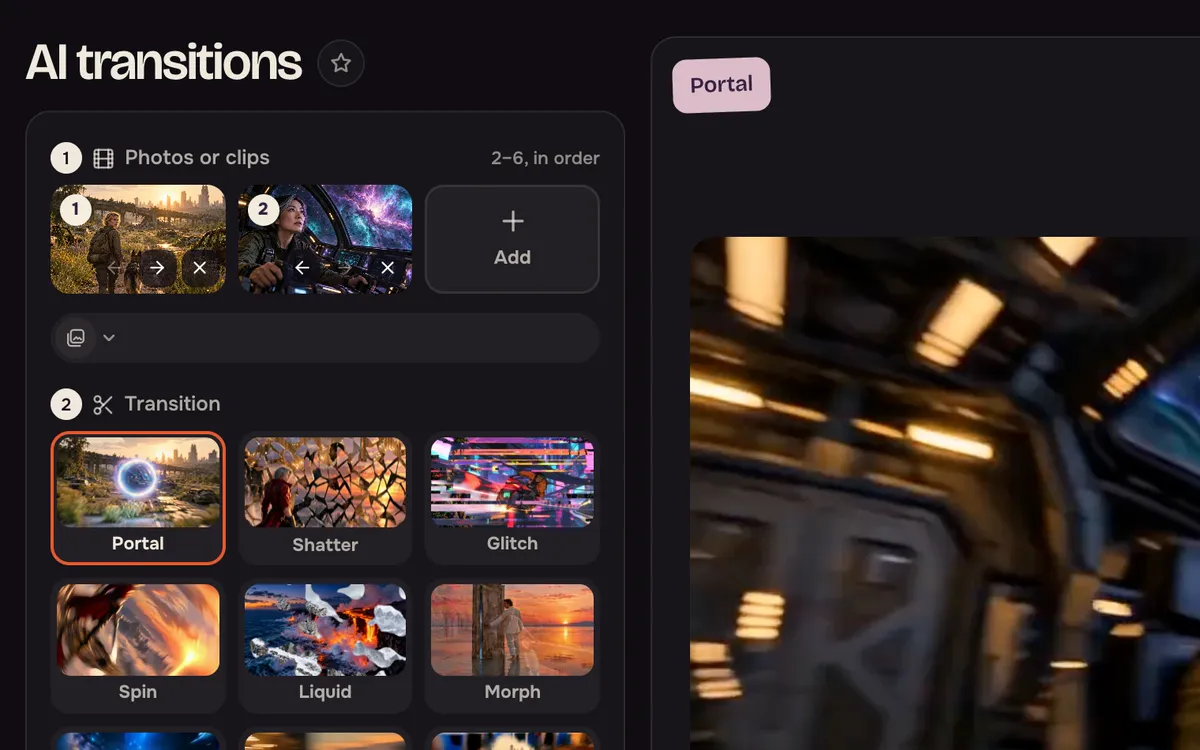
Choose from Portal, Shatter, Glitch, Spin, Liquid, Morph, Zoom through, Whip pan, Fly through, Light leak, Ink bleed and Match cut. Pick one that suits both scenes — a whip pan for energy, a match cut when the two shots share a shape.
Step 4: Choose the length and make it
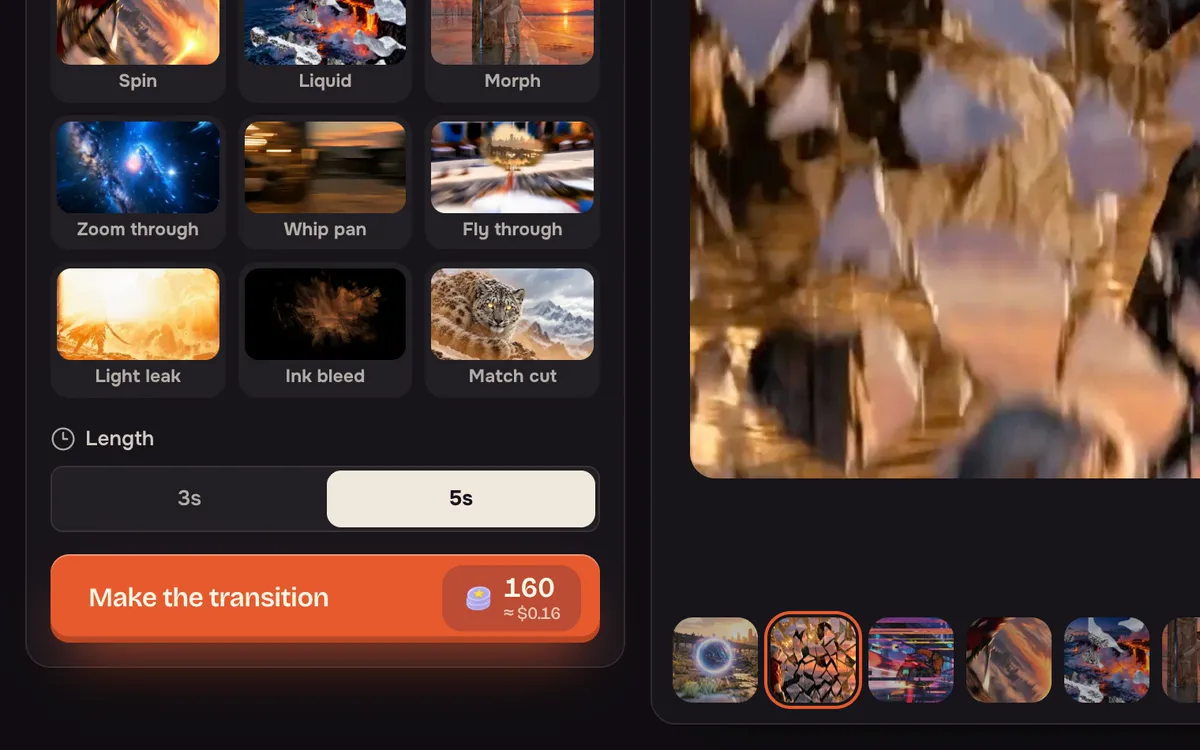
Choose 3s for a quick cut or 5s for a slower reveal, then press Make the transition. The button shows the price for your number of shots and length.
Tips for better results
- Similar framing transitions better. Two wide shots or two close-ups join more smoothly than a close-up into a landscape.
- Match the transition to the story. Portal and Fly through suggest travel; Morph and Match cut suggest change.
- Make the shots first. Create the stills in Create image or the clips in Create video, then join them here.
FAQ
Can I use video clips, not just photos?
Yes. Add photos, clips or a mix, two to six in total.
How many transitions do I get?
One between each pair of shots, in the order you set.
What does it cost?
The Make the transition button shows the price for your shots and length before anything runs. Loading the example is free.