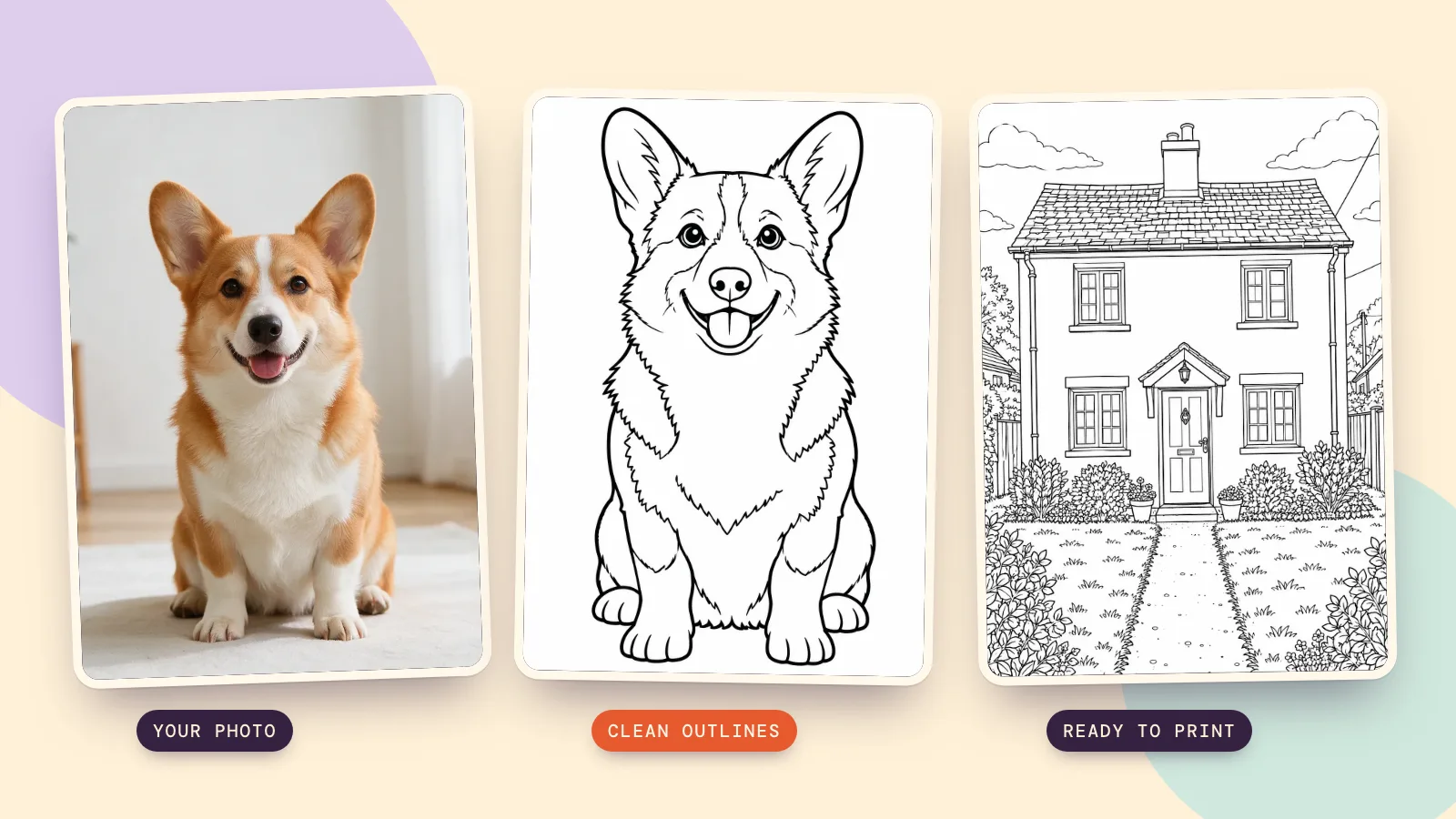
To make a coloring page from a photo, upload a clear picture, choose how much detail to keep, and generate black outlines on a white background. Then adjust the lines and export a print-ready PDF. PopNow's coloring page generator includes A4 and Letter layouts, so you can start with a pet, a house or an everyday scene.
How do you choose a photo that makes a useful coloring page?
- Choose one clear subject. A pet against a plain floor or a house photographed straight on is easier to recognize after its colors disappear. Small distant subjects tend to become anonymous outlines.
- Crop distractions first. Leave room around ears, roofs and shoes, but remove irrelevant clutter. A dark, busy hedge can produce dozens of tiny spaces that are frustrating to fill.
- Use a picture you have permission to use. Ask before uploading another person's photo. All source pictures in this guide are newly generated, including the fictional adult; there are no children or real people's portraits in our samples.
A black-and-white photo is not yet a coloring page: it still contains shaded surfaces. The useful target is a set of readable outlines with white spaces inside them. A house needs its roof and windows; it does not need every shadow under the eaves. Decide which details identify the subject before asking the model to simplify it.
How do you create a coloring page from a photo in PopNow?
- Open Photo and add the picture. Keep Photo selected for an existing image; Idea is for a written description. The photo mode chooses a nearby frame shape from the image proportions.
- Choose Level and Background. Easy asks for bold outlines and large areas, Medium keeps the main details, and Detailed asks for smaller outlined shapes. Background offers Keep, Simple and None.
- Check the model and quality. In More options, GPT Image 2.5 Sunburst is the default model and Print HD is the default 2K setting. The tool sends medium rendering quality; Print HD describes the output resolution.
- Press Make coloring page. Review the button's quote first. Once the result arrives, inspect the subject and use Fine-tune lines to adjust it before exporting.
We made three source photos with Seedream 5.0 Pro at 1K and converted them with GPT Image 2.5 Sunburst on October 29, 2026. Each conversion used the tool's actual photo prompt, medium rendering quality, high input fidelity, an opaque background, 2K and a 3:4 frame. These are model outputs before the tool's browser cleanup; the galleries show what the generation itself did.
What changes at Easy, Medium and Detailed levels?
Pet: Easy with no background
We chose Easy and None for a generated corgi photo. The aim is to keep its upright ears, face and white markings recognizable as shapes while removing fur texture and the room. Start here if you want a short coloring session with broad spaces rather than lots of tiny marks. To use the prompt card, save the source image shown here and add it as the reference photo.
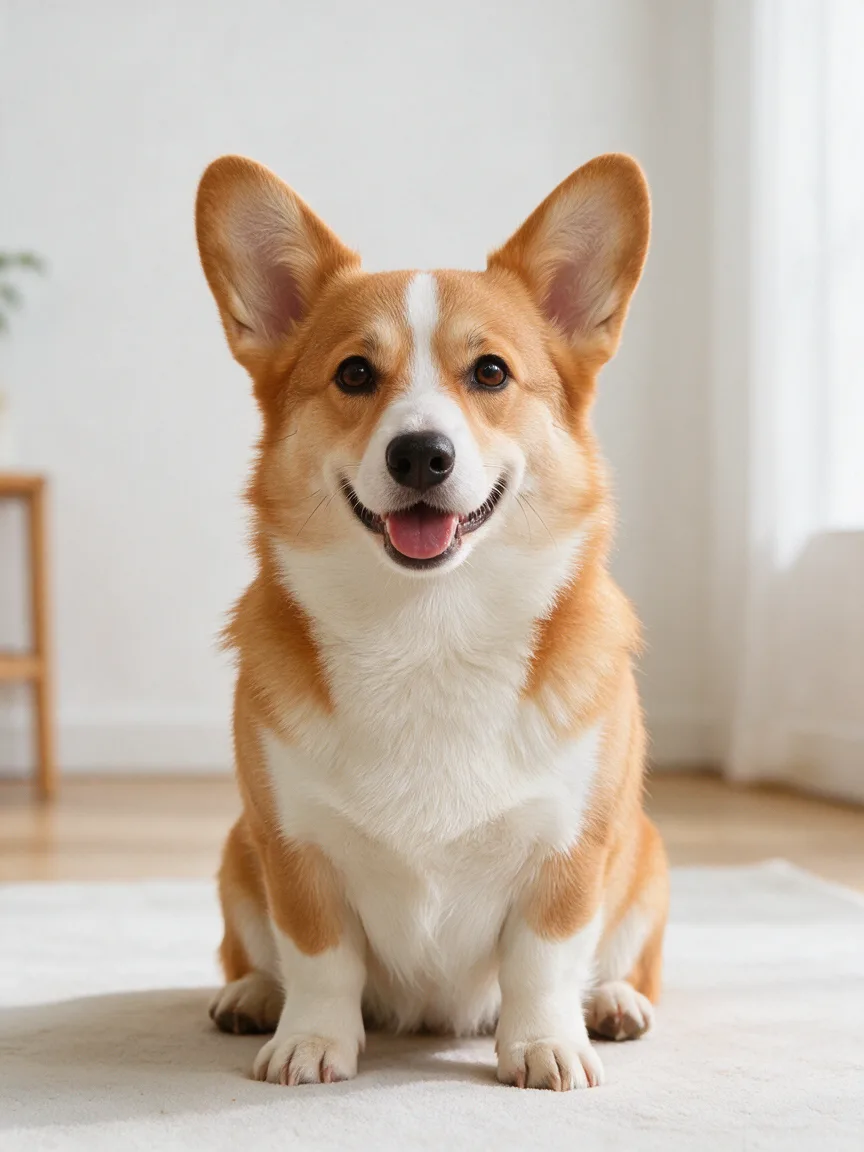 Source photo
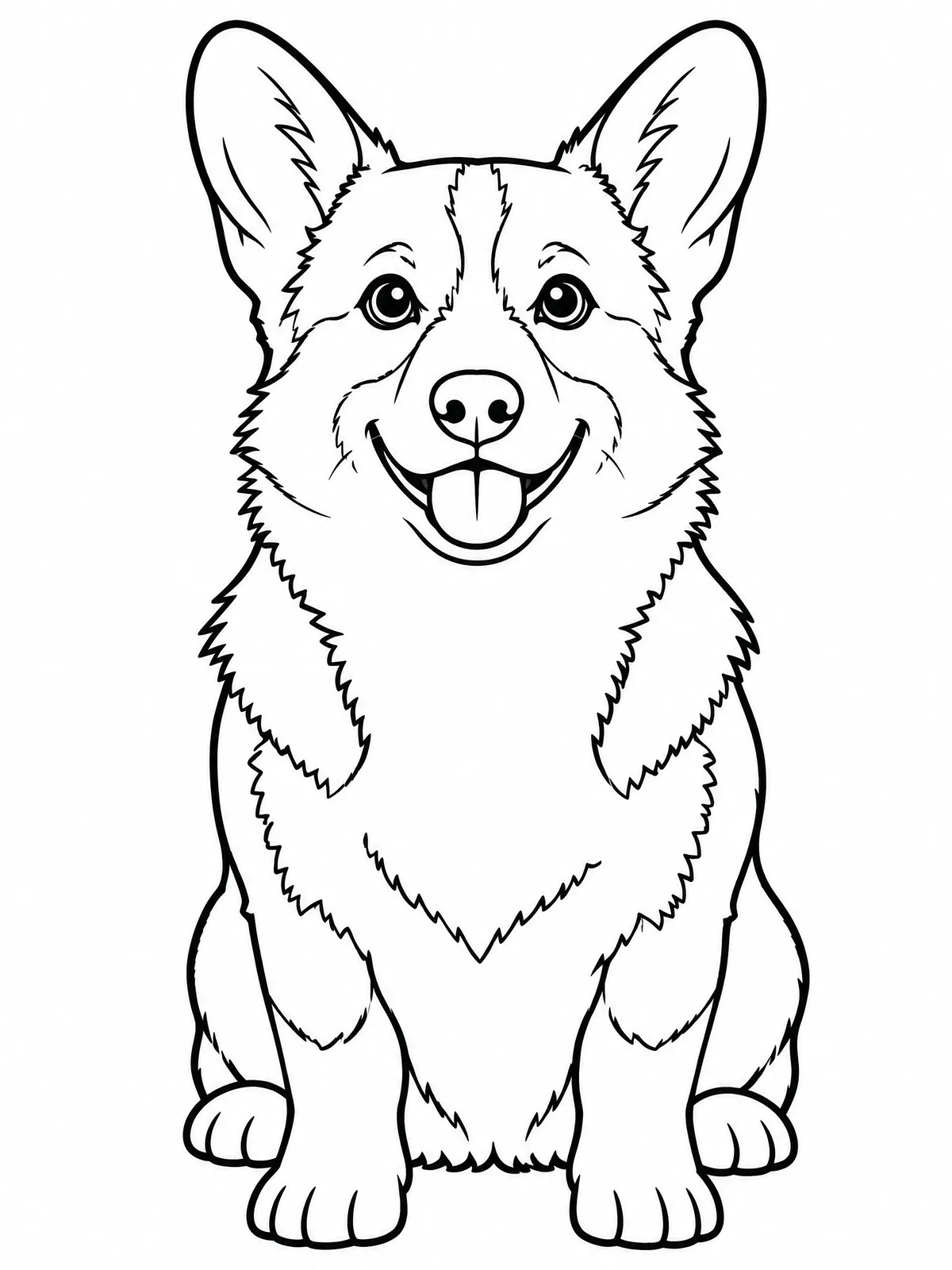 Easy, no background
Turn this photo into a printable coloring book page. Keep the subject recognizable and true to the photo: for people, the same face shape, hairstyle, glasses, expression, pose, clothing shapes and real age; for animals, the same breed, face, ears and markings drawn as outline shapes; for places and things, the same composition, viewpoint and proportions. Leave out the background entirely: only the main subject, centered on plain white paper. Draw it as clean black outline line art on a pure white background: smooth, continuous outlines of even thickness, with every shape fully closed so each area can be colored in. No shading, no gray tones, no hatching, no stippling, no solid black fills, no color, no texture, no text, no frame or border. Level: easy. Bold, thick outlines and big open areas that are easy to color; only the main shapes, with small details and textures left out.
House: Detailed with the background kept
For the invented cottage, we chose Detailed and Keep. Windows, roof tiles, plants and the path give an adult colorist more separate spaces to work through. This level suits colored pencils better than a broad marker. Compare the door and window positions with the source before printing: an image model redraws the scene rather than tracing every edge mechanically.
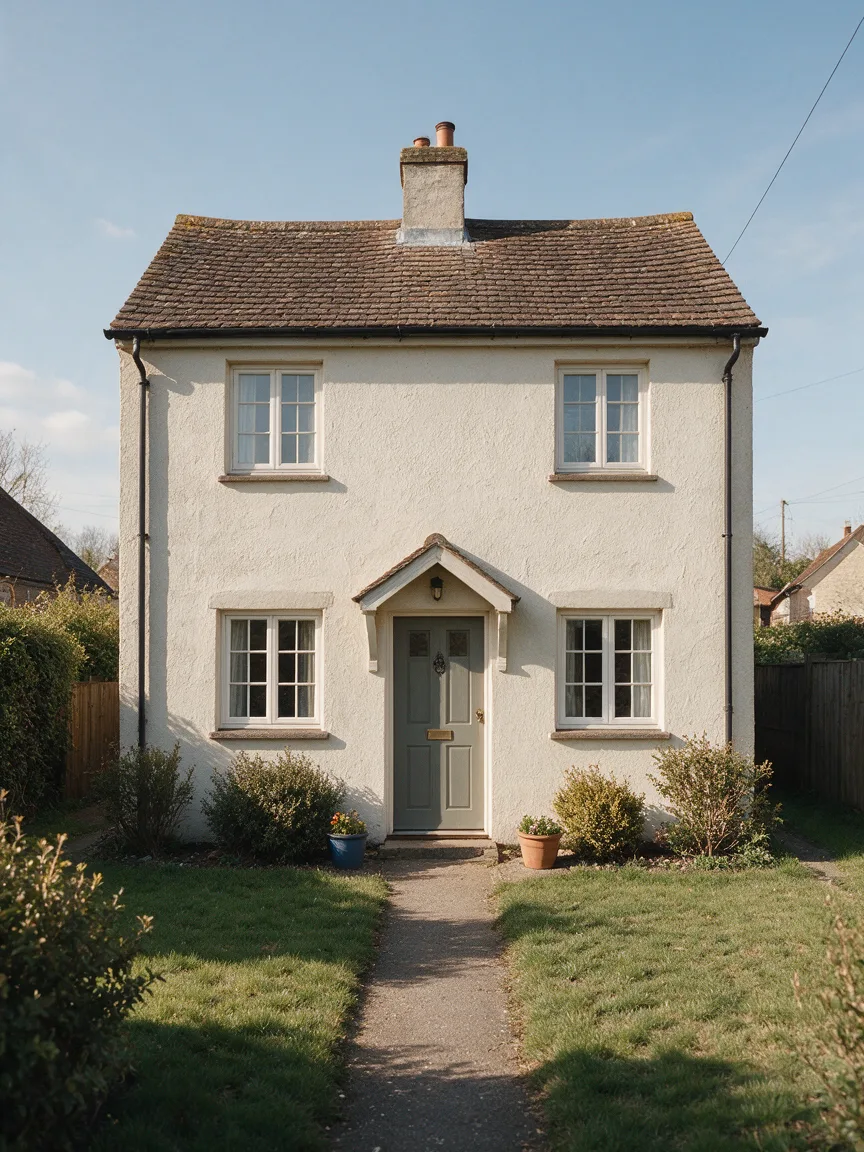 Source photo
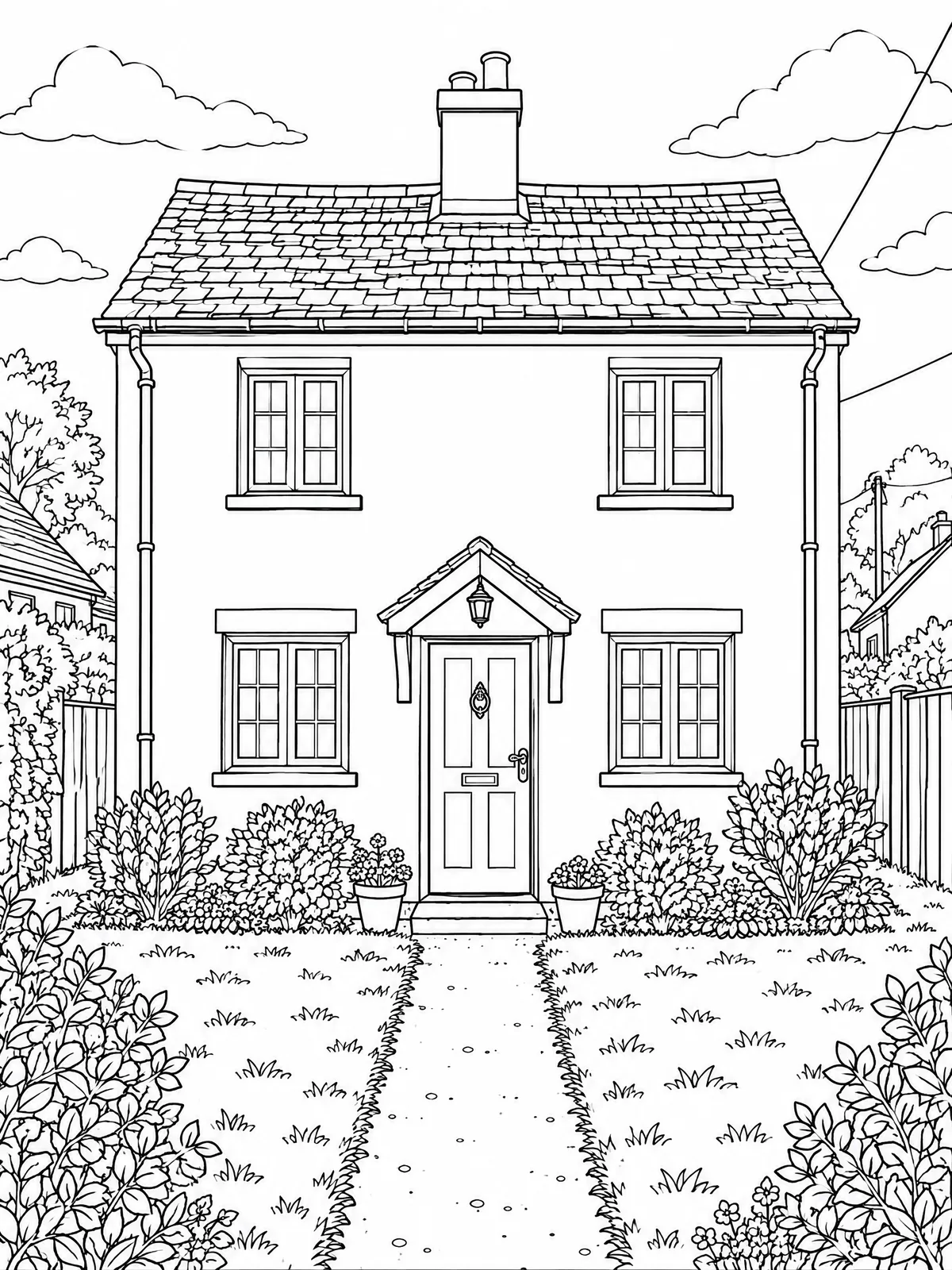 Detailed, background kept
Adult reading scene: Medium with a simple background
Our third source shows one fictional 35-year-old adult reading on a garden bench. We chose Medium and Simple to keep the glasses, hairstyle, book and seated pose without preserving every leaf. This is a useful middle ground when the activity matters as much as the portrait. Compare facial features, fingers and the book edges at full size before keeping a similar result.
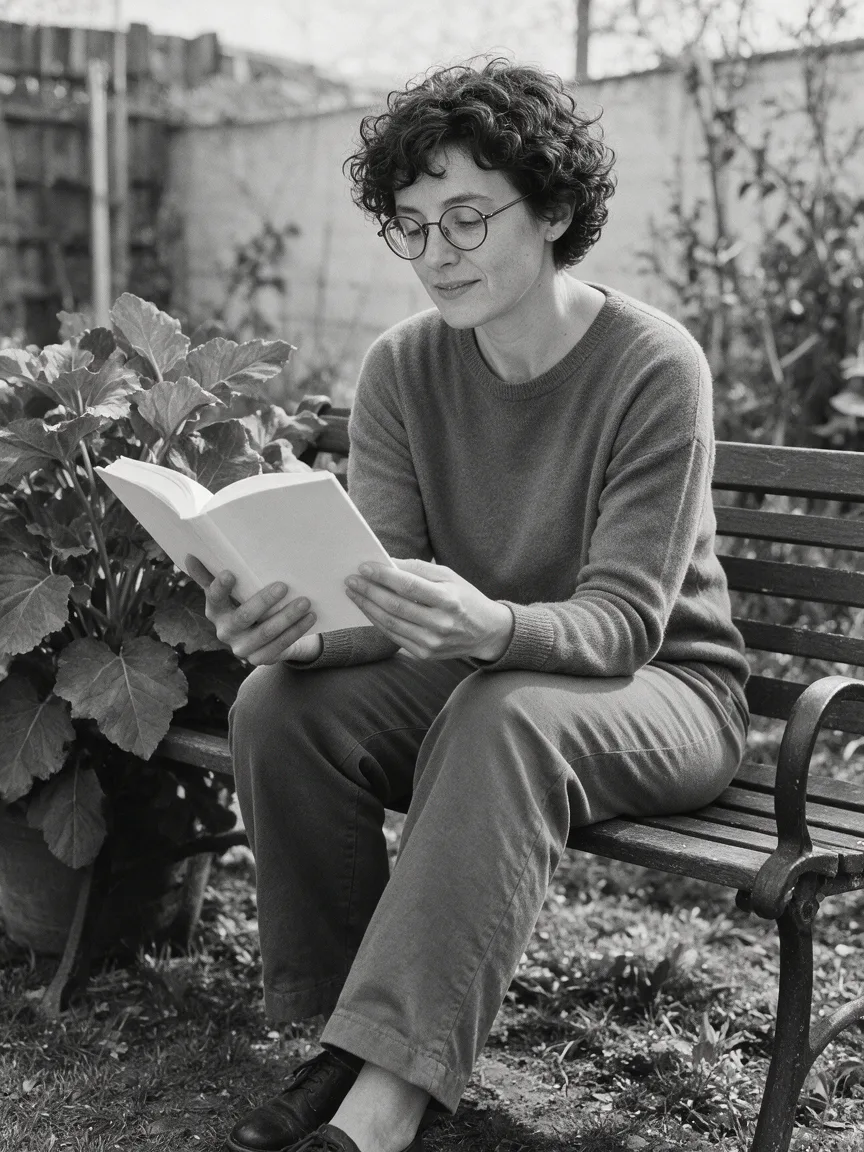 Source photo
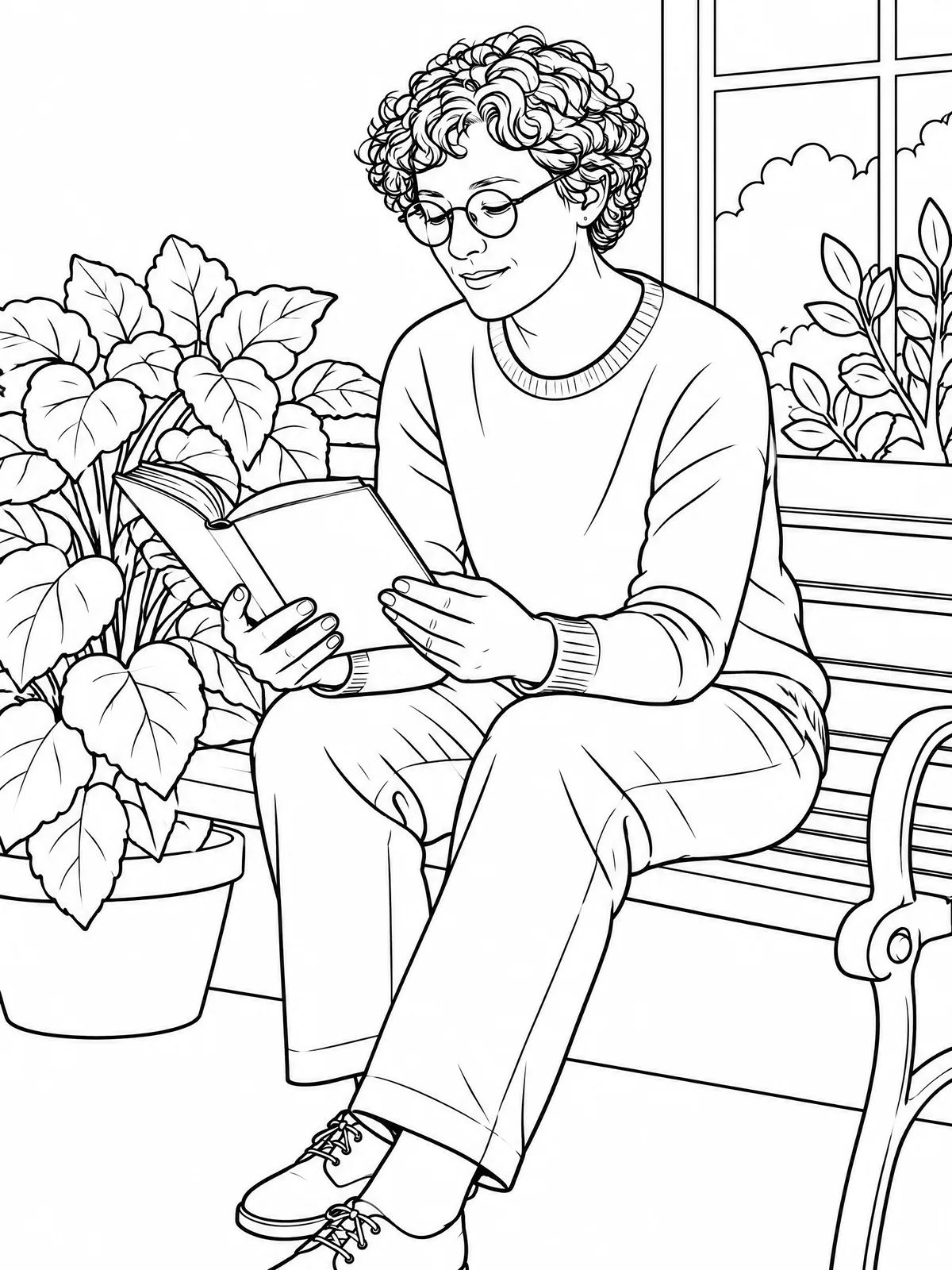 Medium, simple background
The three photos use different subjects and backgrounds, so they demonstrate practical settings rather than a controlled test of Level alone. To isolate the effect on your own picture, keep its source, model, frame and background unchanged and change only Easy, Medium or Detailed.
How do you fix faint lines or color leaking between areas?
Under Fine-tune lines, increase Line darkness if important lines disappear, increase Line weight a little to strengthen boundaries, and use Remove specks for stray dots. The tool processes the result into black and white locally. Small adjustments are more useful than pushing every control to its limit: too much thickening can close eyes, window frames and narrow spaces.
Use Color it in to test a few adjoining areas. If a fill spills into the background, there may be a gap; increasing the weight can help, but cannot guarantee every shape becomes closed. If the drawing has the wrong number of windows or has changed an important facial detail, line controls will not fix the content. Choose a simpler source or generate a revised version.
How do you print on A4 or Letter and make a coloring book?
- Choose Print PDF. Set Paper to A4 for 210 × 297 mm paper or Letter for 8.5 × 11 inch paper. Match the paper actually loaded in your printer.
- Leave a usable margin. Start with Normal; use Wide if you need more room for binding or your printer clips an edge. Keep the whole drawing visible in the preview.
- Print one test page. Use portrait orientation for these 3:4 examples and check the printer preview. If a second print dialog scales the document, confirm that it preserves the margins rather than cropping to fill the sheet.
- Build a book when ready. Book offers My photos for 2 to 12 images, one page each. Give the cover a title, review every generated page, then use Download book (PDF).
Print HD gives a larger raster image, not a vector PDF with unlimited sharpness. Ordinary printer paper is a useful first test; choose paper suitable for your pens if you plan to use wet ink. The PDF layout, on-screen coloring and line adjustments happen in the browser at no extra generation cost. Generating a new page is a separate model request.
How should you compare models for the same photo?
Use Compare for a same-prompt, different-models check, keeping the source and settings as close as the models allow. Nano Banana 2.1 is the tool's alternative and costs 72 credits at 2K. We used only Sunburst for the conversions here, so this article makes no measured claim that one model wins. Sunburst's quote depends on quality and frame as well as resolution; check the live button for your settings.
If you want a finer illustrative outline instead of closed coloring spaces, try photo to line drawing. For our source photos, Seedream generation cost 36 credits each; using a photo you already own skips that source-generation step. The conversion is still charged separately.
FAQ
Can I make a coloring page from any photo?
You can start with many kinds of photos, but a clear subject and simple background usually give a more usable page. Heavy blur, tiny faces and dense crowds make recognizable outlines harder. Use your own image or one you have permission to process.
How do I make a coloring page without gray shading?
Ask for black outlines on white, then use the tool's line cleanup. Line darkness controls which marks remain black; inspect important fine lines while adjusting it. Simply removing color from a photo leaves gray shading and does not create open coloring spaces.
Can I turn several photos into a coloring book?
Yes. Choose Book and My photos, add 2 to 12 images, and review the generated pages before downloading the book PDF. Each page needs its own generation. The cover and PDF assembly do not require another image-generation request.
Is A4 or Letter better for printing?
Choose the size that matches your paper and printer settings. Both work for these portrait examples with white margins. Changing paper size changes the layout, not the amount of detail the model originally drew. Print a test sheet before making several copies.
How much does a photo-to-coloring-page conversion cost?
Read the price on Make coloring page after selecting model and quality. The examples use Sunburst in Print HD with medium rendering quality and a 3:4 frame. Fine-tuning lines and exporting the PDF do not start another paid generation; making a revised AI page does.