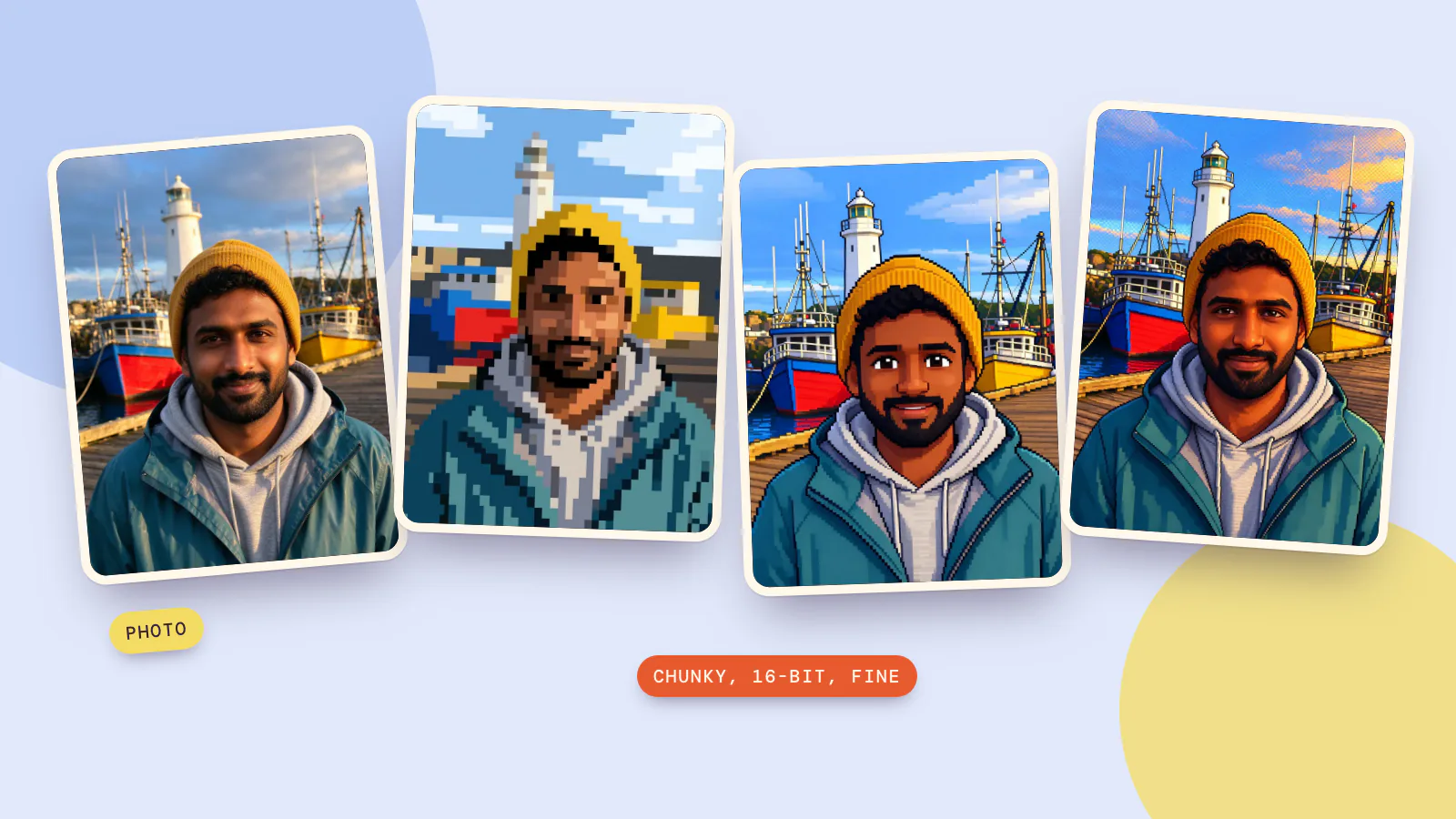
Pixel art is digital art in which the picture is built from individual square pixels, placed on a visible grid and colored from a small set of colors. It grew out of the low-resolution graphics of 8-bit and 16-bit era computers, arcade machines and game consoles, and today artists choose it on purpose for its crisp, retro look. To turn a photo into pixel art, upload it to the Pixel Art effect and press Make my picture: a 16-bit version comes back in under a minute for 5 credits.
Below: what makes something pixel art, where the 8-bit and 16-bit labels come from, and one harbor photo we turned into pixel art at three different pixel sizes on October 19, 2026, plus a short pixel effect video, with every prompt we used.
What is pixel art?
The pixel art article on Wikipedia describes it as digital art "where images are built using pixels as the only building block." The term was first published in 1982, in a journal letter by Adele Goldberg and Robert Flegal, though people were already making pictures this way about a decade earlier.
Three things separate pixel art from any other small picture:
- A visible grid. Each square is one pixel, and you are meant to see it. Curves turn into little staircases.
- A small palette. The artist works with a handful of colors, chosen on purpose. Older pixel art tends to use very small palettes, and some games were made with just two colors.
- Intent. Every pixel is where it is for a reason. The same article points out that a low-resolution photo only counts as pixel art if its pixels were placed with artistic intent.
Two words you'll see everywhere: a sprite is a small two-dimensional image, such as a character, used as a building block in a bigger scene, and a palette is the fixed set of colors a picture is allowed to use.
Where 8-bit and 16-bit come from
"8-bit" and "16-bit" started as descriptions of hardware, not art styles. 8-bit processors were widely used in home computers and second- and third-generation game consoles of the 1970s and 1980s, and the 16-bit machines that came after them could draw more colors. The art looks the way it does because of what those machines could put on screen:
| Machine | Screen | Colors |
|---|---|---|
| An 8-bit home console of the 1980s | 256 × 240 pixels | Up to 25 at once, from 54 usable colors; up to 3 per sprite tile |
| A handheld from 1989 | 160 × 144 pixels | 4 shades of gray-green |
| A 16-bit home console | 256 × 224 pixels | Up to 256 at once, from a palette of 32,768 |
So when people say "8-bit pixel art" today, they usually mean the look of that first row: low resolution, few colors, bold flat shapes. "16-bit" means a step up: more colors, some shading and more detail in each character. Neither is a strict technical spec any more. They're shorthand for a feel.
Grid, palette, dithering: pixel art up close
Zoom into pixel art and the tricks are easy to spot. These two close-ups come from the pictures we made further down:
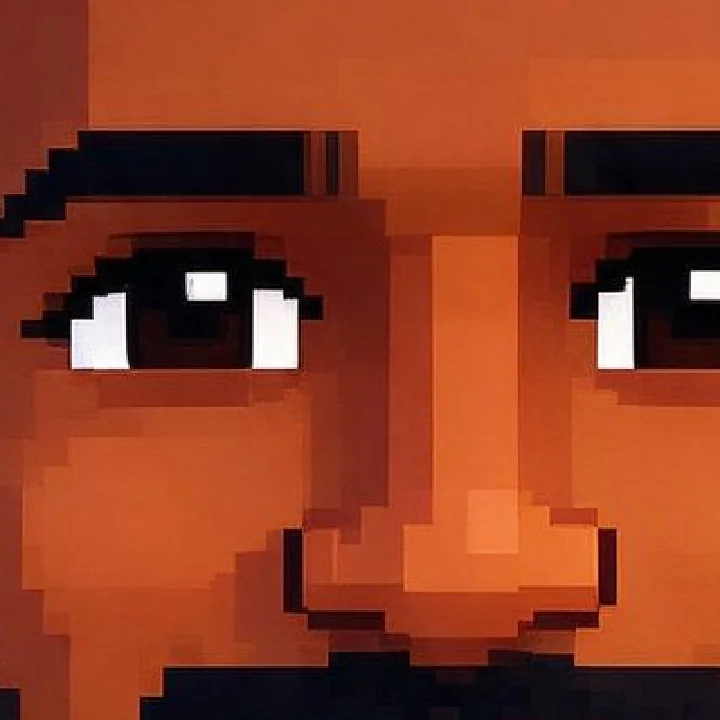 The grid and outlines
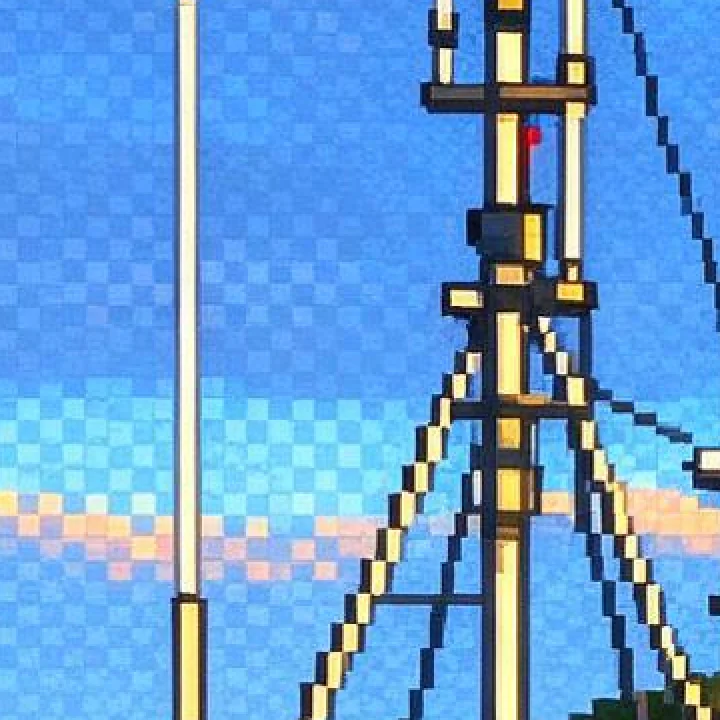 Checkerboard dithering
- Outlines. Dark lines one pixel thick separate shapes, so a character still reads when it is tiny.
- Dithering. With only a few colors, artists mix two of them in a pattern, such as a checkerboard, so the eye sees a third. Dithering is a general graphics technique for creating "the illusion of color depth" on systems with a limited palette.
- Hand anti-aliasing. To soften a jagged edge, the artist places a few in-between colors along it by hand instead of letting software blur it.
Pixel art vs a pixelated photo
Many image to pixel converters simply shrink a photo and blow it back up. That gives you a pixelated photo: there are squares, but each one is just the average of the colors underneath, there are no outlines, and the palette is whatever the photo had. It's the same mosaic you'd use to hide a face, and our blur face tool has a mosaic option for exactly that job.
Pixel art is redrawn. Shapes are simplified, the palette is cut down, outlines are added and a face becomes a few deliberate pixels. That redraw is what an AI pixel art effect is trying to do: it paints the scene again in the style instead of just coarsening the photo.
How to turn a photo into pixel art
- Open the Pixel Art effect. The prompt is built in, so there's nothing to write.
- Add a photo. One person with the face clearly in view works best, framed from head to waist, in good light.
- Pick a model. Seedream 5.0 Flash is the default and made the preview on the page; Nano Banana 2.1 is the other choice.
- Check the price on the button and press Make my picture. Seedream 5.0 Flash costs 5 credits and Nano Banana 2.1 costs 8 credits. If a run fails, the credits go back.
- Download the picture. It keeps the shape of your photo and is usually ready in under a minute.
This is the photo we used: a made-up man on a harbor pier, generated for this article.
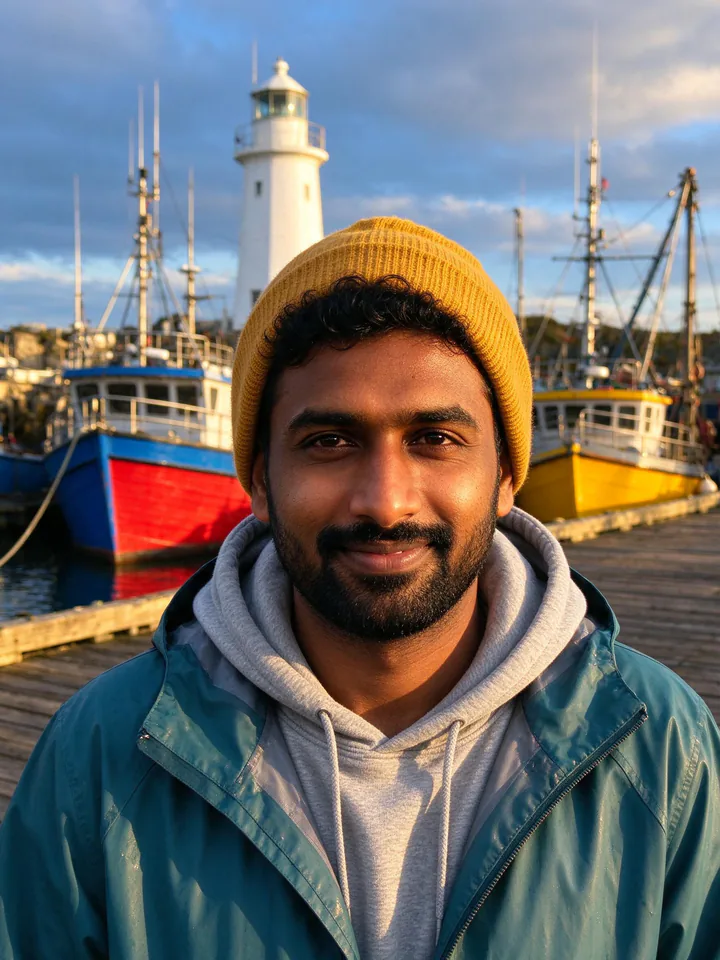
Same photo, three pixel sizes
The Pixel Art effect always asks for 16-bit. For chunkier or finer pixels, write the prompt yourself and run it on the same models in the image editor: press Try this prompt on any card below, add your photo and generate. All three were made on October 19, 2026.
Chunky: about 48 pixels across
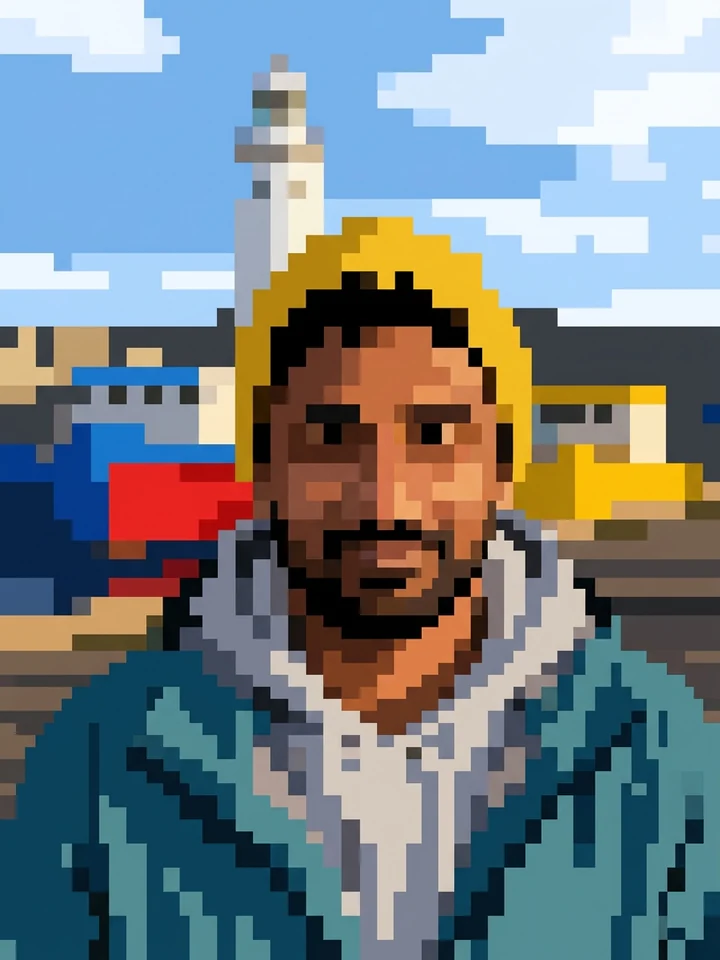
Redraw the entire photo as extremely low-resolution 8-bit pixel art, like a tiny 48 x 60 pixel picture from an early home console blown up to full size: every pixel is a huge square block, about one forty-eighth of the picture's width. The face is only about twelve blocks wide, the eyes are one or two dark blocks each, and there is no fine detail anywhere. Use only about 10 flat colours, with no gradients and no soft shading. Every part of the image, including the person's face, hair, skin and clothes and the whole background, is built from these huge blocks. The person becomes a simple pixel-art character in the same pose and outfit colours, in a blocky pixel version of the same place. Keep the same hairstyle and hair colour, skin tone, facial hair and glasses if they have them. No text, no game interface, no logos, no watermark.
Nano Banana 2.1 at 1K, 8 credits, about 25 seconds. This one really is low resolution: the face is about a dozen blocks wide and the boats are slabs of red, blue and yellow. You recognize him by the beanie, the beard and the jacket rather than by his features, which is exactly how early game characters worked.
Classic 16-bit: the effect's own prompt
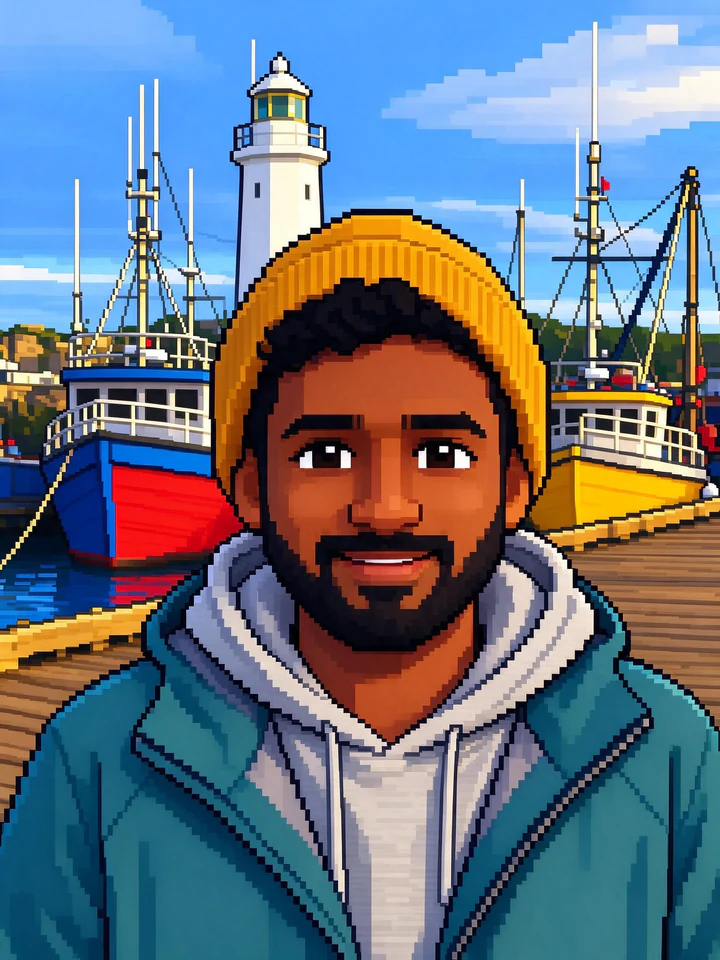
Redraw the entire photo as 16-bit pixel art from a retro video game: every part of the image, including the person's face, hair, skin and clothes and the whole background, is made of chunky visible square pixels with a limited bright palette and crisp dark outlines, with no photographic detail left anywhere. The person becomes a cute pixel-art character in the same pose and outfit colours, standing in a pixel version of the same place. Keep them recognizable: the same hairstyle and hair colour, skin tone, facial hair and glasses if they have them. No text, no game interface, no logos, no watermark.
Seedream 5.0 Flash at 2K, 5 credits, about 40 seconds. This is what the Pixel Art effect gives you. He becomes a friendly game character with big cartoon eyes and a clean outline around the beanie and jacket, and the harbor turns into a level background. The likeness lives in the beard, the hat and the colors.
Fine: modern indie pixel art
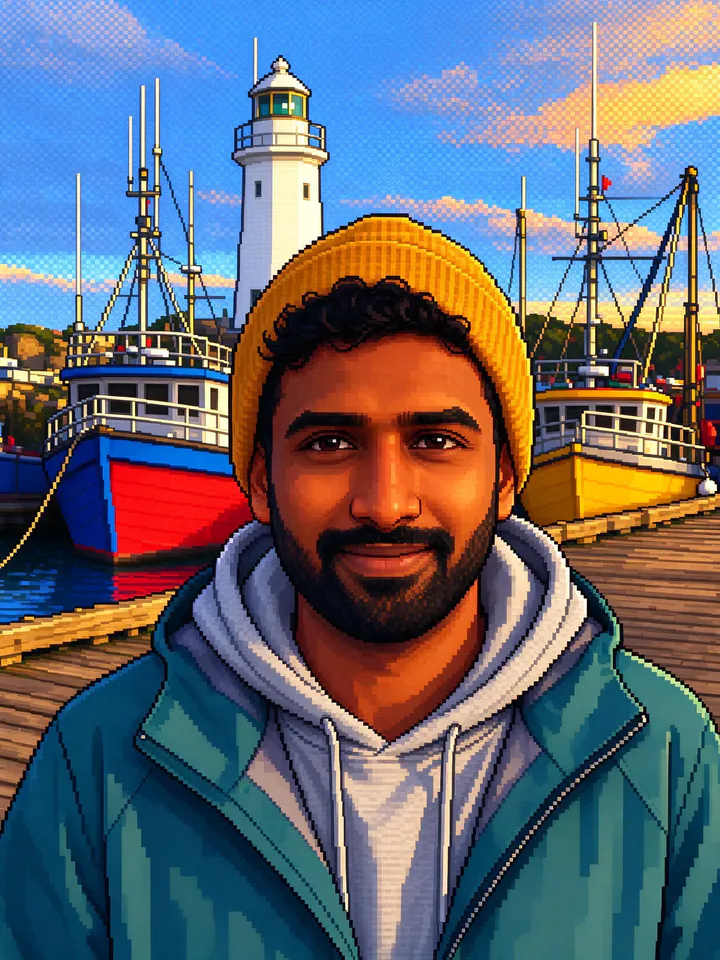
Redraw the entire photo as detailed high-resolution pixel art in the style of a modern indie game: the whole picture is about 320 pixels wide, so the square pixels are small but still clearly visible. Use a richer palette of around 64 colours with careful hand-placed shading, checkerboard dithering in the sky and clean dark outlines. Every part of the image, including the person's face, hair, skin and clothes and the whole background, is made of square pixels, with no photographic detail left anywhere. The person becomes a pixel-art character in the same pose and outfit colours, standing in a pixel version of the same place. Keep them recognizable: the same hairstyle and hair colour, skin tone, facial hair and glasses if they have them. No text, no game interface, no logos, no watermark.
Seedream 5.0 Flash at 2K, 5 credits, about 40 seconds. The squares are small enough that his real face comes through, and the sky uses the checkerboard dithering from the close-up above. It's the most like the photo and the least like an old game.
| Chunky | 16-bit | Fine | |
|---|---|---|---|
| Model | Nano Banana 2.1 | Seedream 5.0 Flash | Seedream 5.0 Flash |
| Width in squares (our estimate) | about 48 | about 90 | about 220 |
| Time to generate | about 25 s | about 40 s | about 40 s |
| Cost per picture | 8 credits | 5 credits | 5 credits |
| What keeps the likeness | Hat, beard, colors | A cartoon version of his face | His actual features |
Notice that none of them came out at the exact width the prompt asked for. Models treat numbers as a rough direction, so use them to push the result chunkier or finer, not to count pixels.
Same prompt, different models
We first ran the chunky prompt on Seedream 5.0 Flash, the effect's default model. It didn't really go chunky: the face turned into a blurry mosaic while the boats and lighthouse stayed detailed. Nano Banana 2.1 applied the big blocks to the whole picture.
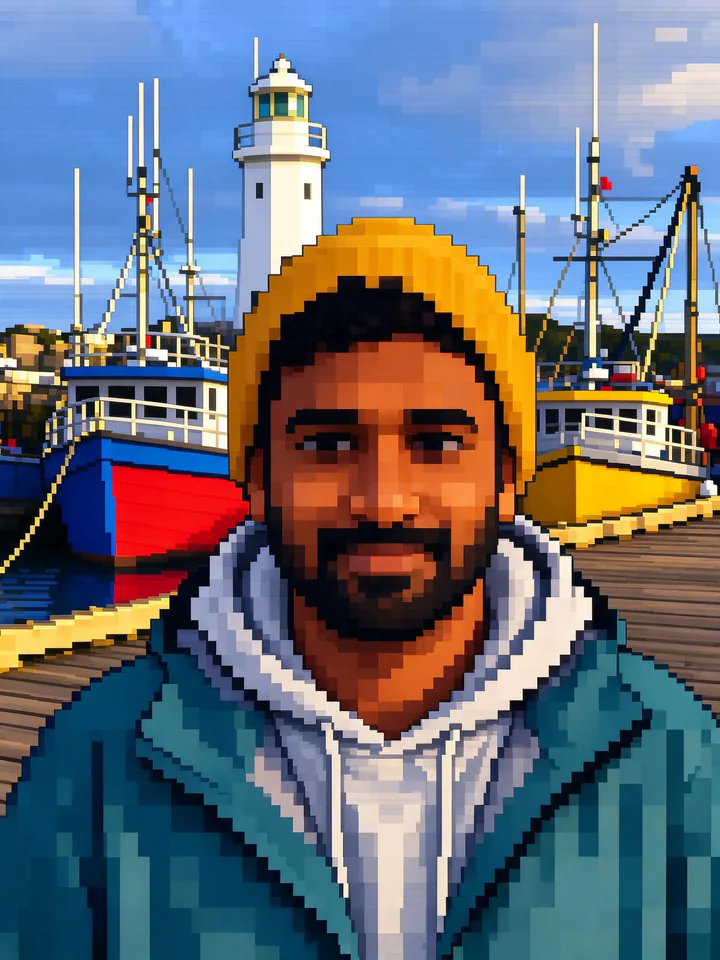 Seedream 5.0 FlashNano Banana 2.1
So if a pixel size matters to you, try the prompt on both models before you settle. You can see more side-by-side model comparisons for other kinds of pictures.
Make it move: a pixel effect video
Pixels can move too. The Pixel Scatter effect takes one photo and makes the person break apart into glowing square pixels that blow away on a digital wind. We gave it the same harbor photo:
The beanie starts breaking into squares in the first second, his face goes by the middle of the clip, and at the end only the pier, the boats and the lighthouse are left. Like the Pixel Art effect, it has its prompt built in, so you just add a photo. One clip costs 28 credits.
Other ways to get the pixel look
- No photo? The style library has a 16-Bit Pixel style you can apply to a written idea instead of a picture.
- Just the palette. Posterize flattens a photo into four colors you choose. It's free and runs in your browser. It doesn't add a grid, but it gives you the limited-palette half of the look.
- Pixel lettering. The text effects include 8-bit pixel text for titles and thumbnails, also free and drawn in your browser.
Tips for better pixel art from a photo
- Choose a simple, colorful photo. One subject and bold colors work best. Busy backgrounds turn into noise once the detail is gone.
- Keep the face big and facing the camera. In 16-bit, a whole face is only a few dozen pixels wide, and a small or side-on face loses the likeness first.
- Lean on distinctive features. Hats, beards, glasses and hair color survive the redraw better than face shape. The effect's prompt asks the model to keep exactly those.
- Know what you're getting. AI pixel art is a large picture painted in the pixel style. The squares are not on a perfectly even grid and the colors are not locked to an exact palette. For a profile picture, a poster or a print, that doesn't matter. For a game sprite, use it as a reference and redraw it at its real size in a pixel editor.
FAQ
What is pixel art in simple terms?
A picture made of visible square pixels and a small set of colors, where every pixel is placed on purpose. Think of the graphics in early home video games, or of modern games that copy that look.
What is the difference between 8-bit and 16-bit pixel art?
The names come from game hardware. 8-bit machines drew low-resolution pictures with few colors, and 16-bit machines could show more colors and detail. Today "8-bit" means chunky and flat, while "16-bit" means more colors, some shading and more detail per character.
Can I turn any photo into pixel art?
The Pixel Art effect is written for photos of people, so use a clear photo of yourself or of someone who agreed to it. For a pet, a landscape or a plate of food, use one of the prompts above in the image editor and change "the person" to whatever is in your photo.
How much does it cost to turn a photo into pixel art?
You pay per picture in credits, with no subscription. The Pixel Art effect costs 5 credits with Seedream 5.0 Flash or 8 credits with Nano Banana 2.1, and a 5-second Pixel Scatter clip costs 28 credits. The price is on the button before you start, and failed runs give the credits back.
Is AI pixel art the same as hand-made pixel art?
No. Hand-made pixel art is drawn one pixel at a time at its real size, with a fixed palette. AI pixel art imitates that look in a large image, which is great for avatars, posters and fun, but a game sprite still needs cleaning up at its real size.