Video Swap keeps everything that is hard to film — the movement, the timing, the camera — and changes one thing in the shot: the person, their outfit, a product or the location. You can also do the reverse with Transfer motion: borrow the movement from a clip and put it on your own photo.
Step 1: Open Video Swap
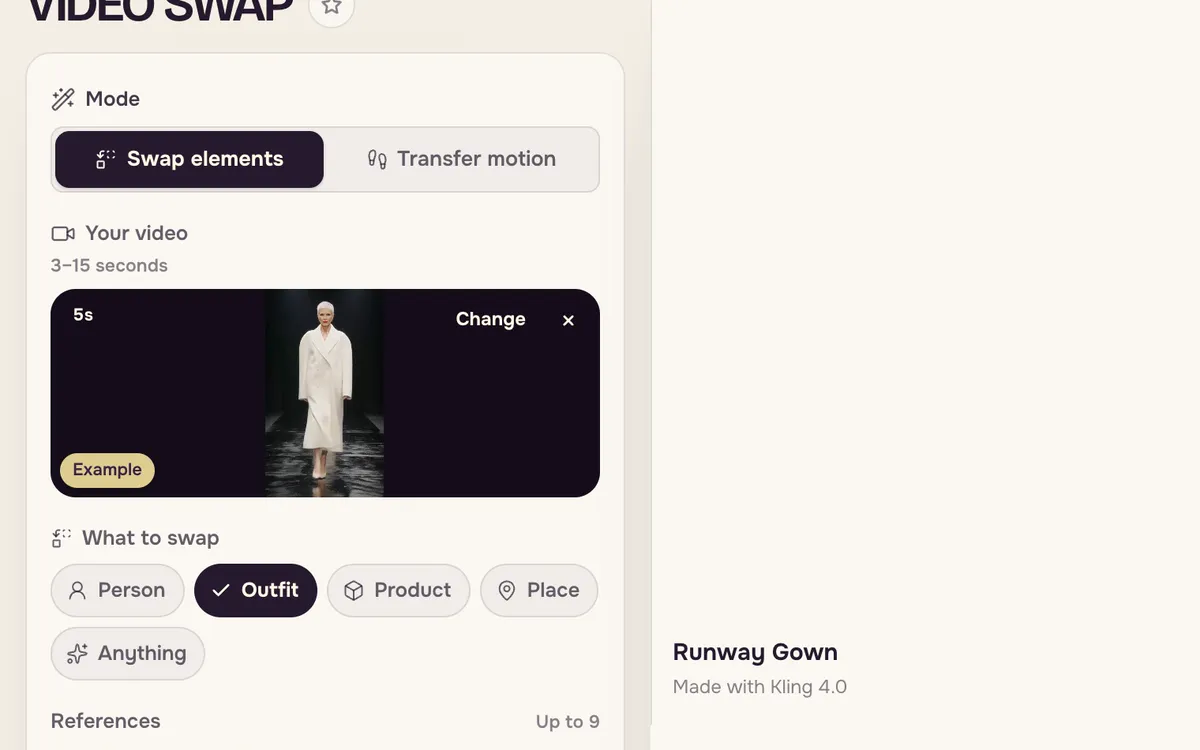
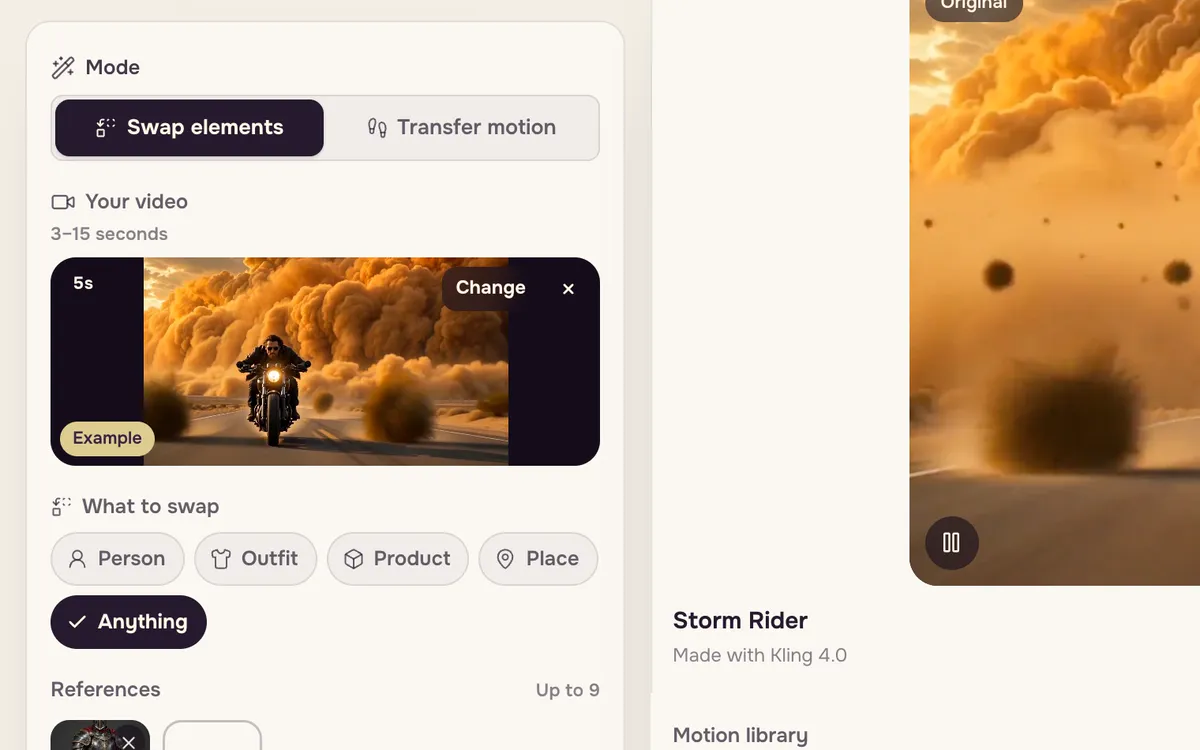
Open Video Swap. Choose the mode at the top: Swap elements changes something in a video; Transfer motion moves your photo the way the video moves. Your clip can be 3 to 15 seconds long.
Step 2: Pick a clip from the motion library
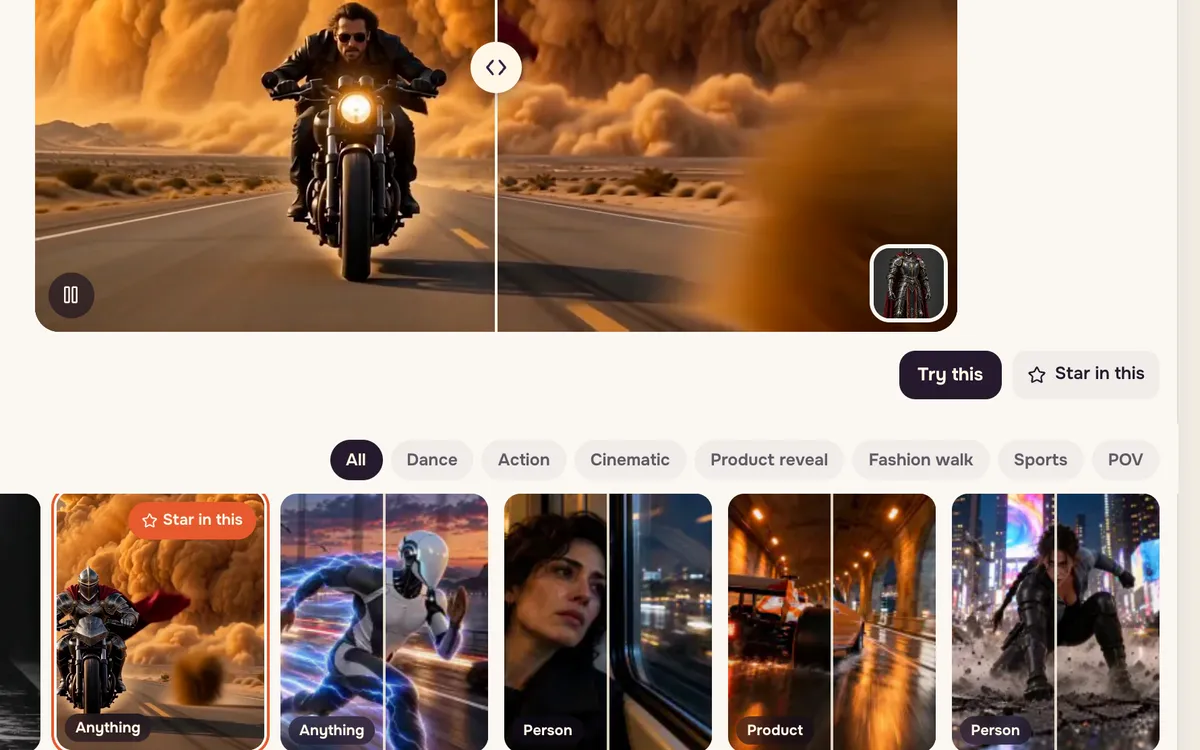
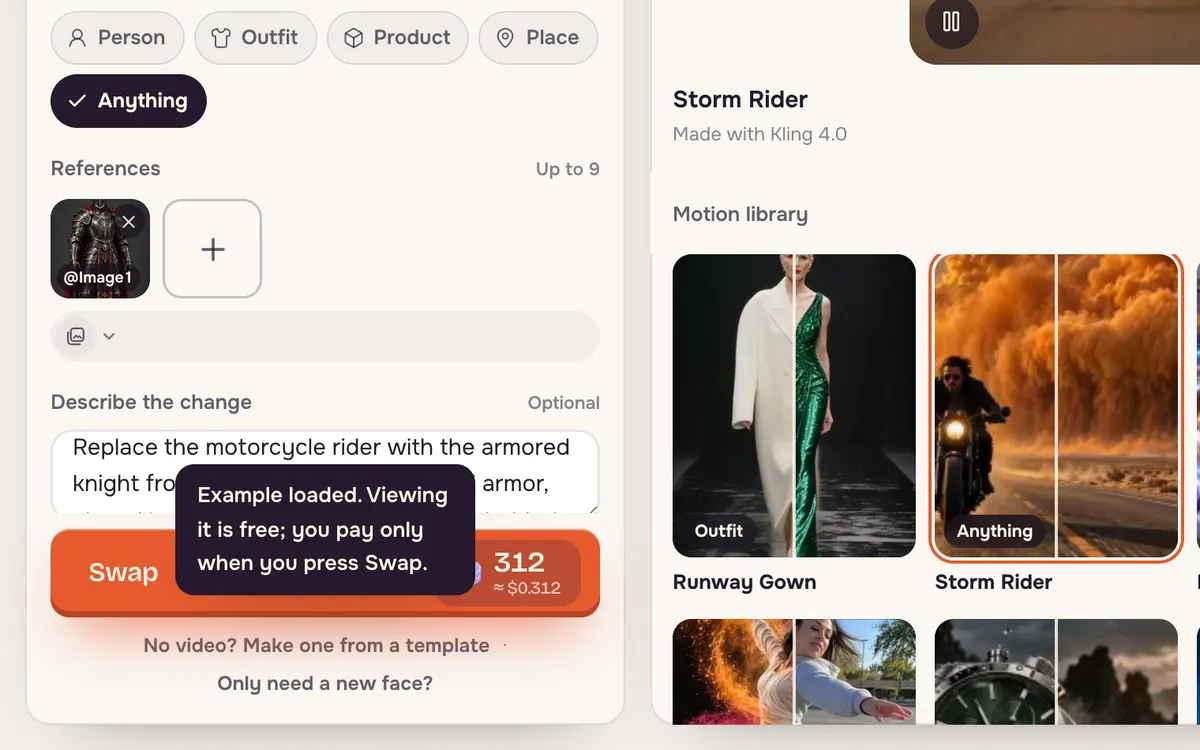
Don't have a clip? The Motion library below the stage has ready-made shots grouped by Dance, Action, Cinematic, Product reveal, Fashion walk, Sports and POV. Click one to preview its before and after.
Step 3: Load it and add your reference
Press Try this to load the clip and its example reference into the panel, or Star in this to put yourself in it. Then choose what to swap — Person, Outfit, Product, Place or Anything — and add up to nine reference images of what should appear instead.
Step 4: Describe the change and swap
Add a short note if you need it — "keep the motorcycle and the riding motion" — then choose an engine and press Swap. Lite handles clips up to 15 seconds, Pro is sharper up to 10 seconds, and Max is the best quality up to 30 seconds. The button shows the price for your clip length.
Tips for better results
- Pick clips with one clear subject. Crowds make it harder to swap the right person.
- Use a clean reference. A product on a plain background or a full-length photo of an outfit works best.
- Say what stays. "Keep the camera move and the background" stops the model from changing more than you asked.
- Only use people who agreed. Swap people only with their permission, and only adults.
FAQ
What is the difference between Swap elements and Transfer motion?
Swap elements keeps the video and changes something in it. Transfer motion keeps your photo and makes it move like the video.
Can I use my own video?
Yes. Press Change on the video slot and upload a clip of 3 to 15 seconds, or longer with the Max engine.
How much does a swap cost?
It depends on the engine and the clip length. The Swap button shows the exact price before you start, and failed swaps return their credits.