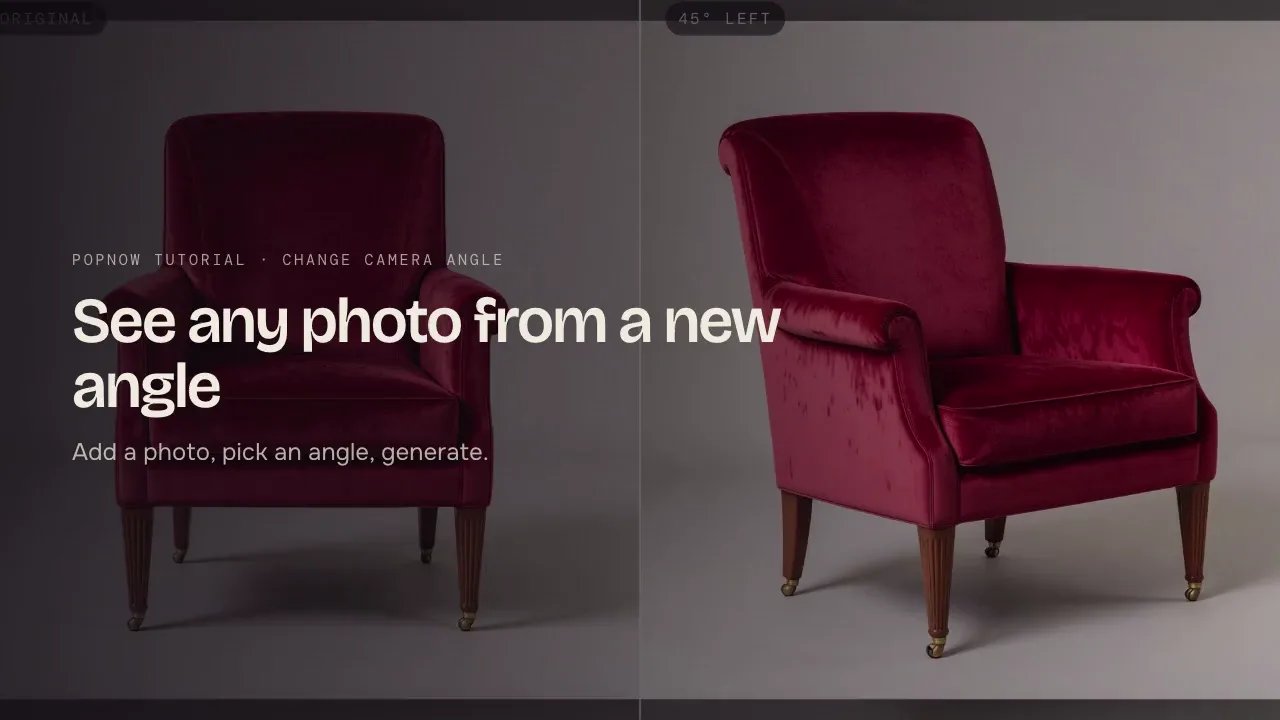
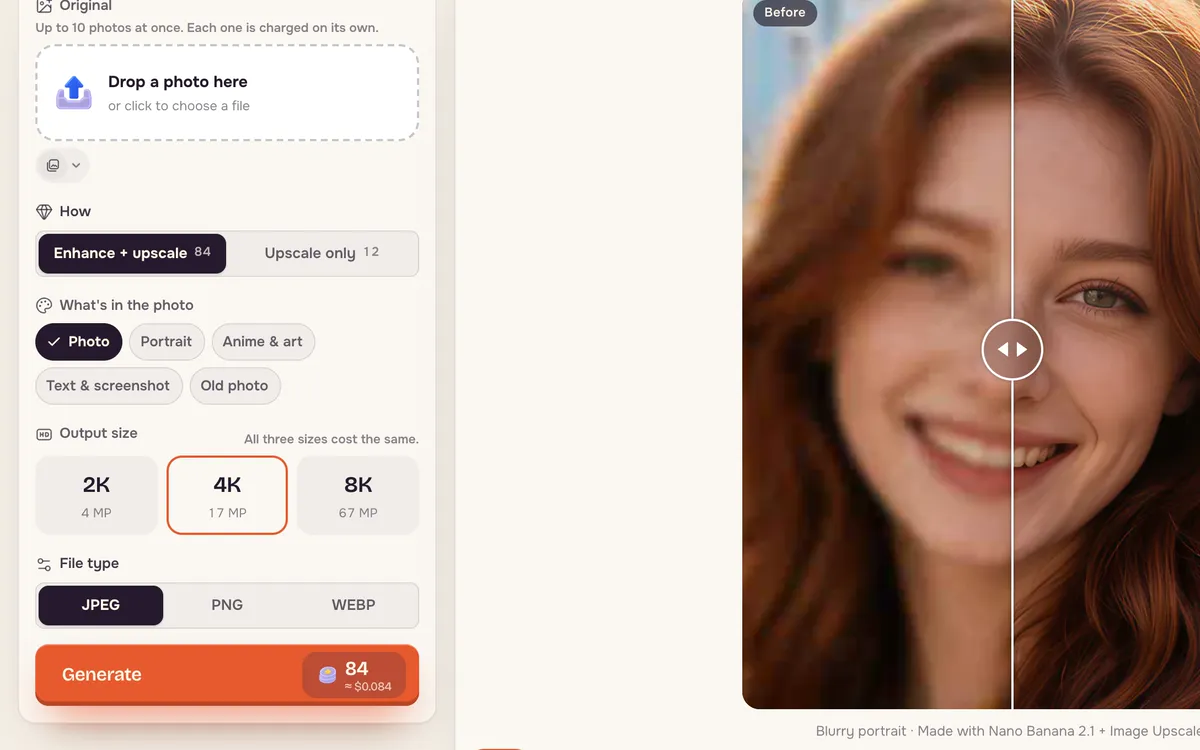
Upscale makes a small or soft image bigger and sharper. Enhance + upscale rebuilds fine detail as it enlarges; Upscale only enlarges without changing what is in the picture. You pick the target size — 2K, 4K or 8K — and the file type.
Step 1: Open Upscale
Open Upscale and drop in a photo, or press Try this one to see the built-in example (viewing it uses no credits).
Step 2: Pick the mode and content type
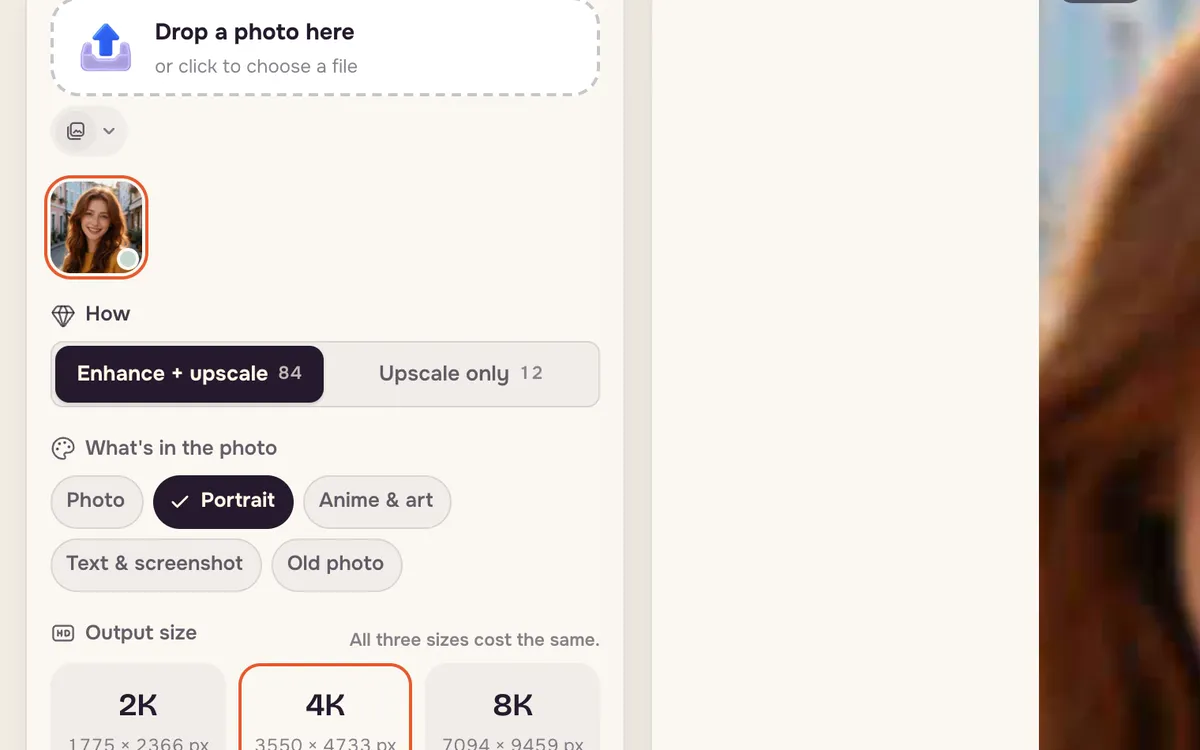
Choose Enhance + upscale for old, soft or compressed photos, or Upscale only when the image is already clean and you just need more pixels. Then tell it what is in the photo — Photo, Portrait, Anime & art, Text & screenshot or Old photo — so it sharpens the right things.
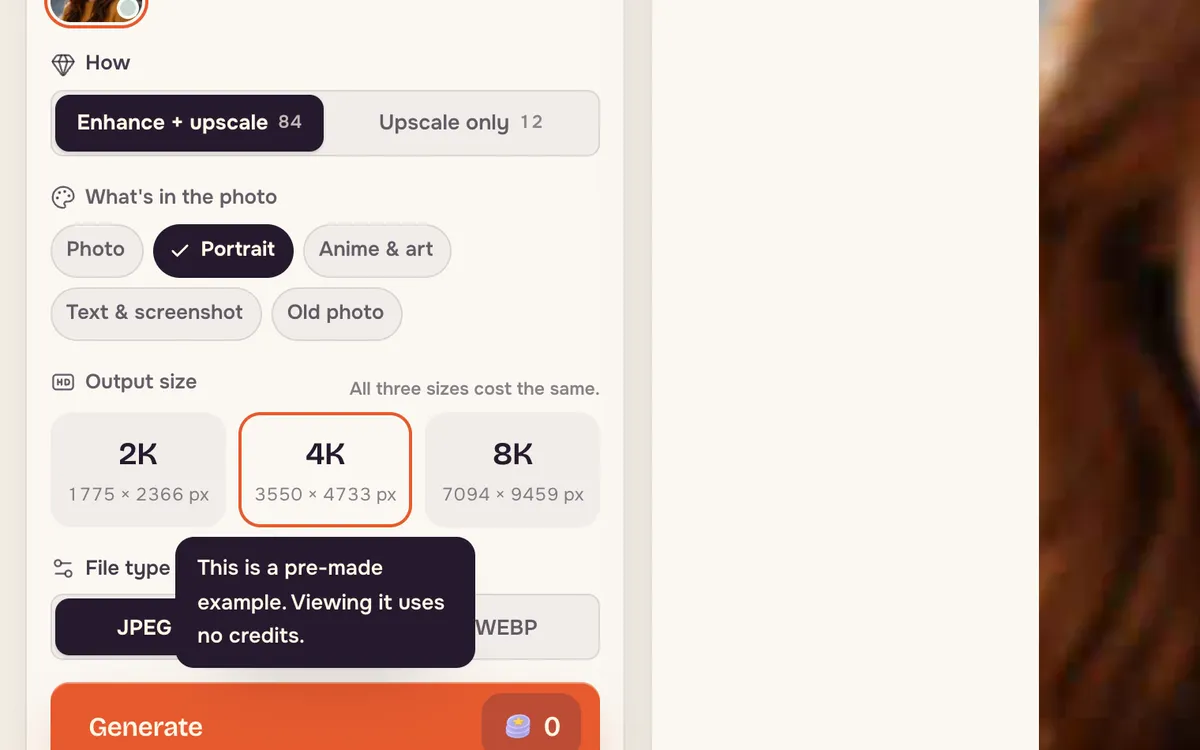
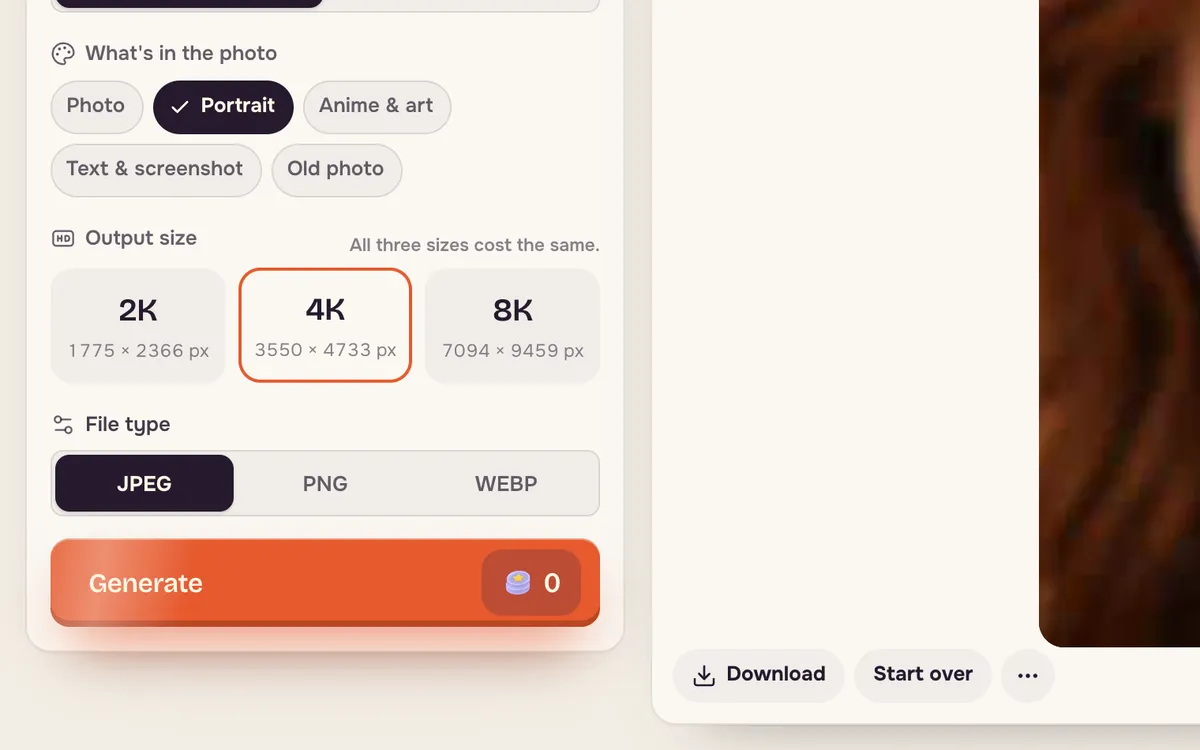
Step 3: Choose the size and generate
Pick 2K, 4K or 8K and a file type, then press Generate. Bigger sizes take longer and cost more; the button shows the price.
Tips for better results
- Use Upscale only for screenshots and text so letters are not reinterpreted.
- Pick Old photo for scans and faded prints.
- Upscale last. Finish edits first, then upscale the final version.
FAQ
What is the difference between the two modes?
Enhance + upscale adds detail that is not in the original, which suits soft photos. Upscale only keeps the image as it is and just enlarges it, which suits clean images and text.
Can I upscale AI images from other tools?
Yes. Any JPG, PNG or WebP works.
Can I upscale video?
This page is for images. For video, use the video tools in Create video.