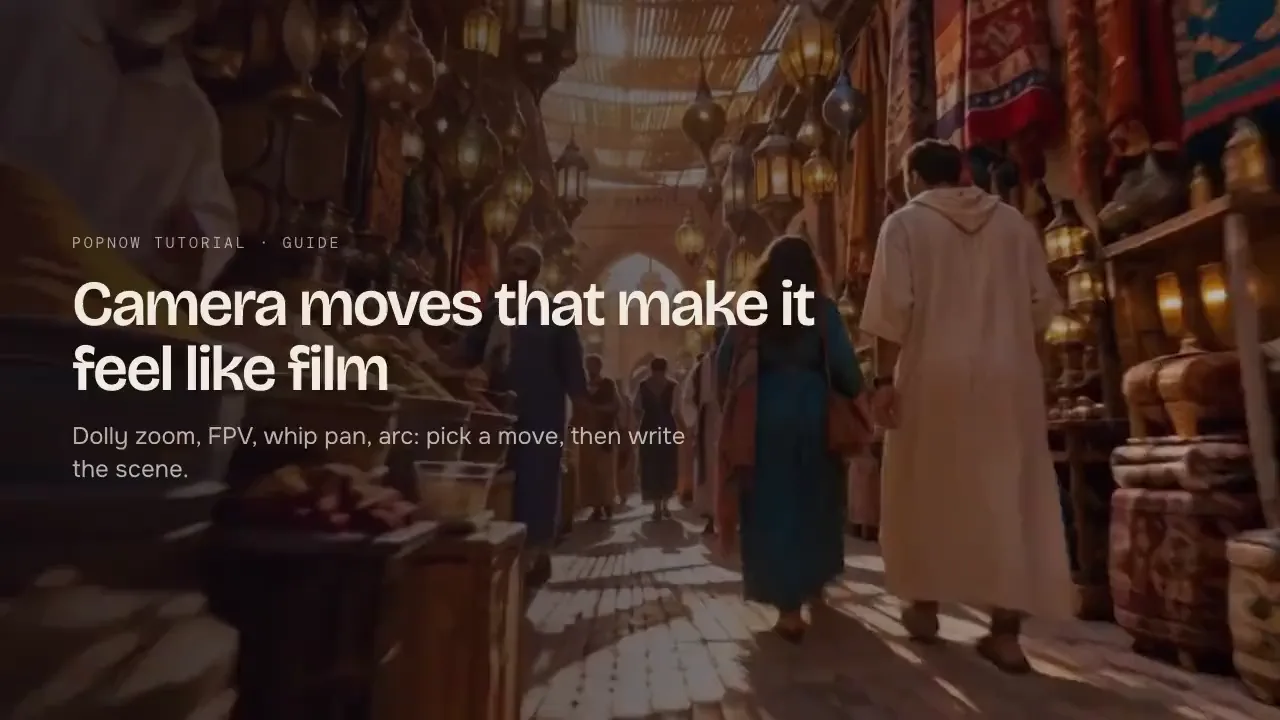
Change camera angle shows the same subject from a different viewpoint — turned to the side, seen from above, or moved in close. It keeps what the subject looks like and reimagines what the camera would see from the new position. Product photographers use it to get several angles from one shot.
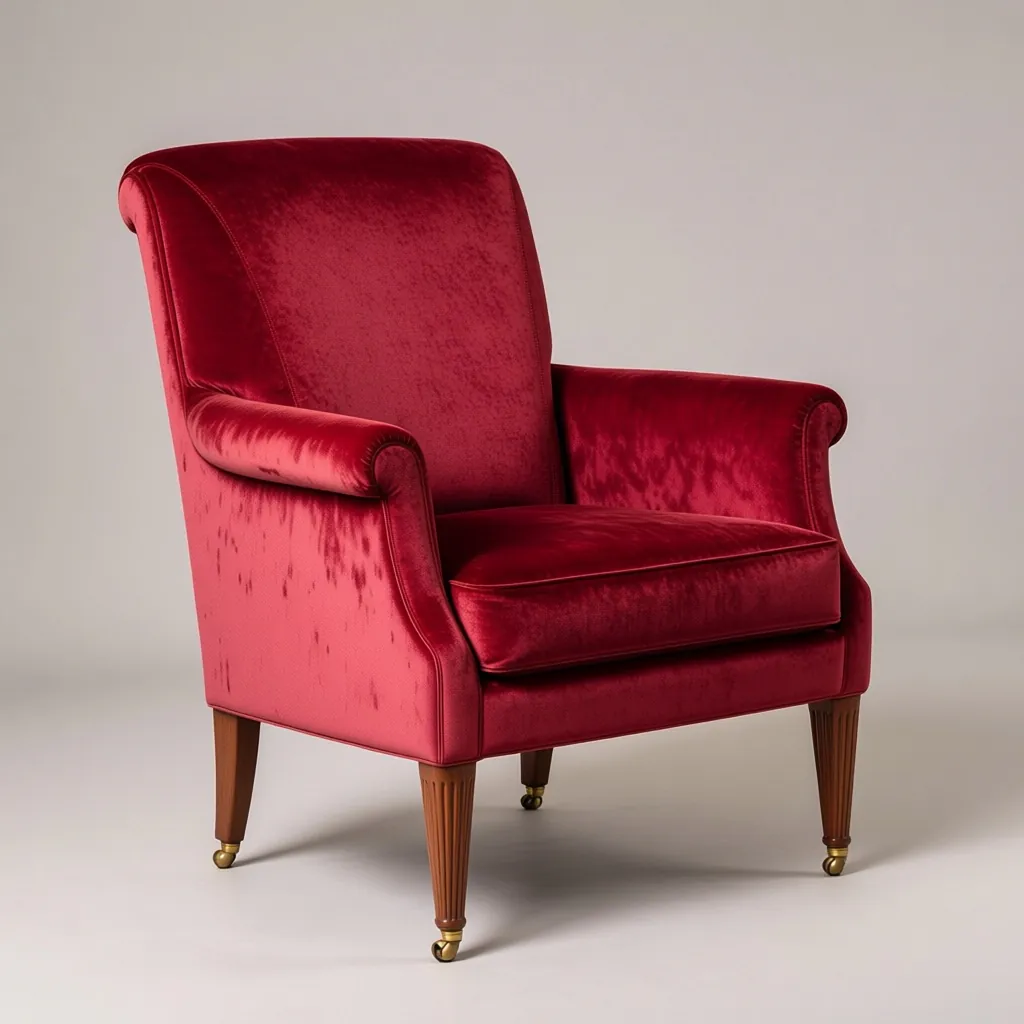
Step 1: Open Change camera angle
Open Change camera angle and drop in a photo, or press Try this to load the example.
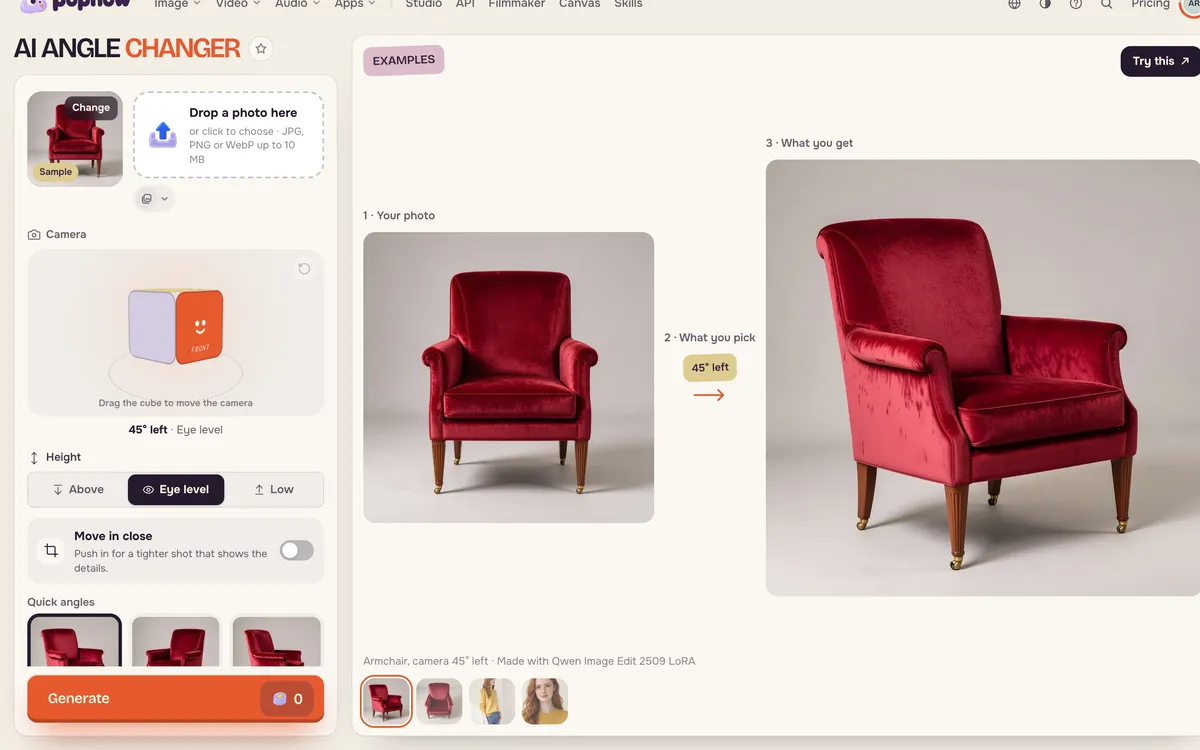
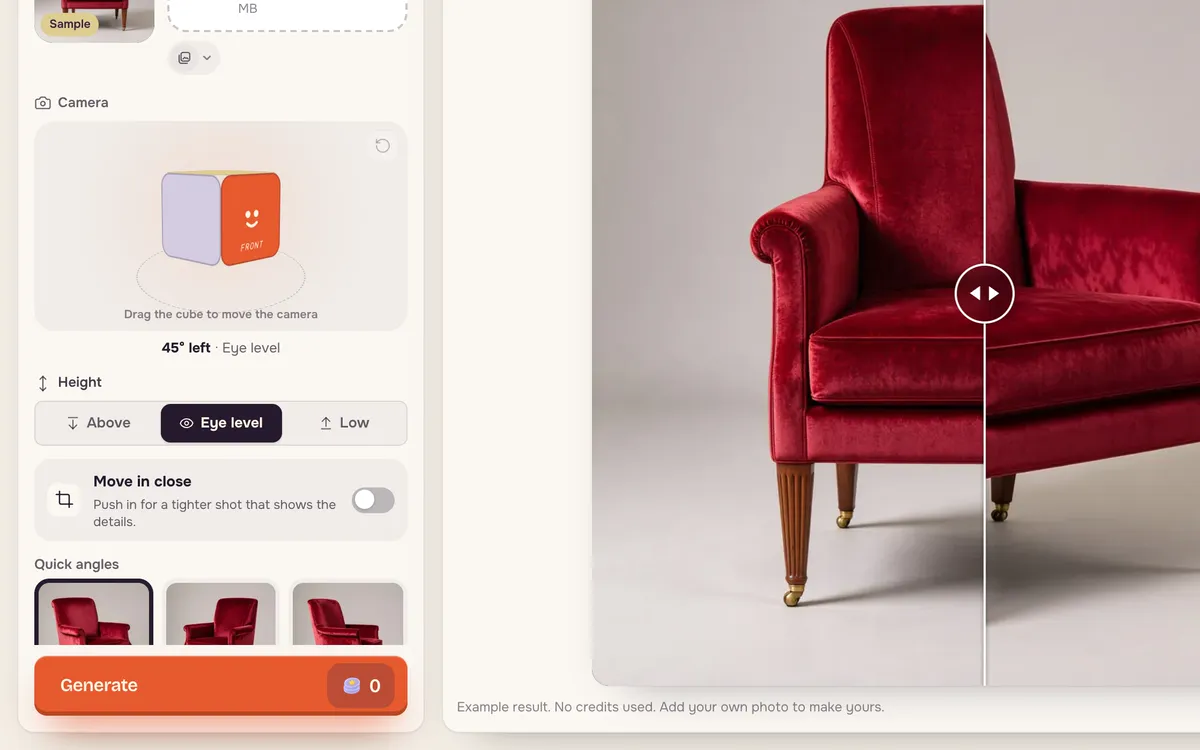
Step 2: Pick an angle
Drag the cube to move the camera, or press a quick angle: 45° left, 45° right, Side, Back, From above or Close-up. Set the height — Above, Eye level or Low — and turn on Move in close for a tighter shot.
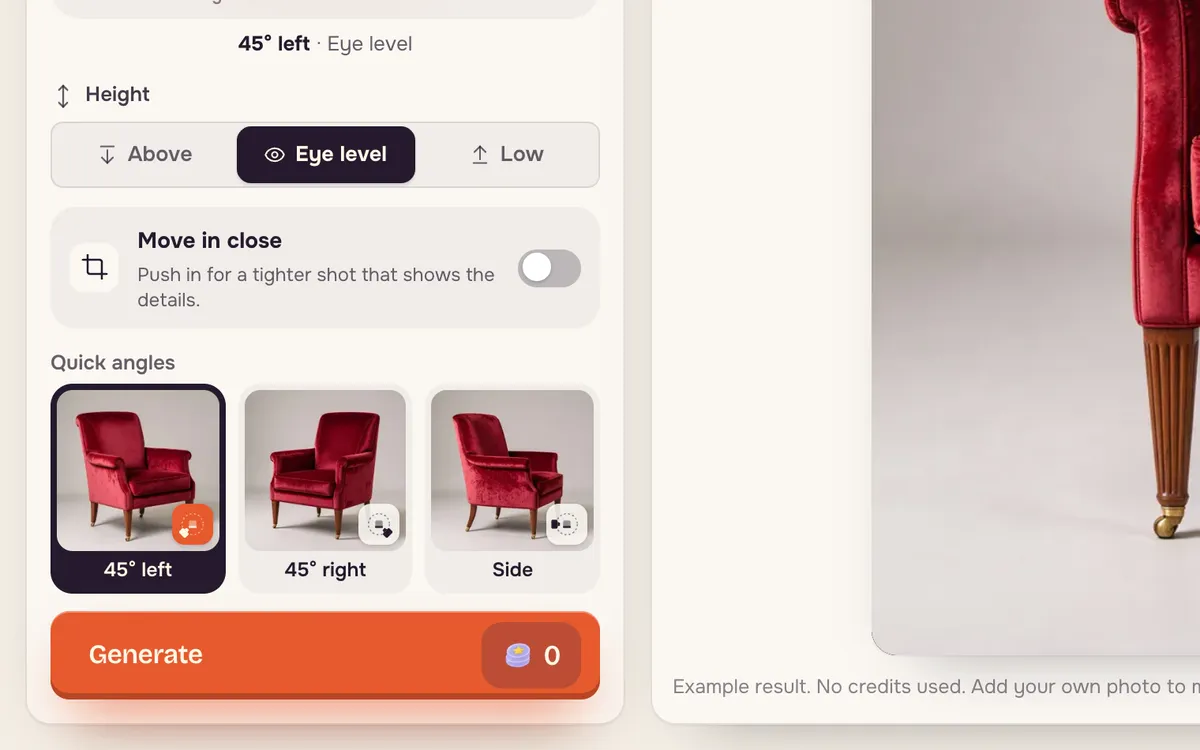
Step 3: Generate
Press Generate. The price is on the button; the built-in example costs nothing to view.
Nine shots at once
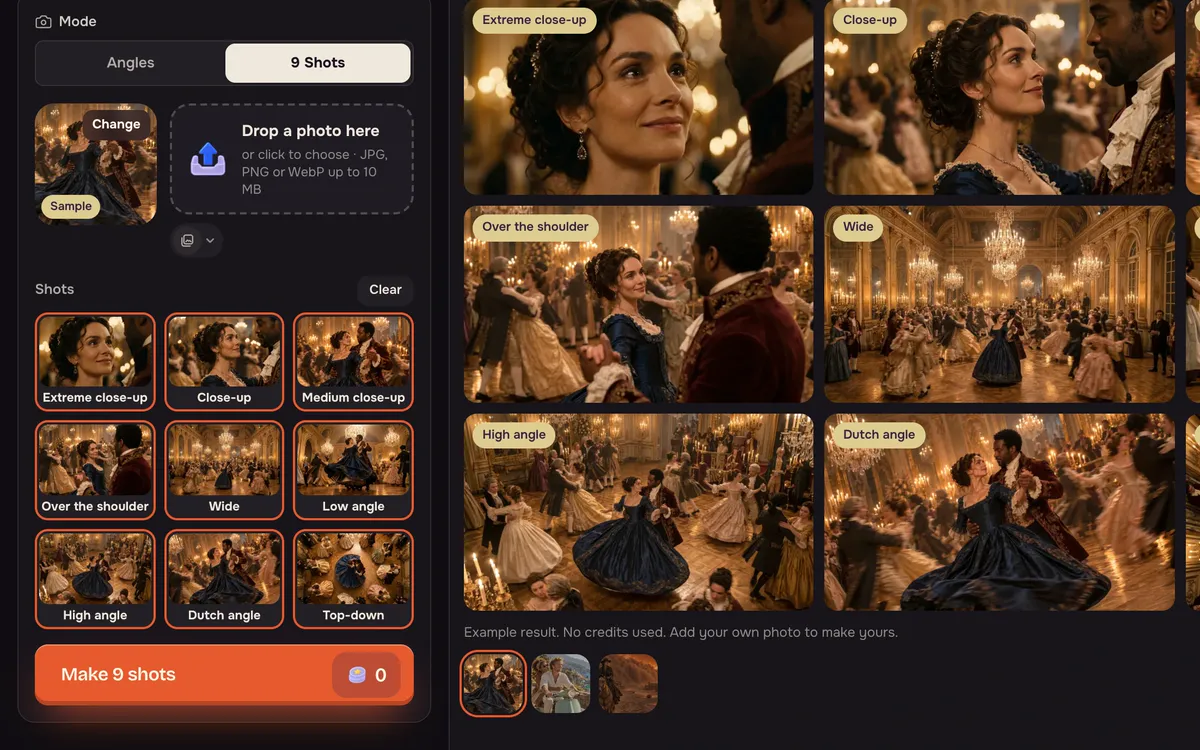
Switch the mode at the top to 9 Shots to get a full coverage set from one photo: extreme close-up, close-up, medium close-up, over the shoulder, wide, low angle, high angle, Dutch angle and top-down. It is a quick way to build a storyboard or give an editor options.
Tips for better results
- Start from a clear, uncropped subject so the model can see its full shape.
- Small turns look most natural. 45° keeps more of the original detail than a full side or back view.
- Hidden sides are imagined. For the back of a product, check the details before publishing.
FAQ
Does it keep my product's details?
It keeps the shape, materials and colors it can see. Sides that are hidden in the original are filled in by the model, so check logos and labels.
Can I get several angles at once?
Yes. Generate one angle at a time, or use the option to make several angles in one go when it is available for your photo.
Does it work for people?
Yes, for adults who agreed to be photographed. The example set includes a person from front, side and back.