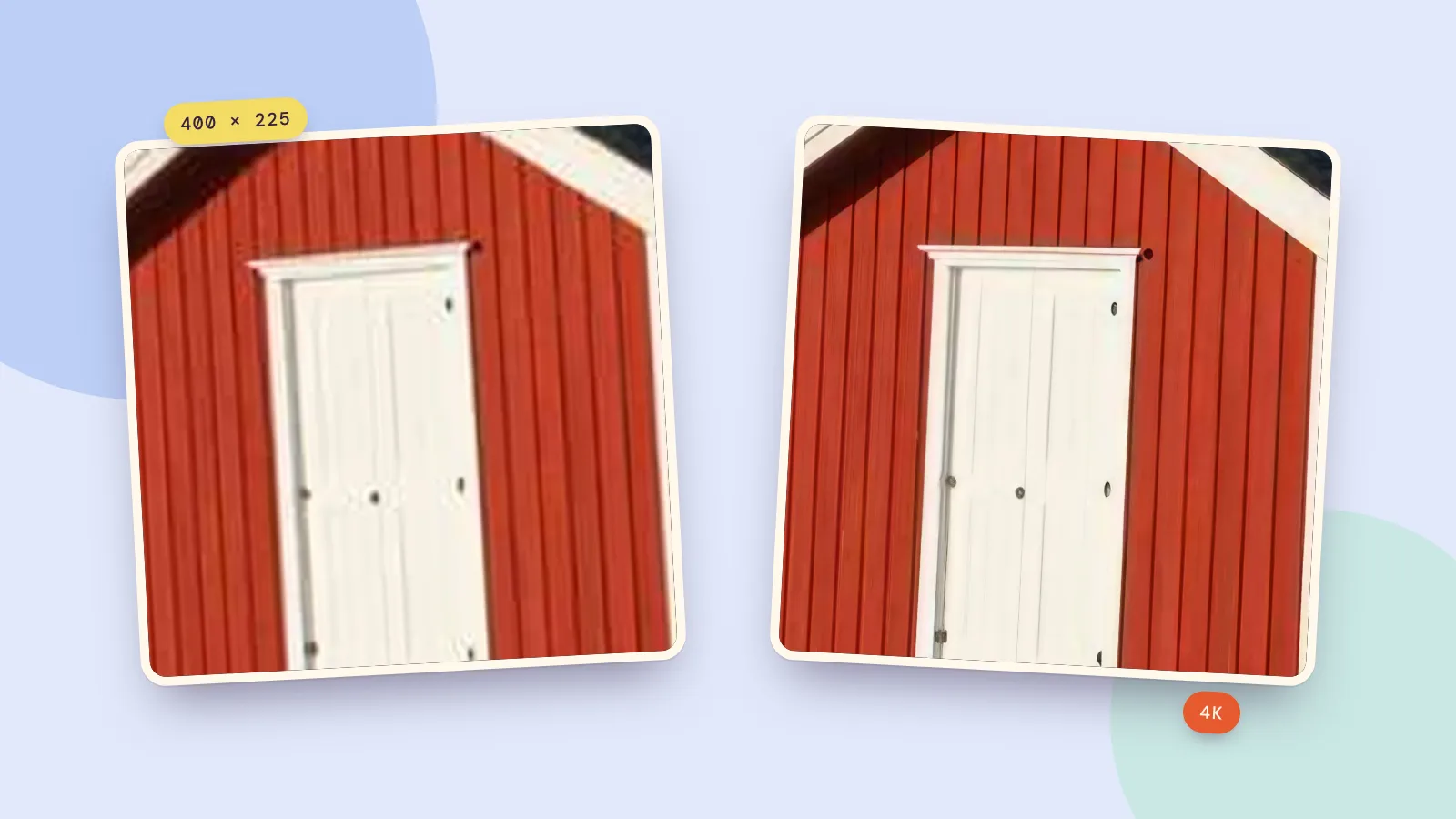
To make a low-resolution image high resolution, run it through an AI upscaler. Instead of just stretching the pixels, which turns edges soft and blocky, an upscaler enlarges the picture and redraws edges and textures so it stays sharp at the bigger size. PopNow's image upscaler does it two ways: Upscale only adds pixels for 12 credits, and Enhance + upscale first cleans blur and compression out of the photo with Nano Banana 2.1, then upscales it, for 72 credits more. What no tool can do is bring back detail the small file never had, and our tests below show exactly where that line is.
We made three typical low-resolution files on October 17, 2026, a cropped landscape, a compressed product photo and a tiny profile picture, and upscaled each one to 4K. On October 22 we ran the profile picture again with Enhance + upscale, because faces are where the two modes differ most.
What "making it high resolution" really does
Resolution is just the number of pixels. A 400 by 225 pixel image has about 90,000 of them; a 4K image has around 17 million. There are two ways to fill in the difference:
- Resizing (what image editors and phones do when you zoom in) calculates each new pixel as an average of its neighbors. Nothing new appears, so the result is smooth but blurry, and compression blocks get bigger too.
- AI upscaling has learned what edges, wood, skin and fabric look like up close, and draws plausible detail at the new size. That's why the result looks sharp. It's also why it can be wrong: the detail is a good guess, not a recovered original.
PopNow's upscaler has three output sizes, all at the same price: 2K (about 4 megapixels), 4K (about 17) and 8K (about 67). The shape of your picture never changes; only the pixel count goes up.
Upscale only or Enhance + upscale?
The two modes on the page answer different problems:
- Upscale only keeps the picture exactly as it is and adds pixels. It's the right choice when the image is small but clean: an AI draft, a crisp screenshot, a photo that was simply resized down.
- Enhance + upscale is the default. It first redraws the photo at 2K to remove blur, noise and JPEG blocks, while keeping every face the same person, and only then upscales. Use it for photos that look soft or smeared, not just small.
When Enhance is on, you also tell it what's in the picture (Photo, Portrait, Anime & art, Text & screenshot or Old photo). That only changes the instructions for the clean-up step, so faces, line art and lettering are each treated the way they should be.
Three tests, before and after
Each pair below shows the same crop. On the left, the small file simply enlarged; on the right, the upscaled 4K version.
1. A detail cropped from a wider photo. We cut a 560 by 315 piece out of a landscape and saved it at 400 by 225, the way a screenshot of a zoomed-in photo ends up.
 Before · 400 × 225
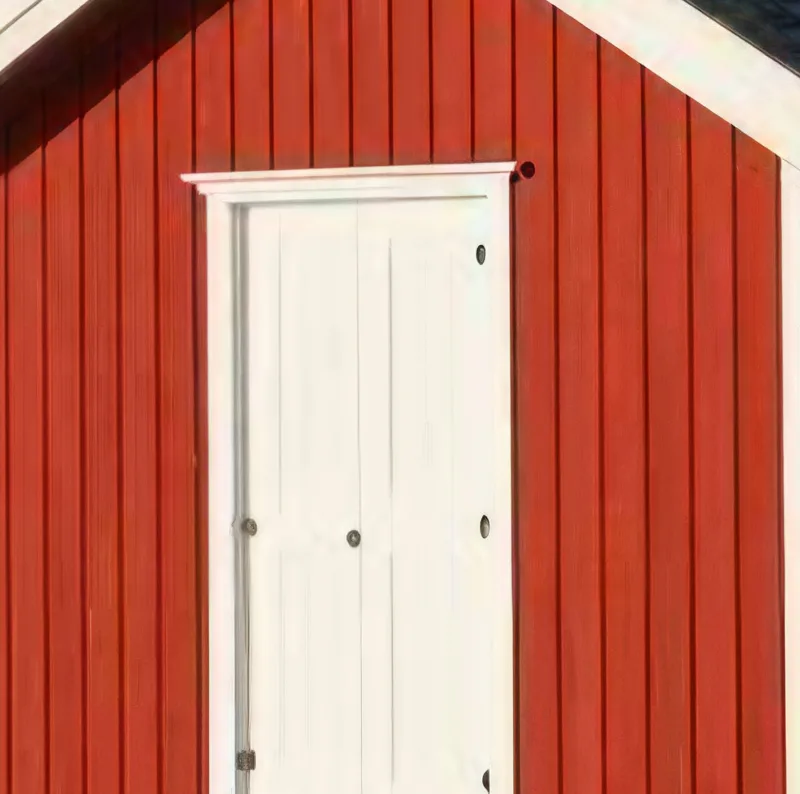 Upscale only · 4K
2. A product photo saved with heavy compression. A 360 by 360 JPEG at low quality, like an image copied out of a chat app.
 Before · 360 × 360
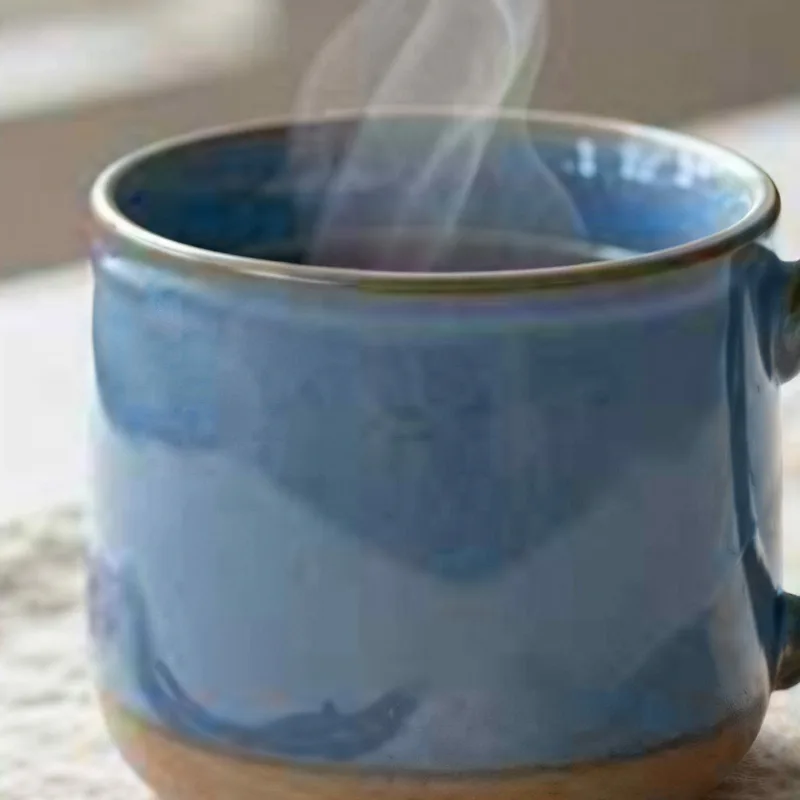 Upscale only · 4K
3. A tiny profile picture. A head-and-shoulders portrait at 240 by 240 pixels, the size many apps store avatars at. This one we ran both ways.
 Before · 240 × 240
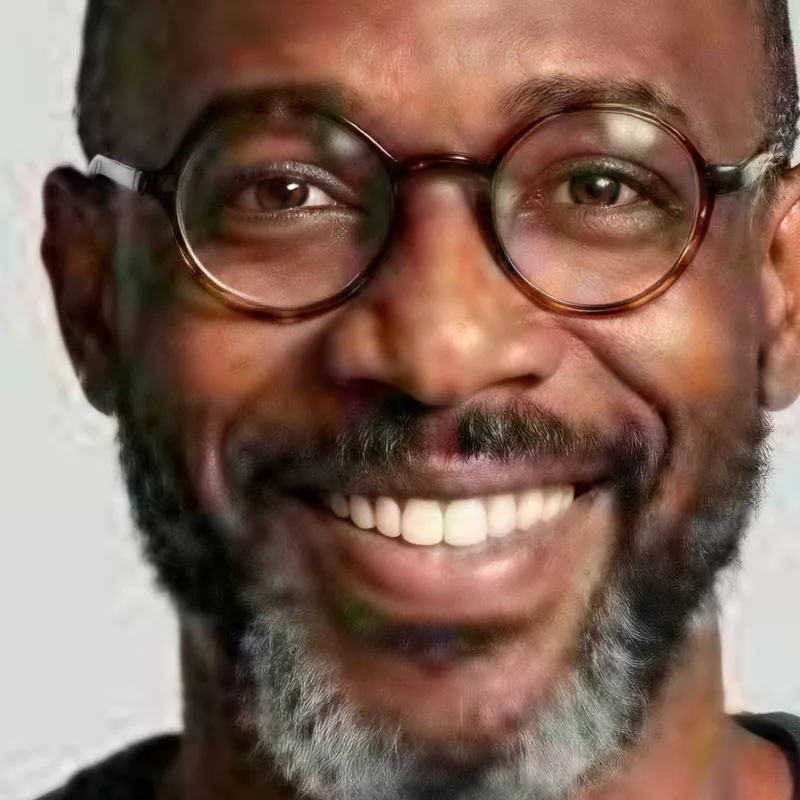 Upscale only · 4K
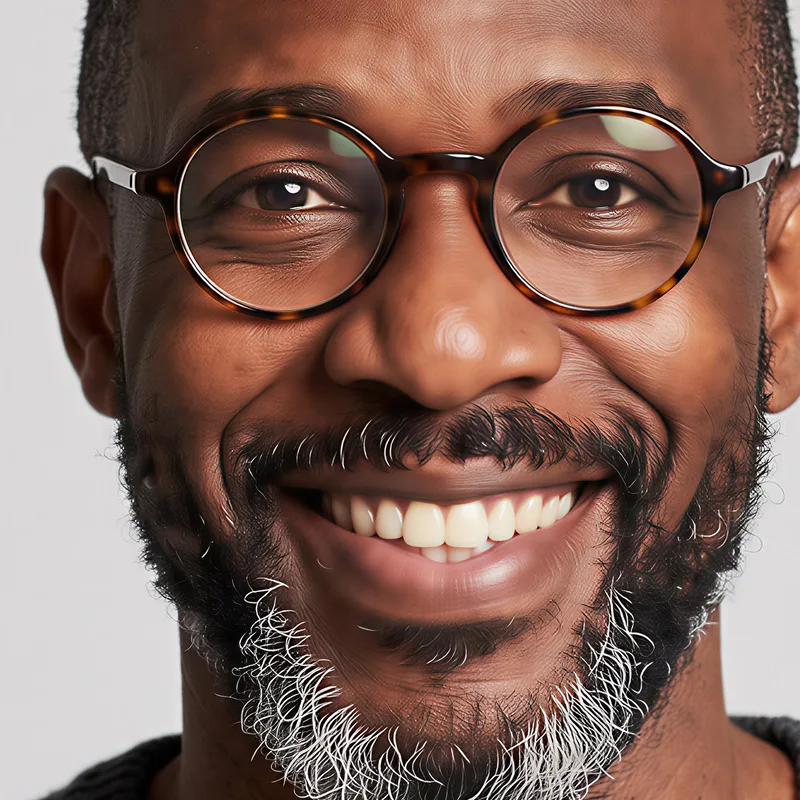 Enhance + upscale · 4K
What we take from this:
- Edges and textures improve the most. Wood, brick, text, product outlines and fabric come back crisp.
- Lost detail stays lost. If compression wiped out a pattern, the upscaler smooths that area instead of guessing the pattern back.
- Faces need the Enhance step. A 240-pixel face has eyes and teeth only a few pixels wide. Upscale only has to guess them at the final size; the Enhance pass rebuilds the face first, with instructions to keep the same person, and the result holds up much better.
How to make a low-resolution image high resolution
- Find the largest copy you have. The original file from the camera or phone beats a screenshot, which beats an image saved from a chat. Every copy loses a little.
- Open the image upscaler and drop the image in. You can add up to 10 at once; each one is charged on its own.
- Choose how. Leave Enhance + upscale on for soft, noisy or compressed photos and pick what's in the picture. Switch to Upscale only when the image is already clean and you just need more pixels.
- Pick the output size. 4K is right for most prints and screens. Choose 8K for big posters or heavy cropping later; it costs the same.
- Pick the file type. JPEG for photos you'll share, PNG if you'll keep editing, WEBP for the web.
- Press Generate and compare. The price is on the button before you start, and a run usually takes about 45 seconds. Zoom in on faces and text before you download.
Tips for better results
- Crop after, not before. Upscale the whole picture, then crop. The model uses the surroundings to understand what it's looking at.
- Don't upscale twice. A second pass works from the first pass's guesses, not from your photo. Start from the original and pick a bigger size instead.
- For old, scratched or faded photos, restore first. An upscaler sharpens damage along with everything else. The old photo restorer repairs scratches and color before you enlarge.
- Removing something too? Do it on the upscaled version; the AI eraser has more surrounding detail to copy from.
FAQ
How do I enhance the resolution of an image?
Upload it to an AI upscaler and pick a bigger size. On PopNow, Enhance + upscale also removes blur and compression before enlarging, which is what makes a soft photo look truly sharp. Upscale only costs 12 credits per image, there's no subscription, and if a run fails the credits go back.
Can you make existing photos high resolution?
Yes, any photo you already have: upload it and choose 2K, 4K or 8K. The result is a new, larger file; your original stays untouched.
How do I make a low quality image high quality?
Use Enhance + upscale: it fixes blur, noise and blocky compression before adding pixels. It won't fix bad lighting, heavy motion blur from a shaky hand or a face that was badly out of focus; for those, an AI photo editor that redraws the image works better than an upscaler.
Does 8K cost more than 4K?
No. All three sizes cost the same. If your photo is already larger than the size you pick, it comes back smaller, so choose a size above your original.
Is AI upscaling the same as the original in higher resolution?
No. It's a sharp, believable version of the picture, with fine detail drawn by the model. For prints and screens that's usually what you want. For evidence, ID photos or anything where every detail must be real, keep the original.