


by PopNowVideo
Video Eraser
Erase a fixed region across your clip
From 24 credits per second of video≈ $0.024
What is Video Eraser?
Video Eraser is PopNow's video clean-up tool for a fixed screen region. It requires a source clip and an aligned static PNG mask, with white marking removal and black marking retention across the entire video.
Best on PopNow for: Removing an unwanted element that stays in one screen area, when a single mask can describe the intended region throughout the shot.
Good for
- Removing an unwanted element that stays in one screen area
- Clearing a fixed region throughout a shot
- Video clean-up directed by a prepared black-and-white mask
What Video Eraser does well
Think in screen coordinates
The mask stays in the same place from the first frame to the last. Review the clip before drawing it and decide whether the unwanted element remains inside that area. A static mask does not become an object tracker because the object starts beneath the white region.
Make the mask describe a boundary
Use a PNG aligned with the video frame. Paint the intended removal area white and the rest black. Check frame alignment before submitting, since a mask with the right shape in the wrong position asks the tool to edit a different part of the image.
Describe what should make sense around the repair
The optional prompt can name the unwanted area and surrounding context. It does not replace the mask. A useful note explains what the region belongs to, such as a floor or wall, so your review can focus on whether the repaired area fits its neighbors over time.
Real results from Video Eraser
Every image and clip here was generated with Video Eraser. Hit Recreate to open it in the studio with the same prompt and settings.
Bring your own clip
Prompts that worked on Video Eraser
Real outputs with the exact prompt we used, and why it worked. Hit Recreate to try the same settings.
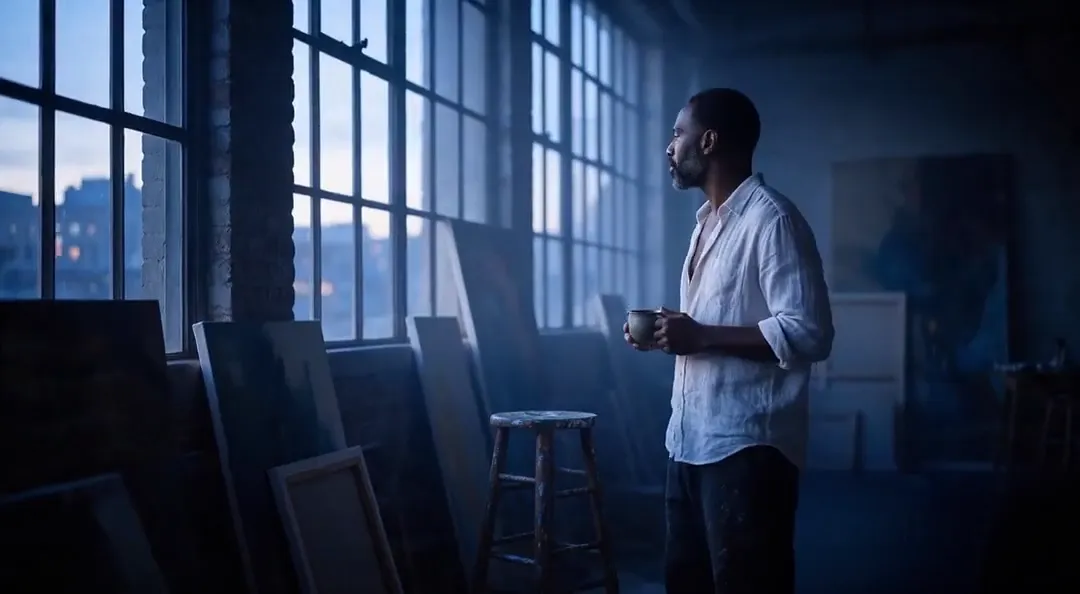
Remove the SAMPLE watermark box and restore the dark wooden floor behind it.
The real example supplies a loft clip and a static PNG mask with matching frame dimensions. Its prompt asks to remove a SAMPLE box and restore the dark wooden floor behind it. The wording identifies both the target and the surrounding material, while the mask identifies the actual screen region. To adapt this example, first check whether your own target remains in a fixed area as the shot plays. The useful pattern is an aligned mask plus a concise context note. Review the floor's visual continuity and the entire duration rather than assuming a clean opening frame proves the repair holds throughout.
RecreateWhat Video Eraser can do
Each mode opens in the studio with Video Eraser already picked. The price shows before you generate.

Best ways to use Video Eraser on PopNow
Where this model already does the work for you, from one-tap apps to the full studio.
Clean a planned shot
Use the video workspace with a trimmed source and its prepared mask. Keep the unedited clip available so you can compare the masked region and nearby retained details at several moments.
OpenPrepare the surrounding visual context
Review the original composition before writing the optional note. A clear account of the surface behind the unwanted element is more useful than adding unrelated scene changes to the clean-up request.
OpenHow to prompt Video Eraser
- Prepare a static PNG mask aligned to the video frame. Paint the removal region white and everything to retain black.
- Check that the fixed mask covers the intended area across the whole clip. It does not move with an object, so review the shot before submitting it.
- Add an optional short prompt describing the area or objects to remove and the surrounding scene. Trim the source to the section you need.
Settings worth knowing
Everything else has a sensible default, so you can type a prompt and go.
video_url- The clip to work on.
mask_url- Paint over the area that should change.
How it compares
Same kind of job, different strengths and prices.
Object Eraser cleans up a single photo using a prompt, a mask or both. Video Eraser requires a static mask and applies it throughout the video.
Where Video Eraser falls short
- The static mask applies throughout the complete clip and does not follow an object.
- Source duration must be one to six hundred seconds. Trim to the relevant shot before preparing the mask.
- Both video and mask are required; the optional text description cannot stand in for a PNG mask.
How to use Video Eraser in three steps
- Review the shot and confirm that a fixed region can cover the intended removal area.
- Prepare an aligned black-and-white PNG mask and optionally describe the target and its surroundings.
- Generate and inspect the repaired region throughout the clip, checking nearby detail and continuity.
Questions about Video Eraser
How much does Video Eraser cost?
On PopNow, the cheapest run of Video Eraser costs 24 credits ($0.024) per second of video. You pay with credits (1 credit = $0.001), the exact cost shows on the Generate button before you start, and failed generations are refunded automatically.
What can I make with Video Eraser?
Clean-up of a fixed screen region throughout a video.
What do I supply?
A video and an aligned static PNG mask.
Which control should I try first?
Mark removal white and retention black in the mask.
What limit should I plan around?
The mask does not track motion; clips may last one to six hundred seconds.
How should I check the result?
Watch the repaired region over the whole clip for visual continuity.
Video Eraser or Object Eraser?
Object Eraser cleans up a single photo using a prompt, a mask or both. Video Eraser requires a static mask and applies it throughout the video.
Make something with Video Eraser
Let the mask answer where, and let the short context note explain what should belong there.