


by PopNowVideo
Video Background Remover
A transparent video master for your next composition
From 60 credits per second of video≈ $0.06
What is Video Background Remover?
Video Background Remover is PopNow's moving-image cut-out tool. It processes a complete clip of one to sixty seconds, returning a subject over transparency or one of ten solid colors, with optional retention of source audio.
Best on PopNow for: Preparing a moving subject for another composition, or making a clean solid-color version of a short clip.
Good for
- Video cut-outs to place over another scene
- Moving subjects on a chosen solid color
- Transparent video assets for a later composition
What Video Background Remover does well
Choose transparency and format together
A transparent background needs a format capable of carrying alpha. The catalog recommends WebM VP9. Selecting the word transparent without a suitable output format is not enough, so make those choices as a pair before sending the clip.
Use a solid background when that is the deliverable
White, green and the other available colors create a different kind of asset from a transparent master. Decide what the next editor or layout needs. A green background is a visible color in the file, not proof that the subject already has an alpha channel.
Review edges over time
A moving cut-out needs more than one good-looking still. Watch hands, clothing edges and gaps around the subject throughout the action. The useful review follows the movement and checks whether the boundary remains suitable for the background you intend to place behind it.
Real results from Video Background Remover
Every image and clip here was generated with Video Background Remover. Hit Recreate to open it in the studio with the same prompt and settings.
No prompt, just the settings
Bring your own clip
No prompt, just the settings
Bring your own clip
Prompts that worked on Video Background Remover
Real outputs with the exact prompt we used, and why it worked. Hit Recreate to try the same settings.

The suit-dance example records a white background and H.264 MP4 output. It demonstrates a solid-background result, not a transparent master. The example metadata reports no audio in that returned file, so do not use it as evidence that every processed clip necessarily includes a soundtrack.
Recreate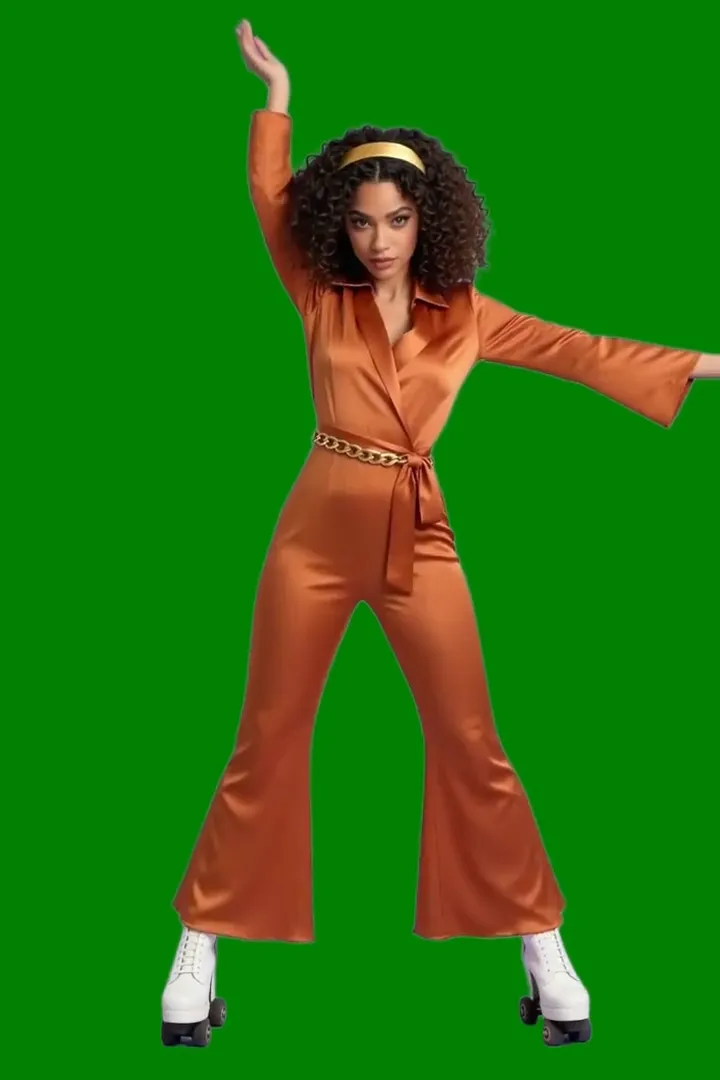
The roller-disco example chooses green with H.264 MP4 and records audio in the result. Compare it as a moving subject on a solid color. Its settings are useful for understanding background selection, while alpha-capable output is a separate decision for a later transparent asset.
RecreateWhat Video Background Remover can do
Each mode opens in the studio with Video Background Remover already picked. The price shows before you generate.

Best ways to use Video Background Remover on PopNow
Where this model already does the work for you, from one-tap apps to the full studio.
Prepare a composition asset
Use the video workspace to process only the part of the clip you plan to place elsewhere. Decide on alpha or a solid background according to the destination, then inspect the complete returned motion.
OpenPlan the replacement scene
Create or select an image for the scene behind your subject. Consider contrast around the cut-out's outline so you can evaluate the actual combination, rather than approving the isolated asset only against its preview background.
OpenHow to prompt Video Background Remover
- For transparent video, choose an alpha-capable format. The catalog recommends WebM VP9; a transparent background setting alone is not enough.
- Keep original audio enabled if you need the source sound. GIF carries no audio, even when that option is on.
- Use a clip between 1 and 60 seconds. Background removal processes the complete clip, so trim to the section you need before uploading.
Settings worth knowing
Everything else has a sensible default, so you can type a prompt and go.
video_url- The clip to work on.
backgroundtransparent · black · white · gray +7- Keep, remove or replace the background.
output_formatwebm_vp9 · mp4_h264 · mp4_h265 · mov_h265 +5- File type of the result.
How it compares
Same kind of job, different strengths and prices.
Background Remover handles a single photo and returns a transparent PNG. Choose Video Background Remover when the source is a moving clip rather than a still image.
Where Video Background Remover falls short
- Input duration must be between one and sixty seconds; the complete uploaded clip is processed.
- GIF cannot contain audio, even when keeping original audio is enabled.
- Transparency requires an alpha-capable format. The solid-color MP4 examples do not demonstrate transparent export.
How to use Video Background Remover in three steps
- Trim the source to the useful action and upload a clip within the supported duration.
- Choose transparency with a suitable format, or select the solid background color you need; decide whether to keep source audio.
- Generate, watch all moving edges and check the exported asset in the composition workflow where you will use it.
Questions about Video Background Remover
How much does Video Background Remover cost?
On PopNow, the cheapest run of Video Background Remover costs 60 credits ($0.06) per second of video. You pay with credits (1 credit = $0.001), the exact cost shows on the Generate button before you start, and failed generations are refunded automatically.
What can I make with Video Background Remover?
Moving cut-outs over transparency or a solid background.
What do I supply?
A video lasting one to sixty seconds.
Which control should I try first?
Choose the background and output format together.
What limit should I plan around?
Transparent output requires an alpha-capable format; GIF has no audio.
How should I check the result?
Watch edges throughout the motion and verify the exported background and sound.
Video Background Remover or Background Remover?
Background Remover handles a single photo and returns a transparent PNG. Choose Video Background Remover when the source is a moving clip rather than a still image.
Make something with Video Background Remover
Choose the asset your next composition actually needs, then inspect it through the full movement.