


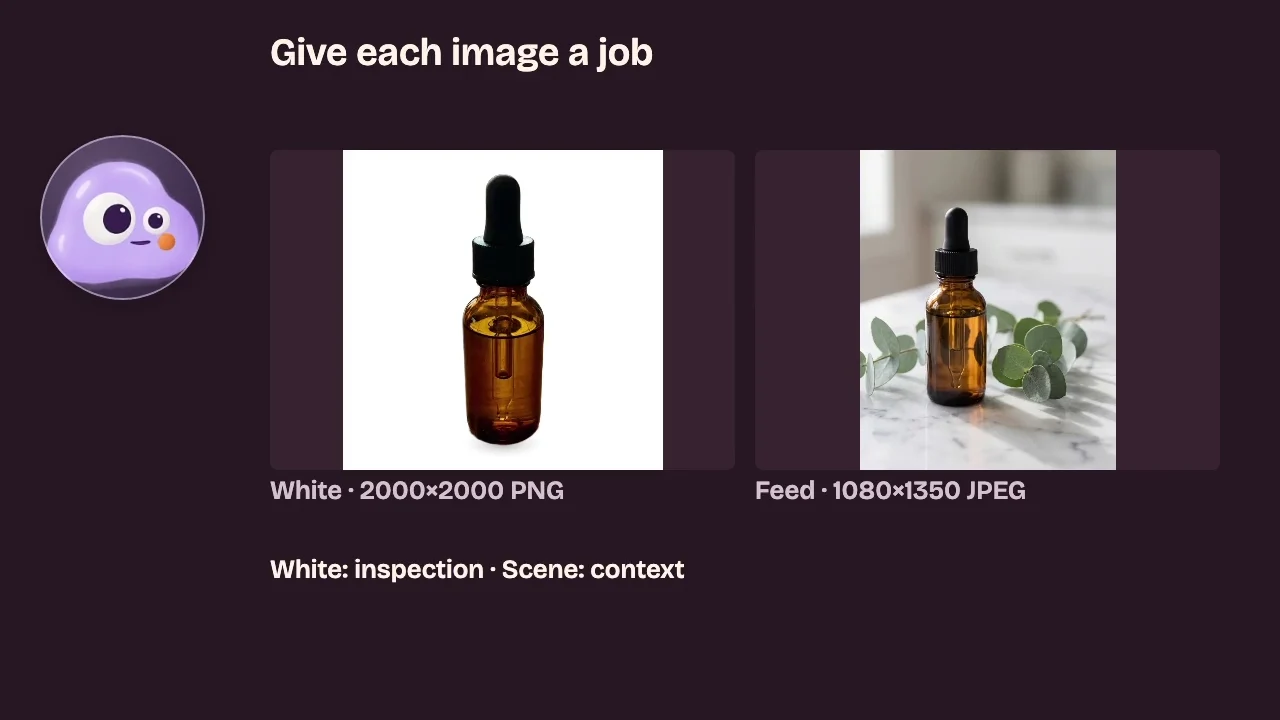
Practice with a prepared product example. Compare white and scene exports, check product details, and choose a useful crop before spending on a new generation.
A convincing setting is only useful if the item still looks like your product. This exercise uses the prepared serum example in Product Photo. You will download a white version and two scene crops, then check whether each composition is usable. Loading the example and exporting its existing results does not generate a new scene or spend generation credits.
Step 1: Load the prepared example
Open Product Photo, find the serum example and choose Try this one. This loads its original, an existing cutout and four previously made scene results. The exercise uses those prepared assets; the video does not claim to generate them live.
For your own product, creating new scene images uses credits. Read the current total on the generation button before starting. Export is a separate action.
Step 2: Keep the three image roles separate
- Original: your reference for what the actual item looks like.
- Cutout: an isolated product used for the white composition.
- Generated scene: a new image with a setting, which can change details.
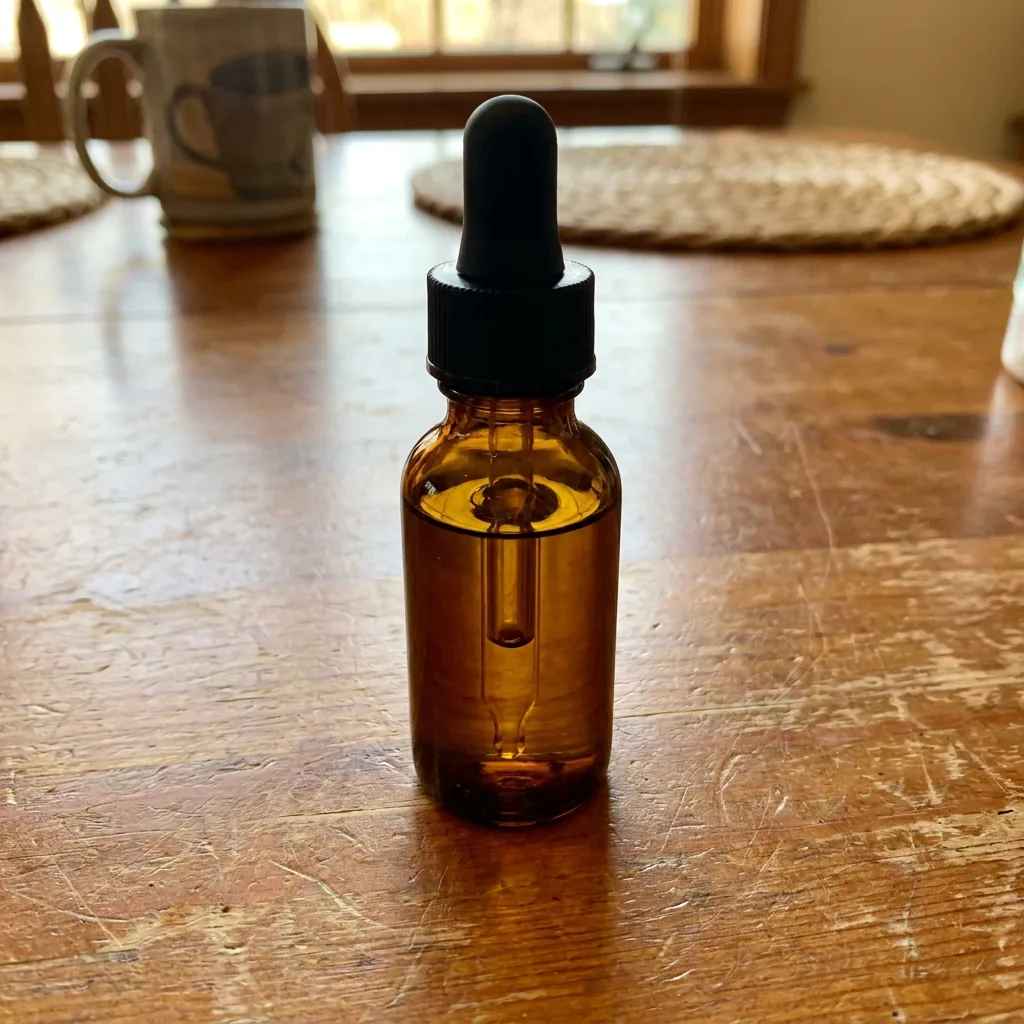
Compare the cap, proportions, color and material before choosing a result. If your own product has lettering, check it character by character. Good lighting does not prove that a generated label or texture is accurate.
Step 3: Export a white version
In Export, select Pure white and 2000×2000. This places the existing cutout on a white canvas in your browser. It does not remove the marble setting from the selected scene result.
Shadow adds a soft grounding shadow below the cutout. Choose on or off for the presentation you need, then download the PNG. In this tested example, the PNG has an opaque white background. A PNG file is not automatically transparent. Resizing and compositing also mean this export is not a promise to preserve every source pixel.
Step 4: Select a scene and inspect the product
Select Marble, then choose This scene in Export. This path exports the selected scene image, including its setting.
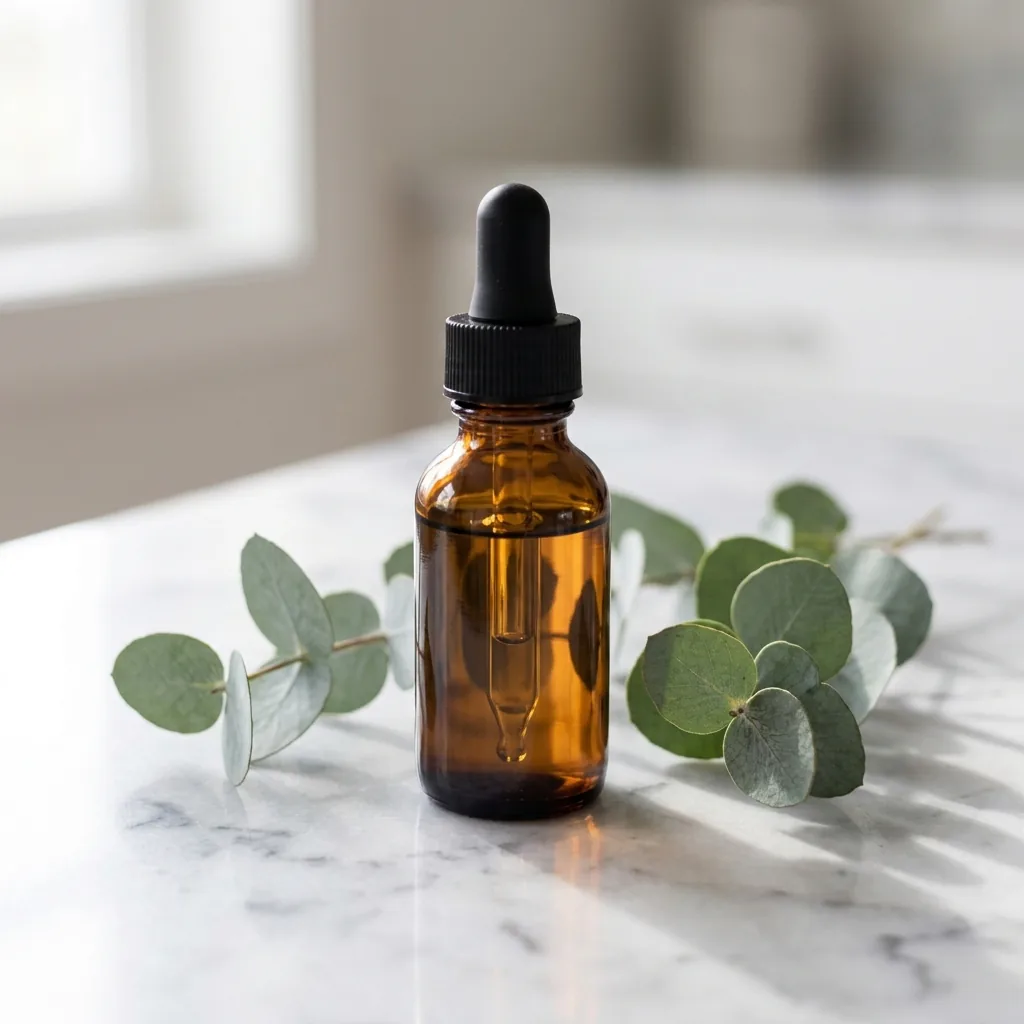
A visually convincing result can still be wrong for the item. If a cap, proportion or important printed detail changes, choose another result or resolve the problem before publishing. Cropping a defect out of view does not make the result accurate. Product Retouch is a separate tool to explore for a specific defect; it is not demonstrated or guaranteed to restore identity in this lesson.
Step 5: Compare the downloaded crops
Export This scene at 1080×1350, then 1080×1920. Open both actual downloaded JPEGs. The selected scene is cropped to fill each ratio, so these are different frames, rather than the same picture with a different pixel count.
| Export choice | Tested file | What to check |
|---|---|---|
| Pure white, 2000×2000 | Opaque white PNG | Product edges and whether the grounding shadow fits |
| This scene, 1080×1350 | Feed-shaped JPEG | Cap, base, breathing room and useful setting |
| This scene, 1080×1920 | Taller JPEG | The same checks in the narrower frame |
View the downloaded file at its intended display size, then inspect important edges and lettering more closely. More output pixels do not recover missing source detail or prove that generated texture is correct.
Step 6: Preserve a useful master
Keep the original, cutout and selected scene master alongside your delivery exports. In the tested English example, the scene filenames include the scene name and dimensions, such as popnow-product-marble-1080x1350.jpg.
For another layout, return to the selected scene and export a fresh crop. Re-cropping a narrow delivery JPEG discards more of an already cropped frame.
Your practice task is to download one white version and one scene version, then write a sentence explaining where you would use each. Keep the result only when you can justify both decisions: this is still the product, and this frame fits the job.
Częste pytania
Is the prepared example a new generation?
No. Try this one loads existing example assets. You can practice selecting and exporting them without creating a new scene. Generating new scenes for your own product is a separate action with a live credit quote.
Does Pure white use the selected scene?
No. It composites the existing cutout on a white canvas. This scene exports the selected scene image instead.
Does a 2000×2000 export restore detail?
No. Output dimensions describe the file size in pixels. Inspect product details against an original photograph, especially when they matter to the sale.