What does Cartoonify do?
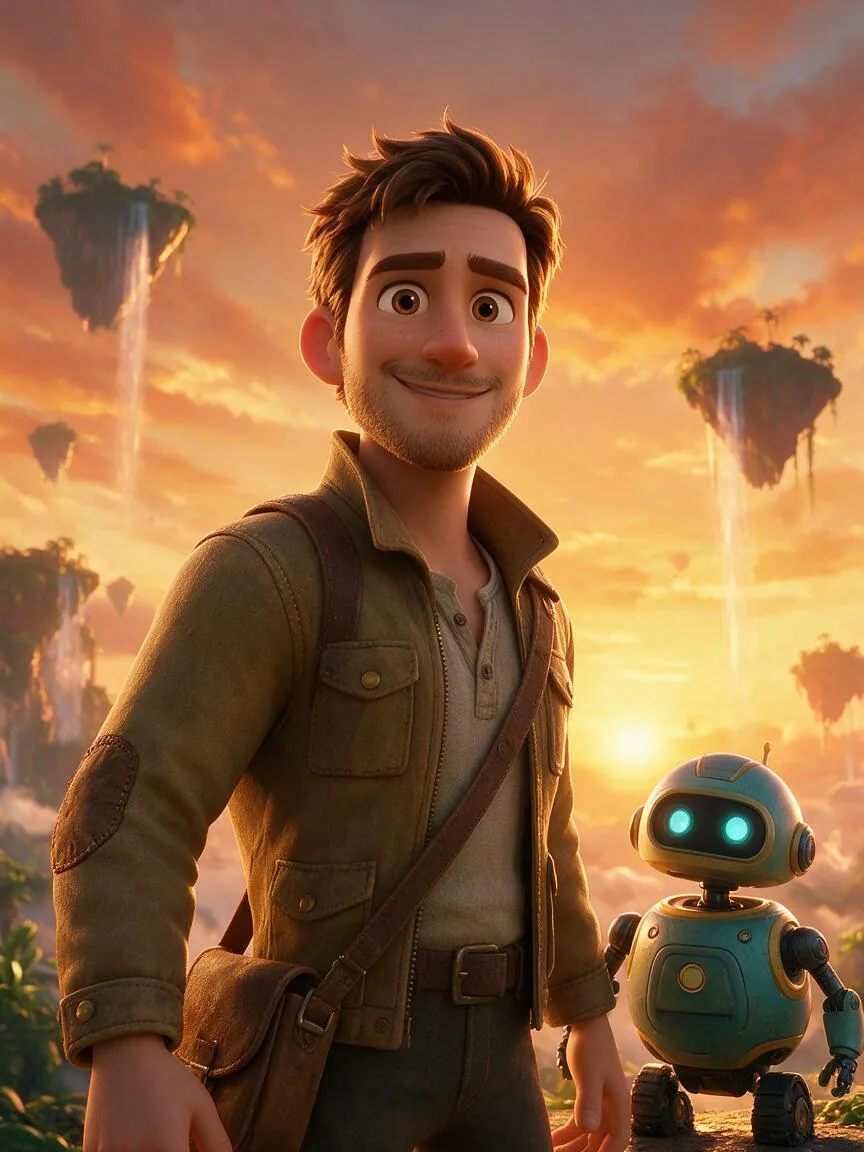
Cartoonify turns one selfie into a finished cartoon scene starring you. Instead of filtering your photo, it draws a whole new picture: a new outfit, new props, a new place and an art style that belongs to the scene, from a 3D animated movie poster to a clay stop-motion set.
You only choose the scene. The art style, the costume and the framing come with it, so the result looks like a page from a film, a comic or a storybook rather than an edited photo. One picture takes 6 credits.
How to cartoonify an image
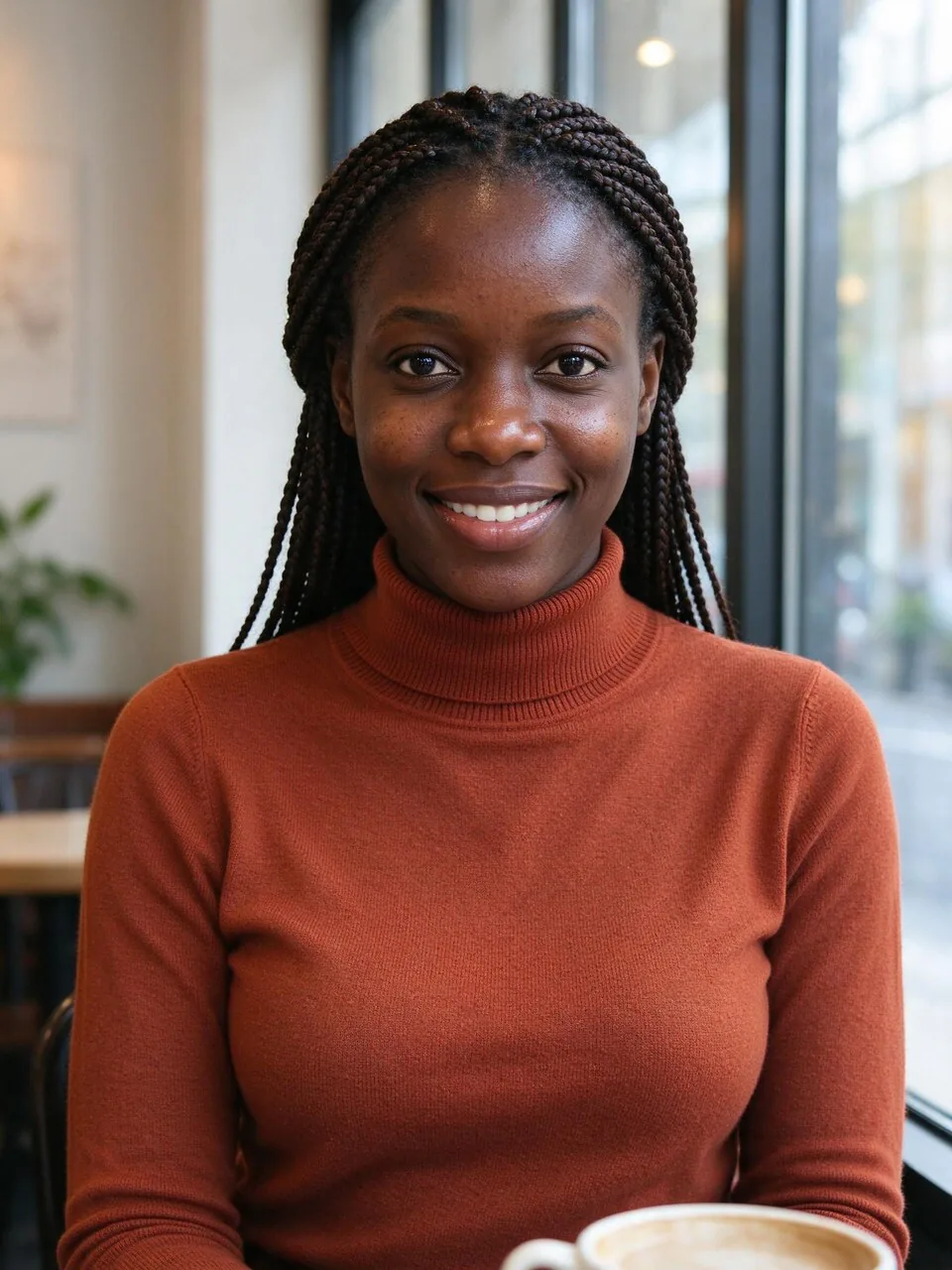
- Upload one selfieA clear photo of one person works best. Head and shoulders is enough: the rest of the body and the outfit are drawn for the scene.
- Pick a sceneChoose one of 12 scenes. Each thumbnail is a real result from this tool, so you see the art style before you spend anything.
- Choose a shape and how manyEach scene starts with the shape it looks best in. Make 2 or 4 versions at once to pick your favorite pose.
- Download or keep goingDownload the picture, save it to your library, or send it to Image to Video to make it move.
Why your result is always a cartoon
Cartoonify makes your cartoon double, never a realistic photo. Every scene is locked to an illustrated style, such as 3D animation, comic ink, clay, storybook paint, flat cartoon or pixel art, and there is no photorealistic setting to switch on.
The tool keeps only what makes you recognizable as a cartoon: hairstyle and hair color, skin tone, eye color, glasses, facial hair and your adult age. Everything else, from the outfit to the setting, is drawn new. There is no second photo to copy you into, so nobody ends up inside someone else's picture.
That keeps the result fun to share and clearly made by AI. Use your own photo, or a photo of someone who agreed.
Cartoonify, Photo to Anime, Caricature or Styles?
- Cartoonify: you star in a ready-made scene. New costume, new place, new art style, chosen by tapping a scene.
- Photo to Anime (/anime): keeps your photo's own framing and redraws it in anime styles.
- AI Caricature: a big-head caricature built around your job and hobbies.
- Styles: 100+ looks such as film, painting and pixel for any picture, people or not.
Which photos work best
- One person, face clearly visible and well lit.
- Glasses, beards, braids and hats are kept and drawn in the scene's style.
- Side views work: the cartoon faces the viewer.
- Group photos: the tool may pick the wrong person.
- Faces hidden by sunglasses, masks or hands.
How many credits it takes
- One picture with the default model: 6 credits.
- One picture with the more detailed model: 8 credits.
- Four versions at once: 24 credits.
- The button always shows the exact total. If a run fails, the credits come back automatically.
Cartoonify FAQ
How do I cartoonify an image for free?+
Open the page and look through the examples: they are free to view, and Try this fills the tool with the same settings. Making your own picture costs 6 credits, shown on the button before you start.
Will the cartoon still look like me?+
Yes, as a cartoon. The tool keeps your hairstyle, hair color, skin tone, eye color, glasses and facial hair, then draws you in the scene's art style with the scene's outfit.
Can I get a realistic photo instead of a cartoon?+
No. Cartoonify only makes illustrated results (3D animation, comic, clay, paint, flat cartoon or pixel art). It is built to make your cartoon double, not a realistic picture of a person.
Can I use a photo of someone else?+
Only with their permission. Use your own photo, or a photo of a friend who said yes. Do not use the results to pretend to be someone or to mislead people.
Are the scenes from real movies or comics?+
No. All 12 scenes are original to PopNow. They do not copy any film, character or brand, and the pictures have no titles or logos.
What is the difference from Photo to Anime?+
Photo to Anime keeps your photo's framing and redraws it in anime styles. Cartoonify throws the old background away and puts you into a new scene with its own costume and props.
Can I make the cartoon move?+
Yes. Under the result, use Send to and pick Image to Video to animate the picture.
What happens if a run fails?+
The credits come back automatically, and you can try again with the same settings.



 Example